What is 1.1.1.1?

1.1.1.1 is a public DNS resolver that makes DNS queries faster and more secure.

What is 1.1.1.1?

1.1.1.1 is a public DNS resolver operated by Cloudflare that offers a fast and private way to browse the Internet. Unlike most DNS resolvers, 1.1.1.1 does not sell user data to advertisers. In addition, 1.1.1.1 has been measured to be the fastest DNS resolver available.

What is DNS?

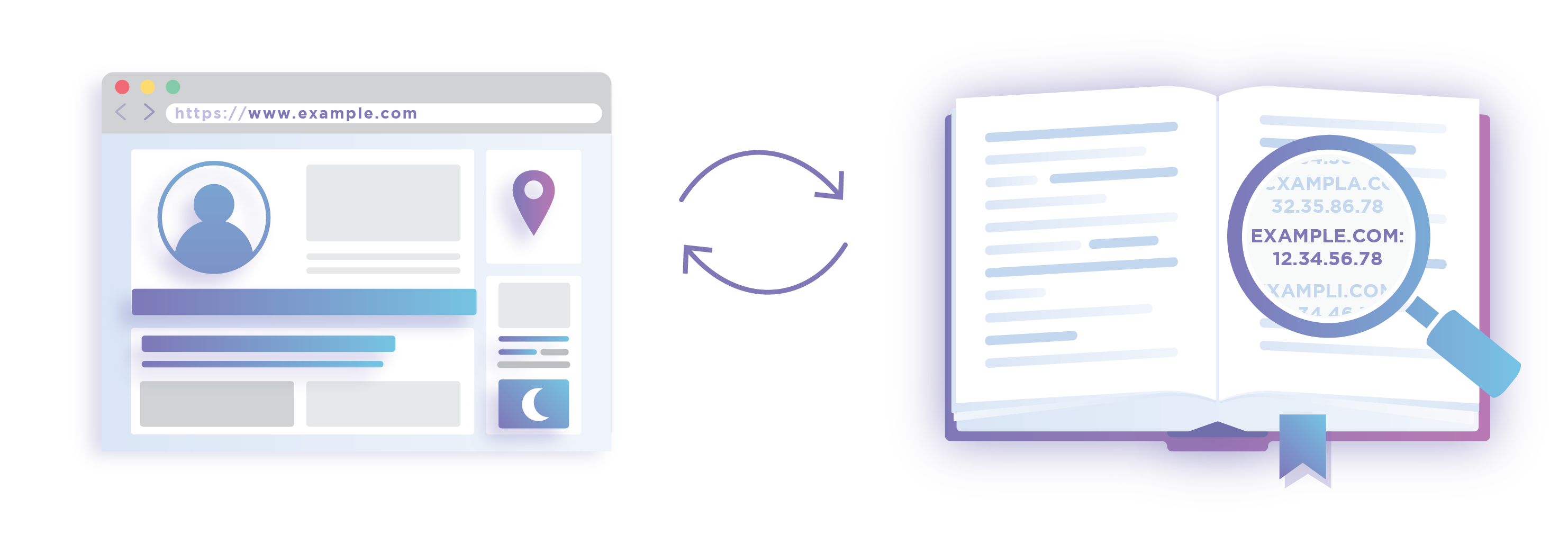
The Domain Name System (DNS) is the phonebook of the Internet. While humans access information online through domain names like example.com, computers do so using Internet Protocol (IP) addresses—unique strings of alphanumeric characters that are assigned to every Internet property. DNS translates domain names to IP addresses so users can access a website easily without having to know the site’s IP address.
DNS

What is a DNS resolver?

A DNS resolver is a type of server that manages the “name to address” translation, in which an IP address is matched to domain name and sent back to the computer that requested it. DNS resolvers are also known as recursive resolvers.

Computers are configured to talk to specific DNS resolvers, identified by IP address. Usually, the configuration is managed by the user’s Internet Service Provider (ISP) on home or wireless connections, and by a network administrator on office connections. Users can also manually change which DNS resolver their computers talk to.

Why use 1.1.1.1 instead of an ISP’s resolver?

The main reasons to switch to a third-party DNS resolver are to improve security and gain faster performance.

On the security side, ISPs do not always use strong encryption on their DNS or support the DNSSEC security protocol, making their DNS queries vulnerable to data breaches and exposing users to threats like on-path attacks. In addition, ISPs often use DNS records to track their users’ activity and behavior.

On the performance side, ISP’s DNS resolvers can be slow, and may become overloaded by heavy usage. If there is enough traffic on the network, an ISP’s resolver could stop answering requests altogether. In some cases, attackers deliberately overload an ISP’s recursors, resulting in a denial-of-service.

What makes 1.1.1.1 more secure than other public DNS services?

A variety of DNS services support DNSSEC. While this is a good security practice, it does not protect users’ queries from the DNS companies themselves. Many of these companies collect data from their DNS customers to use for commercial purposes, such as selling to advertisers.

By contrast, 1.1.1.1 does not mine user data. Logs are kept for 24 hours for debugging purposes, then they are purged.

1.1.1.1 also offers security features not available from many other public DNS services, such as query name minimization. Query name minimization improves privacy by only including in each query the minimum number of information required for that step in the resolution process.

What makes 1.1.1.1 the fastest recursive DNS service?

The power of the Cloudflare network gives 1.1.1.1 a natural advantage in terms of delivering speedy DNS queries. Since it is integrated into Cloudflare’s network, which spans 200 global cities, users anywhere in the world get a quick response from 1.1.1.1.

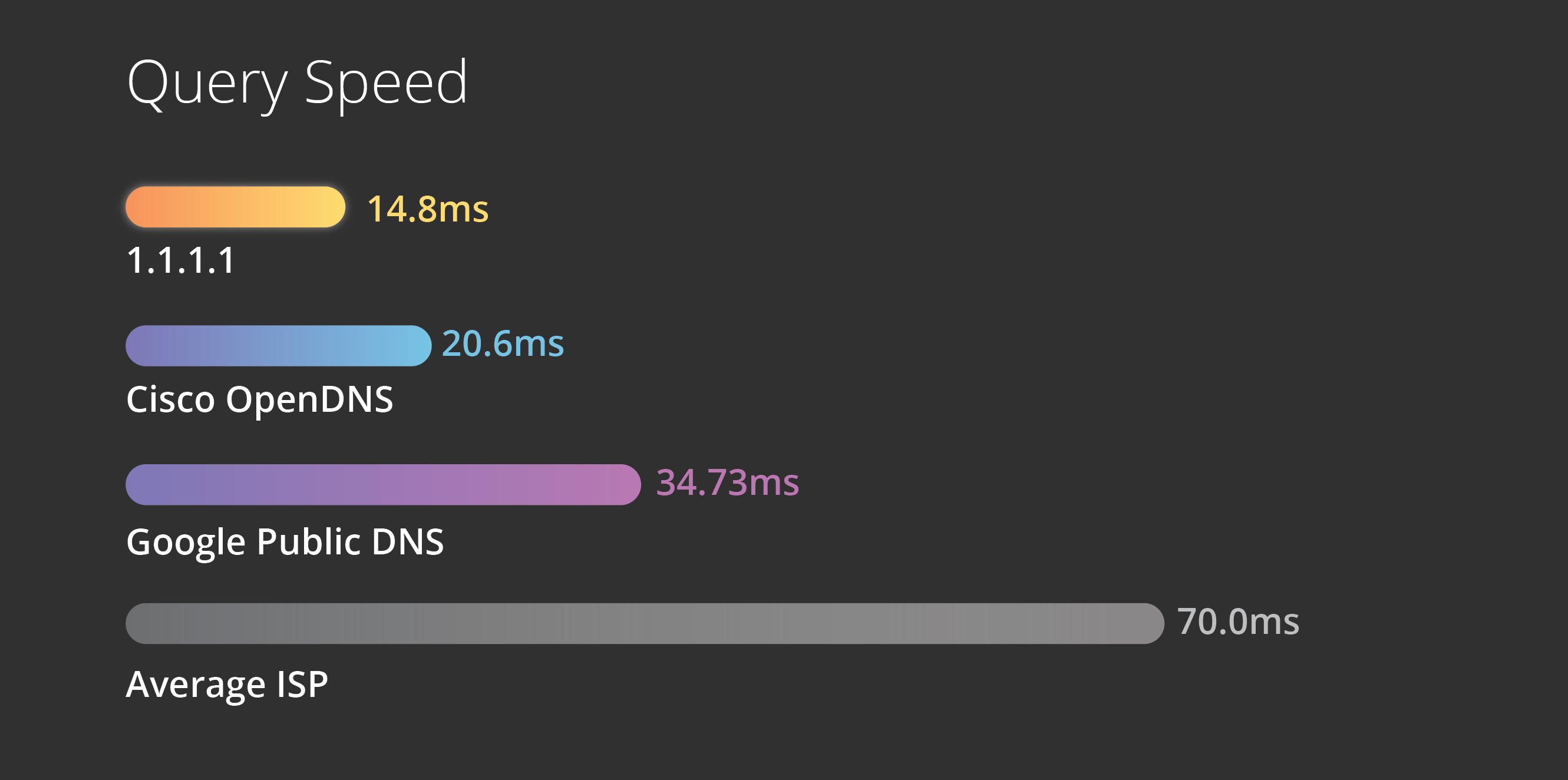
In addition, data centers in the network have access to the approximately 25 million Internet properties on the Cloudflare platform, making queries for those domains lightning-fast. Overall, the independent DNS monitor DNSPerf ranks 1.1.1.1 the fastest DNS service in the world:
DNS Speed Comparison

What is Cloudflare WARP?

WARP is an optional app built on top of 1.1.1.1. WARP creates a secure connection between personal devices (like computers and smartphones) and the services you access on the Internet. While 1.1.1.1 only secures DNS queries, WARP secures all traffic coming from your device.

WARP does this by routing your traffic over the Cloudflare network rather than the public Internet. Cloudflare automatically encrypts all traffic, and is often able to accelerate it by routing it over Cloudflare’s low-latency paths. In this way, WARP offers some of the security benefits of a virtual public network (VPN) service, without the performance penalties and data privacy concerns that many for-profit VPNs bring.

How do I use 1.1.1.1 and WARP?

1.1.1.1 is completely free. Setting it up on a desktop computer takes minutes and requires no technical skill or special software. Users can simply open their computer’s Internet preferences and replace their existing DNS service’s IP address with the address 1.1.1.1. Instructions for different desktop operating systems are available here.

To use 1.1.1.1 or WARP on a phone, download the app, which is available here.
What Is DNS? | How DNS Works

DNS is what lets users connect to websites using domain names instead of IP addresses. Learn how DNS works.

What is DNS?

The Domain Name System (DNS) is the phonebook of the Internet. Humans access information online through domain names, like nytimes.com or espn.com. Web browsers interact through Internet Protocol (IP) addresses. DNS translates domain names to IP addresses so browsers can load Internet resources.

Each device connected to the Internet has a unique IP address which other machines use to find the device. DNS servers eliminate the need for humans to memorize IP addresses such as 192.168.1.1 (in IPv4), or more complex newer alphanumeric IP addresses such as 2400:cb00:2048:1::c629:d7a2 (in IPv6).

DNS

How does DNS work?

The process of DNS resolution involves converting a hostname (such as http://www.example.com) into a computer-friendly IP address (such as 192.168.1.1). An IP address is given to each device on the Internet, and that address is necessary to find the appropriate Internet device – like a street address is used to find a particular home. When a user wants to load a webpage, a translation must occur between what a user types into their web browser (example.com) and the machine-friendly address necessary to locate the example.com webpage.

In order to understand the process behind the DNS resolution, it’s important to learn about the different hardware components a DNS query must pass between. For the web browser, the DNS lookup occurs “ behind the scenes” and requires no interaction from the user’s computer apart from the initial request.

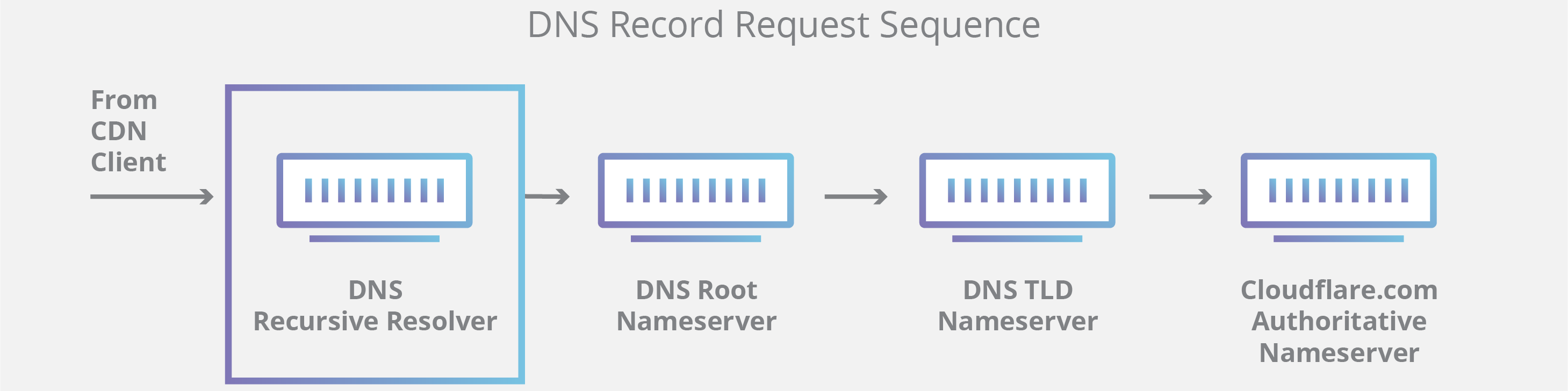
There are 4 DNS servers involved in loading a webpage:

  • DNS recursor – The recursor can be thought of as a librarian who is asked to go find a particular book somewhere in a library. The DNS recursor is a server designed to receive queries from client machines through applications such as web browsers. Typically the recursor is then responsible for making additional requests in order to satisfy the client’s DNS query.
  • Root nameserver – The root server is the first step in translating (resolving) human readable host names into IP addresses. It can be thought of like an index in a library that points to different racks of books – typically it serves as a reference to other more specific locations.
  • TLD nameserver – The top level domain server (TLD) can be thought of as a specific rack of books in a library. This nameserver is the next step in the search for a specific IP address, and it hosts the last portion of a hostname (In example.com, the TLD server is “com”).
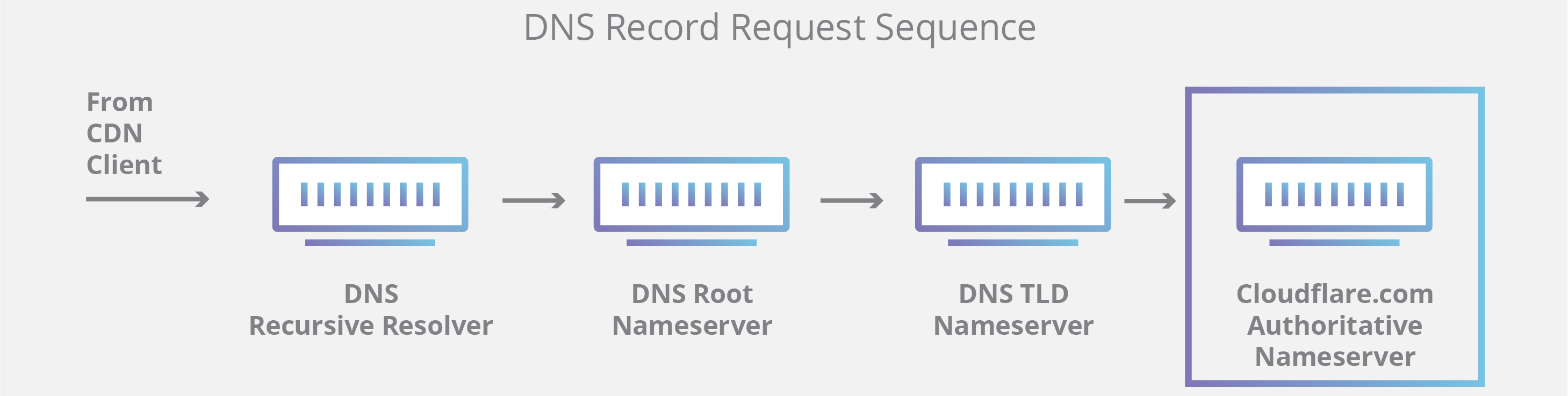
  • Authoritative nameserver – This final nameserver can be thought of as a dictionary on a rack of books, in which a specific name can be translated into its definition. The authoritative nameserver is the last stop in the nameserver query. If the authoritative name server has access to the requested record, it will return the IP address for the requested hostname back to the DNS Recursor (the librarian) that made the initial request.

What’s the difference between an authoritative DNS server and a recursive DNS resolver?

Both concepts refer to servers (groups of servers) that are integral to the DNS infrastructure, but each performs a different role and lives in different locations inside the pipeline of a DNS query. One way to think about the difference is the recursive resolver is at the beginning of the DNS query and the authoritative nameserver is at the end.

Recursive DNS resolver

The recursive resolver is the computer that responds to a recursive request from a client and takes the time to track down the DNS record. It does this by making a series of requests until it reaches the authoritative DNS nameserver for the requested record (or times out or returns an error if no record is found). Luckily, recursive DNS resolvers do not always need to make multiple requests in order to track down the records needed to respond to a client; caching is a data persistence process that helps short-circuit the necessary requests by serving the requested resource record earlier in the DNS lookup.

How DNS works - the 10 steps in a DNS query

Authoritative DNS server

Put simply, an authoritative DNS server is a server that actually holds, and is responsible for, DNS resource records. This is the server at the bottom of the DNS lookup chain that will respond with the queried resource record, ultimately allowing the web browser making the request to reach the IP address needed to access a website or other web resources. An authoritative nameserver can satisfy queries from its own data without needing to query another source, as it is the final source of truth for certain DNS records.

DNS query diagram

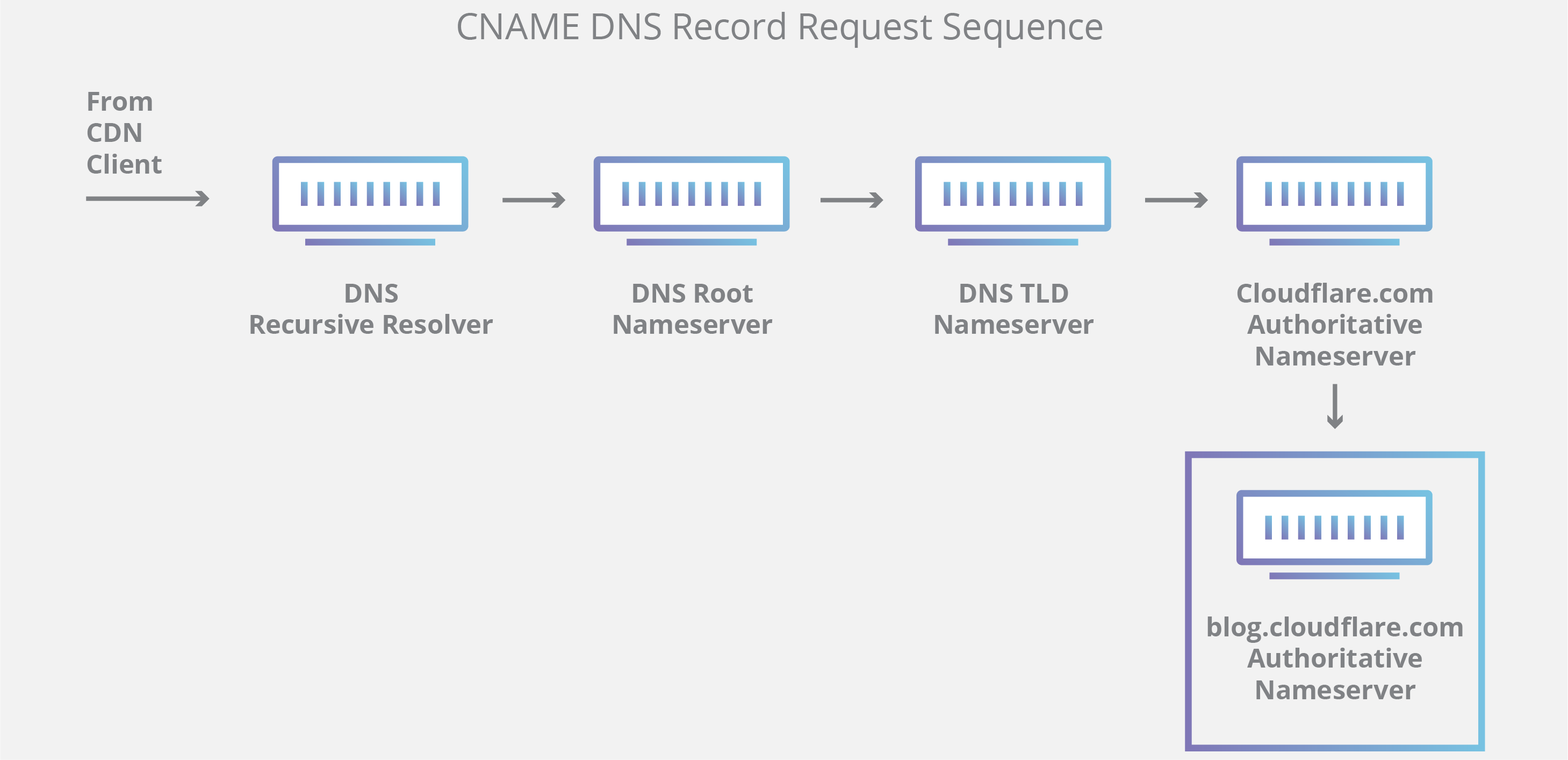
It’s worth mentioning that in instances where the query is for a subdomain such as foo.example.com or blog.cloudflare.com, an additional nameserver will be added to the sequence after the authoritative nameserver, which is responsible for storing the subdomain’s CNAME record.

DNS query diagram

There is a key difference between many DNS services and the one that Cloudflare provides. Different DNS recursive resolvers such as Google DNS, OpenDNS, and providers like Comcast all maintain data center installations of DNS recursive resolvers. These resolvers allow for quick and easy queries through optimized clusters of DNS-optimized computer systems, but they are fundamentally different than the nameservers hosted by Cloudflare.

Cloudflare maintains infrastructure-level nameservers that are integral to the functioning of the Internet. One key example is the f-root server network which Cloudflare is partially responsible for hosting. The F-root is one of the root level DNS nameserver infrastructure components responsible for the billions of Internet requests per day. Our Anycast network puts us in a unique position to handle large volumes of DNS traffic without service interruption.

What are the steps in a DNS lookup?

For most situations, DNS is concerned with a domain name being translated into the appropriate IP address. To learn how this process works, it helps to follow the path of a DNS lookup as it travels from a web browser, through the DNS lookup process, and back again. Let’s take a look at the steps.

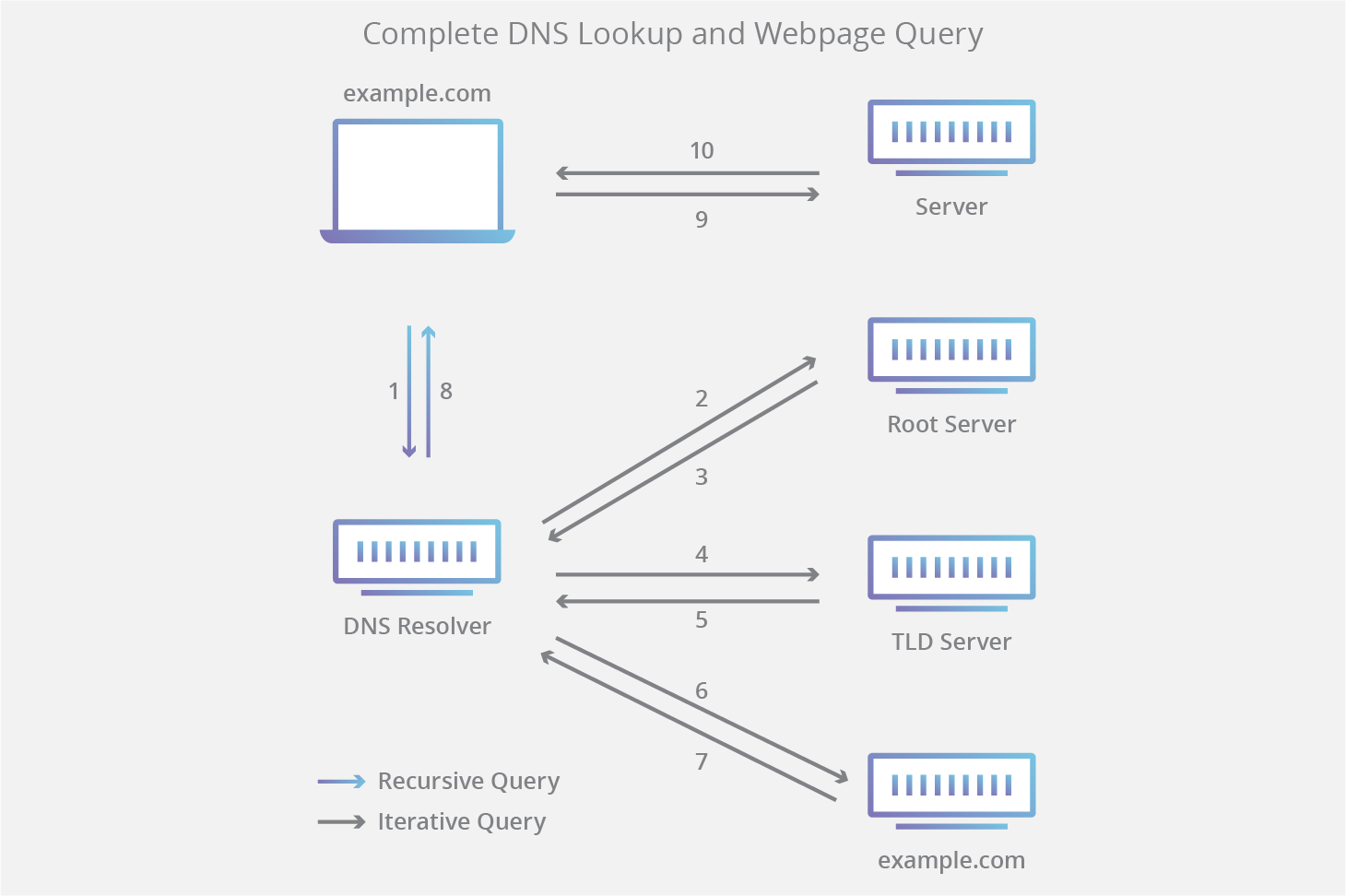
Note: Often DNS lookup information will be cached either locally inside the querying computer or remotely in the DNS infrastructure. There are typically 8 steps in a DNS lookup. When DNS information is cached, steps are skipped from the DNS lookup process which makes it quicker. The example below outlines all 8 steps when nothing is cached.

The 8 steps in a DNS lookup:

  1. A user types ‘example.com’ into a web browser and the query travels into the Internet and is received by a DNS recursive resolver.
  2. The resolver then queries a DNS root nameserver (.).
  3. The root server then responds to the resolver with the address of a Top Level Domain (TLD) DNS server (such as .com or .net), which stores the information for its domains. When searching for example.com, our request is pointed toward the .com TLD.
  4. The resolver then makes a request to the .com TLD.
  5. The TLD server then responds with the IP address of the domain’s nameserver, example.com.
  6. Lastly, the recursive resolver sends a query to the domain’s nameserver.
  7. The IP address for example.com is then returned to the resolver from the nameserver.
  8. The DNS resolver then responds to the web browser with the IP address of the domain requested initially.
  9. The browser makes a HTTP request to the IP address.
  10. The server at that IP returns the webpage to be rendered in the browser (step 10).
DNS query diagram

What is a DNS resolver?

The DNS resolver is the first stop in the DNS lookup, and it is responsible for dealing with the client that made the initial request. The resolver starts the sequence of queries that ultimately leads to a URL being translated into the necessary IP address.

Note: A typical uncached DNS lookup will involve both recursive and iterative queries.

It’s important to differentiate between a recursive DNS query and a recursive DNS resolver. The query refers to the request made to a DNS resolver requiring the resolution of the query. A DNS recursive resolver is the computer that accepts a recursive query and processes the response by making the necessary requests.

DNS query diagram

What are the types of DNS Queries?

In a typical DNS lookup three types of queries occur. By using a combination of these queries, an optimized process for DNS resolution can result in a reduction of distance traveled. In an ideal situation cached record data will be available, allowing a DNS name server to return a non-recursive query.

3 types of DNS queries:

  1. Recursive query – In a recursive query, a DNS client requires that a DNS server (typically a DNS recursive resolver) will respond to the client with either the requested resource record or an error message if the resolver can’t find the record.
  2. Iterative query – in this situation the DNS client will allow a DNS server to return the best answer it can. If the queried DNS server does not have a match for the query name, it will return a referral to a DNS server authoritative for a lower level of the domain namespace. The DNS client will then make a query to the referral address. This process continues with additional DNS servers down the query chain until either an error or timeout occurs.
  3. Non-recursive query – typically this will occur when a DNS resolver client queries a DNS server for a record that it has access to either because it’s authoritative for the record or the record exists inside of its cache. Typically, a DNS server will cache DNS records to prevent additional bandwidth consumption and load on upstream servers.

What is DNS caching? Where does DNS caching occur?

The purpose of caching is to temporarily stored data in a location that results in improvements in performance and reliability for data requests. DNS caching involves storing data closer to the requesting client so that the DNS query can be resolved earlier and additional queries further down the DNS lookup chain can be avoided, thereby improving load times and reducing bandwidth/CPU consumption. DNS data can be cached in a variety of locations, each of which will store DNS records for a set amount of time determined by a time-to-live (TTL).

Browser DNS caching

Modern web browsers are designed by default to cache DNS records for a set amount of time. the purpose here is obvious; the closer the DNS caching occurs to the web browser, the fewer processing steps must be taken in order to check the cache and make the correct requests to an IP address. When a request is made for a DNS record, the browser cache is the first location checked for the requested record.

In chrome, you can see the status of your DNS cache by going to chrome://net-internals/#dns.

Operating system (OS) level DNS caching

The operating system level DNS resolver is the second and last local stop before a DNS query leaves your machine. The process inside your operating system that is designed to handle this query is commonly called a “stub resolver” or DNS client. When a stub resolver gets a request from an application, it first checks its own cache to see if it has the record. If it does not, it then sends a DNS query (with a recursive flag set), outside the local network to a DNS recursive resolver inside the Internet service provider (ISP).

When the recursive resolver inside the ISP receives a DNS query, like all previous steps, it will also check to see if the requested host-to-IP-address translation is already stored inside its local persistence layer.

The recursive resolver also has additional functionality depending on the types of records it has in its cache:

  1. If the resolver does not have the A records, but does have the NS records for the authoritative nameservers, it will query those name servers directly, bypassing several steps in the DNS query. This shortcut prevents lookups from the root and .com nameservers (in our search for example.com) and helps the resolution of the DNS query occur more quickly.
  2. If the resolver does not have the NS records, it will send a query to the TLD servers (.com in our case), skipping the root server.
  3. In the unlikely event that the resolver does not have records pointing to the TLD servers, it will then query the root servers. This event typically occurs after a DNS cache has been purged.

Learn about what differentiates Cloudflare DNS from other DNS providers.

What is MPLS (multiprotocol label switching)?

Multiprotocol label switching (MPLS) is a method for setting up dedicated paths across networks without relying on the typical routing process.

What is multiprotocol label switching (MPLS)?

Multiprotocol label switching (MPLS) is a technique for speeding up network connections that was first developed in the 1990s. The public Internet functions by forwarding packets from one router to the next until the packets reach their destination. MLPS, on the other hand, sends packets along predetermined network paths. Ideally, the result is that routers spend less time deciding where to forward each packet, and packets take the same path every time.

Consider the process of planning a long drive. Instead of identifying which towns and cities one must drive through in order to reach the destination, it is usually more efficient to identify the roads that go in the correct direction. Similarly, MPLS identifies paths — network “roads” — rather than a series of intermediary destinations.

MPLS is considered to operate at OSI layer “2.5”, below the network layer (layer 3) and above the data link layer (layer 2).

How does routing normally work?

Anything sent from one computer to another over the Internet is divided up into smaller pieces called packets, instead of getting sent all at once. For example, this webpage was sent to your computer or device in a series of packets that your device reassembled and then displayed. Each packet has an attached header that contains information about where the packet is from and where it is going, including its destination IP address (like the address on a piece of mail).

For a packet to reach its intended destination, routers have to forward it from one network to the next until it finally arrives at the network that contains its destination IP address. That network will then forward the packet to that address and the associated device.

Before routers can forward a packet to its final IP address, they must first determine where the packet needs to go. Routers do this by referencing and maintaining a routing table, which tells them how to forward each packet. Each router examines the packet’s headers, consults its internal routing table, and forwards the packet to the next network. A router in the next network goes through the same process, and the process repeats until the packet arrives at its destination.

This approach to routing works well for most purposes; most of the Internet runs using IP addresses and routing tables. However, some users or organizations want their data to travel faster over paths they can directly control.

How does routing work in MPLS?

In typical Internet routing, each individual router makes decisions independently based on its own internal routing table. Even if two packets come from the same place and are going to the same destination, they may take different network paths if a router updates its routing table after the first packet passes through. However, with MPLS, packets take the same path every time.

In a network that uses MPLS, each packet is assigned to a class called a forwarding equivalence class (FEC). The network paths that packets can take are called label-switched paths (LSP). A packet’s class (FEC) determines which path (LSP) the packet will be assigned to. Packets with the same FEC follow the same LSP.

Each packet has one or more labels attached, and all labels are contained in an MPLS header, which is added on top of all the other headers attached to a packet. FECs are listed within each packet’s labels. Routers do not examine the packet’s other headers; they can essentially ignore the IP header. Instead, they examine the packet’s label and direct the packet to the right LSP.

Because MPLS-supporting routers only need to see the MPLS labels attached to a given packet, MPLS can work with almost any protocol (hence the name “multiprotocol”). It does not matter how the rest of the packet is formatted, as long as the router can read the MPLS labels at the front of the packet.

Is an MPLS network a ‘private’ network?

MPLS can be “private” in the sense that only one organization uses certain MPLS paths. However, MPLS does not encrypt traffic. If packets are intercepted along the paths, they can be read. A virtual private network (VPN) does provide encryption and is one method for keeping network connections truly private.

What are the drawbacks of MPLS?

Cost: MPLS is more expensive than regular Internet service.

Long setup time: Setting up complicated dedicated paths across one or more large networks takes time. LSPs have to be manually configured by the MPLS vendor or by the organization using MPLS. This makes it difficult for organizations to scale up their networks quickly.

Lack of encryption: MPLS is not encrypted; any attacker that intercepts packets on MPLS paths can read them in plaintext. Encryption has to be set up separately.

Cloud challenges: Organizations that rely on cloud services may not be able to set up direct network connections to their cloud servers, as they do not have access to the specific servers where their data and applications live.

When is MPLS used?

MPLS can be used when speed and reliability are highly important. Applications that require near-immediate data delivery are known as real-time applications. Voice calls and video calls are two common examples of real-time applications.

MPLS can also be used to set up wide area networks (WANs). In recent years, software-defined WANs (SD-WANs) have emerged as a popular alternative to MPLS for WANs. To learn more about software-defined networking and SD-WANs, see What is software-defined networking (SDN)?

What is IGMP snooping?

The Internet Group Management Protocol (IGMP) is used to set up multicasting groups. IGMP snooping allows network switches to be aware of these groups and forward network traffic accordingly.

What is IGMP snooping?

IGMP snooping is a method that network switches use to identify multicast groups, which are groups of computers or devices that all receive the same network traffic. It enables switches to forward packets to the correct devices in their network.

The Internet Group Management Protocol (IGMP) is a network layer protocol that allows several devices to share one IP address so they can all receive the same data. Networked devices use IGMP to join and leave multicasting groups, and each multicasting group shares an IP address.

However, most network switches cannot see which devices have joined multicasting groups, since they do not process network layer protocols. IGMP snooping is a way around this: it allows switches to “snoop” on IGMP messages, even though they technically belong to a different layer of the OSI model. IGMP snooping is not a feature of the IGMP protocol, but is rather an adaptation built into some network switches.

What is a network switch?

A network switch connects devices within a network and forwards data packets to and from those devices (also known as “hosts”). Unlike a router, a switch does not forward packets between networks; it only forwards packets within a network.

What is the network layer? What is the data link layer?

The processes that make the Internet work are divided into different layers. The OSI model is one standard way to define the different networking layers. The OSI model contains 7 layers. The data link layer and the network layer are layers 2 and 3, respectively.

undefined

Networking protocols and equipment are partially defined by which layer they belong to. The functions of networking equipment are limited by the layers that the equipment can interact with. A layer 2 switch does not process layer 3 protocols.

IGMP snooping circumvents this limitation. Layer 2 switches observe layer 3 IGMP traffic, and use this visibility to create a table that tracks multicast groups.

What are the benefits of IGMP snooping?

Prevents traffic floods: If a switch is unaware of which devices belong to multicast groups, it will simply forward all multicast traffic it receives. The result is that devices on the network receive far more traffic than they need to. They have to dedicate computing power to processing these unwanted packets, slowing down normal functions or stopping them altogether.

If a network does not enable IGMP snooping, attackers could exploit this fact in a denial-of-service (DoS) attack. By sending unnecessary multicast traffic that the network switches then forward across the network, an attacker can tie up network bandwidth and processing power. (Learn more about layer 3 DDoS attacks.)

Makes networks faster: The more traffic that travels across a network, the less bandwidth the network has. IGMP snooping conserves bandwidth by cutting down on the amount of traffic that switches forward. This leaves more bandwidth available, making the network faster.

Does IGMP snooping work with IPv6 networks?

IGMP is the protocol for multicasting for IPv4, the fourth version of the Internet Protocol. IPv6 relies on Multicast Listener Discovery (MLD) for multicasting. IPv6 networks use MLD snooping rather than IGMP snooping.

What is IGMP? | Internet Group Management Protocol

The Internet Group Management Protocol (IGMP) enables a group of networked devices to share the same IP address and receive the same messages.

What is the Internet Group Management Protocol (IGMP)?

The Internet Group Management Protocol (IGMP) is a protocol that allows several devices to share one IP address so they can all receive the same data. IGMP is a network layer protocol used to set up multicasting on networks that use the Internet Protocol version 4 (IPv4). Specifically, IGMP allows devices to join a multicasting group.

What is multicasting?

Multicasting is when a group of devices all receive the same messages or packets. Multicasting works by sharing an IP address between multiple devices. Any network traffic directed at that IP address will reach all devices that share the IP address, instead of just one device. This is much like when a group of employees all receive company emails directed at a certain email alias.

How does IGMP work?

Computers and other devices connected to a network use IGMP when they want to join a multicast group. A router that supports IGMP listens to IGMP transmissions from devices in order to figure out which devices belong to which multicast groups.

IGMP uses IP addresses that are set aside for multicasting. Multicast IP addresses are in the range between 224.0.0.0 and 239.255.255.255. (In contrast, anycast networks can use any regular IP address.) Each multicast group shares one of these IP addresses. When a router receives a series of packets directed at the shared IP address, it will duplicate those packets, sending copies to all members of the multicast group.

IGMP multicast groups can change at any time. A device can send an IGMP “join group” or “leave group” message at any point.

IGMP works directly on top of the Internet Protocol (IP). Each IGMP packet has both an IGMP header and an IP header. Just like ICMP, IGMP does not use a transport layer protocol such as TCP or UDP.

What types of IGMP messages are there?

The IGMP protocol allows for several kinds of IGMP messages:

  • Membership reports: Devices send these to a multicast router in order to become a member of a multicast group.
  • “Leave group” messages: These messages go from a device to a router and allow devices to leave a multicast group.
  • General membership queries: A multicast-capable router sends out these messages to the entire connected network of devices to update multicast group membership for all groups on the network.
  • Group-specific membership queries: Routers send these messages to a specific multicast group, instead of the entire network.

What is IGMP snooping?

IGMP is a network layer protocol, and only networking devices that are aware of the network layer can send and receive messages. A router operates at the network layer, while a network switch may only be aware of layer 2, also known as the data link layer. As a result, a switch may be unaware of which network devices are part of multicast groups, and which are not. It may end up forwarding multicast traffic to devices that do not need it, which takes up network bandwidth and device processing power, slowing the entire network down.

IGMP snooping solves for this issue by enabling switches to “snoop” on IGMP messages. Ordinarily, a layer 2 switch would not be aware of IGMP messages, but they can listen in to these via IGMP snooping. This enables them to identify where multicast messages should be forwarded, so that only the correct devices receive multicast traffic.

How is multicasting different in IPv4 and IPv6?

IPv4 and IPv6 are two different versions of the Internet Protocol (IP). IPv6 is more modern, but IPv4 is still in wide use. In IPv6, Multicast Listener Discovery (MLD) is the protocol for multicasting, not IGMP.

How is multicasting different from anycast and unicast?

Multicast vs. anycast

Anycast is another technology that enables network communications to go to multiple places. Similar to multicast, an anycast network allows the same group of servers to share one or more IP addresses. However, instead of all servers receiving all traffic to those IP addresses, the network routes traffic to one of those servers based on a predetermined set of criteria. Anycast networks can also support a wider range of IP addresses than multicast groups. As an example, the Cloudflare network uses anycast to route all user traffic to the closest data center.

Multicast vs. unicast

“Unicast” describes how most of the Internet works. In unicast networks, every connected device on the network has a unique address. Messages directed at that address (on the Internet, an IP address) only go to that device — rather than to multiple devices, as in multicasting.

IPsec VPNs vs. SSL VPNs

IPsec and SSL/TLS function at different layers of the OSI model, but both can be used for VPNs. Learn the pros and cons of each.

What is IPsec?

IPsec helps keep private data secure when it is transmitted over a public network. More specifically, IPsec is a group of protocols that are used together to set up secure connections between devices at layer 3 of the OSI model (the network layer). IPsec accomplishes this by scrambling all messages so that only authorized parties can understand them — a process known as encryption. IPsec is often used to set up virtual private networks (VPNs).

A VPN is an Internet security service that allows users to access the Internet as though they were connected to a private network. VPNs encrypt Internet communications as well as providing a strong degree of anonymity. VPNs are often used to allow remote employees to securely access corporate data. Meanwhile, individual users may choose to use VPNs in order to protect their privacy.

What is SSL/TLS?

Secure Sockets Layer (SSL) is a protocol for encrypting HTTP traffic, such as connections between user devices and web servers. Websites that use SSL encryption have https:// in their URLs instead of http://. SSL was replaced several years ago by Transport Layer Security (TLS), but the term “SSL” is still in common use for referring to the protocol.

In addition to encrypting client-server communications in web browsing, SSL can also be used in VPNs.

IPsec VPNs vs. SSL VPNs: What are the differences?

OSI model layer

One of the major differences between SSL and IPsec is which layer of the OSI model each one belongs to. The OSI model is an abstract representation, broken into “layers,” of the processes that make the Internet work.

The IPsec protocol suite operates at the network layer of the OSI model. It runs directly on top of IP (the Internet Protocol), which is responsible for routing data packets.

Meanwhile, SSL operates at the application layer of the OSI model. It encrypts HTTP traffic instead of directly encrypting IP packets.

Implementation

IPsec VPNs typically require installing VPN software on the computers of all users who will use the VPN. Users must log into and run this software in order to connect to the network and access their applications and data.

In contrast, all web browsers already support SSL (whereas most devices are not automatically configured to support IPsec VPNs). Users can connect to SSL VPNs through their browser instead of through a dedicated VPN software application, without much additional support from an IT team. (However, this means that non-browser Internet activity is not protected by the VPN.)

Access control

Access control is a security term for policies that restrict user access to information, tools, and software. Properly implemented access control ensures that only the right people can access sensitive internal data and the software applications for viewing and editing that data. VPNs are commonly used for access control, because no one outside the VPN can see data within the VPN.

Many large organizations need to set up different levels of access control — for instance, so that individual contributors do not have the same levels of access as executives. With IPsec VPNs, any user connected to the network is a full member of that network. They can see all data contained within the VPN. As a result, organizations that use IPsec VPNs need to set up and configure multiple VPNs to allow for different levels of access. And some users may need to log into more than one VPN in order to perform their jobs.

In contrast, SSL VPNs are easier to configure for individualized access control. IT teams can give users access on an application-by-application basis.

On-premise vs. cloud applications

Traditional on-premise applications run in an organization’s internal infrastructure, such as an on-site data center. IPsec VPNs typically work best with these applications, as users access them via internal networks instead of over the public Internet, and IPsec functions at the network layer.

Cloud-based applications, also called SaaS (Software-as-a-Service) applications, are accessed over the public Internet and hosted remotely in the cloud. SSL VPNs integrate fairly easily with cloud-based applications but need additional configuration to work with on-premise applications.

What is Cloudflare’s alternative to VPNs for access control?

Cloudflare Access enables organizations to control and secure access to internal applications without a VPN. Cloudflare Access puts applications behind Cloudflare’s global network, helping both on-premise and cloud applications remain secure.

What is IPsec? | How IPsec VPNs work

IPsec is a group of networking protocols used for setting up secure encrypted connections, such as VPNs, across publicly shared networks.

What is IPsec?

IPsec is a group of protocols that are used together to set up encrypted connections between devices. It helps keep data sent over public networks secure. IPsec is often used to set up VPNs, and it works by encrypting IP packets, along with authenticating the source where the packets come from.

Within the term “IPsec,” “IP” stands for “Internet Protocol” and “sec” for “secure.” The Internet Protocol is the main routing protocol used on the Internet; it designates where data will go using IP addresses. IPsec is secure because it adds encryption* and authentication to this process.

*Encryption is the process of concealing information by mathematically altering data so that it appears random. In simpler terms, encryption is the use of a “secret code” that only authorized parties can interpret.

What is a VPN? What is an IPsec VPN?

A virtual private network (VPN) is an encrypted connection between two or more computers. VPN connections take place over public networks, but the data exchanged over the VPN is still private because it is encrypted.

VPNs make it possible to securely access and exchange confidential data over shared network infrastructure, such as the public Internet. For instance, when employees are working remotely instead of in the office, they often use VPNs to access corporate files and applications.

Many VPNs use the IPsec protocol suite to establish and run these encrypted connections. However, not all VPNs use IPsec. Another protocol for VPNs is SSL/TLS, which operates at a different layer in the OSI model than IPsec. (The OSI model is an abstract representation of the processes that make the Internet work.)

How do users connect to an IPsec VPN?

Users can access an IPsec VPN by logging into a VPN application, or “client.” This typically requires the user to have installed the application on their device.

VPN logins are usually password-based. While data sent over a VPN is encrypted, if user passwords are compromised, attackers can log into the VPN and steal this encrypted data. Using two-factor authentication (2FA) can strengthen IPsec VPN security, since stealing a password alone will no longer give an attacker access.

How does IPsec work?

IPsec connections include the following steps:

Key exchange: Keys are necessary for encryption; a key is a string of random characters that can be used to “lock” (encrypt) and “unlock” (decrypt) messages. IPsec sets up keys with a key exchange between the connected devices, so that each device can decrypt the other device’s messages.

Packet headers and trailers: All data that is sent over a network is broken down into smaller pieces called packets. Packets contain both a payload, or the actual data being sent, and headers, or information about that data so that computers receiving the packets know what to do with them. IPsec adds several headers to data packets containing authentication and encryption information. IPsec also adds trailers, which go after each packet’s payload instead of before.

Authentication: IPsec provides authentication for each packet, like a stamp of authenticity on a collectible item. This ensures that packets are from a trusted source and not an attacker.

Encryption: IPsec encrypts the payloads within each packet and each packet’s IP header (unless transport mode is used instead of tunnel mode — see below). This keeps data sent over IPsec secure and private.

Transmission: Encrypted IPsec packets travel across one or more networks to their destination using a transport protocol. At this stage, IPsec traffic differs from regular IP traffic in that it most often uses UDP as its transport protocol, rather than TCP. TCP, the Transmission Control Protocol, sets up dedicated connections between devices and ensures that all packets arrive. UDP, the User Datagram Protocol, does not set up these dedicated connections. IPsec uses UDP because this allows IPsec packets to get through firewalls.

Decryption: At the other end of the communication, the packets are decrypted, and applications (e.g. a browser) can now use the delivered data.

What protocols are used in IPsec?

In networking, a protocol is a specified way of formatting data so that any networked computer can interpret the data. IPsec is not one protocol, but a suite of protocols. The following protocols make up the IPsec suite:

Authentication Header (AH): The AH protocol ensures that data packets are from a trusted source and that the data has not been tampered with, like a tamper-proof seal on a consumer product. These headers do not provide any encryption; they do not help conceal the data from attackers.

Encapsulating Security Protocol (ESP): ESP encrypts the IP header and the payload for each packet — unless transport mode is used, in which case it only encrypts the payload. ESP adds its own header and a trailer to each data packet.

Security Association (SA): SA refers to a number of protocols used for negotiating encryption keys and algorithms. One of the most common SA protocols is Internet Key Exchange (IKE).

Finally, while the Internet Protocol (IP) is not part of the IPsec suite, IPsec runs directly on top of IP.

What is the difference between IPsec tunnel mode and IPsec transport mode?

IPsec tunnel mode is used between two dedicated routers, with each router acting as one end of a virtual “tunnel” through a public network. In IPsec tunnel mode, the original IP header containing the final destination of the packet is encrypted, in addition to the packet payload. To tell intermediary routers where to forward the packets, IPsec adds a new IP header. At each end of the tunnel, the routers decrypt the IP headers to deliver the packets to their destinations.

In transport mode, the payload of each packet is encrypted, but the original IP header is not. Intermediary routers are thus able to view the final destination of each packet — unless a separate tunneling protocol (such as GRE) is used.

What port does IPsec use?

A network port is the virtual location where data goes in a computer. Ports are how computers keep track of different processes and connections; if data goes to a certain port, the computer’s operating system knows which process it belongs to. IPsec usually uses port 500.

How does IPsec impact MSS and MTU?

MSS and MTU are two measurements of packet size. Packets can only reach a certain size (measured in bytes) before computers, routers, and switches cannot handle them. MSS measures the size of each packet’s payload, while MTU measures the entire packet, including headers. Packets that exceed a network’s MTU may be fragmented, meaning broken up into smaller packets and then reassembled. Packets that exceed the MSS are simply dropped.

IPsec protocols add several headers and trailers to packets, all of which take up several bytes. For networks that use IPsec, either the MSS and MTU have to be adjusted accordingly, or packets will be fragmented and slightly delayed. Usually, the MTU for a network is 1,500 bytes. A normal IP header is 20 bytes long, and a TCP header is also 20 bytes long, meaning each packet can contain 1,460 bytes of payload. However, IPsec adds an Authentication Header, an ESP header, and associated trailers. These add 50-60 bytes to a packet, or more.

Learn more about MTU and MSS in “What is MTU?”

What is the control plane? | Control plane vs. data plane

The control plane is the part of a network that controls how data is forwarded, while the data plane is the actual forwarding process

What is a ‘plane’ in networking?

In networking, a plane is an abstract conception of where certain processes take place. The term is used in the sense of “plane of existence.” The two most commonly referenced planes in networking are the control plane and the data plane (also known as the forwarding plane).

What is the control plane?

The control plane is the part of a network that controls how data packets are forwarded — meaning how data is sent from one place to another. The process of creating a routing table, for example, is considered part of the control plane. Routers use various protocols to identify network paths, and they store these paths in routing tables.

What is the data plane? What is the forwarding plane?

In contrast to the control plane, which determines how packets should be forwarded, the data plane actually forwards the packets. The data plane is also called the forwarding plane.

Think of the control plane as being like the stoplights that operate at the intersections of a city. Meanwhile, the data plane (or the forwarding plane) is more like the cars that drive on the roads, stop at the intersections, and obey the stoplights.

What protocols do routers use to create their routing tables?

  • Border Gateway Protocol (BGP)
  • Open Shortest Path First (OSPF)
  • Enhanced Interior Gateway Routing Protocol (EIGRP)
  • Intermediate System to Intermediate System (IS-IS)

What is network topology?

Network topology refers to the way data flows in a network. The control plane establishes and changes network topology. Again, think of the stoplights that function at the intersections of a city. Network topology is like the way that the roads are arranged, and the computing devices within the network are like the destinations that those roads lead to.

What is software-defined networking?

Software-defined networking (SDN) is a method for managing and configuring networks using software. SDN technology enables IT administrators to configure their networks using a software application, instead of changing the configuration of physical equipment. SDN is made possible by separating the control plane from the forwarding/data plane.

What is a computer port? | Ports in networking

Ports are virtual places within an operating system where network connections start and end. They help computers sort the network traffic they receive.

What is a port?

A port is a virtual point where network connections start and end. Ports are software-based and managed by a computer’s operating system. Each port is associated with a specific process or service. Ports allow computers to easily differentiate between different kinds of traffic: emails go to a different port than webpages, for instance, even though both reach a computer over the same Internet connection.

What is a port number?

Ports are standardized across all network-connected devices, with each port assigned a number. Most ports are reserved for certain protocols — for example, all Hypertext Transfer Protocol (HTTP) messages go to port 80. While IP addresses enable messages to go to and from specific devices, port numbers allow targeting of specific services or applications within those devices.

How do ports make network connections more efficient?

Vastly different types of data flow to and from a computer over the same network connection. The use of ports helps computers understand what to do with the data they receive.

Suppose Bob transfers an MP3 audio recording to Alice using the File Transfer Protocol (FTP). If Alice’s computer passed the MP3 file data to Alice’s email application, the email application would not know how to interpret it. But because Bob’s file transfer uses the port designated for FTP (port 21), Alice’s computer is able to receive and store the file.

Meanwhile, Alice’s computer can simultaneously load HTTP webpages using port 80, even though both the webpage files and the MP3 sound file flow to Alice’s computer over the same WiFi connection.

Are ports part of the network layer?

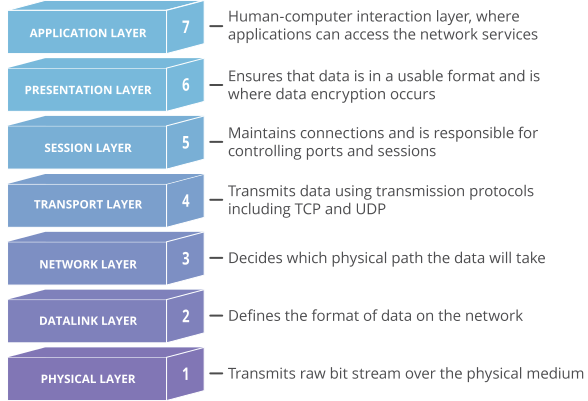
The OSI model is a conceptual model of how the Internet works. It divides different Internet services and processes into 7 layers. These layers are:

osi model 7 layers

Ports are a transport layer (layer 4) concept. Only a transport protocol such as the Transmission Control Protocol (TCP) or User Datagram Protocol (UDP) can indicate which port a packet should go to. TCP and UDP headers have a section for indicating port numbers. Network layer protocols — for instance, the Internet Protocol (IP) — are unaware of what port is in use in a given network connection. In a standard IP header, there is no place to indicate which port the data packet should go to. IP headers only indicate the destination IP address, not the port number at that IP address.

Usually, the inability to indicate the port at the network layer has no impact on networking processes, since network layer protocols are almost always used in conjunction with a transport layer protocol. However, this does impact the functionality of testing software, which is software that “pings” IP addresses using Internet Control Message Protocol (ICMP) packets. ICMP is a network layer protocol that can ping networked devices — but without the ability to ping specific ports, network administrators cannot test specific services within those devices.

Some ping software, such as My Traceroute, offers the option to send UDP packets. UDP is a transport layer protocol that can specify a particular port, as opposed to ICMP, which cannot specify a port. By adding a UDP header to ICMP packets, network administrators can test specific ports within a networked device.

Why do firewalls sometimes block specific ports?

firewall is a security system that blocks or allows network traffic based on a set of security rules. Firewalls usually sit between a trusted network and an untrusted network; often the untrusted network is the Internet. For example, office networks often use a firewall to protect their network from online threats.

Some attackers try to send malicious traffic to random ports in the hopes that those ports have been left “open,” meaning they are able to receive traffic. This action is somewhat like a car thief walking down the street and trying the doors of parked vehicles, hoping one of them is unlocked. For this reason, firewalls should be configured to block network traffic directed at most of the available ports. There is no legitimate reason for the vast majority of the available ports to receive traffic.

Properly configured firewalls block traffic to all ports by default except for a few predetermined ports known to be in common use. For instance, a corporate firewall could only leave open ports 25 (email), 80 (web traffic), 443 (web traffic), and a few others, allowing internal employees to use these essential services, then block the rest of the 65,000+ ports.

As a more specific example, attackers sometimes attempt to exploit vulnerabilities in the RDP protocol by sending attack traffic to port 3389. To stop these attacks, a firewall may block port 3389 by default. Since this port is only used for remote desktop connections, such a rule has little impact on day-to-day business operations unless employees need to work remotely.

What are the different port numbers?

There are 65,535 possible port numbers, although not all are in common use. Some of the most commonly used ports, along with their associated networking protocol, are:

  • Ports 20 and 21: File Transfer Protocol (FTP). FTP is for transferring files between a client and a server.
  • Port 22: Secure Shell (SSH). SSH is one of many tunneling protocols that create secure network connections.
  • Port 25: Simple Mail Transfer Protocol (SMTP). SMTP is used for email.
  • Port 53: Domain Name System (DNS). DNS is an essential process for the modern Internet; it matches human-readable domain names to machine-readable IP addresses, enabling users to load websites and applications without memorizing a long list of IP addresses.
  • Port 80: Hypertext Transfer Protocol (HTTP). HTTP is the protocol that makes the World Wide Web possible.
  • Port 123: Network Time Protocol (NTP). NTP allows computer clocks to sync with each other, a process that is essential for encryption.
  • Port 179: Border Gateway Protocol (BGP). BGP is essential for establishing efficient routes between the large networks that make up the Internet (these large networks are called autonomous systems). Autonomous systems use BGP to broadcast which IP addresses they control.
  • Port 443: HTTP Secure (HTTPS). HTTPS is the secure and encrypted version of HTTP. All HTTPS web traffic goes to port 443. Network services that use HTTPS for encryption, such as DNS over HTTPS, also connect at this port.
  • Port 500: Internet Security Association and Key Management Protocol (ISAKMP), which is part of the process of setting up secure IPsec connections.
  • Port 3389: Remote Desktop Protocol (RDP). RDP enables users to remotely connect to their desktop computers from another device.

The Internet Assigned Numbers Authority (IANA) maintains the full list of port numbers and protocols assigned to them.

What is tunneling? | Tunneling in networking

Tunneling is a way to move packets from one network to another. Tunneling works via encapsulation: wrapping a packet inside another packet

What is tunneling?

In the physical world, tunneling is a way to cross terrain or boundaries that could not normally be crossed. Similarly, in networking, tunnels are a method for transporting data across a network using protocols that are not supported by that network. Tunneling works by encapsulating packets: wrapping packets inside of other packets. (Packets are small pieces of data that can be re-assembled at their destination into a larger file.)

Tunneling is often used in virtual private networks (VPNs). It can also set up efficient and secure connections between networks, enable the usage of unsupported network protocols, and in some cases allow users to bypass firewalls.

How does packet encapsulation work?

Data traveling over a network is divided into packets. A typical packet has two parts: the header, which indicates the packet’s destination and which protocol it uses, and the payload, which is the packet’s actual contents.

An encapsulated packet is essentially a packet inside another packet. In an encapsulated packet, the header and payload of the first packet goes inside the payload section of the surrounding packet. The original packet itself becomes the payload.

Why is encapsulation useful?

All packets use networking protocols — standardized ways of formatting data — to get to their destinations. However, not all networks support all protocols. Imagine a company wants to set up a wide area network (WAN) connecting Office A and Office B. The company uses the IPv6 protocol, which is the latest version of the Internet Protocol (IP), but there is a network between Office A and Office B that only supports IPv4. By encapsulating their IPv6 packets inside IPv4 packets, the company can continue to use IPv6 while still sending data directly between the offices.

Encapsulation is also useful for encrypted network connections. Encryption is the process of scrambling data in such a way that it can only be unscrambled using a secret encryption key; the process of undoing encryption is called decryption. If a packet is completely encrypted, including the header, then network routers will not be able to forward the packet to its destination since they do not have the key and cannot see its header. By wrapping the encrypted packet inside another unencrypted packet, the packet can travel across networks like normal.

What is a VPN tunnel?

A VPN is a secure, encrypted connection over a publicly shared network. Tunneling is the process by which VPN packets reach their intended destination, which is typically a private network.

Many VPNs use the IPsec protocol suite. IPsec is a group of protocols that run directly on top of IP at the network layer. Network traffic in an IPsec tunnel is fully encrypted, but it is decrypted once it reaches either the network or the user device. (IPsec also has a mode called “transport mode” that does not create a tunnel.)

Another protocol in common use for VPNs is Transport Layer Security (TLS). This protocol operates at either layer 6 or layer 7 of the OSI model depending on how the model is interpreted. TLS is sometimes called SSL (Secure Sockets Layer), although SSL refers to an older protocol that is no longer in use.

What is split tunneling?

Usually, when a user connects their device to a VPN, all their network traffic goes through the VPN tunnel. Split tunneling allows some traffic to go outside of the VPN tunnel. In essence, split tunneling lets user devices connect to two networks simultaneously: one public and one private.

What is GRE tunneling?

Generic Routing Encapsulation (GRE) is one of several tunneling protocols. GRE encapsulates data packets that use one routing protocol inside the packets of another protocol. GRE is one way to set up a direct point-to-point connection across a network, for the purpose of simplifying connections between separate networks.

GRE adds two headers to each packet: the GRE header and an IP header. The GRE header indicates the protocol type used by the encapsulated packet. The IP header encapsulates the original packet’s IP header and payload. Only the routers at each end of the GRE tunnel will reference the original, non-GRE IP header.

What is IP-in-IP?

IP-in-IP is a tunneling protocol for encapsulating IP packets inside other IP packets. IP-in-IP does not encrypt packets and is not used for VPNs. Its main use is setting up network routes that would not normally be available.

What is SSH tunneling?

The Secure Shell (SSH) protocol sets up encrypted connections between client and server, and can also be used to set up a secure tunnel. SSH operates at layer 7 of the OSI model, the application layer. By contrast, IPsec, IP-in-IP, and GRE operate at the network layer.

What are some other tunneling protocols?

In addition to GRE, IPsec, IP-in-IP, and SSH, other tunneling protocols include:

  • Point-to-Point Tunneling Protocol (PPTP)
  • Secure Socket Tunneling Protocol (SSTP)
  • Layer 2 Tunneling Protocol (L2TP)
  • Virtual Extensible Local Area Network (VXLAN)

How does Cloudflare use tunneling?

Cloudflare Magic Transit protects on-premise, cloud, and hybrid network infrastructure from DDoS attacks and other threats. In order for Magic Transit to work, the Cloudflare network has to be securely connected to the customer’s internal network. Cloudflare uses GRE tunneling to form these connections. With GRE tunneling, Magic Transit is able to connect directly to Cloudflare customers’ networks securely over the public Internet.