What is Bash Script?

What is Bash Script?

Bash Script is a plain text file that contains the commands used in a command line.

Creating a Bash Script

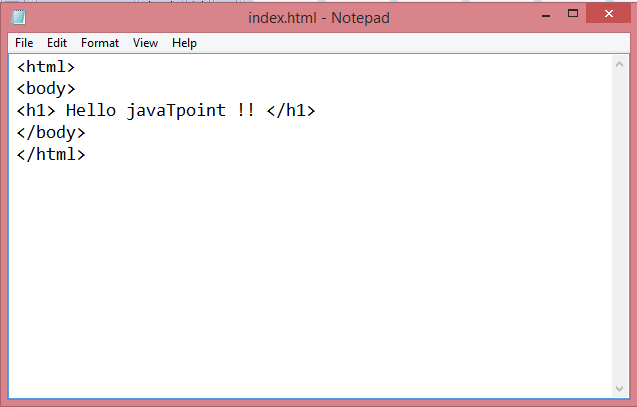
Step 1: Creating an HTML page.

  • Create the web page in a Notepad and save it with .html extension.
Bash Script

Step 2: Creating a bucket in S3.

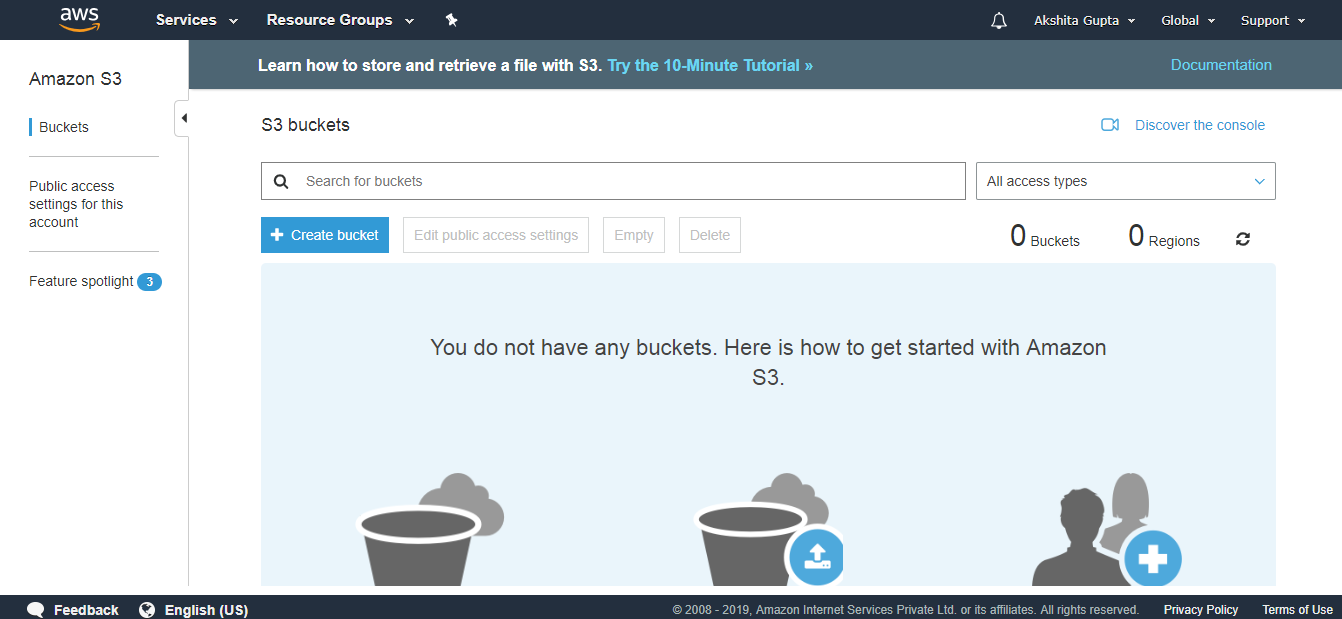
  • Move to the S3 service.
  • Create a bucket in S3.
Bash Script
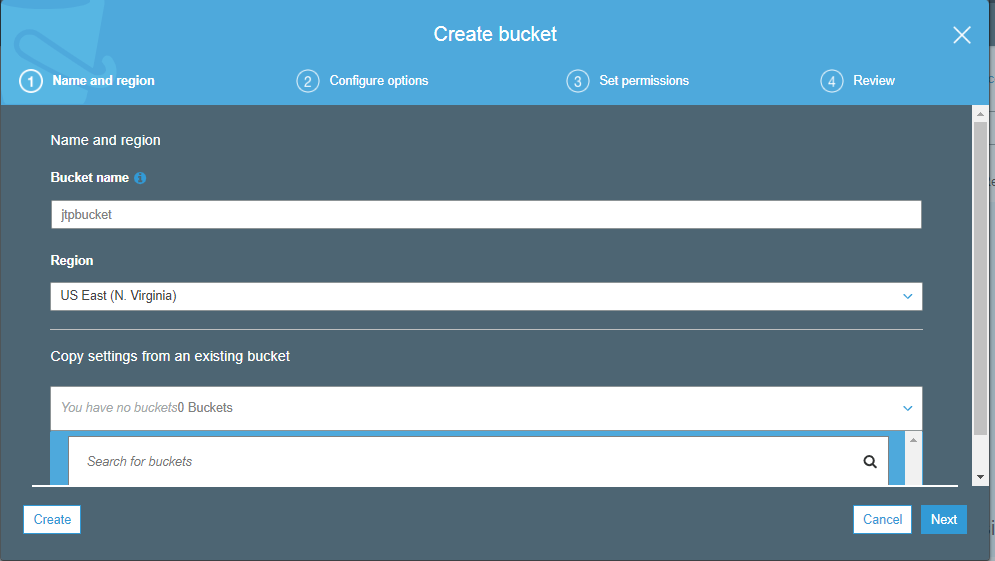
  • Enter the bucket name.
Bash Script
  • Click on the Create button.
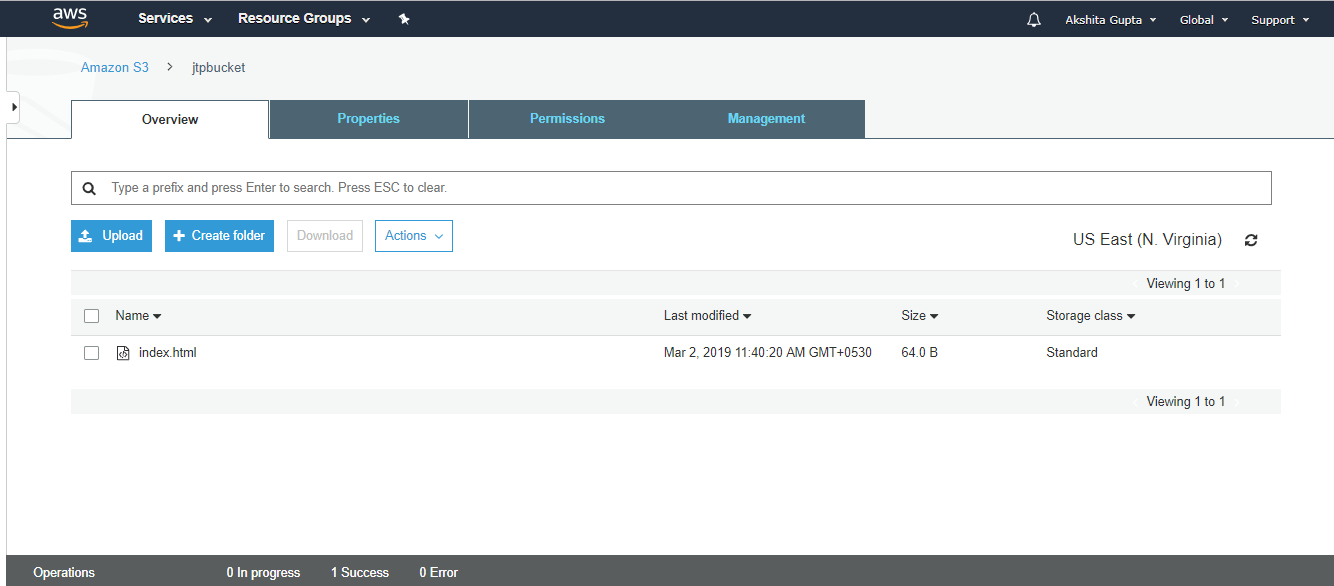
  • Click on the jtpbucket that you created and upload the index.html file in S3.
  • The below screen shows that index.html file has been successfully uploaded in S3.
Bash Script

Step 3: Creating an IAM Role.

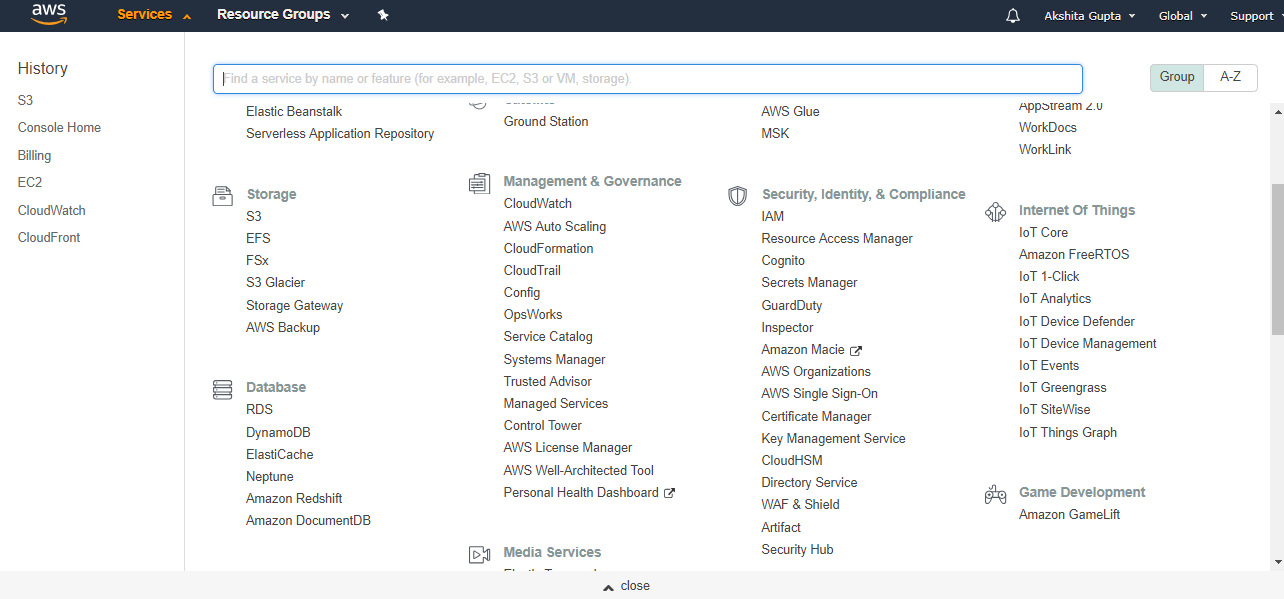
  • Now, go to the main console and click on the IAM service.
Bash Script
  • We create a new Role.
  • Select EC2 service to access your AWS services on your behalf. Click on the Next.
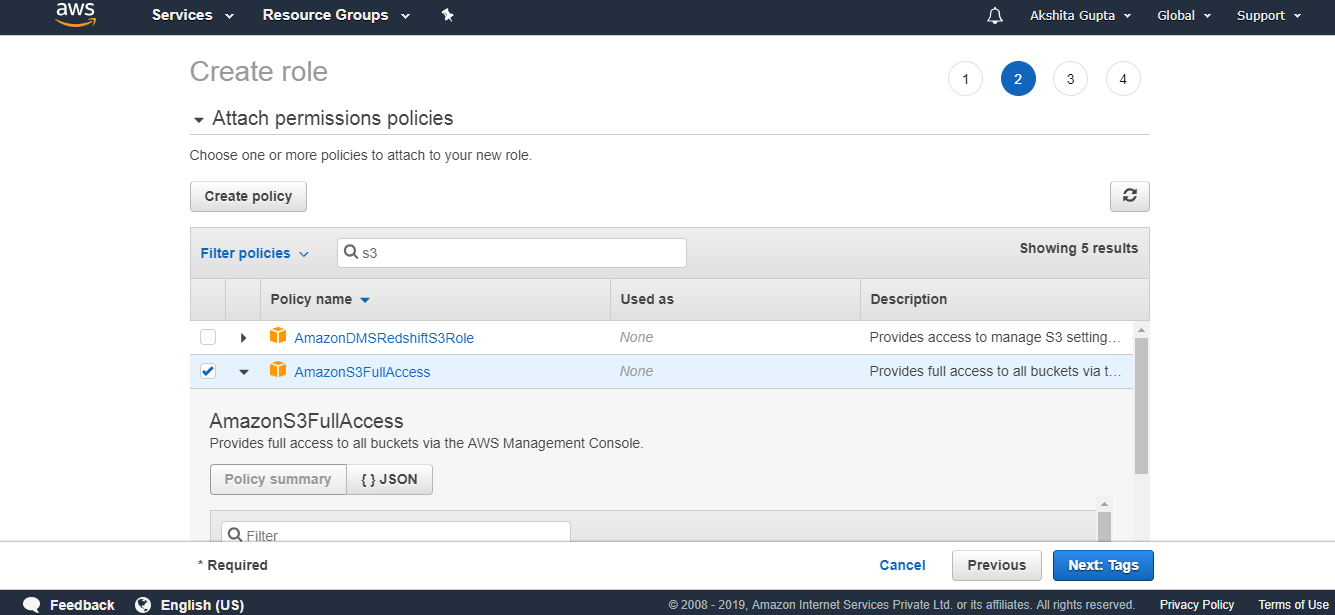
  • Select the AmazonS3FullAccess policy, this policy gets attached to our role.
Bash Script
  • Click on the Next.
  • Enter the role details such as Role name.
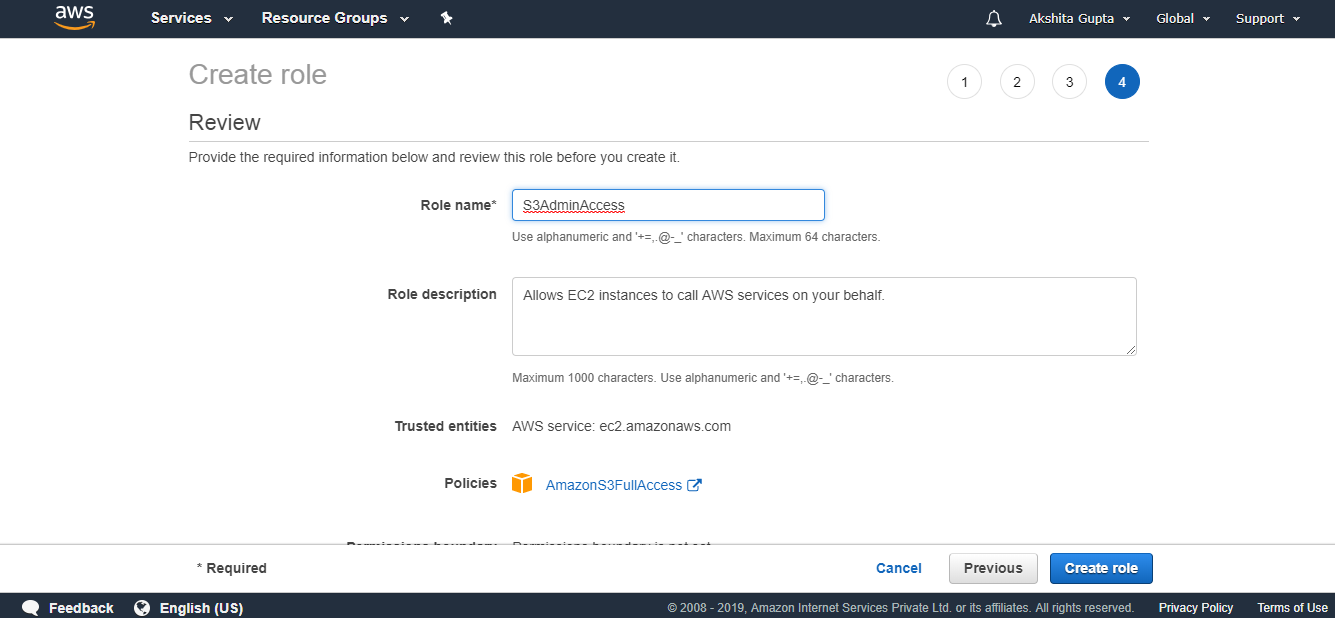
Bash Script
  • Click on the create role.
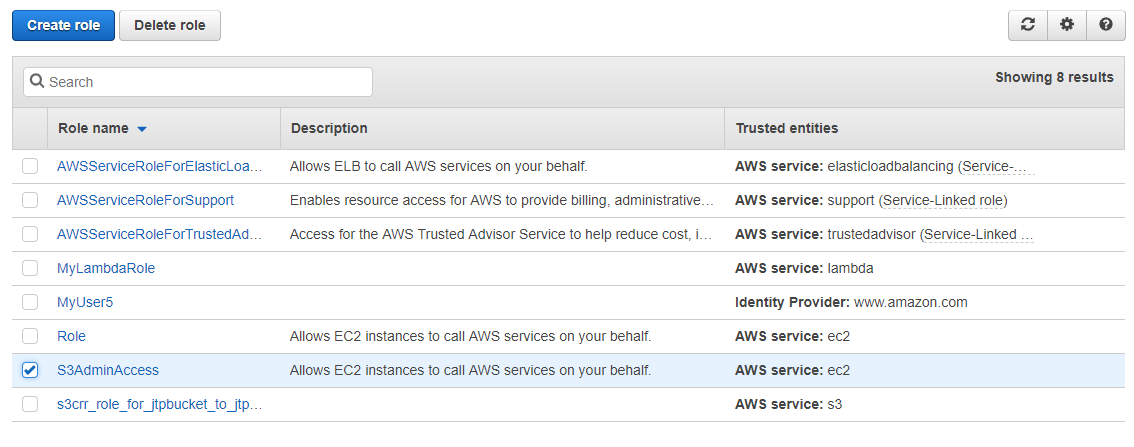
  • The below screen shows that the role has been created with the name S3AdmainAccess.
Bash Script

In the above screen, the role which has been checked is a newly created role.

Step 4: Creating an EC2 instance

  • Move to the main console and click on the EC2 service.
  • Launch an Instance.
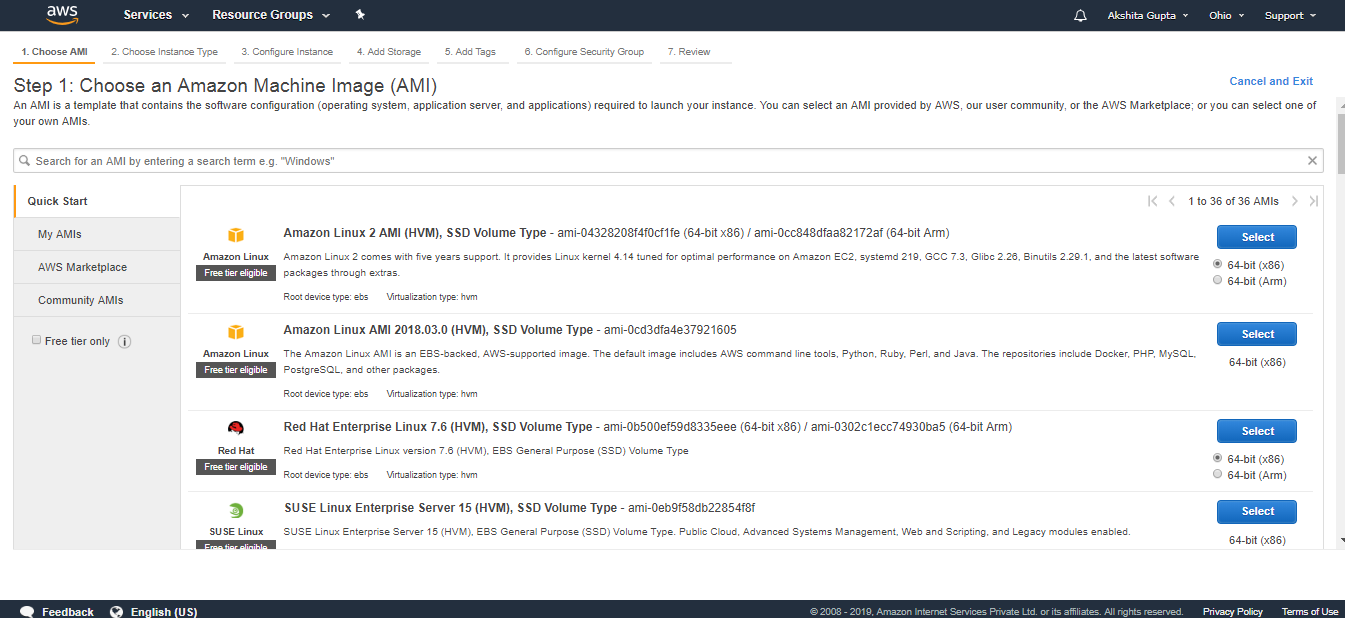
  • Choose an Amazon Machine Image. I select the Amazon Linux AMI 2018.03.0 (HVM).
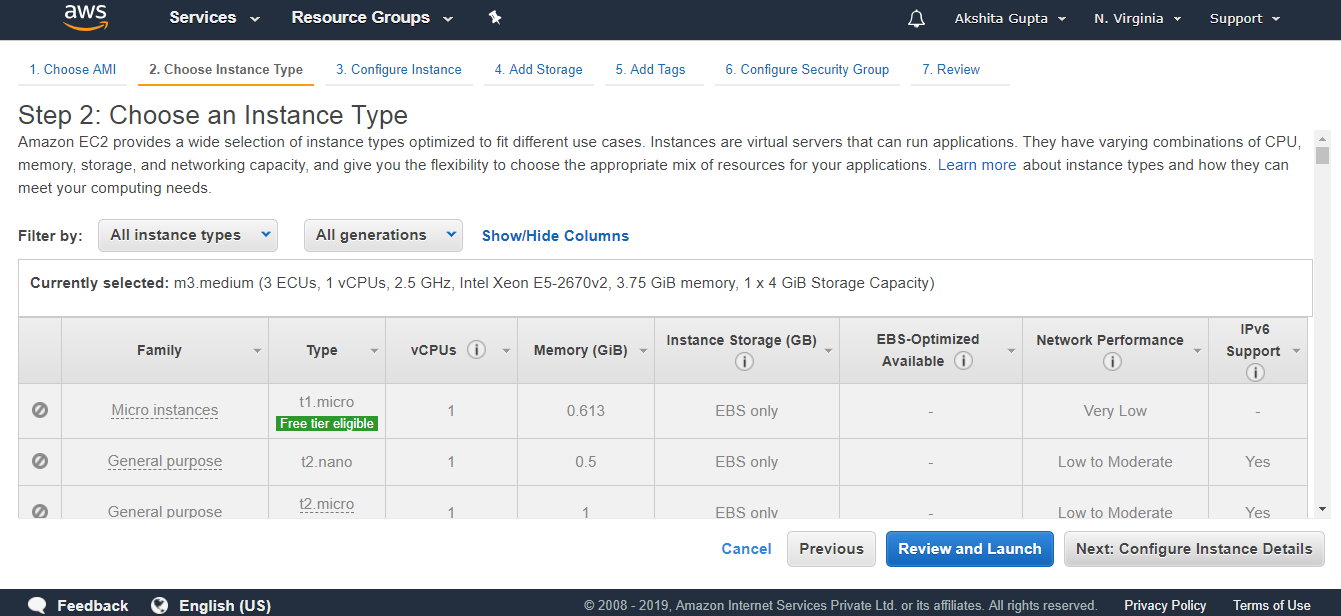
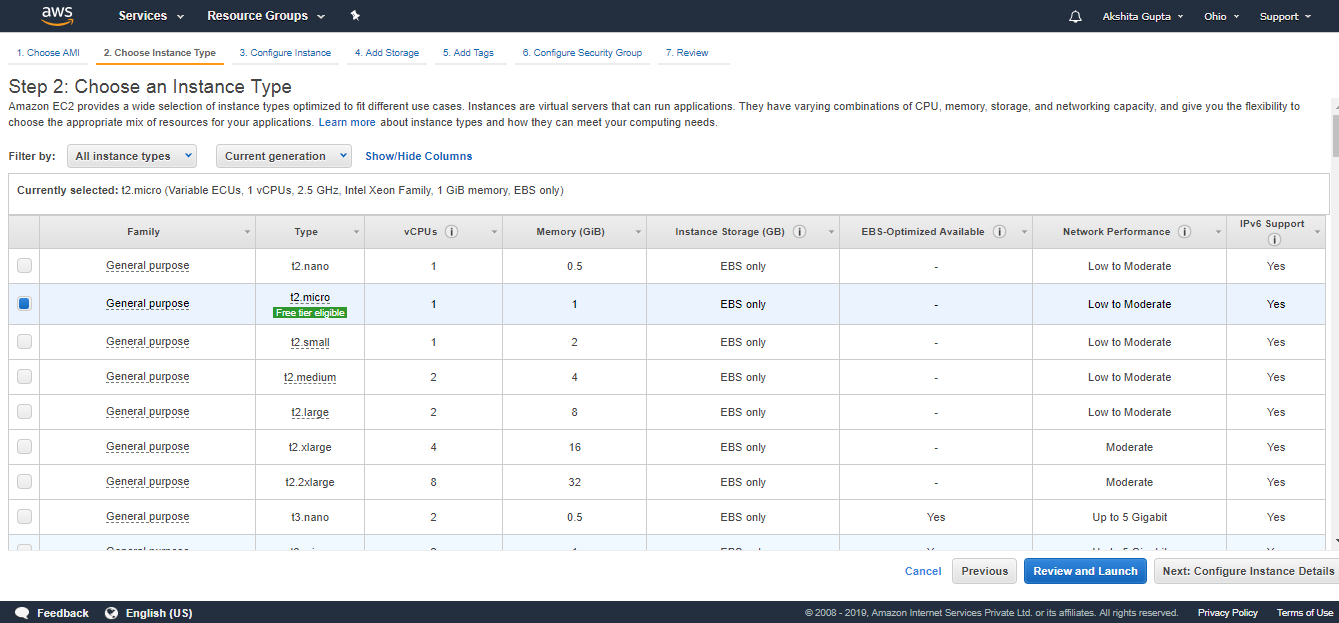
  • Choose an Instance type. I choose a t2.micro type.
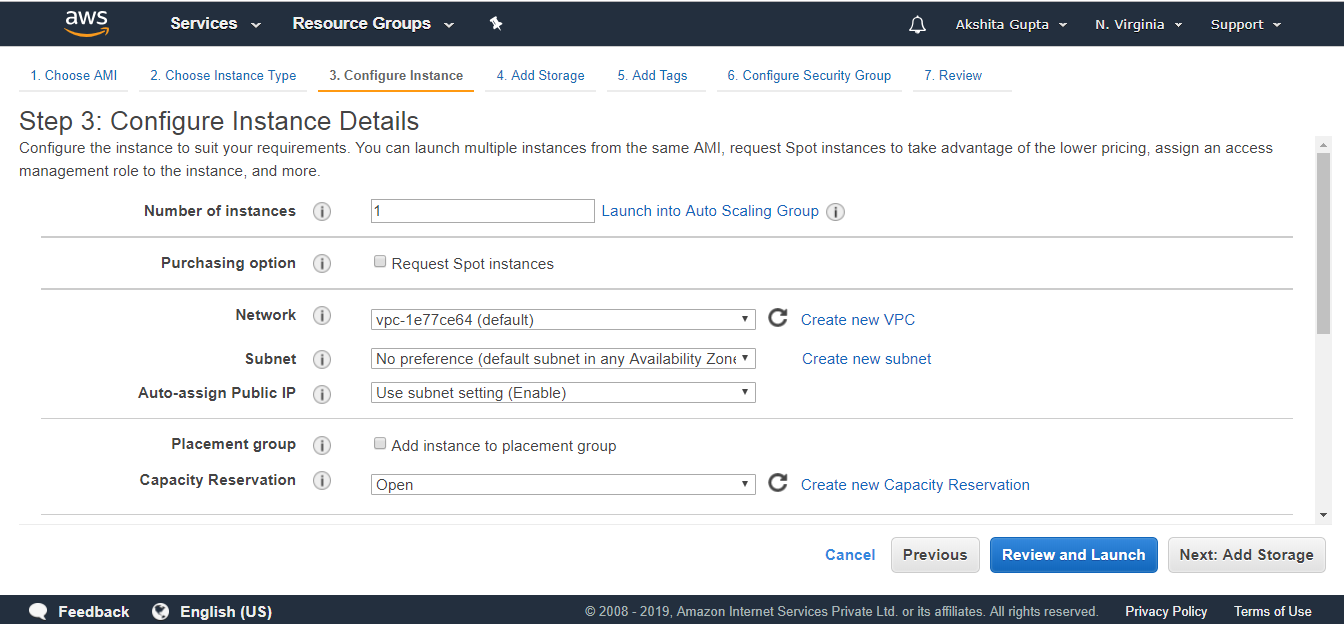
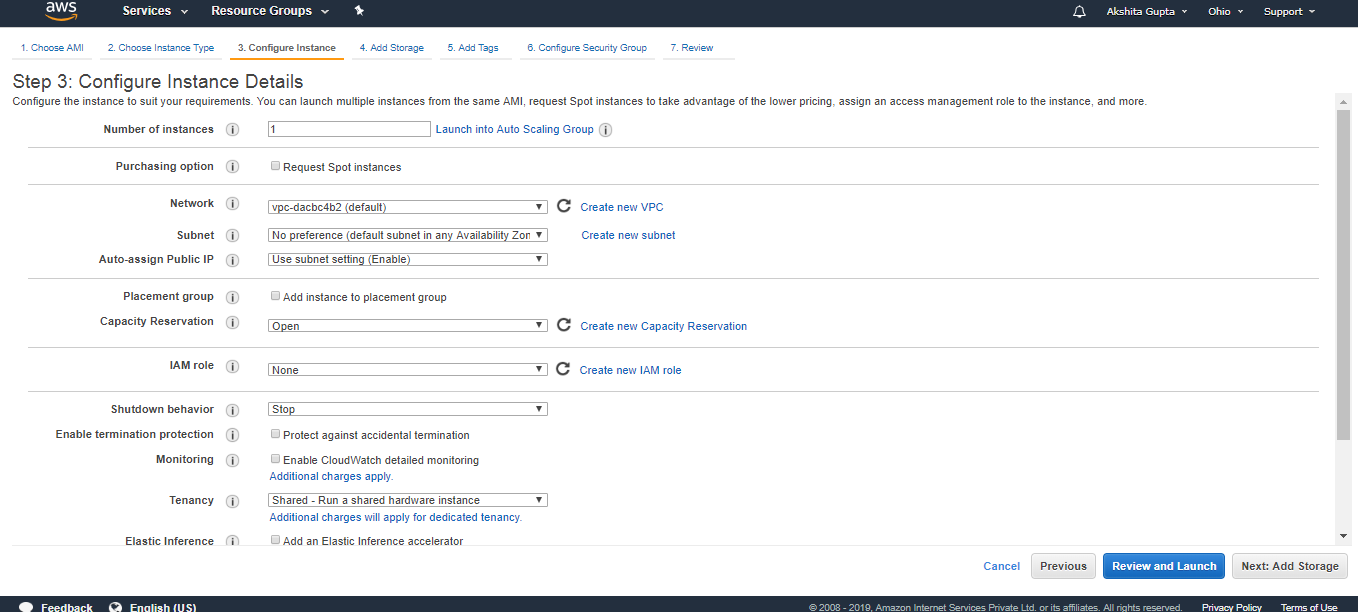
  • Configure the Instance details. Select the IAM Role as S3AdminAccess and keep other settings as default.
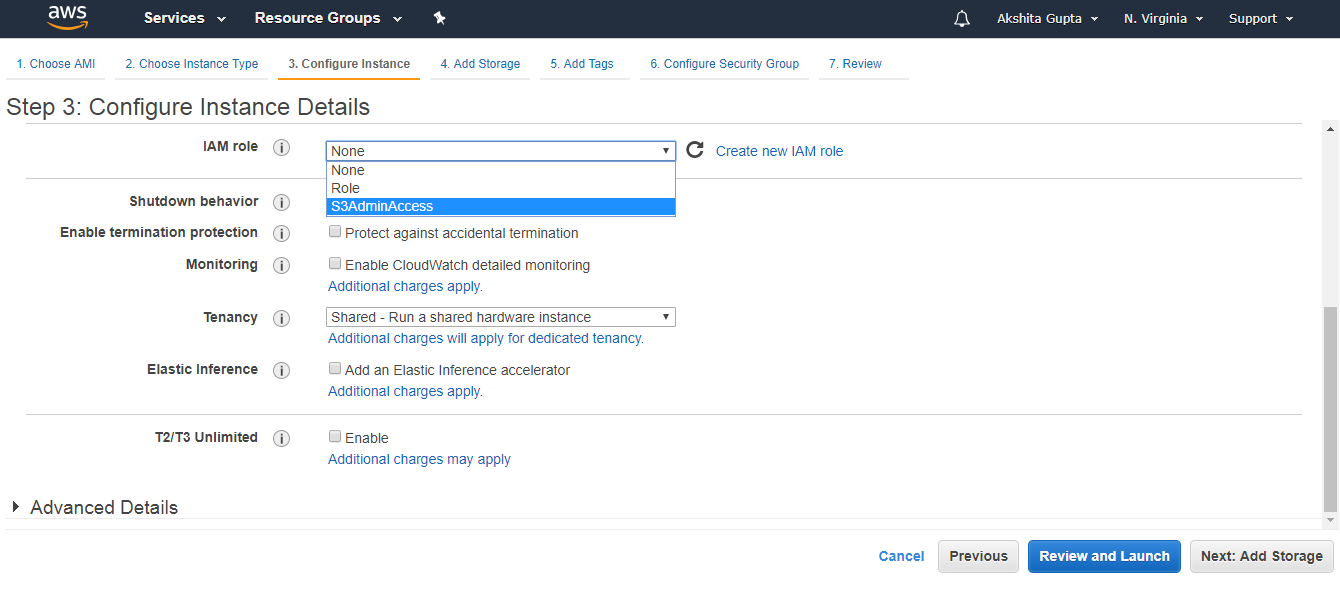
Bash Script
Bash Script

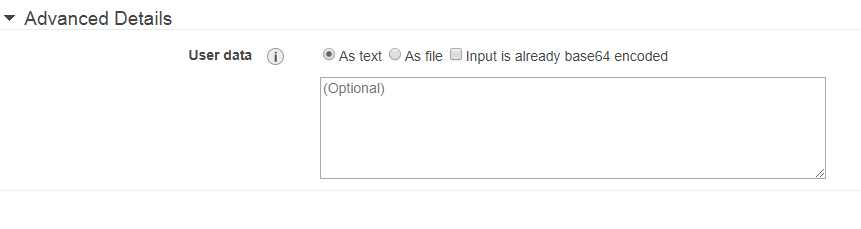
Bash scripts are added in an Advanced Details.https://2d4b53638f563afeafa88365d088b6c1.safeframe.googlesyndication.com/safeframe/1-0-37/html/container.html

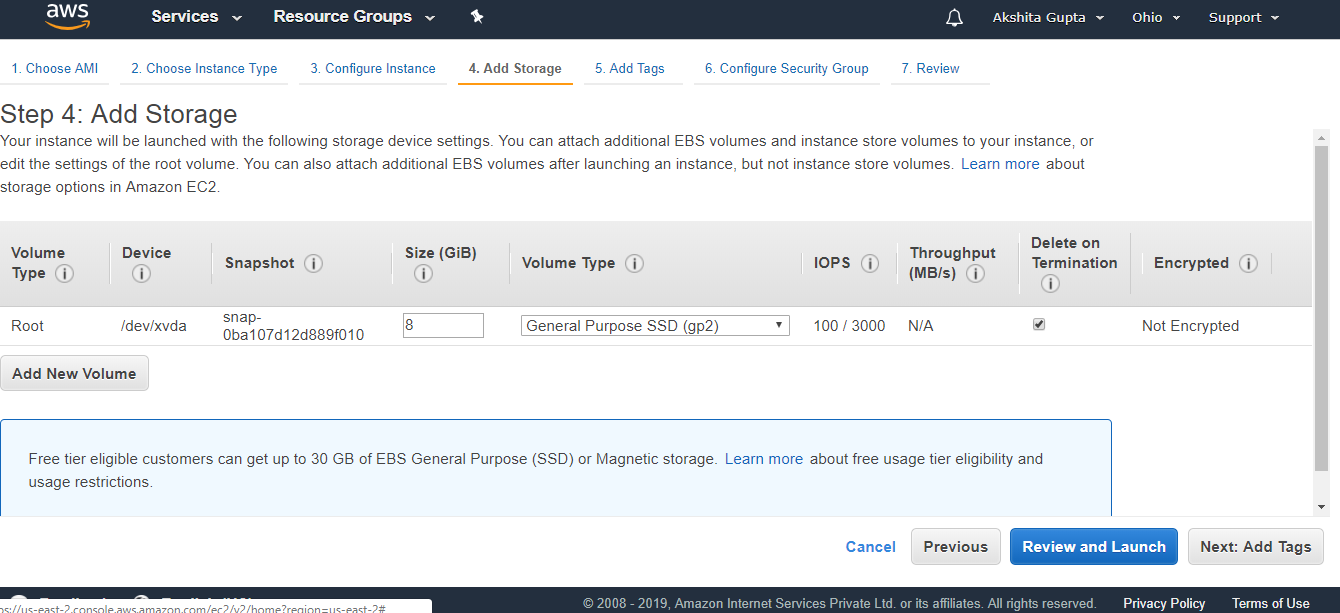
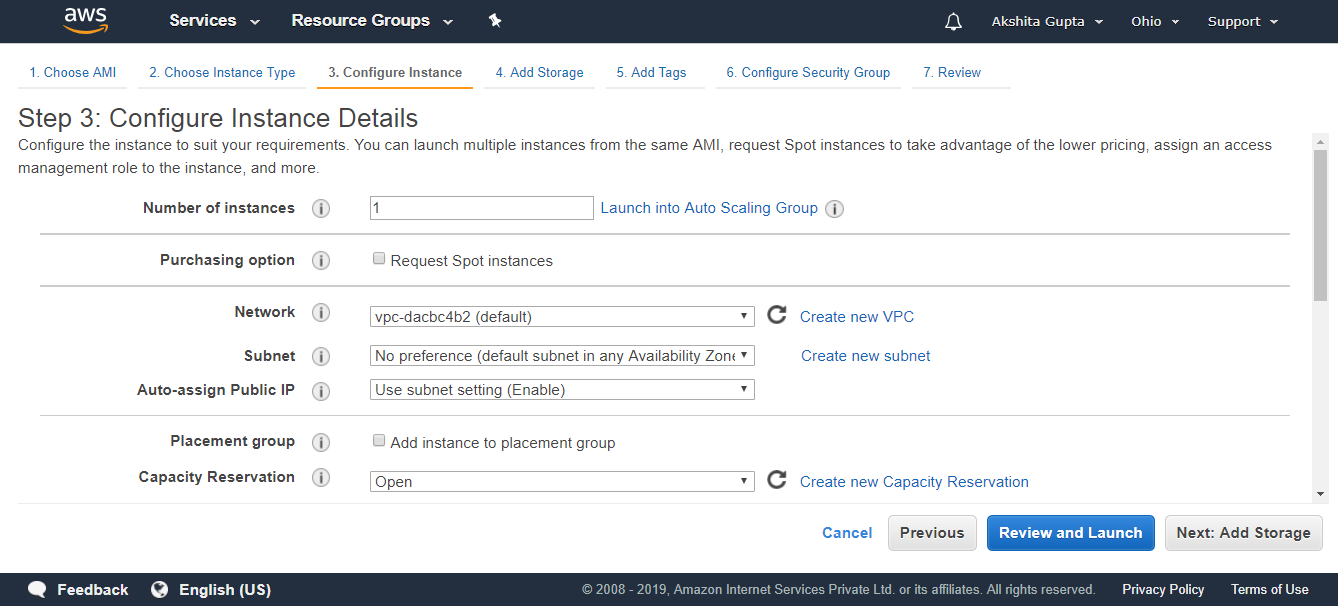
  • Add Storage to your instance. Root is a default volume, and I am not adding new volume.
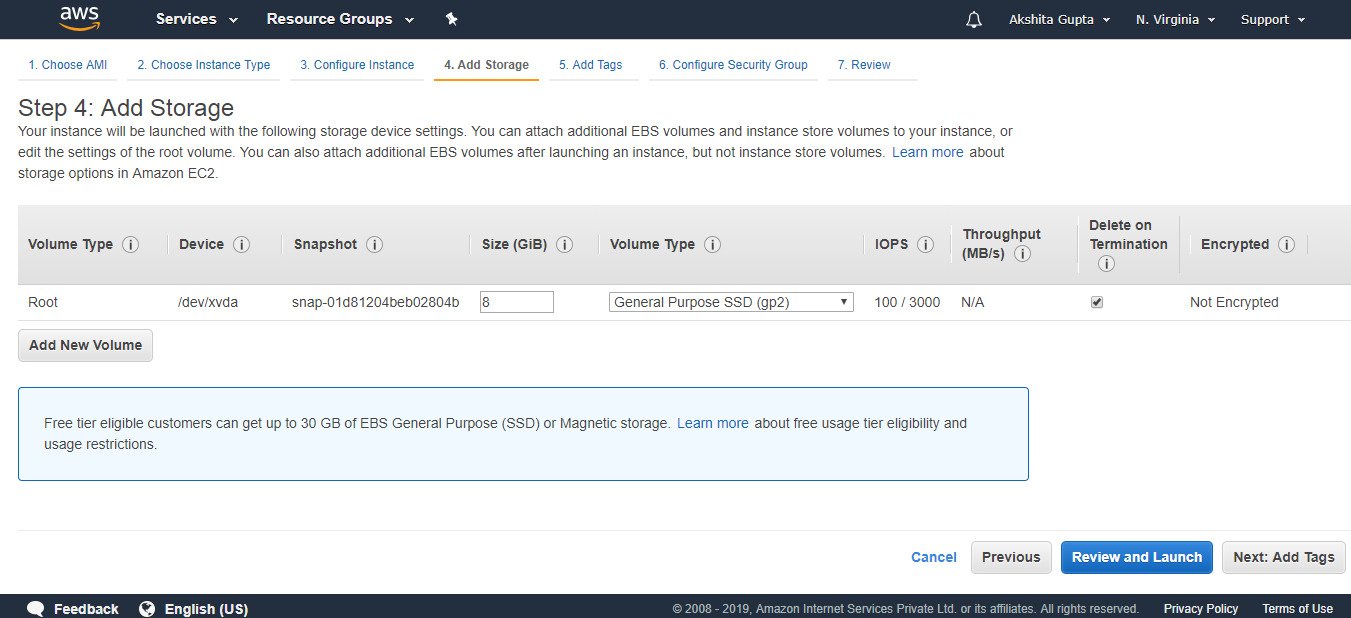
Bash Script
  • Click on the Next.
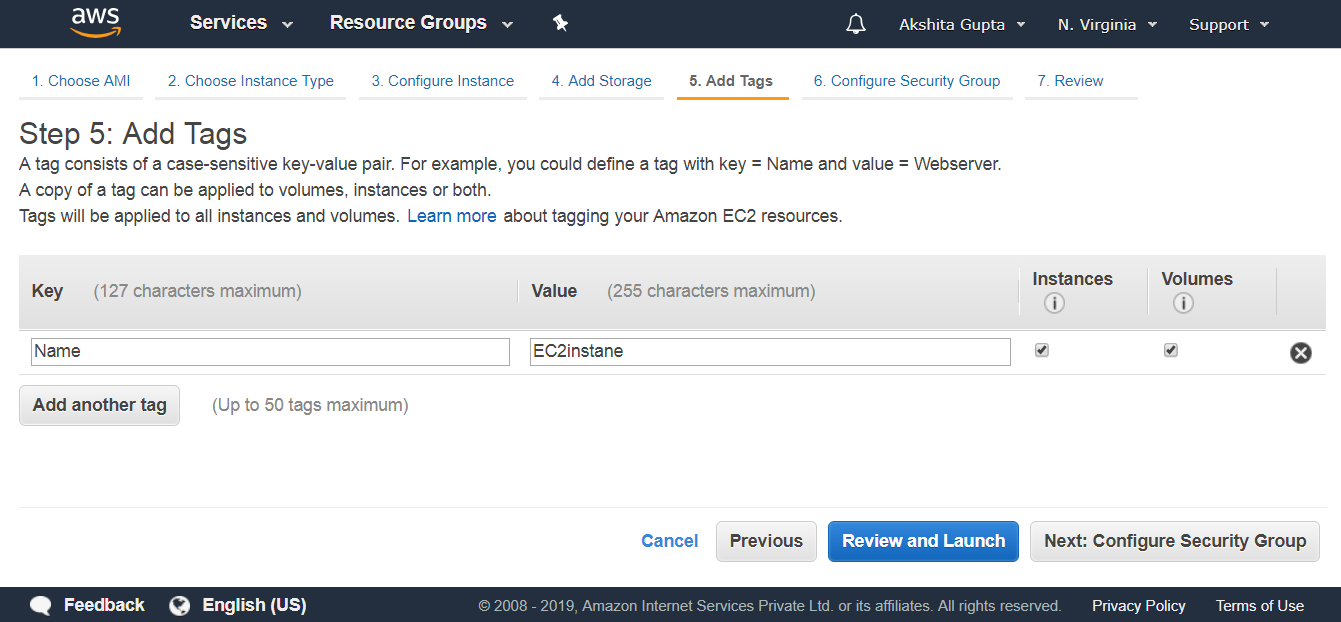
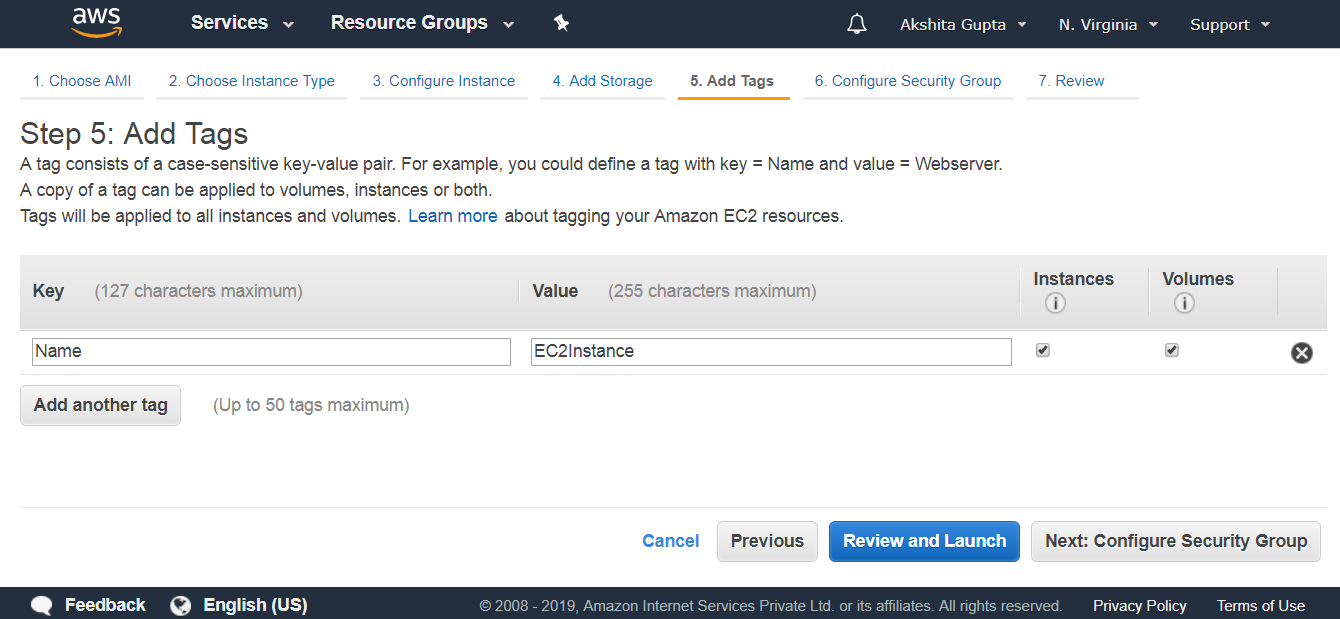
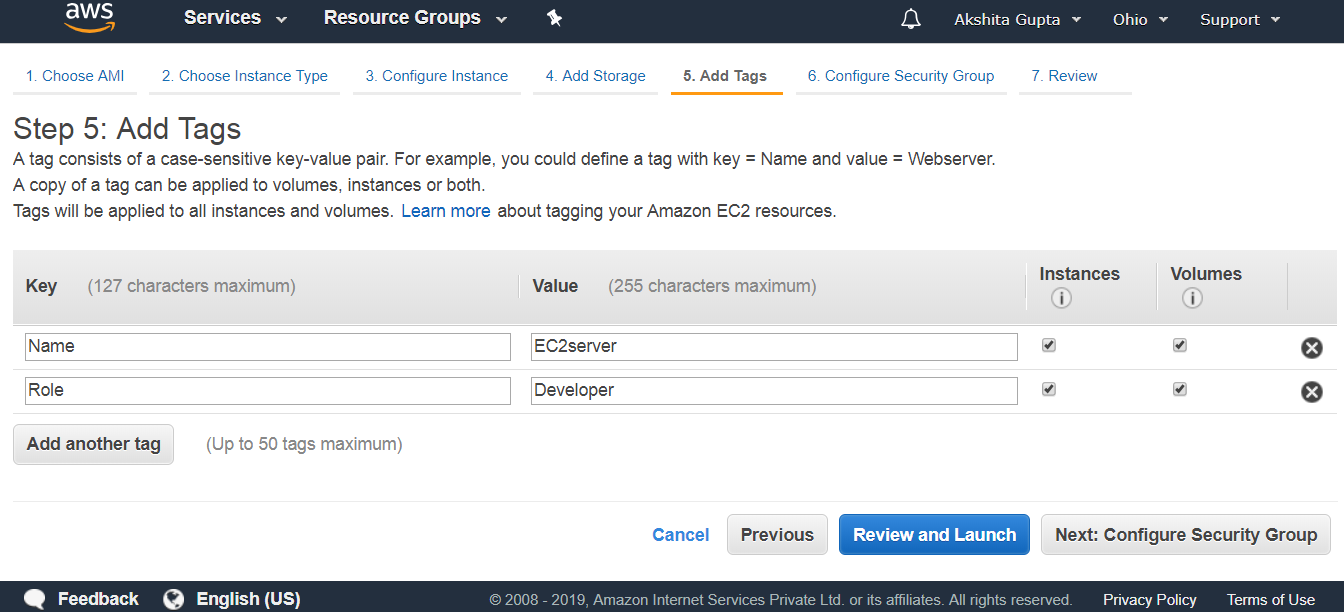
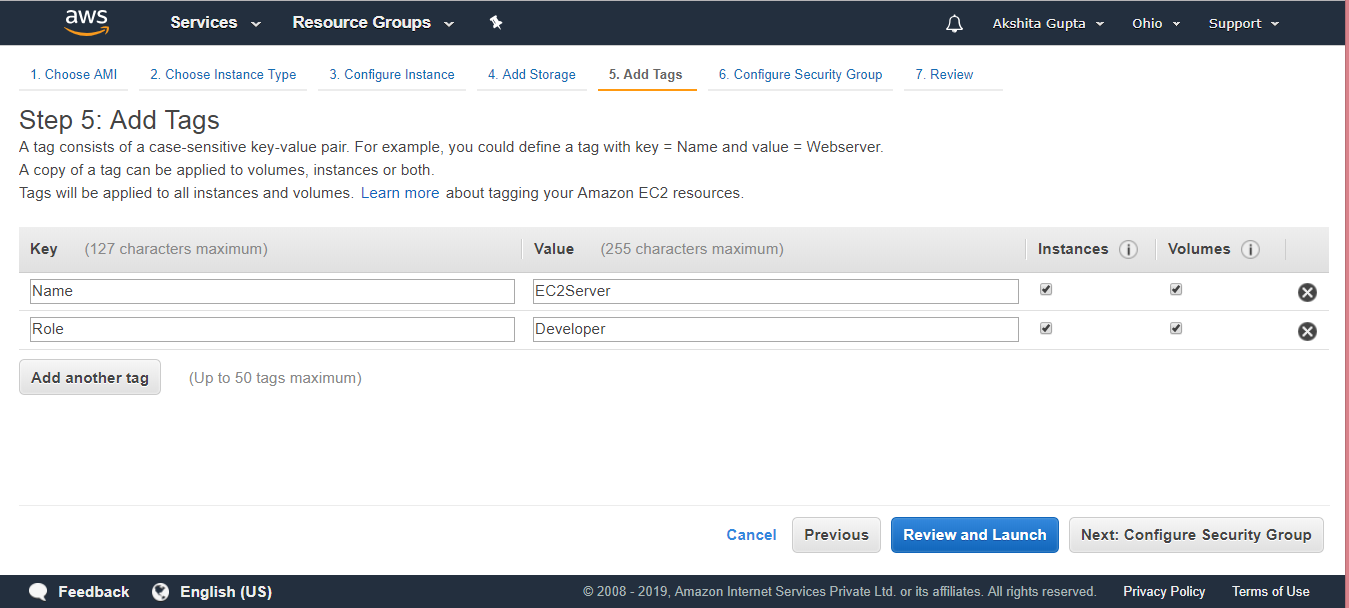
  • Add a tag.
Bash Script
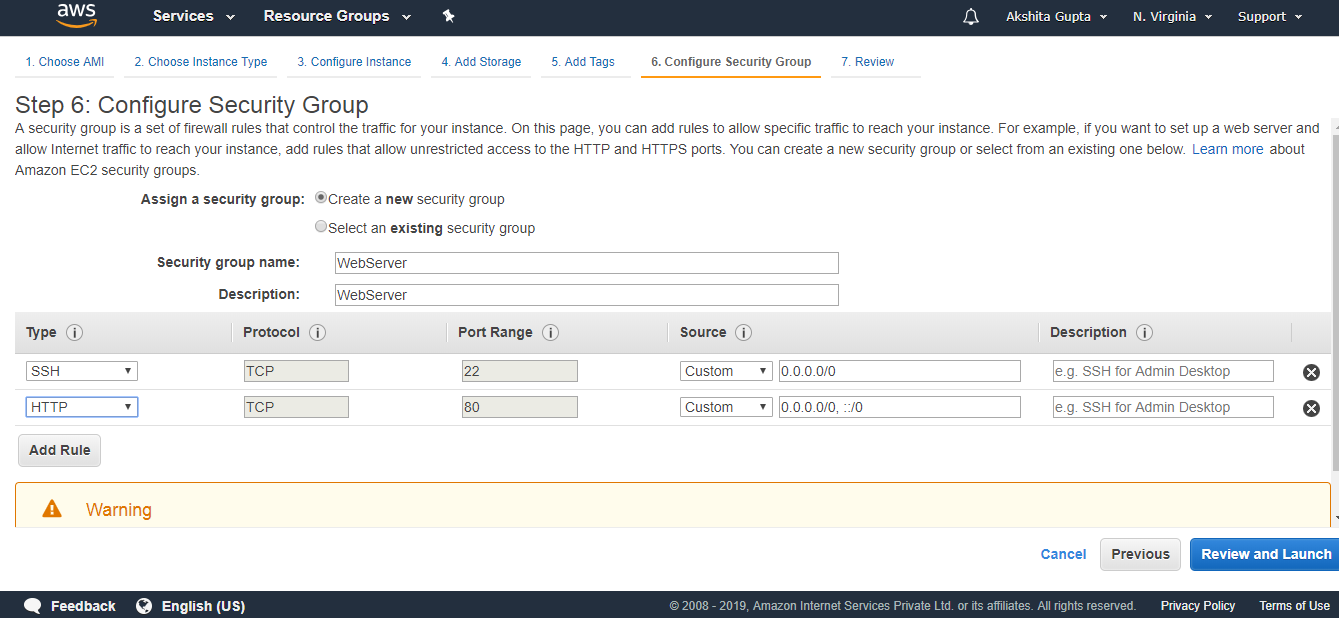
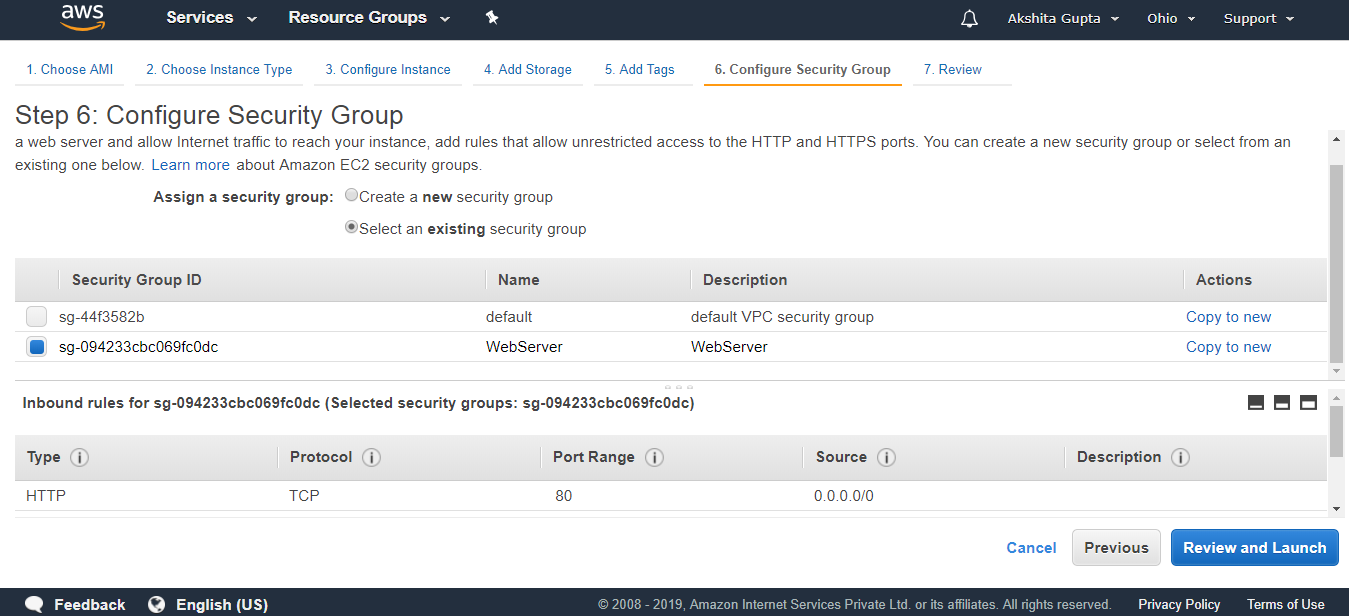
  • Configure Security group.
Bash Script

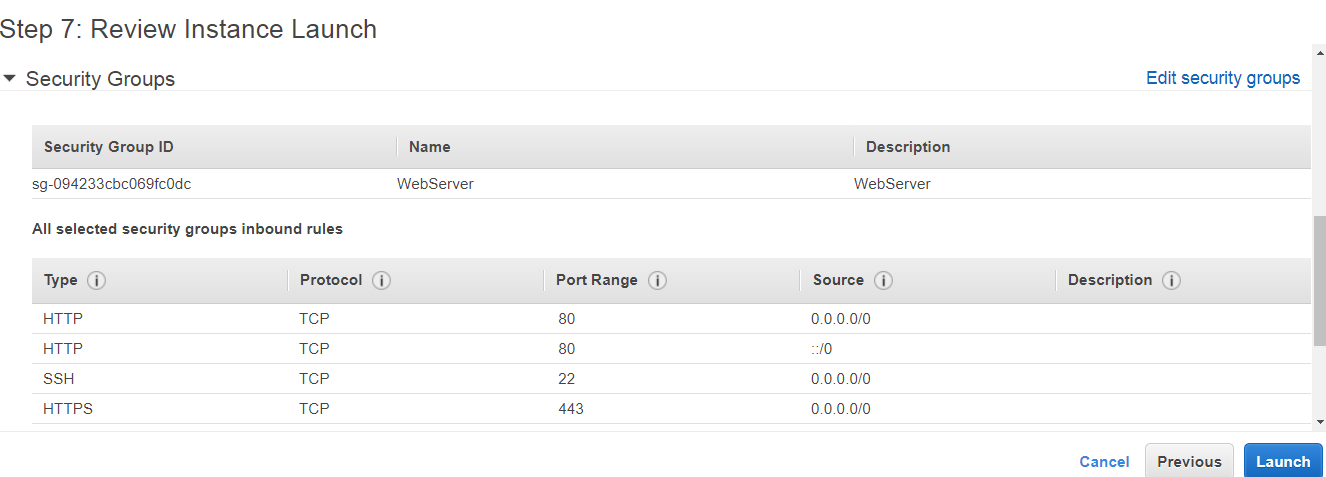
The above screen shows that we created a new security group whose name is WebServer.

  • Review and Launch.
  • Select an existing key pair or create a new key pair. I contain a key pair.
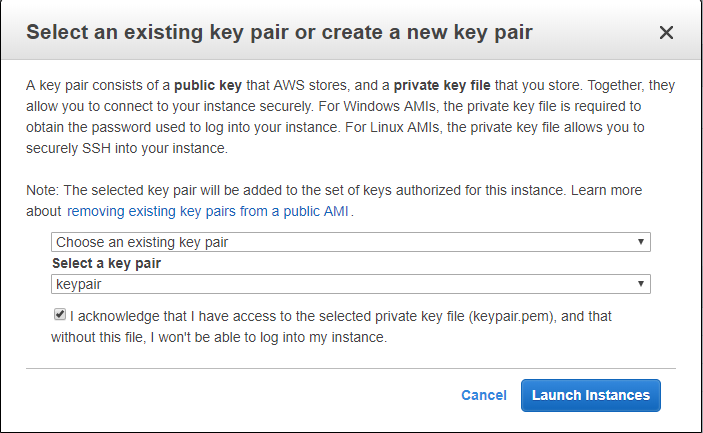
Bash Script
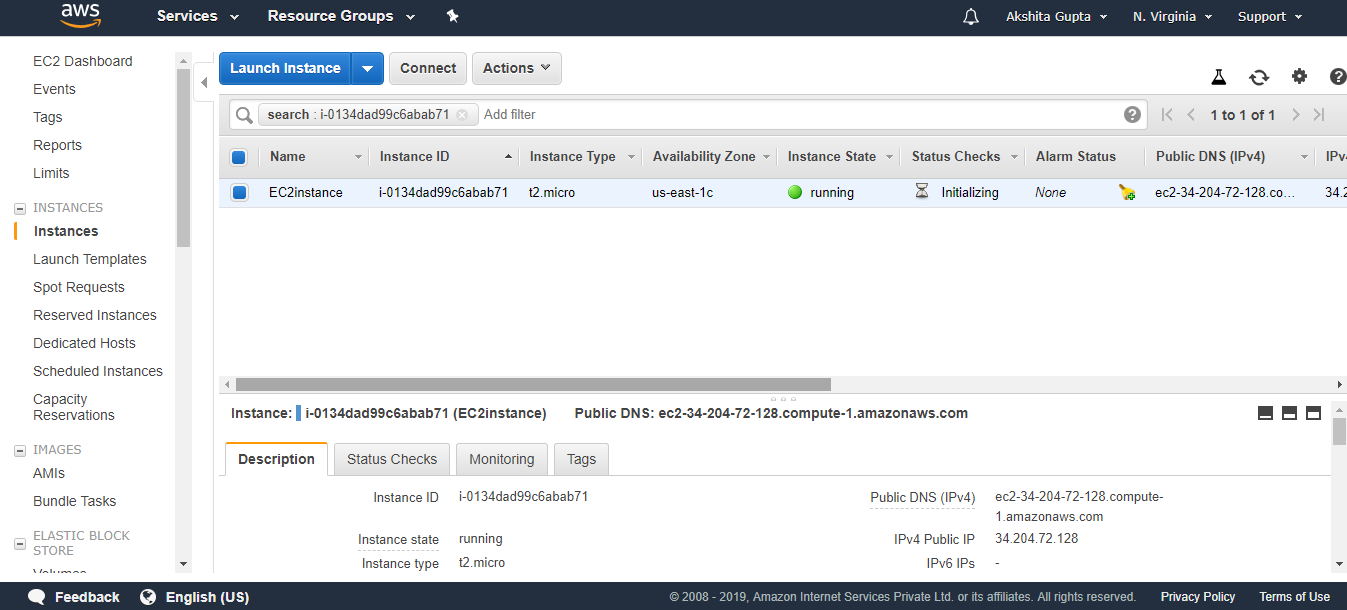
  • Finally, my EC2Instance has been created.
  • Open the Putty.
  • Enter your Host Name such as ec2-user@3.93.219.168.
  • Click on the auth in SSH appearing on the left side of the putty, attach the key pair.ppk file to it.
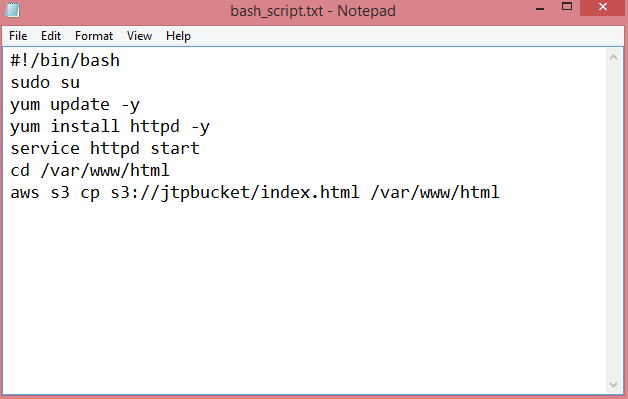
  • Run the command sudo du to reach the root level.
  • Run the command yum update -y to update an EC2 instance.
  • Run the command yum install httpd -y to install an Apache server.
  • Start the server by running the command service httpd start.
  • Move to the directory cd /var/www/html.
  • Copy all the commands that we saw till now to the Notepad file.
Bash Script

The above screen shows the bash script.

Step 5: Test the Bash Script

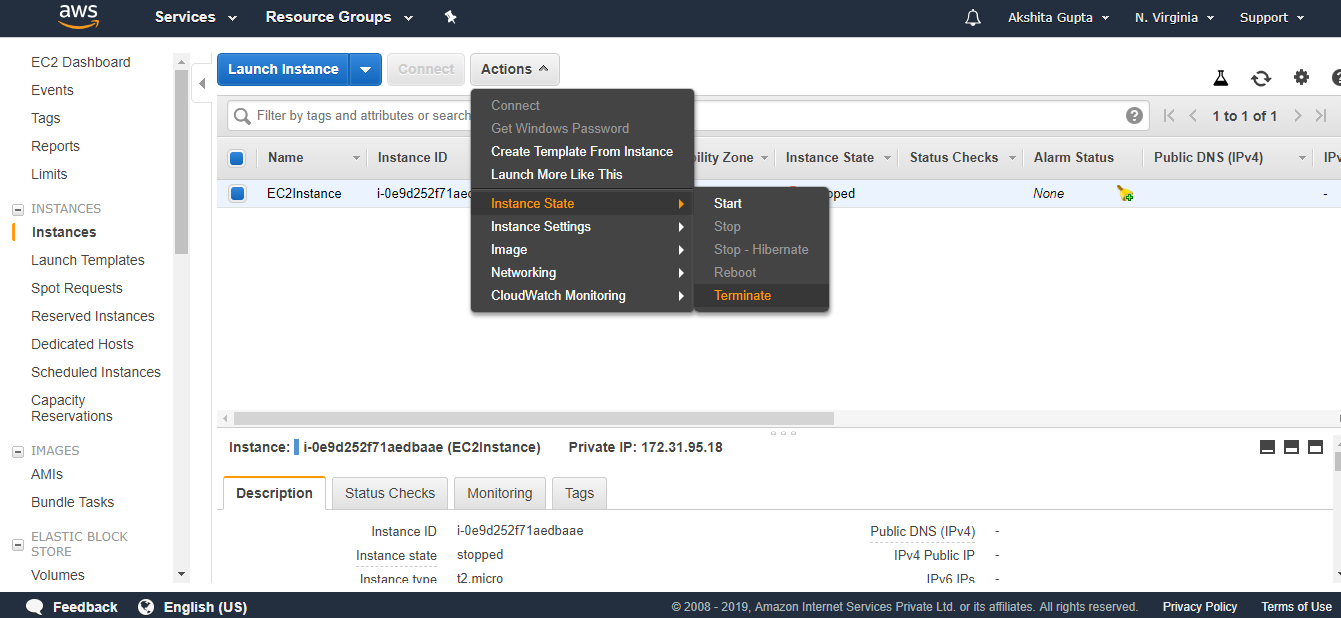
  • First, we delete the instance that we created.
Bash Script
  • Now we create a new instance.
  • Launch an instance.
  • Choose an Amazon Machine Language (AMI). I choose the Amazon Linux AMI 2018.03.0 (HVM).
  • Choose an Instance type. I choose a t2.micro type.
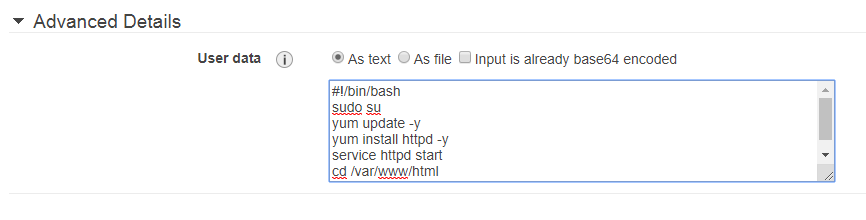
  • Configure Instance details. Set IAM Role as S3AdminAccess and paste the bash script in Advanced details.
Bash Script
  • (Optional) Add storage.
  • Add tags.
  • Configure Security Group. I select a default group.
  • Review instance launch.
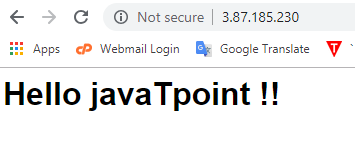
  • After launching an instance, paste the public IP address to a clipboard of the web browser. You will see the output shown below:
Bash Script

We conclude that copying the data from S3 to EC2 becomes easier by using Bash scripts.

What is CloudWatch?

What is CloudWatch?

  • CloudWatch is a service used to monitor your AWS resources and applications that you run on AWS in real time. CloudWatch is used to collect and track metrics that measure your resources and applications.
  • It displays the metrics automatically about every AWS service that you choose.
  • You can create the dashboard to display the metrics about your custom application and also display the metrics of custom collections that you choose.
  • You can also create an alarm to watch metrics. For example, you can monitor CPU usage, disk read and disk writes of Amazon EC2 instance to determine whether the additional EC2 instances are required to handle the load or not. It can also be used to stop the instance to save money.

Following are the terms associated with CloudWatch:

  • Dashboards: CloudWatch is used to create dashboards to show what is happening with your AWS environment.
  • Alarms: It allows you to set alarms to notify you whenever a particular threshold is hit.
  • Logs: CloudWatch logs help you to aggregate, monitor, and store logs.
  • Events: CloudWatch help you to respond to state changes to your AWS resources.

Creating a Dashboard

  • Sign in to the AWS Management Console.
  • I created an EC2 instance, and the name of an EC2 instance is EC2instance.
CloudWatch EC2
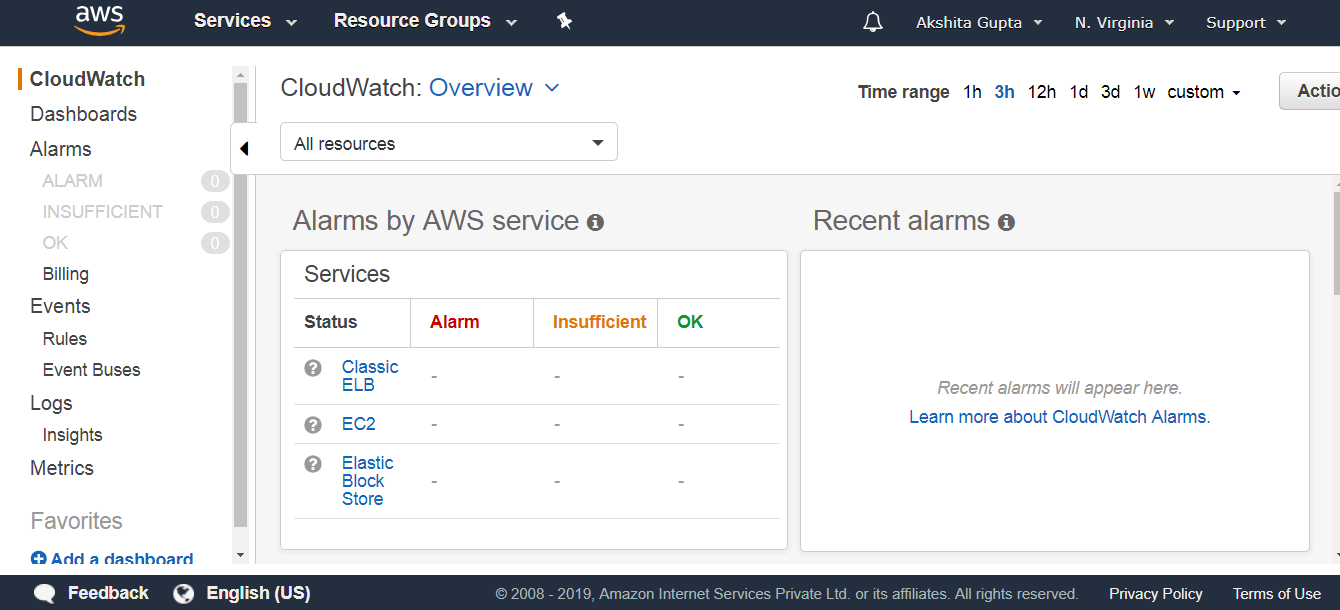
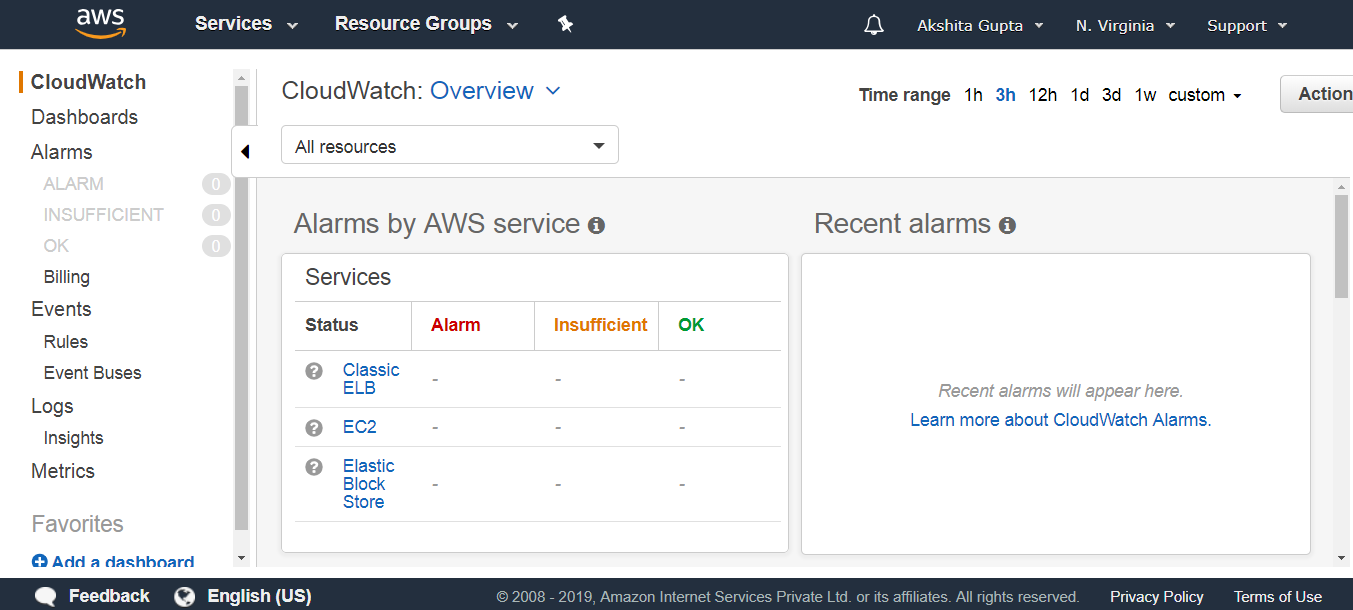
  • Move to the CloudWatch service.
CloudWatch EC2
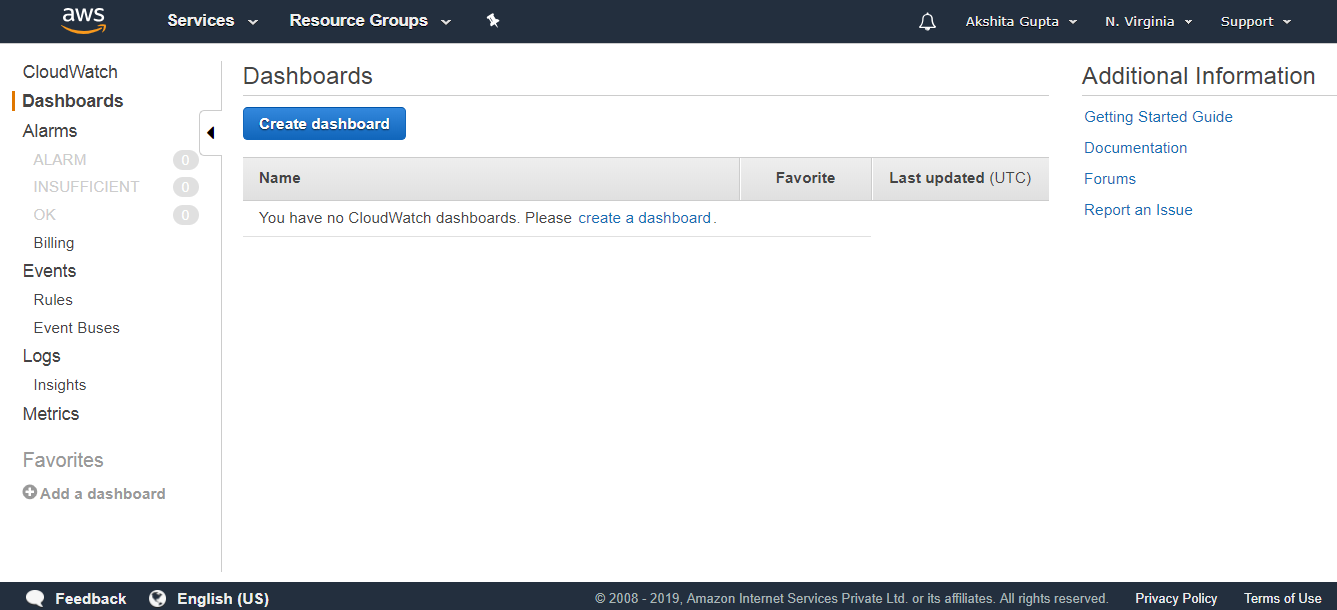
  • Click on the Dashboards appearing on the left side of the console.
CloudWatch EC2
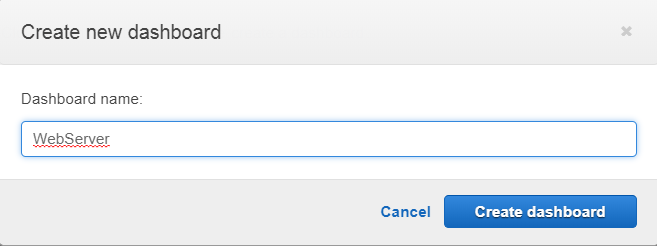
  • Click on the Create dashboard button. Enter the dashboard name. Suppose I write the dashboard name as WebServer.
CloudWatch EC2
  • Click on the Create dashboard.
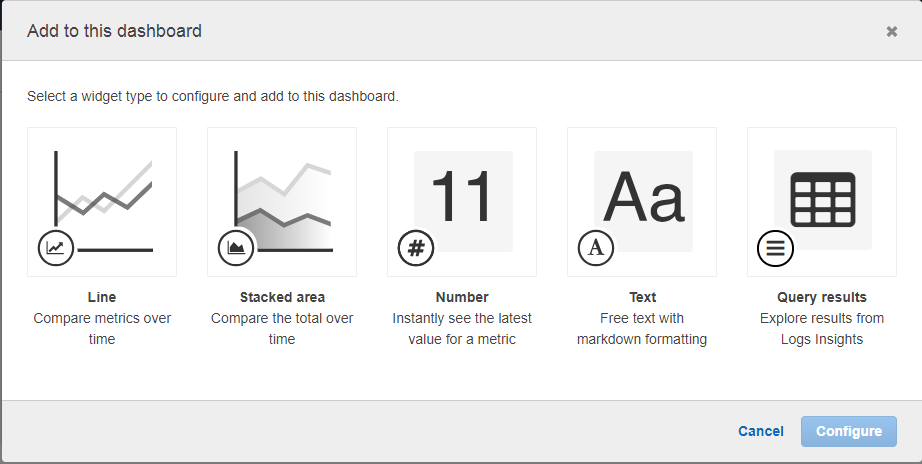
  • Select the widget type and add to the dashboard.
  • I add the Line widget to our dashboard.
CloudWatch EC2
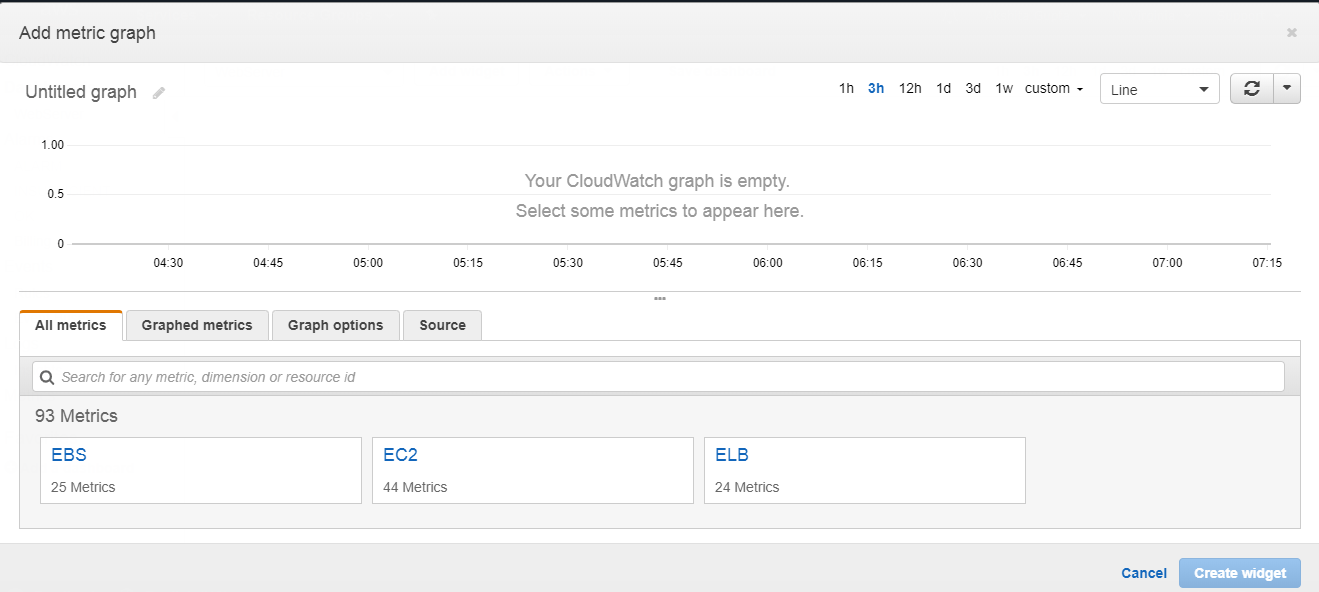
  • After adding a line widget, you have to choose the service. I choose the EC2 service.
CloudWatch EC2
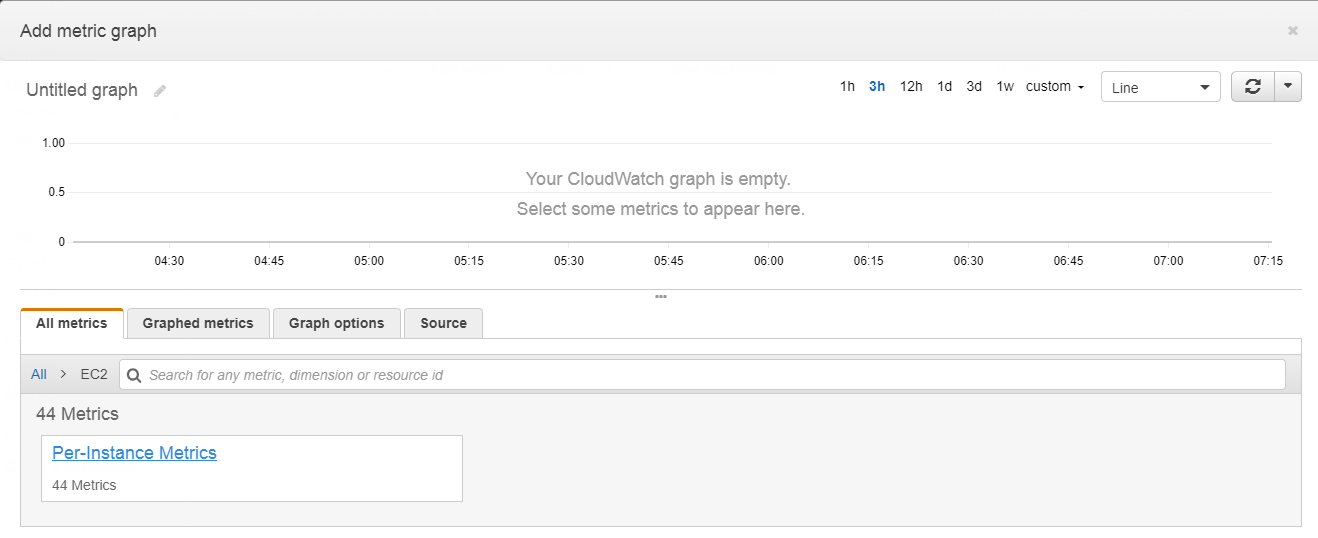
  • Click on the per-instance metrics.
CloudWatch EC2
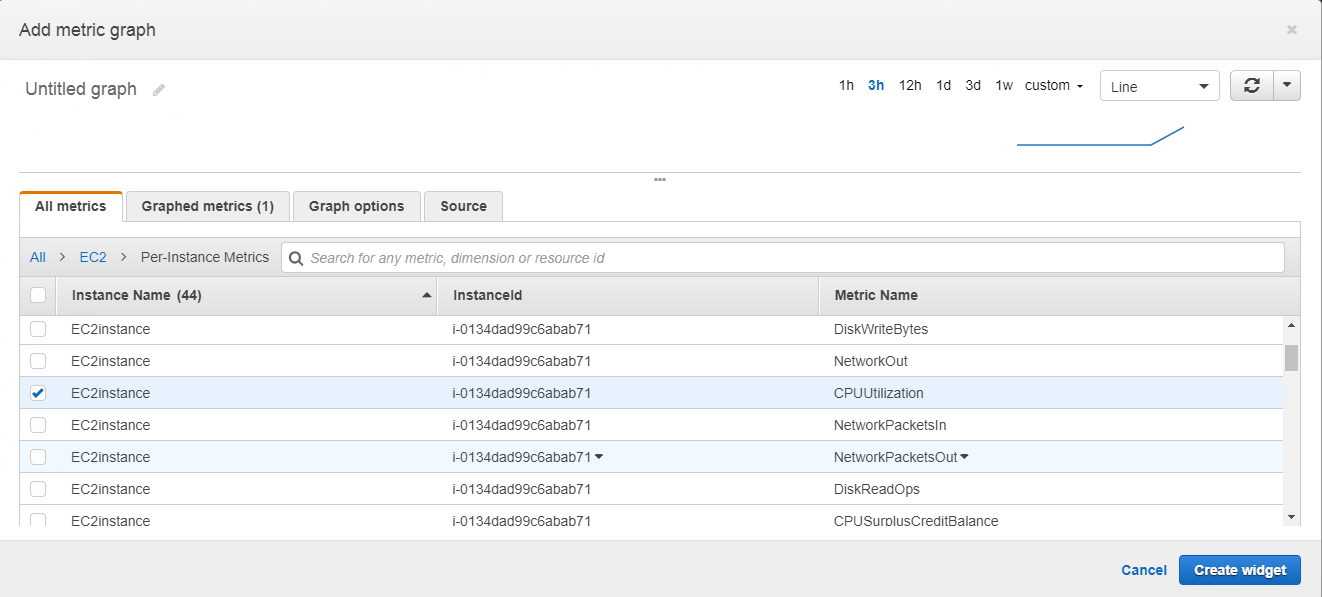
  • Choose the CPUUtilization as a metric name and click on the create widget button.
CloudWatch EC2
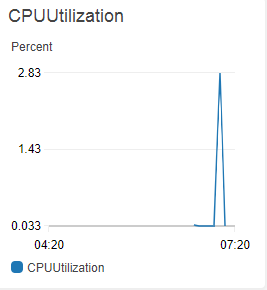
  • The below screen shows the CPU utilization in the form of line widget.
CloudWatch EC2
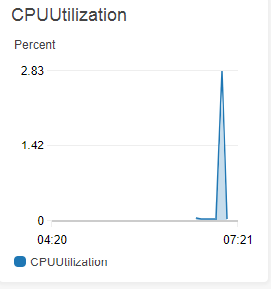
  • I add another widget known as stacked area.
CloudWatch EC2

The above screen shows the CPU utilization in the form of a colored graph.

Creating an Alarmhttps://0d646073edcbc0582a1055fcde88b379.safeframe.googlesyndication.com/safeframe/1-0-37/html/container.html

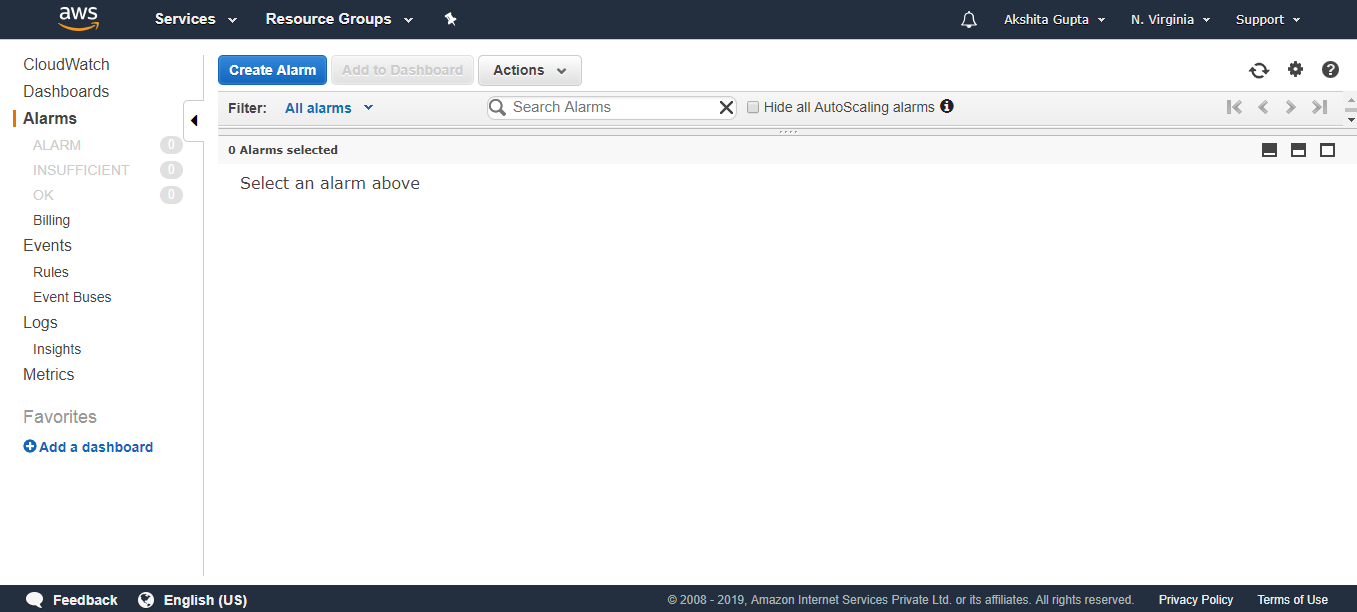
  • Click on the Alarms appearing on the left side of the console.
CloudWatch EC2
  • Click on the Create Alarm.
CloudWatch EC2
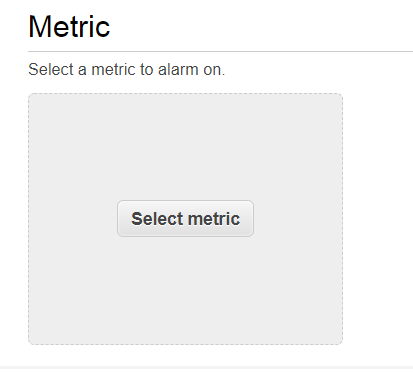
  • Select a metric.
CloudWatch EC2
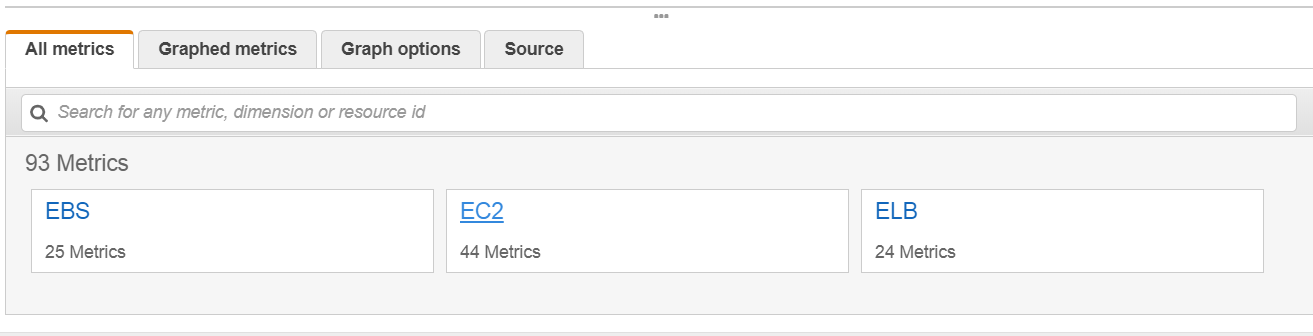
  • select an EC2.I
CloudWatch EC2
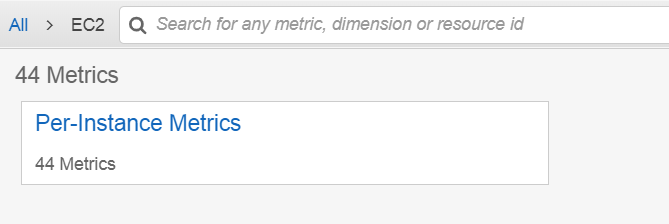
  • Click on the Per-Instance Metrics.
CloudWatch EC2
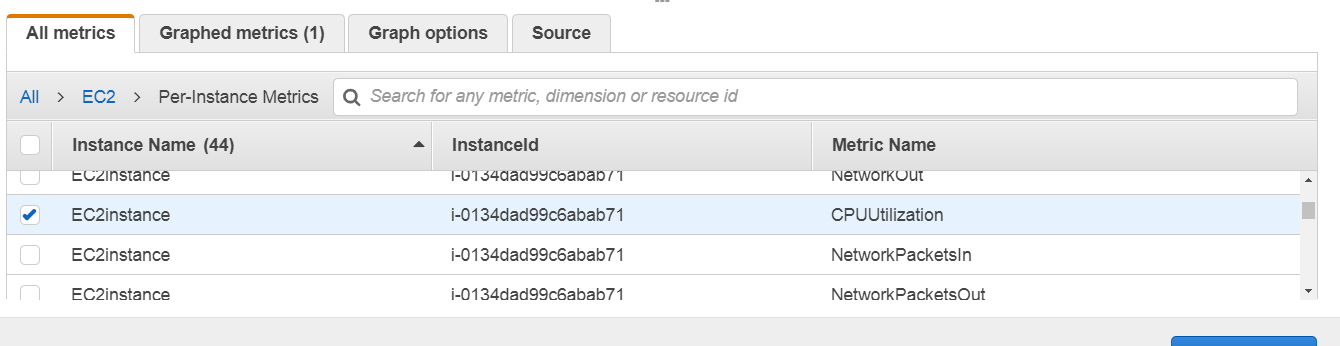
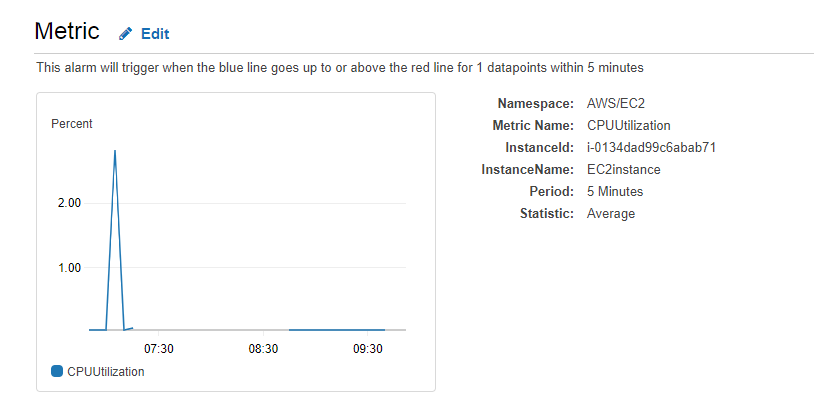
  • I select a CPUUtilization metric.
CloudWatch EC2
CloudWatch EC2
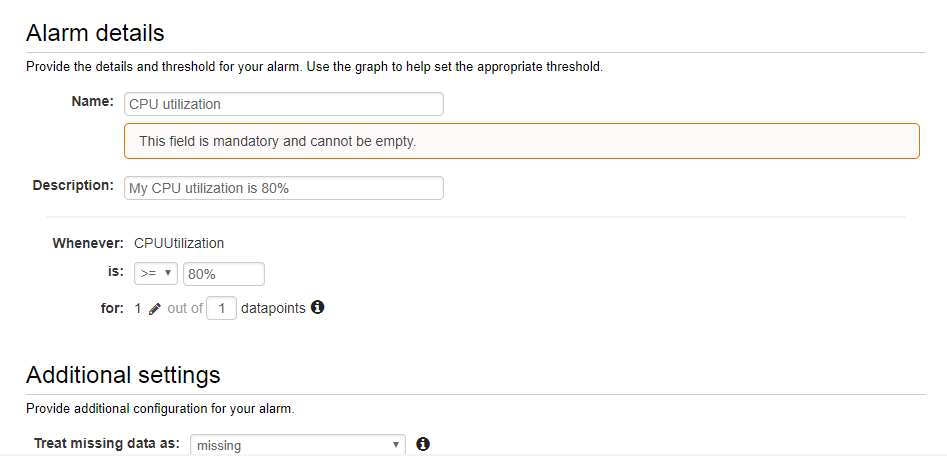
  • Enter the Alarm details.
CloudWatch EC2
CloudWatch EC2

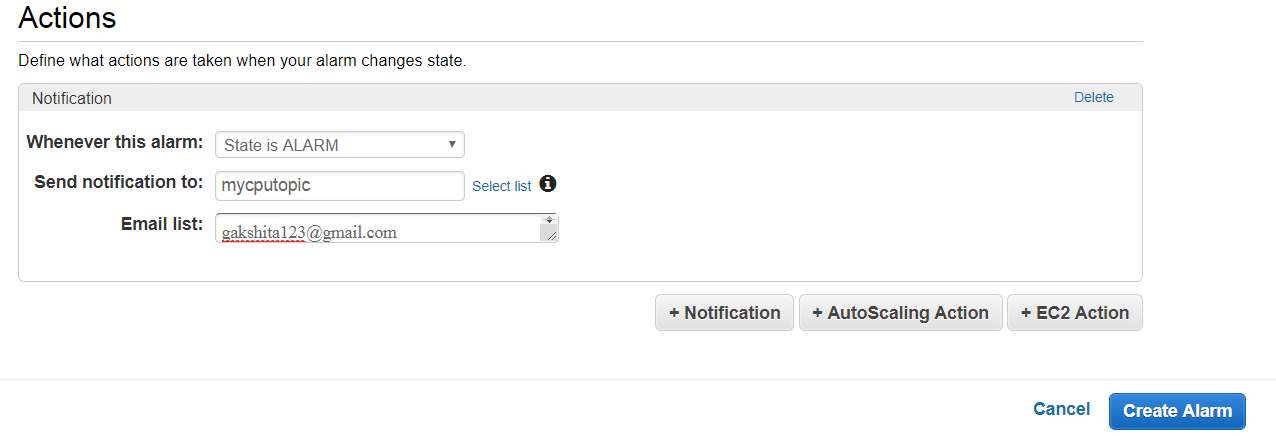
The above details show that when CPU utilization is greater than 80%, then an alarm is triggered and sent to the email address that you mentioned while filling the alarm details.

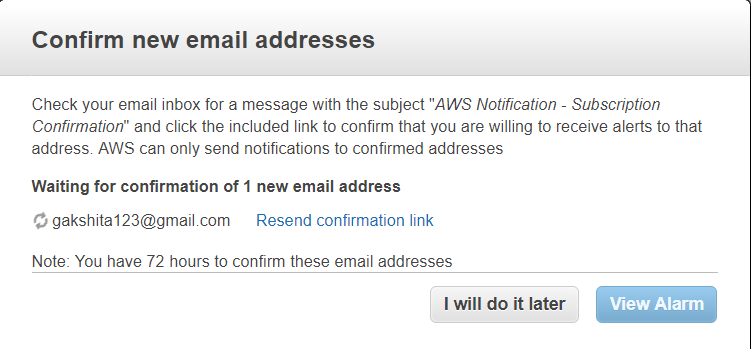
  • Click on the link sent to your email address for confirmation and this confirmation shows that you are ready to receive the alerts.
CloudWatch EC2

How to create a Lambda function

How to create a Lambda function

  • Sign in to the AWS Management Console.
  • Click on the Lambda service.
  • Select the Northern Virginia region as it contains almost all AWS resources.
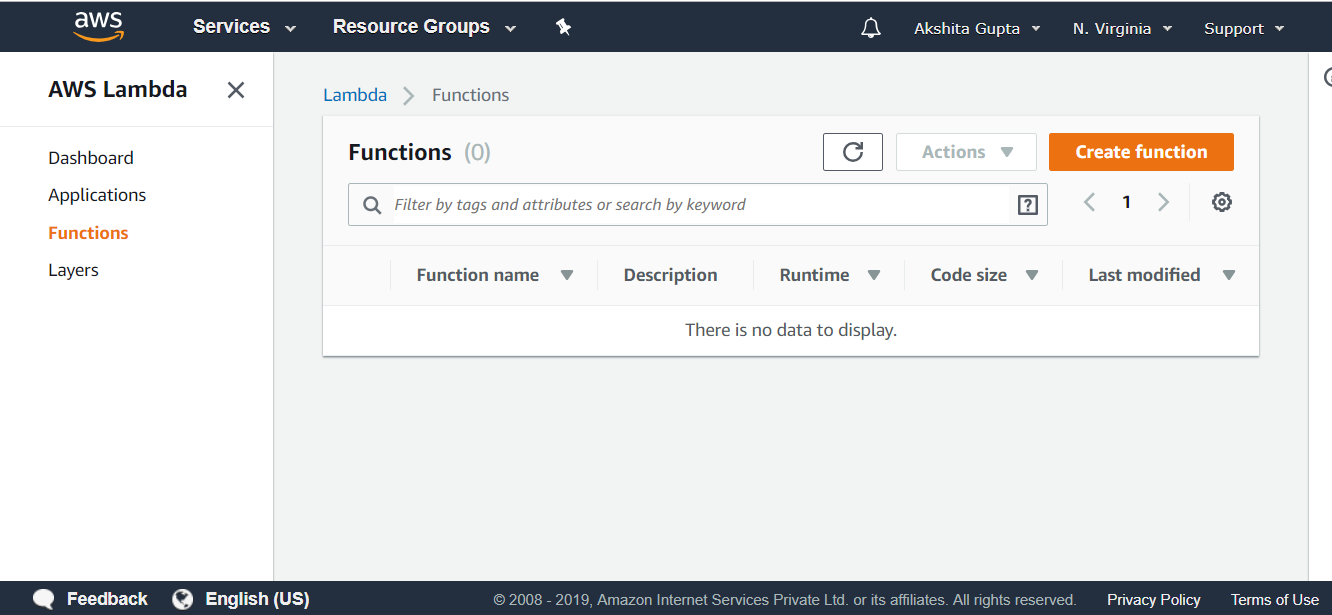
  • Click on the Function appearing on the left side of the console.
Creating a Lambda

The above screen shows that it does not contain any function.

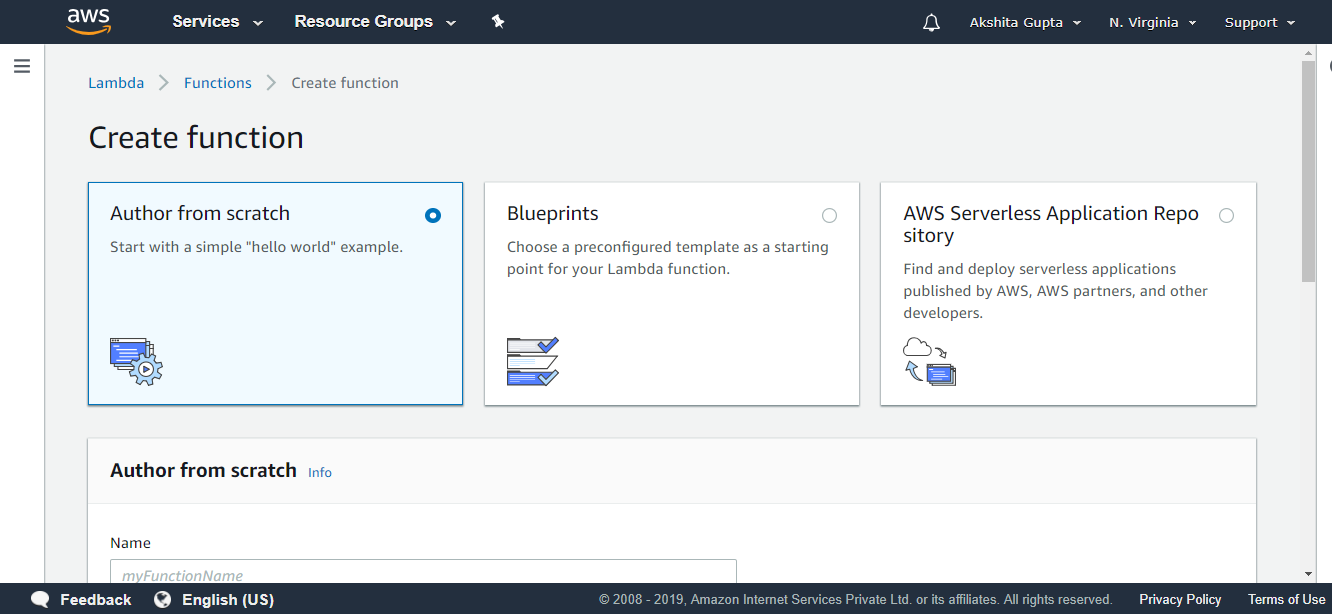
  • Click on the Create function to create a new function.
Creating a Lambda

From the above screen, we observe that we have three ways of the authoring Lambda function, i.e., Author from scratch, Blueprints, and AWS Serverless.

  • Now, we create the Lambda function by using the Author from scratch.
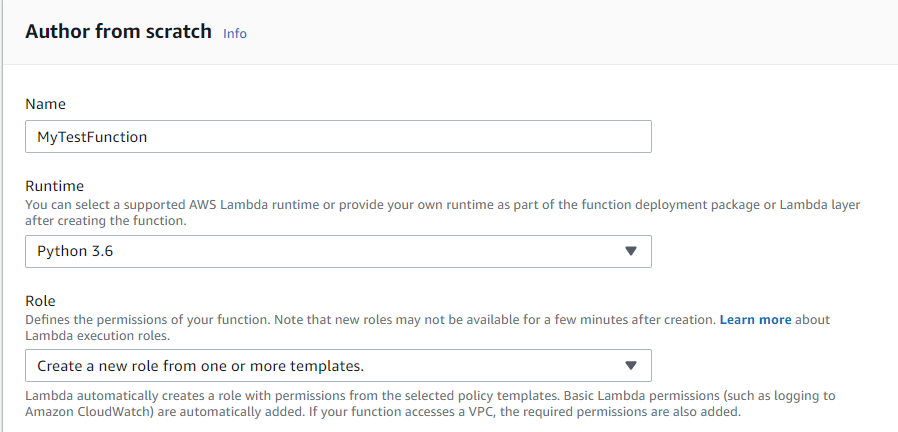
Creating a Lambda
Creating a Lambda

Name: It defines the name of the Lambda function.

Runtime: You can select an appropriate Lambda runtime or create your runtime as a part of your function deployment package.

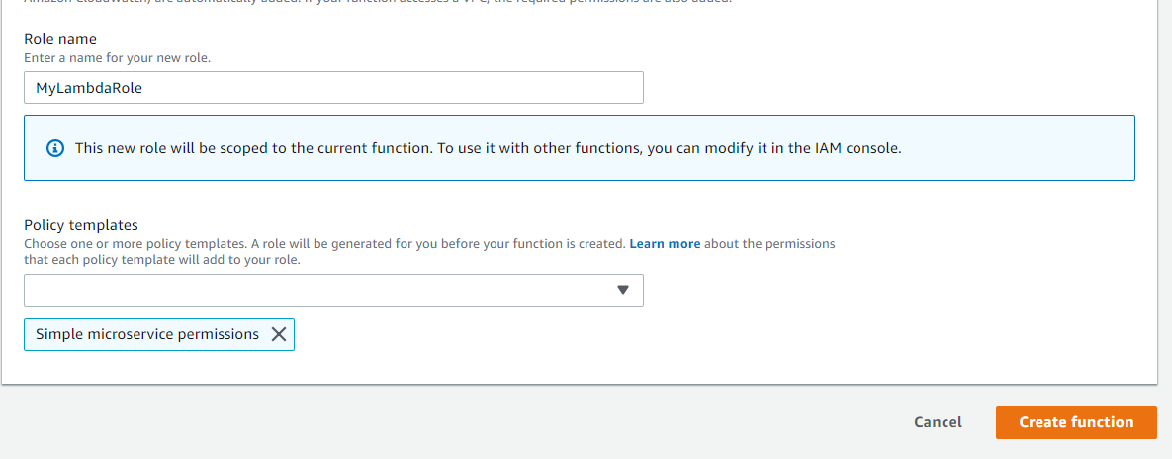
Role: You can create a new role. I created a new role, and my role name is MyLambdaRole.

Policy templates: It defines the Lambda basic execution role. I select a Simple microservice permission that provides you permission to execute your Lambda function.

  • Click on the Create function.
Creating a Lambda

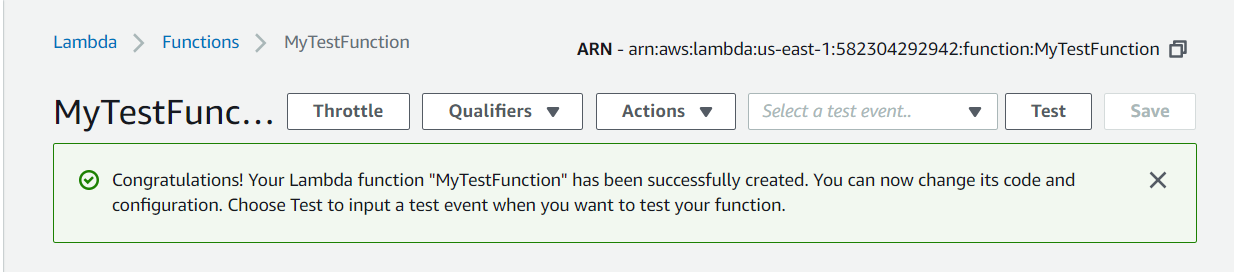
The above screen shows that the function has been successfully created.

  • You can configure triggers appearing on the left side of the console.

Let’s see a scenario of Lambda function by using API Gateway.

Creating a Lambda
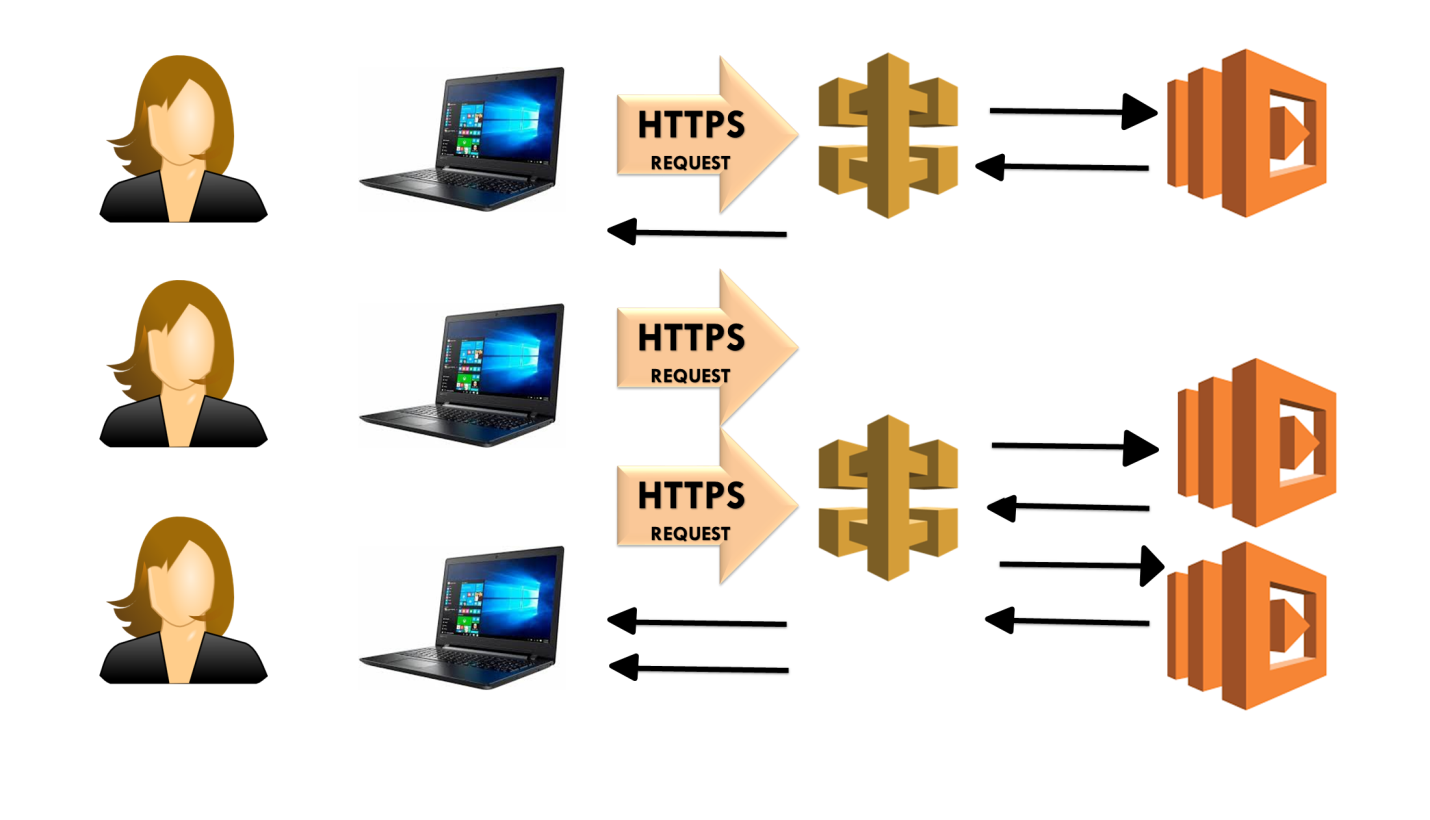
  • A user is browsing in google chrome and sends an HTTP request to API Gateway. An API Gateway, in turn, triggers the Lambda function, Lambda function then generates a response and sends back to the API Gateway. API Gateway further sends the response back to the user.
  • We know that the Lambda function scales out automatically. If two users are sending the HTTPS request to the API Gateway, two Lambda functions are invoked that serves the request individually.

Note: Node.js, python, java, and C# are the languages supported by Lambda.

How is Lambda Priced?

Lambda is priced in the following ways:

  • Number of Requests: It is priced based on the number of requests. First 1 million requests are free. $0.20 per 1 million requests thereafter.
  • Duration: Duration is calculated from the time your code begins executing until it returns or otherwise terminates rounded up to the nearest 100ms. The price depends on the amount of money you allocate to your function. You are charged $0.00001667 for every GB-second used.
Why is Lambda cool?

  • No Servers: You do not need to run your own server, Lambda will do everything for you. You just need to focus on your code.
  • Continuous scaling: Lambda will automatically scale up or scale out.
  • Super super super cheap: It is very cheap as you do not require a server.

How to Lambda

Lambda

History of Cloud

Lambda

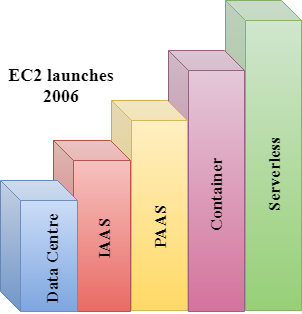
As we know that computer hardware is very heavy, and from decades, number of layers of abstraction have been built in code.

Data Centre: Let’s first talk about computer hardware in the Data centre. In this case, someone is needed to check whether it is turned on or not and connected to the network. Provisioning of resources is not very easy as we need to talk to people, we have to call to data centre providers to allow access to the machine. It takes a minimum of 10 days to provide the resources. Suppose you want to place an order for a Database server or web server, this service will be provided after 10 days.

IAAS (Infrastructure As A Service): In 2006, Amazon launched an EC2 instance. You can provision the machine with API calls using a command line or web browser. IAAS service was born, and developers around the world were happy as they do not have to provides the physical services anymore. You can provide the virtual machine anywhere in the world and do whatever you want. IAAS is running in a virtual machine as well as in a physical machine. You have to manage Windows, Linux, or maybe some corruption occurs in a disk due to which your operating system is lost then you need to reinstall the operating system.

PAAS (Platform As A Service): Amazon came out with a new service known as PAAS. You need to upload your code and Amazon will provide the underline resources. You still managing Window, Linux. Amazon would not do for you.

Containers: Containers are isolated and lightweight still they need to be deployed in a server, and you have to keep your container running. All these things that you need to manage.

Lambda: Amazon released Lambda in 2015. You do not have to take care of managing Data centre, managing infrastructure as a service, managing platform as a service or container. You need to upload the code and Amazon will do everything for you.

What is Lambda?https://2278a26829dac8b09fc149b68a9086cd.safeframe.googlesyndication.com/safeframe/1-0-37/html/container.html

  • Lambda is used to encapsulate Data centres, Hardware, Assembly code/Protocols, high-level languages, operating systems, AWS APIs.
  • Lambda is a compute service where you can upload your code and create the Lambda function.
  • Lambda takes care of provisioning and managing the servers used to run the code.
  • While using Lambda, you don’t have to worry about scaling, patching, operating systems, etc.

Lambda can be used in the following ways:

  • It can be used as an event-driven compute service where AWS Lambda runs your code in response to events. These events could be changes to data in an Amazon S3 bucket or an Amazon DynamoDB table.
  • It can be used as a compute service to run your code in response to HTTP requests using Amazon API calls made using AWS SDKs.

How does Lambda work

Lambda
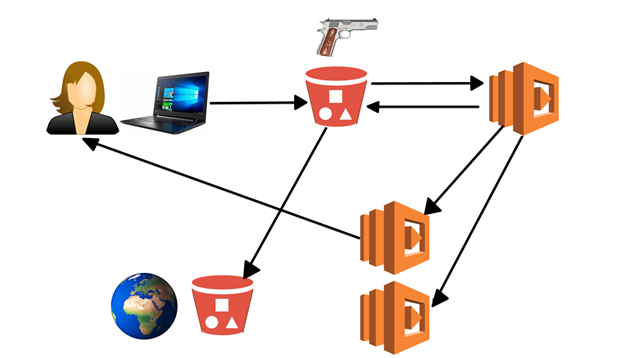
  • User uploads an image to S3.
  • S3 triggers an event, and this event is a Lambda function.
  • Lambda function takes this image, and then encode the image. When an image is encoded, it gets stored in S3.
  • The Lambda function might trigger other Lambda event which is returning image location back to the user.
  • The Lambda might trigger another Lambda event that takes the image from the S3 bucket and stores it in another S3 bucket located anywhere in the world.

Conclusion

  • From the above example, we conclude that Lambda event can trigger another Lambda event and they can communicate with other AWS resources.

How to Creating a Load Balancer

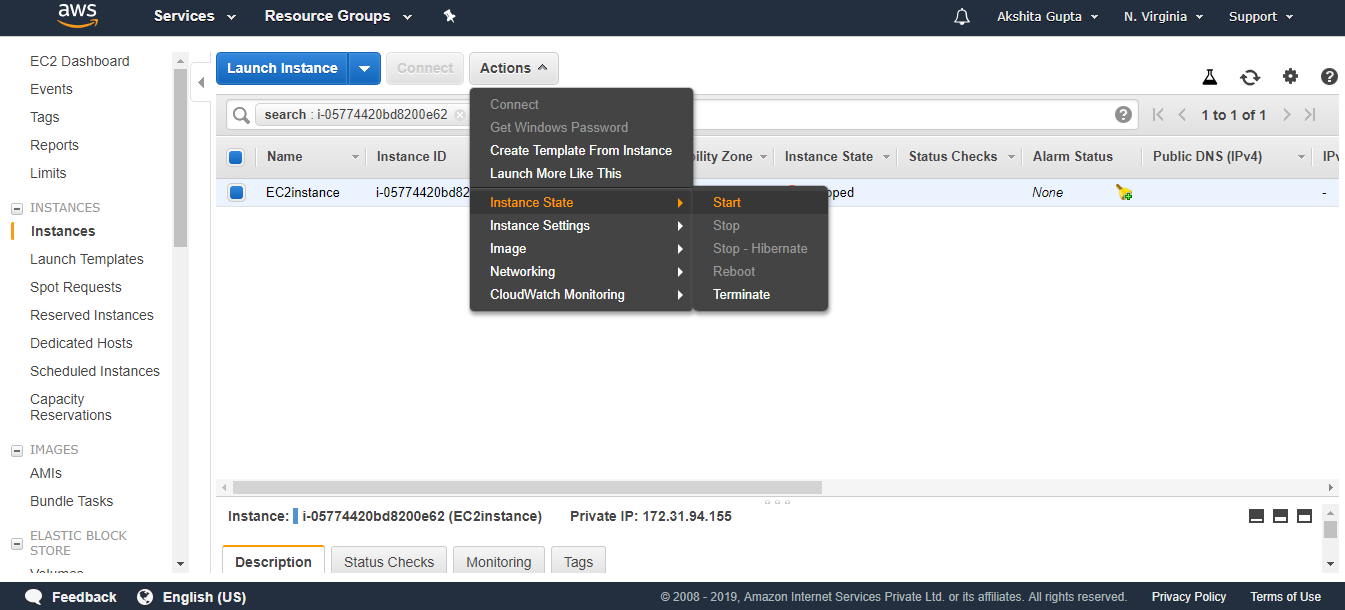
Next →← PrevCreating a Load BalancerSign in to the AWS Management Console.Create an EC2 instance.An EC2 instance is in a stopped state. Start the instance by clicking on the Actions dropdown menu and then click on the start.Creating Load Balancer
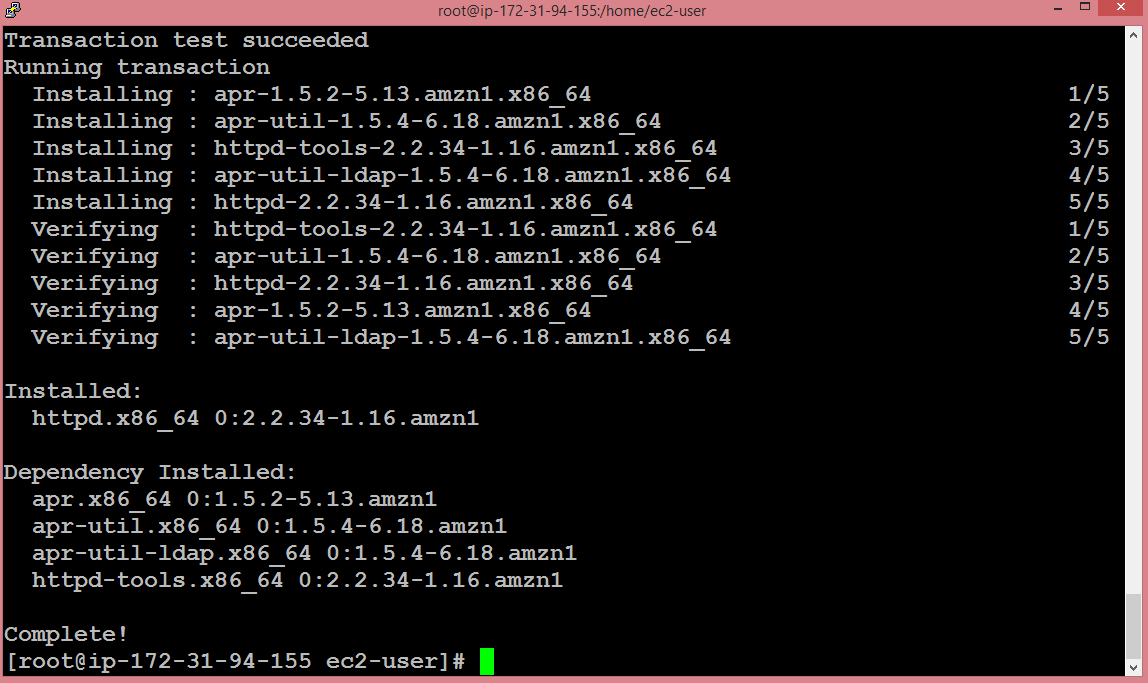
Now, my instance is running, and its IP address is 18.191.224.149.Open the putty.Run the command sudo su to provide the privileges to the root device.Run the command yum update ?y to update the EC2 instance.Install the Apache server by using the command yum install httpd ?y.Creating Load Balancer
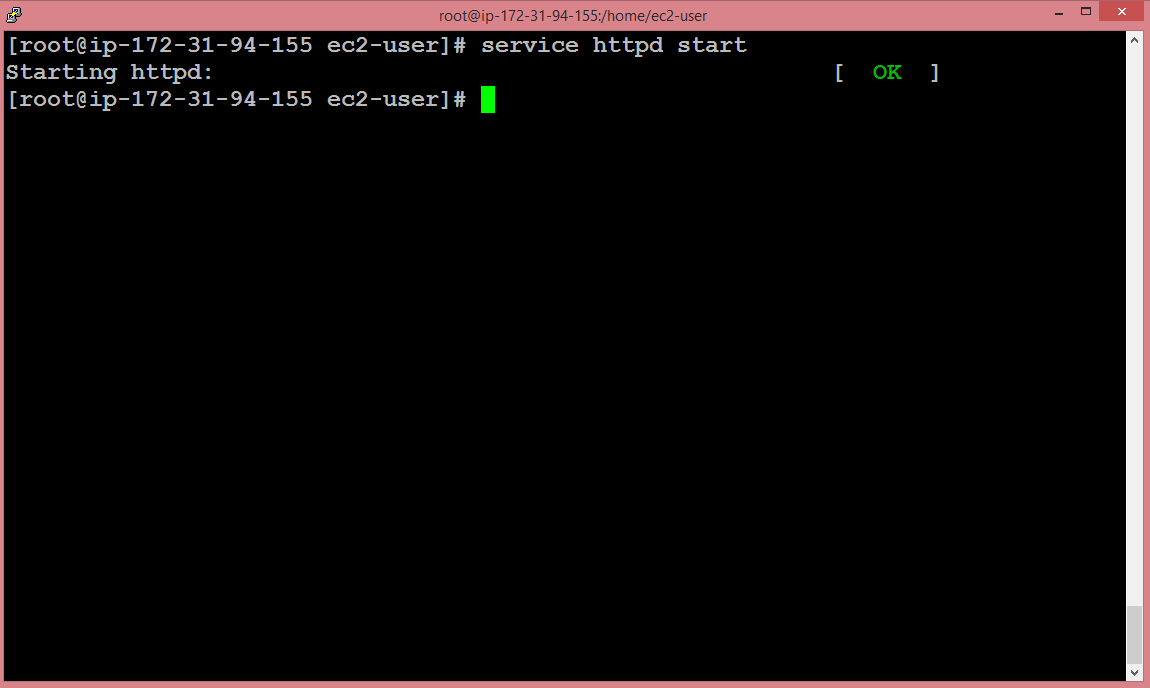
The above screen shows that the server has been installed successfully.Start the server by using the command service httpd start.Creating Load Balancer
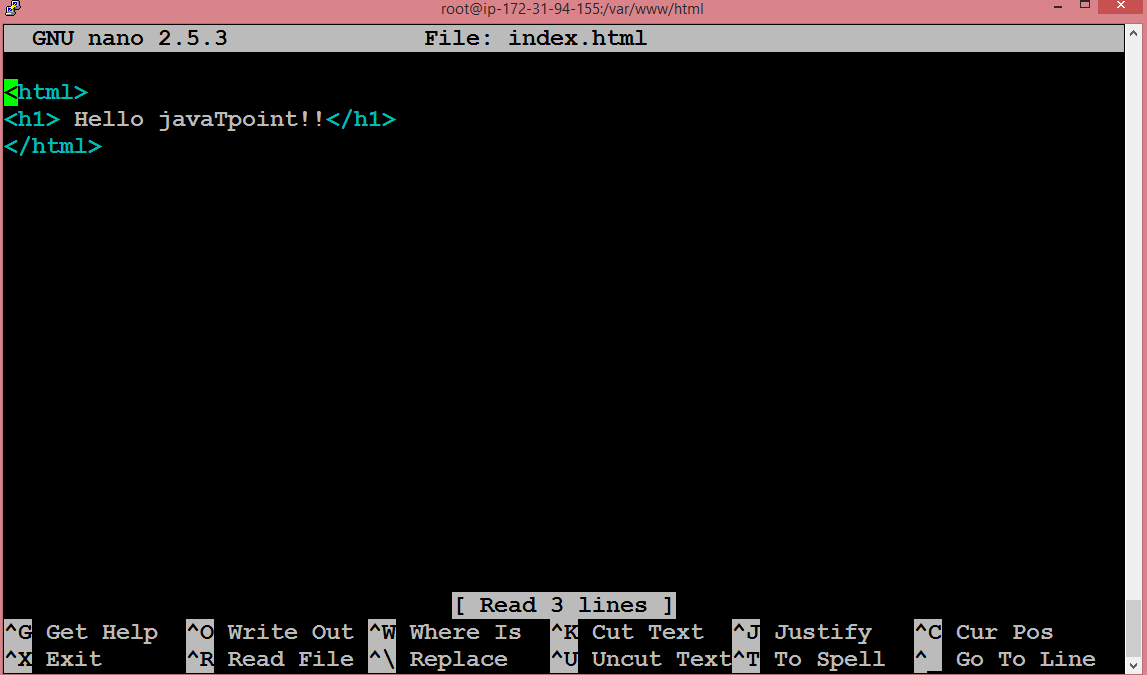
Move to the html directory by running the command cd /var/www/html.Run the command nano index.html to create the editor.Creating Load Balancer
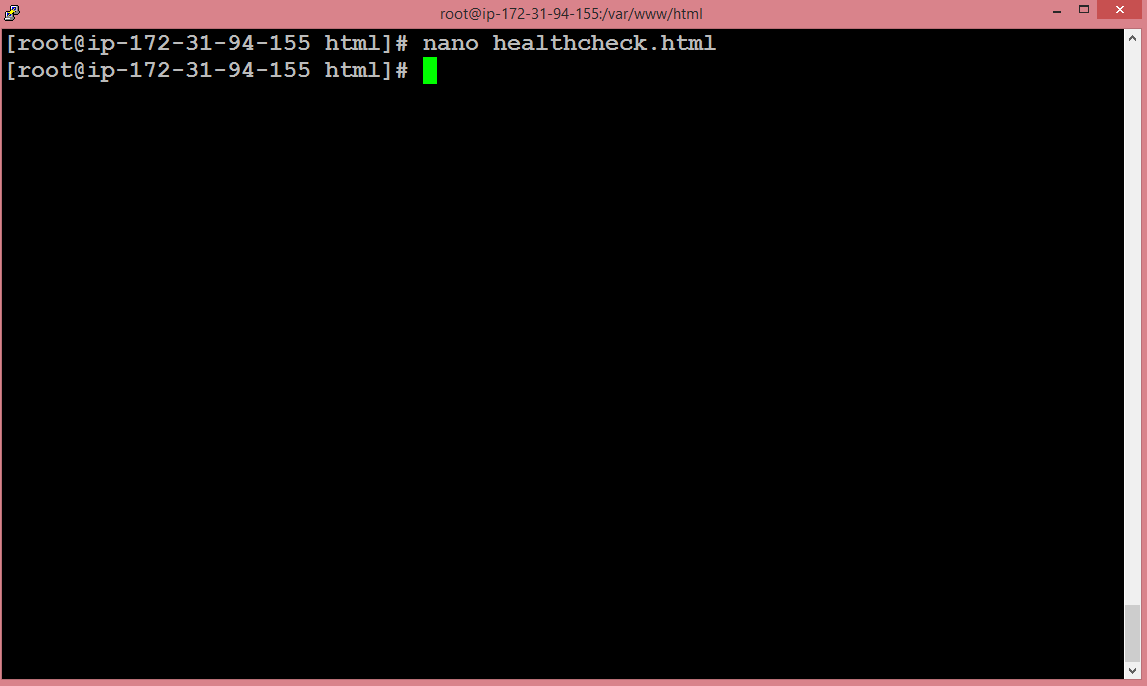
Now, we are going to create nano healthcheck.html file.Creating Load Balancer
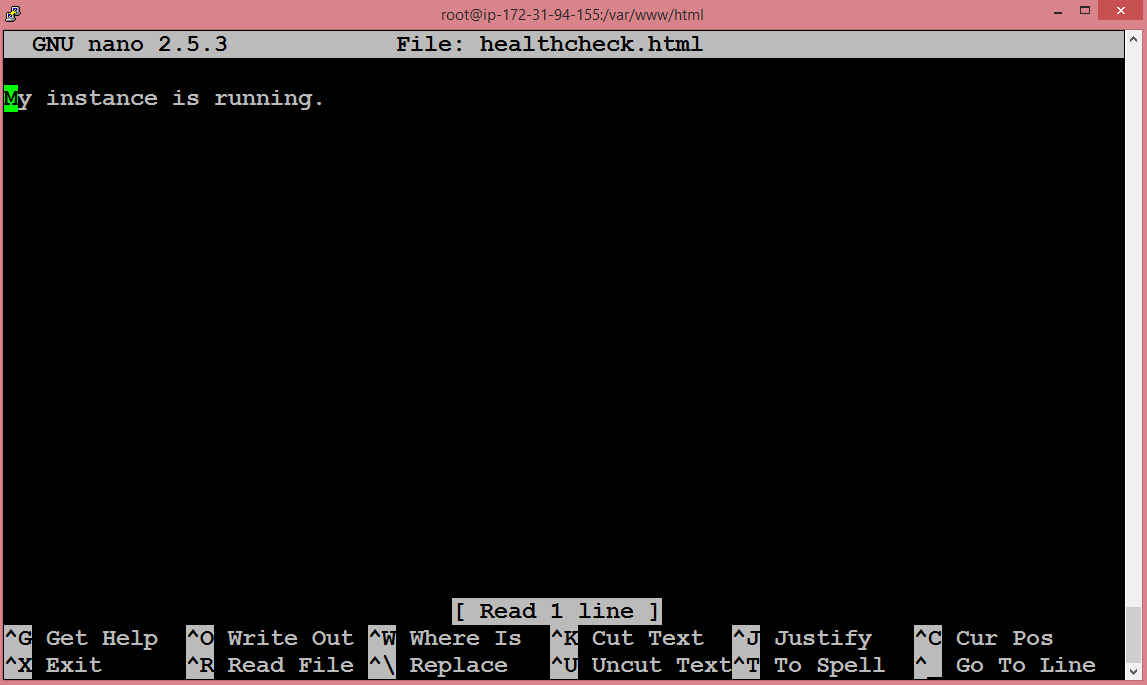
I write “My instance is running” to healthcheck file.Creating Load Balancer
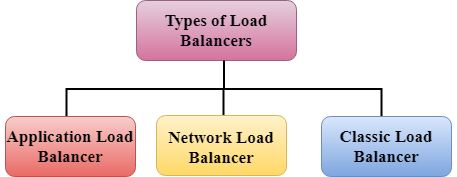
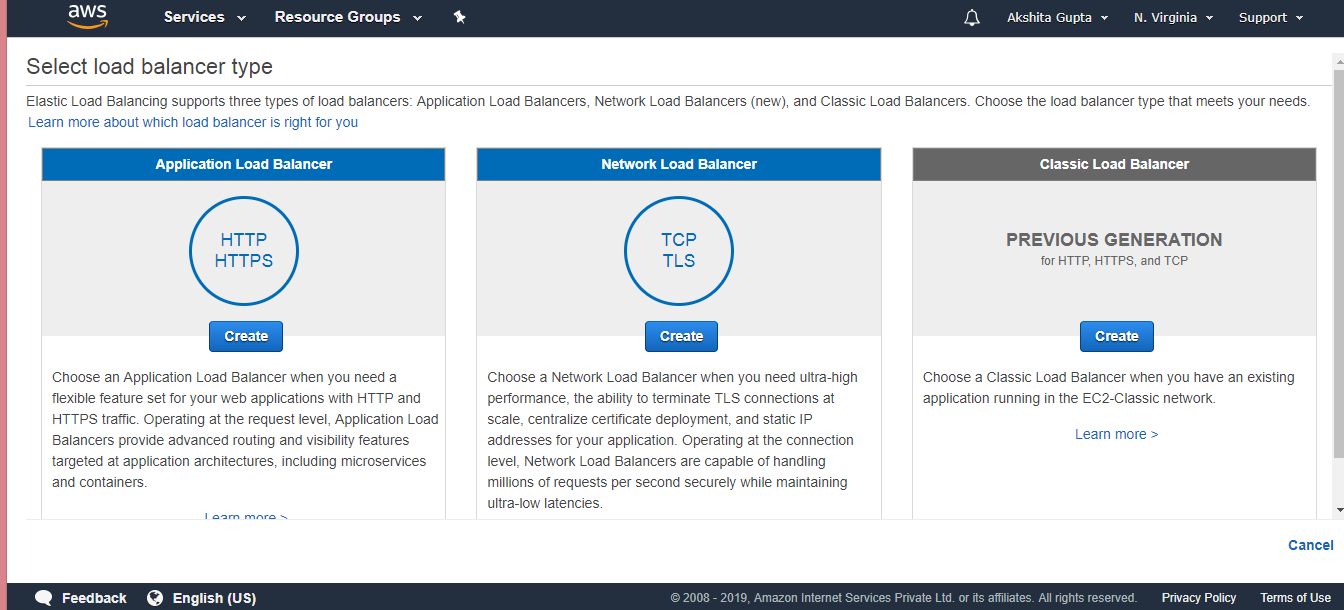
Move to the EC2 service, click on the Load Balancer appearing on the left side of the console.Click on the Create Load Balancer. On clicking, three types of Load Balancers are shown:Creating Load Balancer
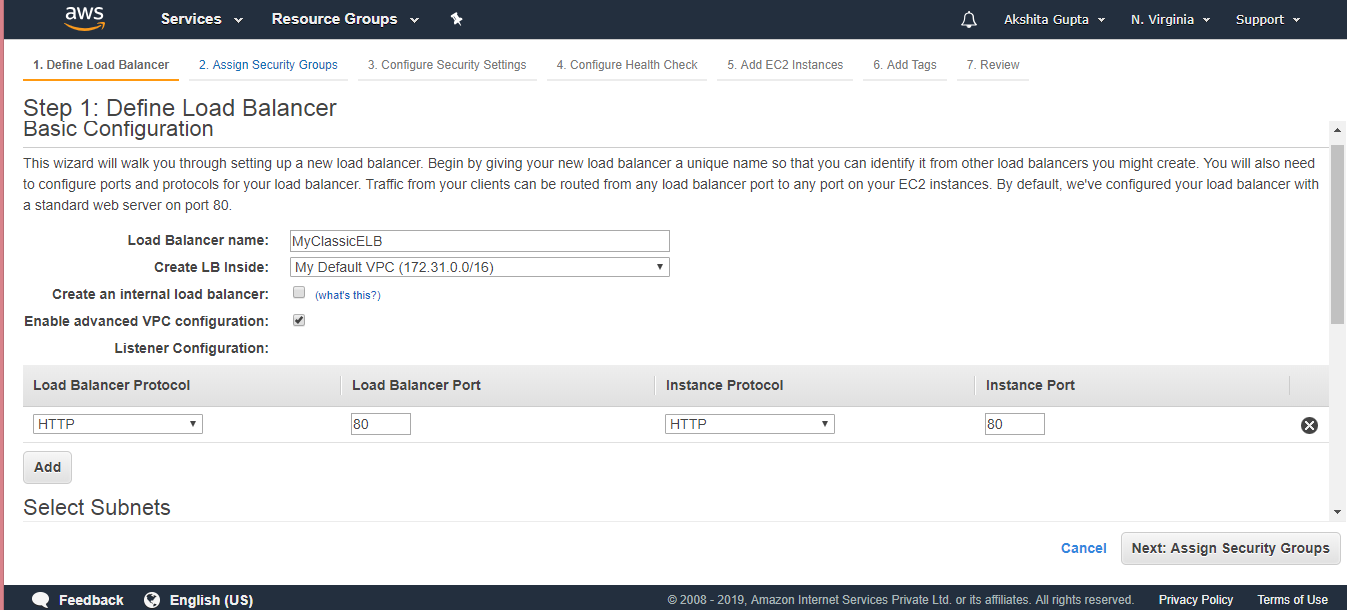
We create a Classic Load Balancer.On clicking on the create button, the screen appears shown below:Creating Load Balancer
Creating Load Balancer
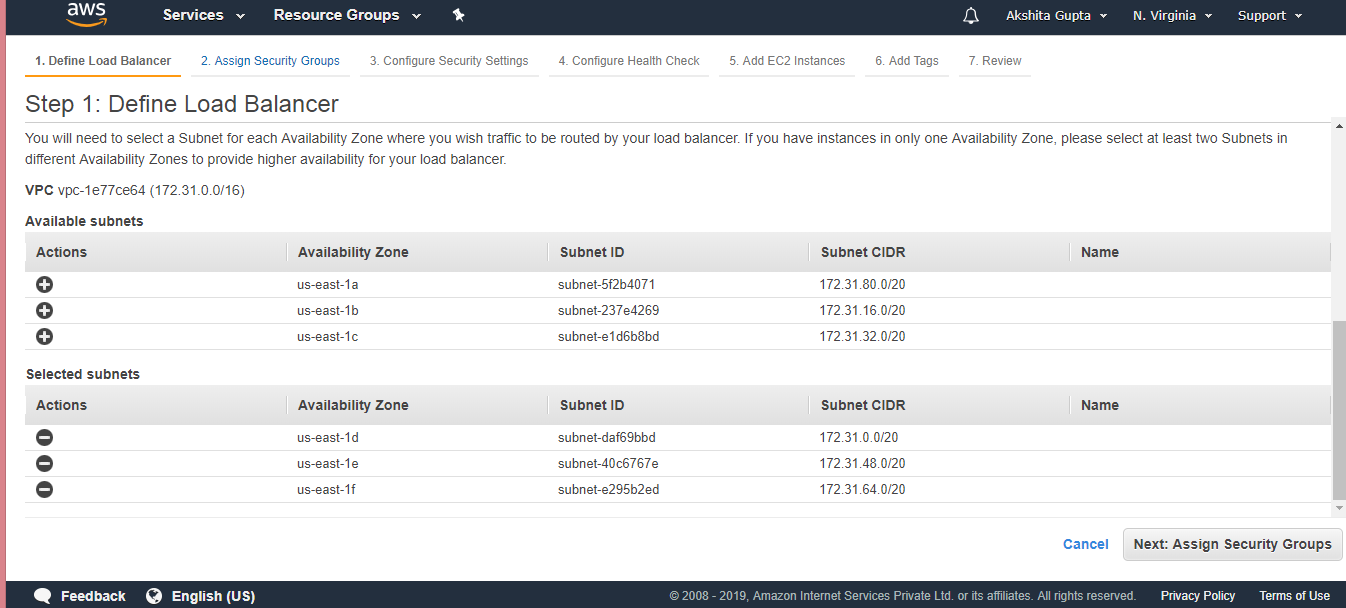
Load Balancer name: It is the name of the Load balancer that the user provides. Suppose I have given a ClassicELB as a load balancer name.Create LB inside: I kept it as a default VPC.Create an internal load balancer: As we want to serve external web traffic, so we need an external load balancer, not an internal load balancer. Uncheck this field.Enable advanced VPC configuration: Check this field to add at least one subnet.Linear Configuration: It describes from which protocol and port, it is listening, and to which port it is passing.Click on the Next button.Configure Health check.Creating Load Balancer
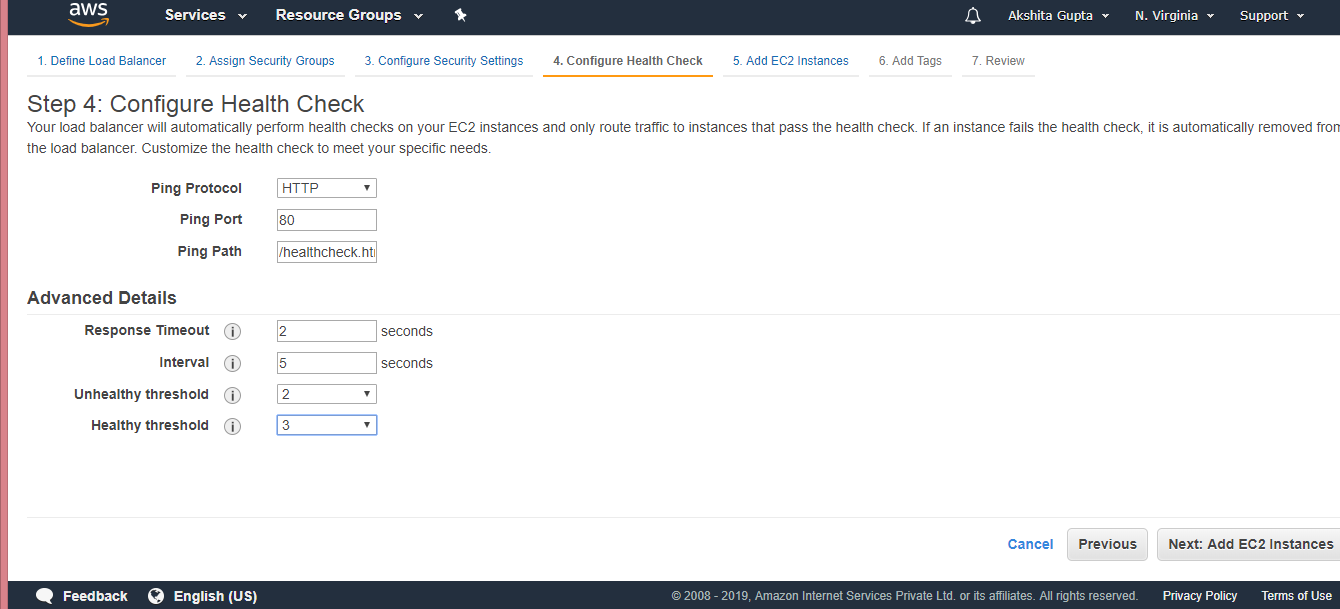
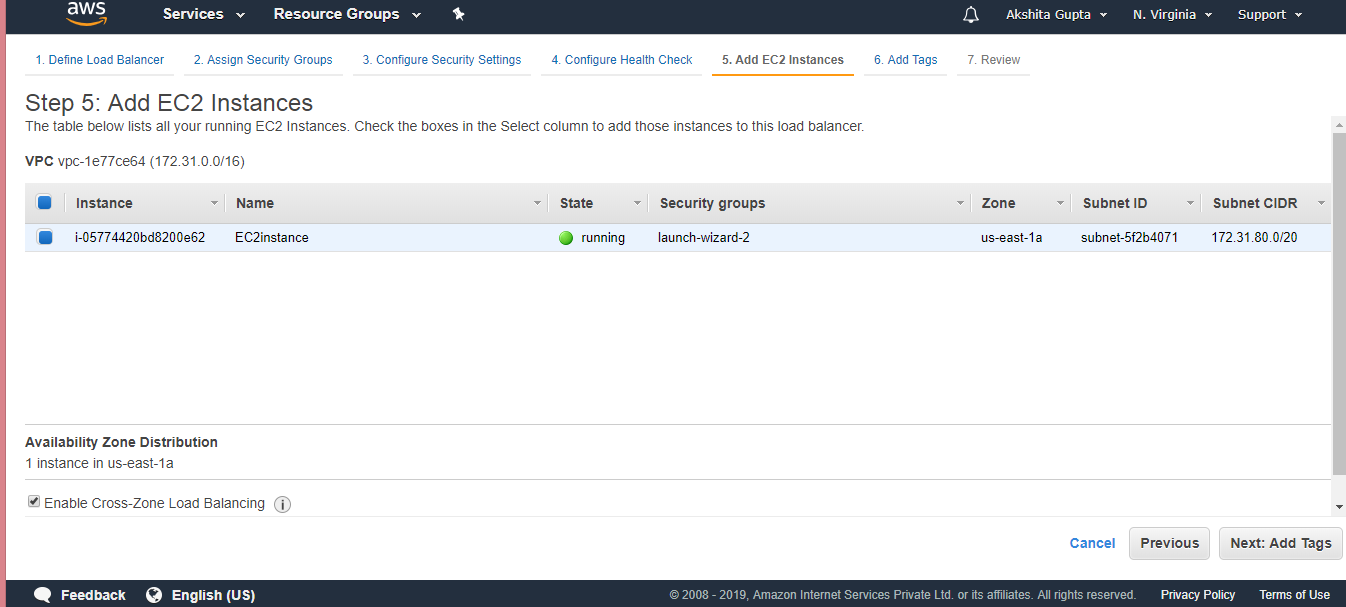
Ping Protocol: It defines the type of protocol.Ping port: It defines the port number.Ping Path: It defines the path of the web page that we created, i.e., healthcheck.html.Response Timeout: It defines how long it will take and waits for the response.Interval: It is the amount of time between health checks.Unhealthy threshold: It defines the number of consecutive health check failures before declaring an EC2 instance unhealthy.Healthy threshold: It defines the number of consecutive health check successes before declaring an EC2 instance healthy.Click on the Next.Add your EC2 instance to the Load Balancer. Check the EC2 instance box.Creating Load Balancer
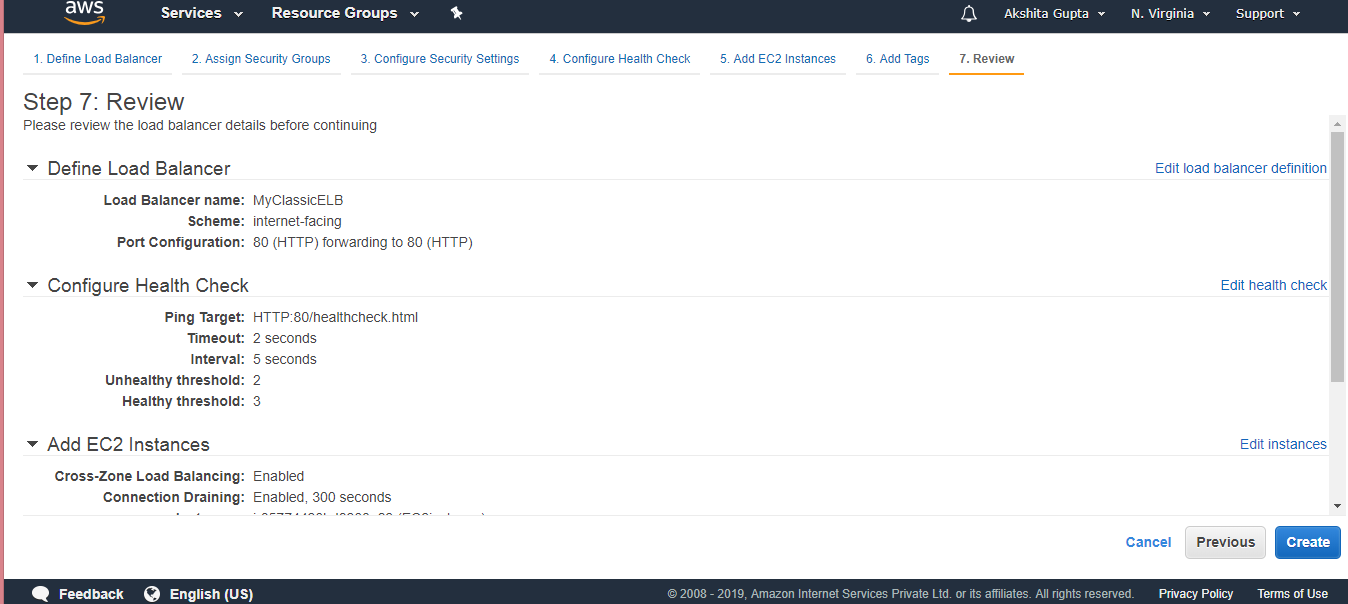
Click on the Next.Review the load balancer, and then click on the Create button.Creating Load Balancer
Creating Load Balancer
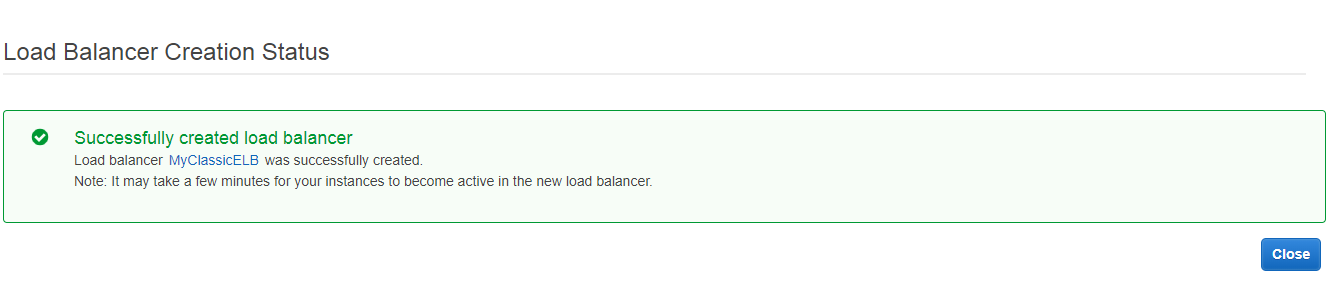
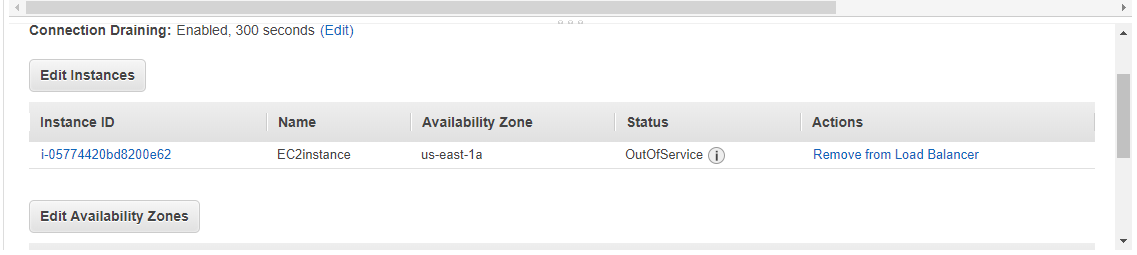
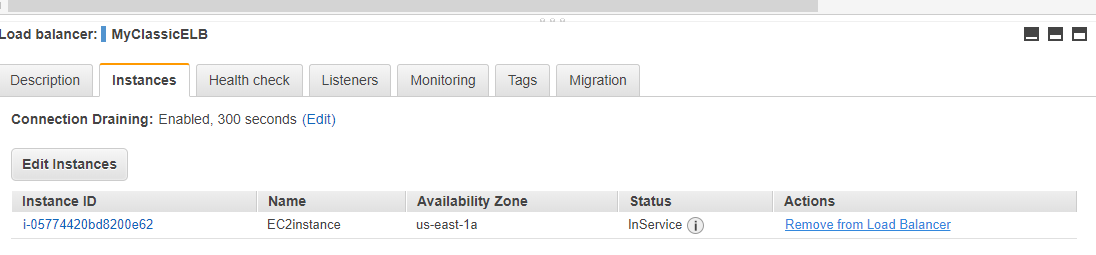
The above screen shows that Class load balancer has been successfully created.When we check the status of an instance, the status appears as OutOfService.Creating Load Balancer
After 1 or 2 minutes, the status of an instance appears as InService.Creating Load Balancer
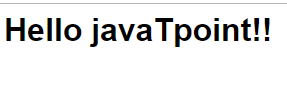
Copy the DNS name of a Load balancer and paste it to the clipboard of a web browser. You will see the output which is shown below:Creating Load Balancer
Therefore, we can say that DNS name is converted into a public IP address which is directing you to the index.html. Amazon provides DNS name to the Classic Load Balancer rather than a public IP address as the public IP address can be changed.Note: Once the EC2 instance is out of service, the load balancer would not send the traffic to EC2 instance as it is presuming that healthcheck file that we created has been failed.

What is Load Balancer?

What is Load Balancer?

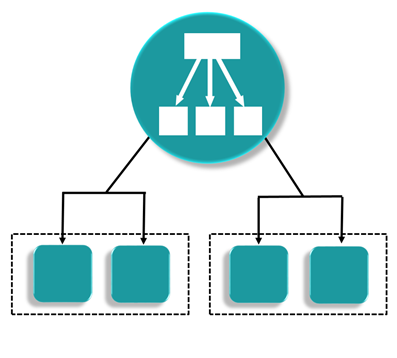
Load Balancer is a virtual machine or appliance that balances your web application load that could be Http or Https traffic that you are getting in. It balances a load of multiple web servers so that no web server gets overwhelmed.

AWS Load Balancing

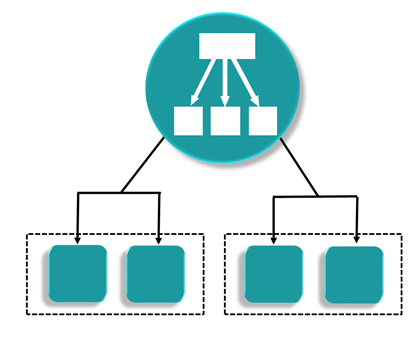
Application Load Balancer

AWS Load Balancing
  • An Amazon Web Services (AWS) launched a new load balancer known as an Application load balancer (ALB) on August 11, 2016.
  • It is used to direct user traffic to the public AWS cloud.
  • It identifies the incoming traffic and forwards it to the right resources. For example, if a URL has /API extensions, then it is routed to the appropriate application resources.
  • It is operated at Layer 7 of the OSI Model.
  • It is best suited for load balancing of HTTP and HTTPs traffic.
  • Application load balancers are intelligent, sending specific requests to specific web servers.
  • If we take an example of TESLA. We have three models of TESLA, i.e., TESLA Model X, TESLA Model S, and TESLA Model 3 and TESLAs have onboard computing facility. You will have a group of web servers that serve the Model X, a group of web servers that serve the Model S, and similarly for Model 3. We have one Load balance that checks whether the incoming traffic comes from either Model X, Model S or Model 3, and then sends it to the intended froup of servers.

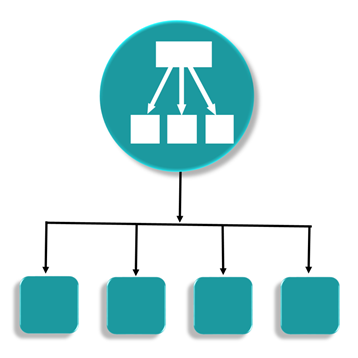
Network Load Balancer

AWS Load Balancing
  • It is operated at the Layer 4 of the OSI model.
  • It makes routing decisions at the transport layer (TCP/SSL), and it can handle millions of requests per second.
  • When a load balancer receives a connection, it then selects a target from the target group by using a flow hash routing algorithm. It opens the TCP connection to the selected target of the port and forwards the request without modifying the headers.
  • It is best suited for load balancing the TCP traffic when high performance is required.

Classic Load Balancer

AWS Load Balancing
  • It is operated at Layer 4 of the OSI model.
  • It routes the traffic between clients and backend servers based on IP address.
  • For example, an Elastic Load balancer receives a request from a client on TCP port 80, it will then routes the request to a specified port of backend servers. The port on which the Load Balancer routes to the target server will be having port number 80. The backend server will then send the requested data back to the ELB, which will then forward the Backend server reply to the client. According to the client’s perspective, the request has been fulfilled by the ELB, not by the backend server.
  • Classic Load balancers are legacy Elastic load balancers.
  • It can also be used for load balancing the HTTP or HTTPs traffic and use layer 7-specific features, such as X-forwarded and sticky sessions.
  • You can also use the Layer 4 load balancing for applications that rely purely on the TCP protocol.

Load Balancer Errors

  • Classic Load Balancer

If you get an error 504, this is a gateway timeout error. A Load balancer is still available, but it has a problem in communicating with the EC2 instance. If your application stops responding, the ELB (Classic Load Balancer) responds with a 504 error. This means that the application is having issues and it could be either at the web server layer or the Database layer.

In order to troubleshoot where the application is failing, and scale it up or out where possible.https://21b5e6ee4a17c5915c9a53be24436870.safeframe.googlesyndication.com/safeframe/1-0-37/html/container.html

X-Forwarded-For-Header

The X-Forwarded-For-Header is used to determine the IP address of a client when you use a classic load balancer.

Working of X-Forwarded-For-Header

AWS Load Balancing
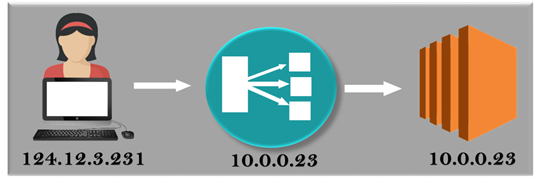
  • A user is on the Ipv4 address, i.e., 124.12.3.23.
  • A user is sending a request to the classic load balancer which in turn folded the request into an EC2 instance. An EC2 instance is going to use the private address, i.e., 10.0.0.23 and this is the only address which is seen by an EC2 instance.
  • An EC2 instance is capturing only private address as Classis Load balancer encompasses the Public IP address. The public address is needed as it provides valuable information such as “who are using your website”.
  • An EC2 instance gets the Ipv4 address in the form of X-Forwarded-For request Header from the Classic load balancer.

How to Creating an AMI

Creating an AMI

  • Sign in to the AWS Management Console.
  • Move to the EC2 service.
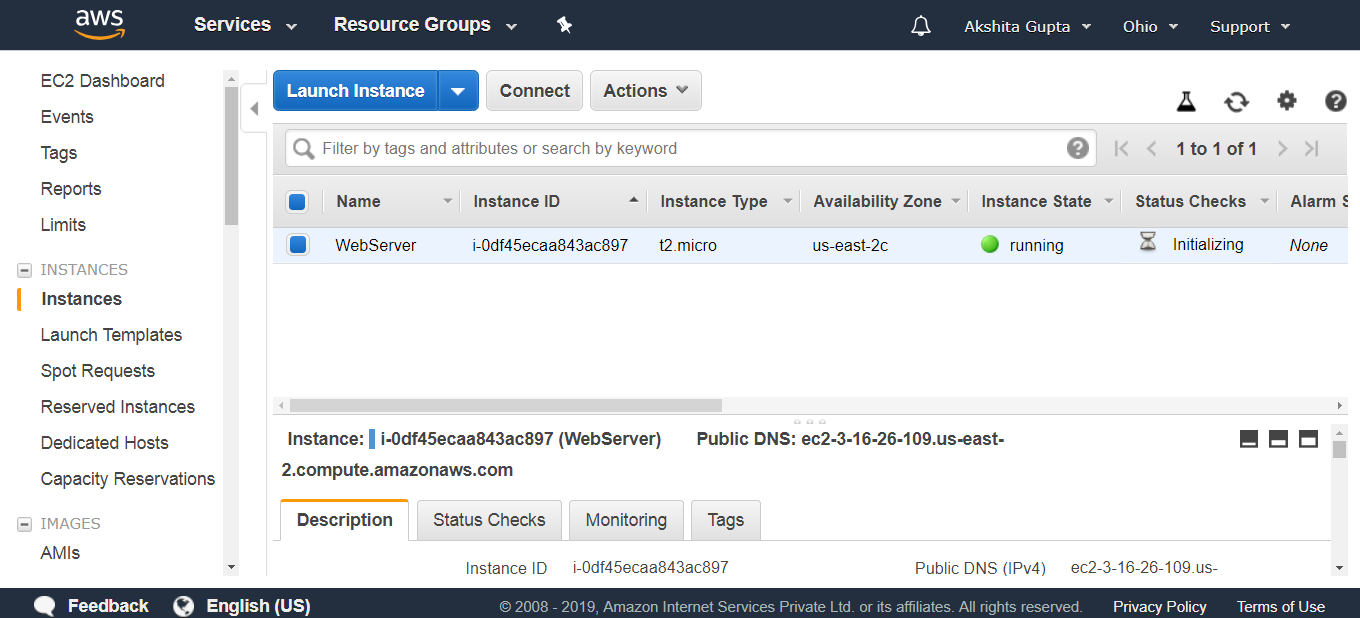
  • We have one running instance whose name is WebServer.
Creating an AMI
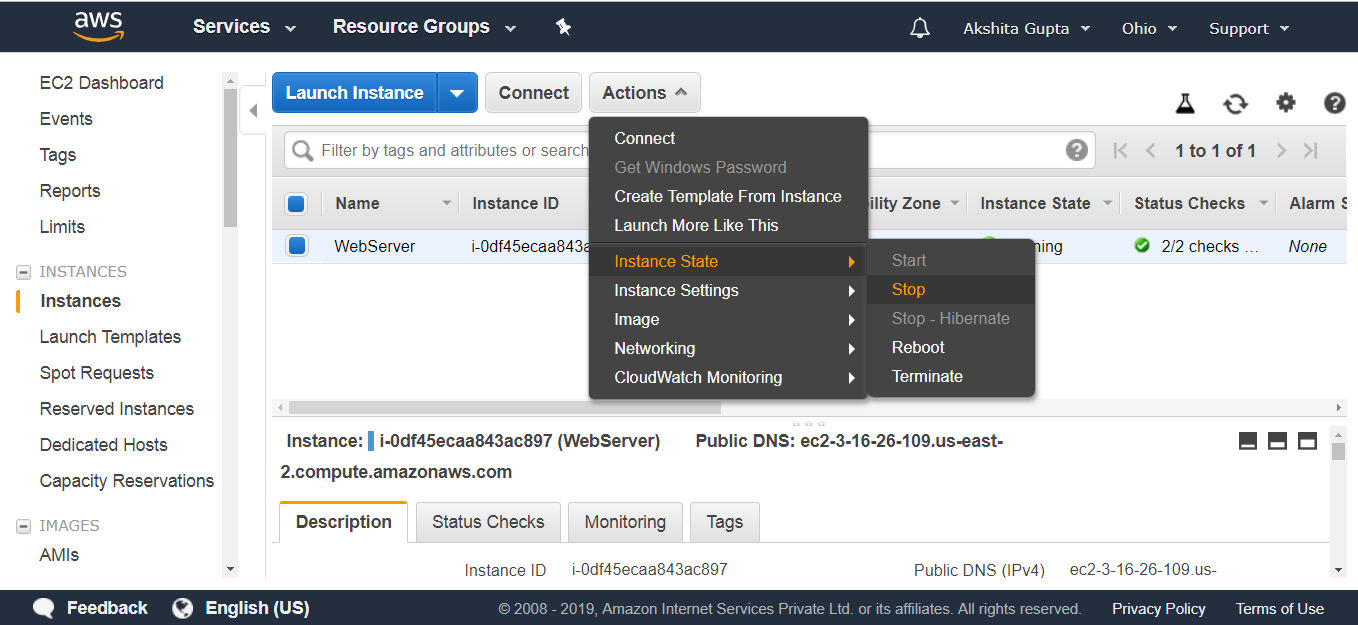
  • Now, I want to create a consistent snapshot. In order to achieve this, stop the instance. Click on the Actions dropdown menu.
Creating an AMI
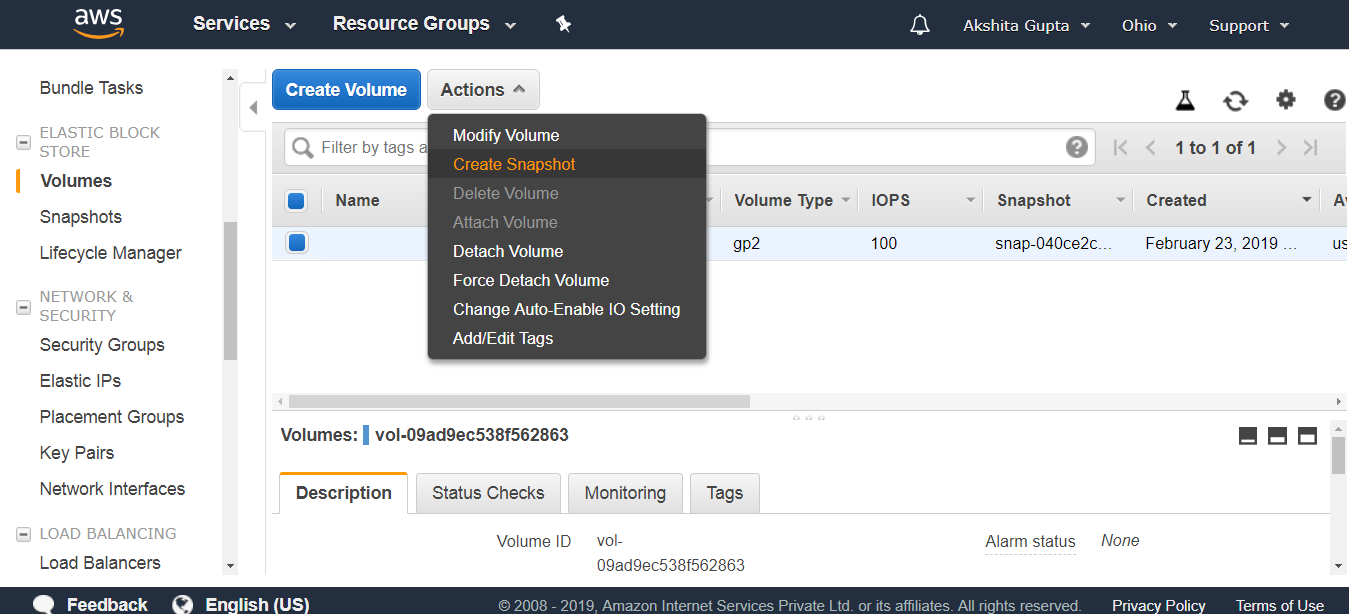
  • Move to the Volumes appearing on the left side of the console. Click on the Actions dropdown menu to create a snapshot.
Creating an AMI
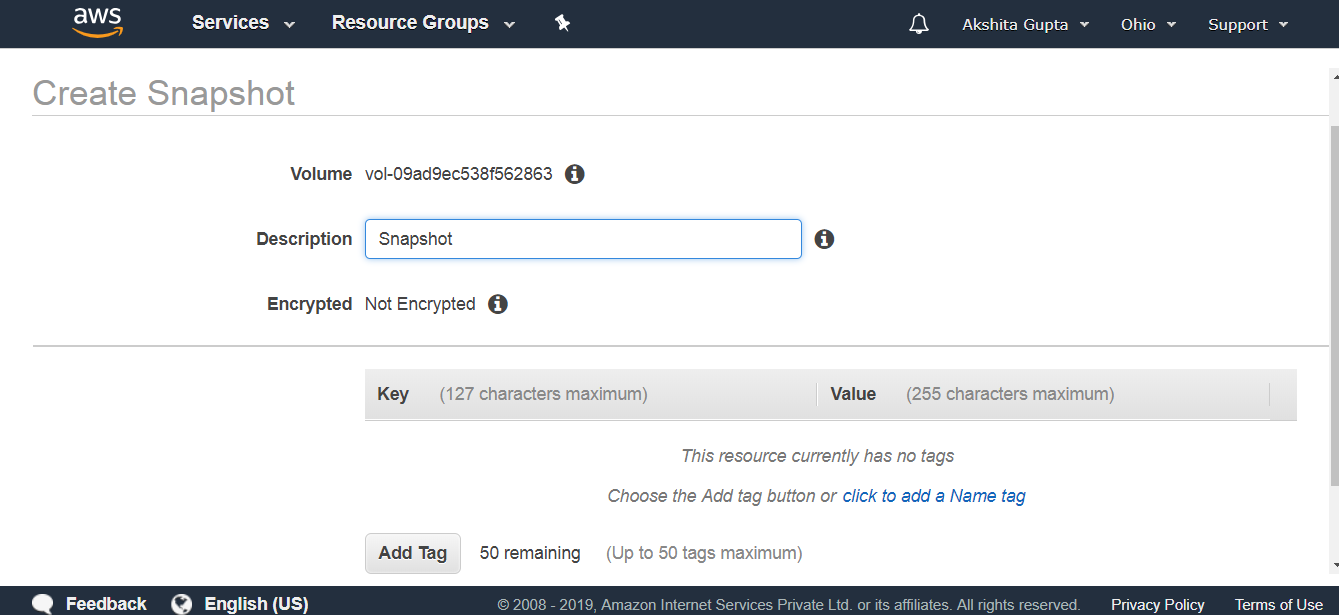
  • Create a snapshot.
Creating an AMI
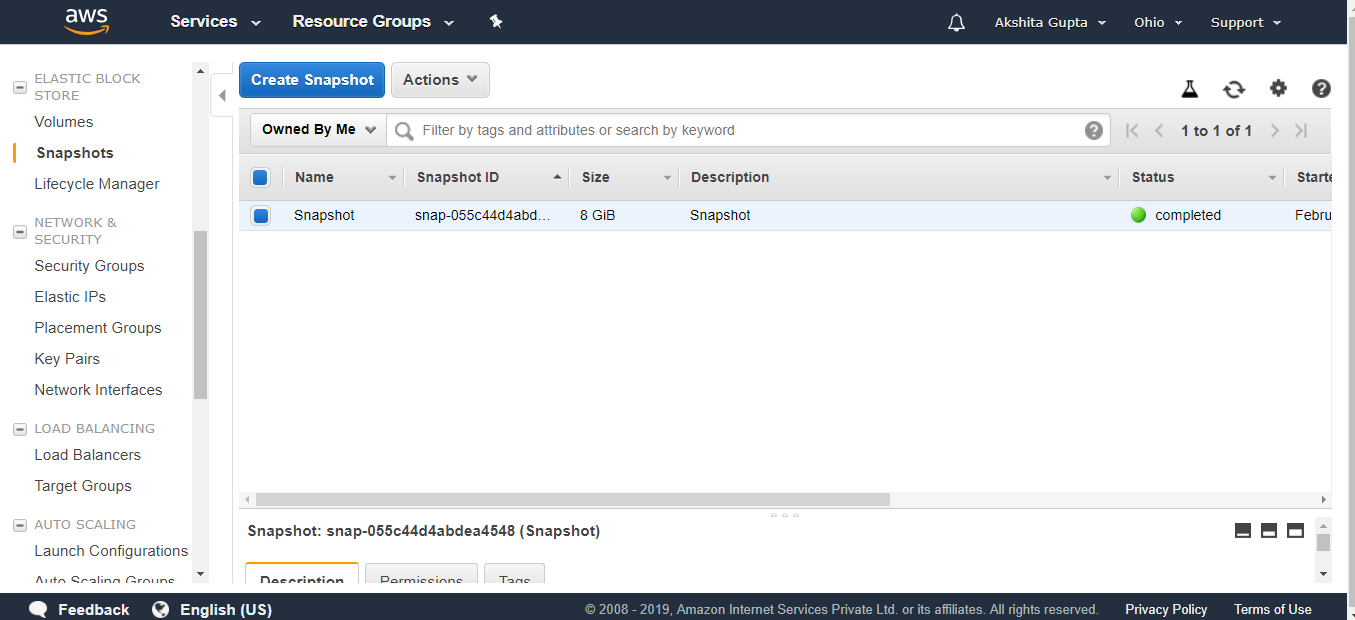
  • To view the snapshot, click on the Snapshots appearing on the left side of the console.
Creating an AMI
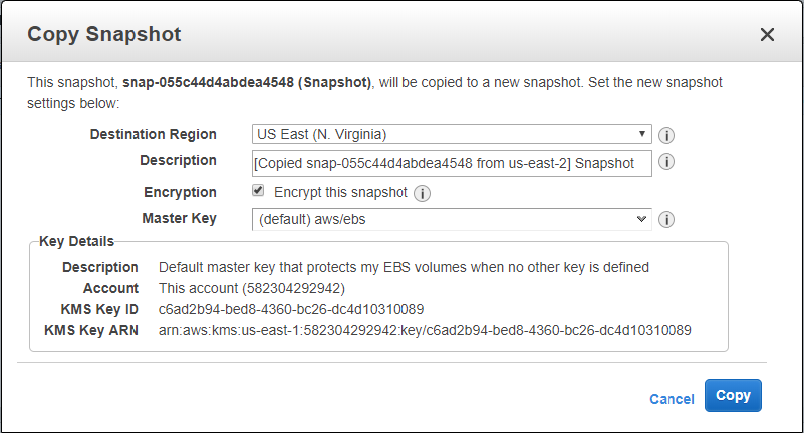
  • We can also copy the snapshot to another region. Click on the Actions dropdown menu, and then click on the copy.
Creating an AMI

From the above screen, we observe that we can also encrypt the snapshot, so check the encryption box to enable the encryption.

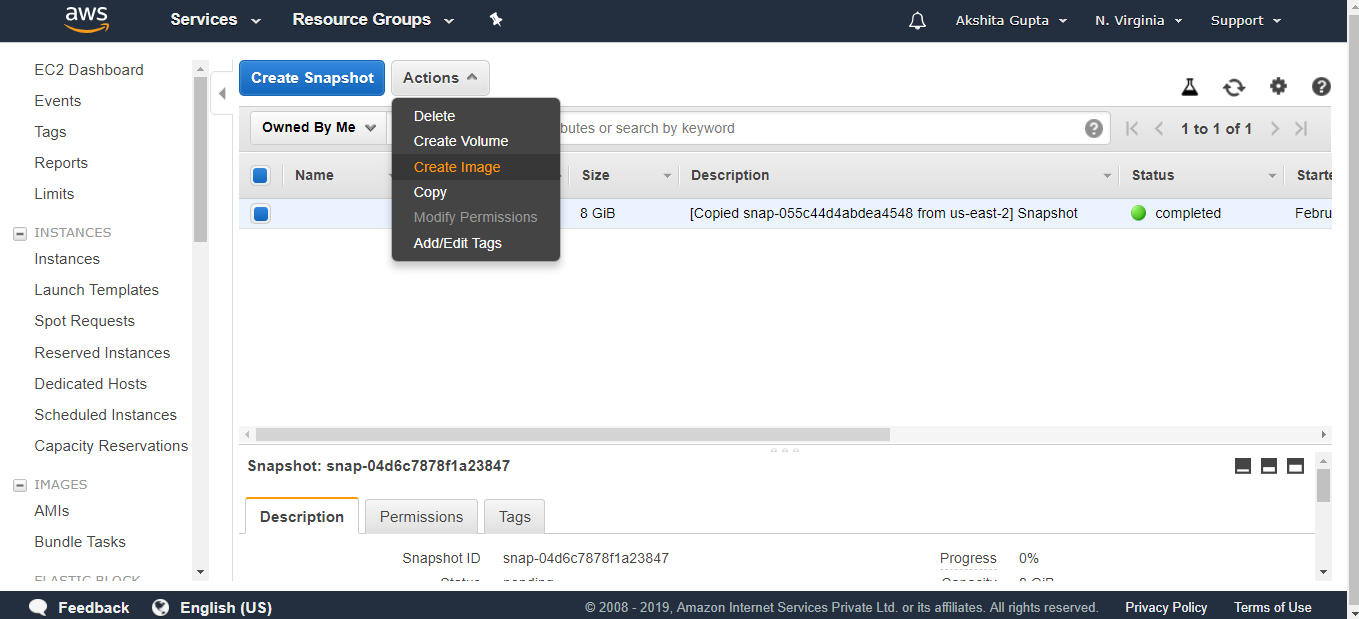
  • Move to the US east (N.Virginia) region where we have copied the snapshot.
  • Now, we will create an image. Click on the Actions dropdown menu, and then click on the create image.
Creating an AMI
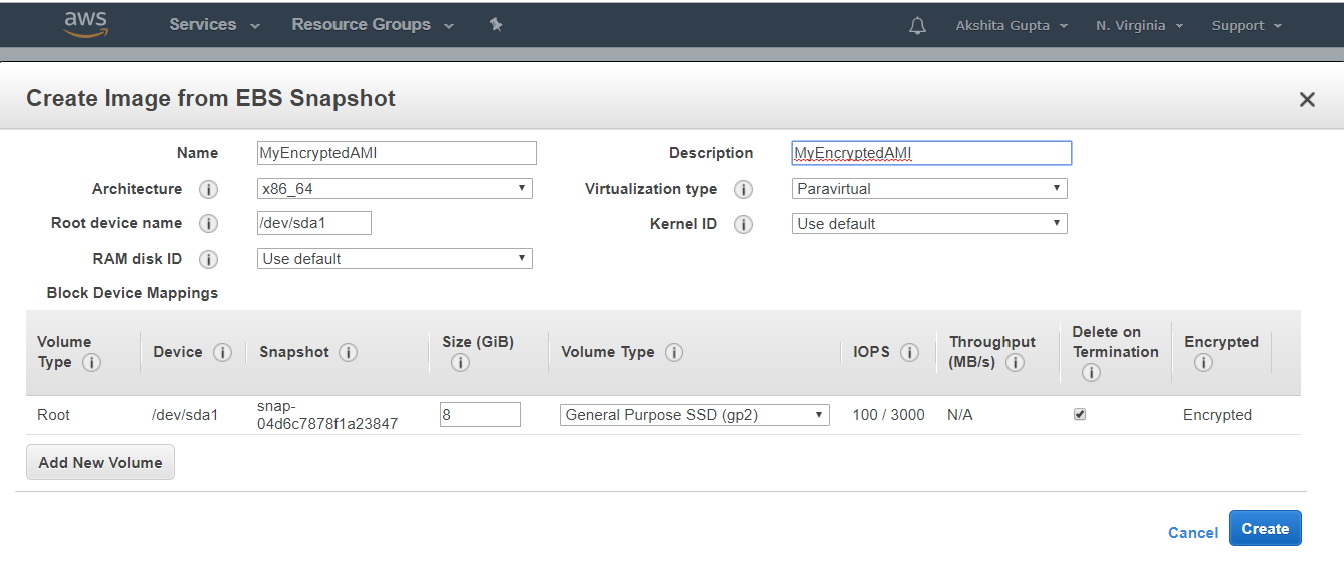
  • Enter the name of the image and its description.
Creating an AMI
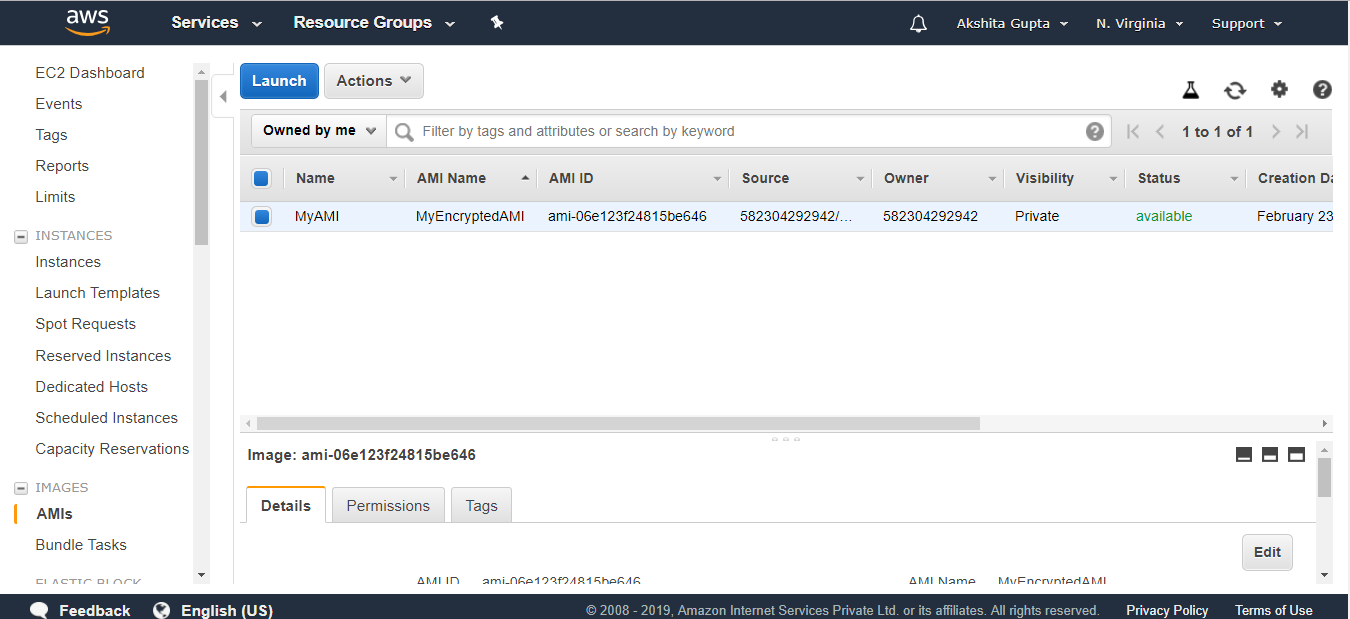
  • Click on the AMI appearing on the left side of the console.
Creating an AMI
  • Click on the Launch button.
  • Choose an instance type and click on the Next.
Creating an AMI
  • Configure Instance details. Keep all the instance details as default, and then Click on the Next button.
Creating an AMI
  • (Optional) You can add new EBS Volume.
  • Add tags. Click on the Next.
Creating an AMI
  • Configure Security Group. Click on the Review and Launch button.
  • Click on the Launch button.

Important points to remember:

  • To create a snapshot for Amazon EBS Volumes that serve as root devices, you should stop the instance before taking the snapshot.
  • Snapshots of encrypted volumes are encrypted automatically.
  • Volumes restored from the encrypted snapshots are encrypted automatically.
  • You can share snapshots, but only if they are unencrypted.
  • These snapshots can be shared with other AWS accounts or made public

How to Creating AWS AMI

AMI

  • An AMI stands for Amazon Machine Images.
  • An AMI is a virtual image used to create a virtual machine within an EC2 instance.
  • You can also create multiple instances using single AMI when you need instances with the same configuration.
  • You can also create multiple instances using different AMI when you need instances with a different configuration.
  • It also provides a template for the root volume of an instance.

AMI Lifecycle

  • First, you need to create and register an AMI.
  • You can use an AMI to launch EC2 instances.
  • You can also copy an AMI to some different region.
  • When AMI is no longer required, then you can also deregister it.

AMI Types

AMI

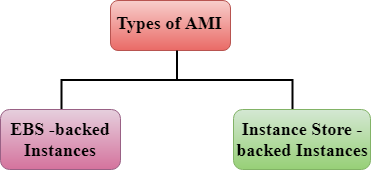
AMI is divided into two categories:

  • EBS – backed Instances
  • Instance Store – backed Instances

EBS – backed Instances

  • EBS is nothing but a volume that provides you persistent storage.
  • When you run an EC2 instance that provides you temporary storage, if you delete an EC2 instance then the data stored in the EC2 instance will also be deleted. To make a data persistent, Amazon provides an EBS Volume. If you launch an EC2 instance and want to make some data persistent, then you need to attach an instance with the EBS Volume so that your data would be available even on deleting an EC2 instance.
  • When you launch an EC2 instance, it will always have a root device as an EBS Volume which makes the data persistent. Therefore, we can say that when we delete an EC2 instance, then the data is available in a root device.
  • In EBS – backed instances, you will be charged or billed for the storage of static data such as operating systems files, etc.

Instance Store – backed Instances

  • In Instance-Store, an instance consists of storage approx 1 TB or 2 TB which is temporary storage. As soon as the instance is terminated, all the data will be lost. For example, if you launch an instance, and deploy the database in it. If you delete an instance, then all the data will be lost and this becomes the challenge. In such a scenario, you can add an additional EBS Volume that also stores the data, so even if you delete an instance, your data would not be lost.
  • In this case, EBS Volume is not a root volume. It’s an additional volume that you attach to your EC2 instance manually.

Why EBS – backed instance is more popular than Instance Store – backed instance?

Instance Store – backed instances

AMI

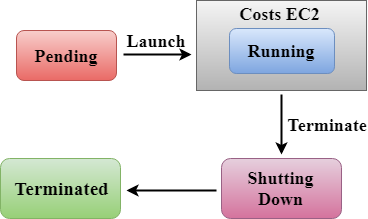
In Instance Store – backed instance, if you launch an instance, it would be in a pending state. After pending state, an instance comes in a running state then it would be in a shutting down state. Amazon would charge you only when it is in a running state. When you terminate an instance, Amazon would not charge you any cost. For example, if you want to run an instance for 4 hours a day and it would cost you 10 cents per hour. In instance store, my instance would be running 24 hrs a day as it has no stopped state. Therefore, it would cost 72 dollars a month.

  • EBS – backed Instances
AMI

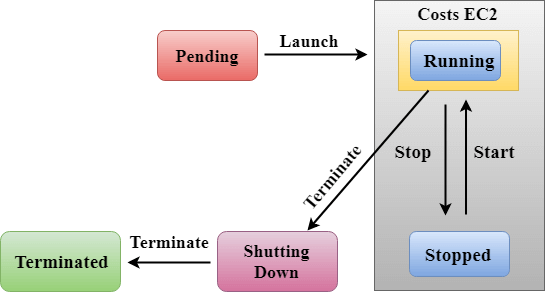
In EBS – backed instances, an instance can be either in a running state or in a stopped state. In this case, Amazon would cost you only for a running state, not for a stopped state. For example, if you want to run an instance for 4 hours a day and it would cost you 10 cents per hour. In EBS – backed instance, an instance will run for 4 hours as it has stopped state as well. I take a 100 GB volume that would cost you 5 dollars. The running cost of an instance would be 12 dollars in a month. Therefore, the total cost taken by this instance is volume cost plus running cost which is equal to 17 dollars.https://e34f858cf52872fe27990f96c614316c.safeframe.googlesyndication.com/safeframe/1-0-37/html/container.html

EBS-backed instance is saving our 55 dollars. Therefore, we conclude that why EBS-backed instance is more popular and faster than instance store-backed instance.

Difference b/w Instance store & EBS – backed instance

CharacteristicsEBS-backed instanceInstance Store-backed instance
LifecycleIt supports stopping as well as restarting of an instance by saving the state to EBS volume.In this case, an instance cannot be stopped. It can be either in a running or terminated state.
Data PersistenceData persists in EBS volume. If an instance is terminated, no data would be lost.Data does not persist so when instance is terminated, data would be lost.
Boot timeIt takes less than 1 min.It usually takes less than 5 min.
Size limit1 TB10 – 16 TB
AMI creationAMI is very easily created by using a single command.To create an AMI, it requires installation and AMI tools.
ExpensiveIt is less expensive.It is more expensive as compared to Instance Store-backed instance.

How to creating Security Group

Security Group

  • A security group is a virtual firewall which is controlling the traffic to your EC2 instances.
  • When you first launch an EC2 instance, you can associate it with one or more security groups.
  • A Security group is the first defence against hackers.

Let’s understand the concept of security group through an example.

  • Sign in to the AWS Management console.
  • Launch a new EC2 instance.
  • Choose an Amazon Machine Image.
Security Group
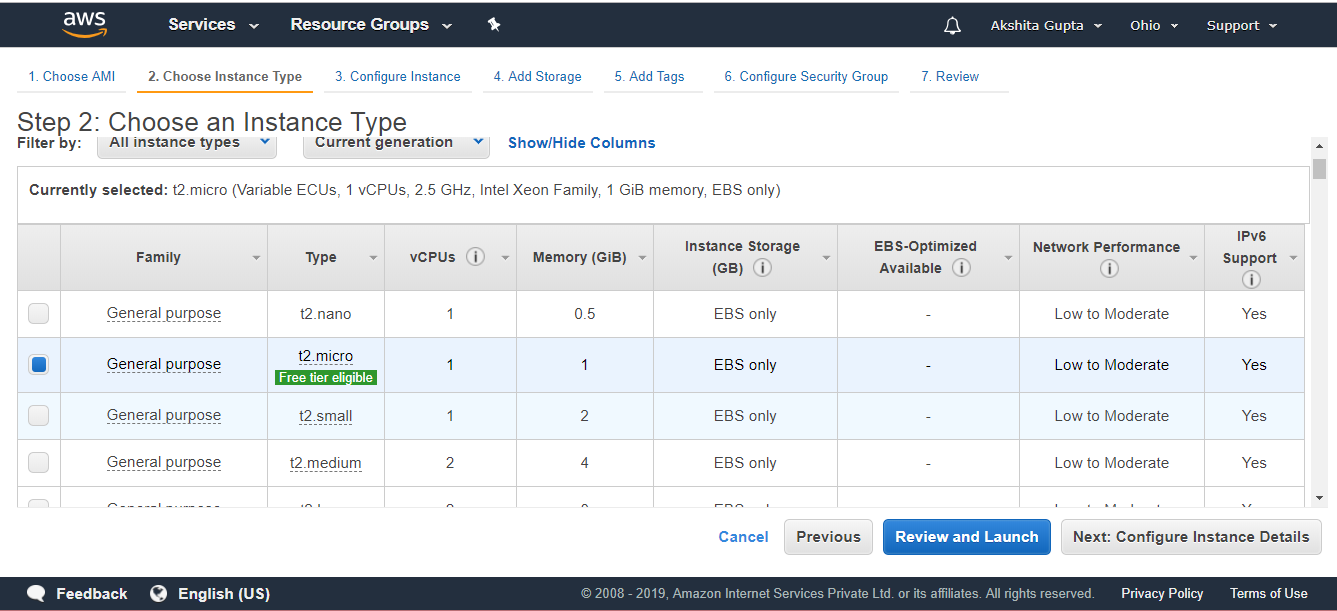
  • Choose the instance type. Suppose I choose the instance, i.e., t2.micro, and then click on the Next.
Security Group
  • Now, configure the Instance details. Keep all the details as default, and then click on the Next.
Security Group
  • Attach the EBS Volume to your EC2 instance. By default, Root is the default EBS volume which is attached to your EC2 instance. Click on the Next.
Security Group
  • Add tags.
Security Group
  • Configure Security Group. Select an existing security group that you created previously, i.e., WebServer.
Security Group
Security Group

The above screen shows that a WebServer is a security group that consists of inbound rules such as protocol, port range, and source address.

  • Click on the Review and Launch button.
Security Group

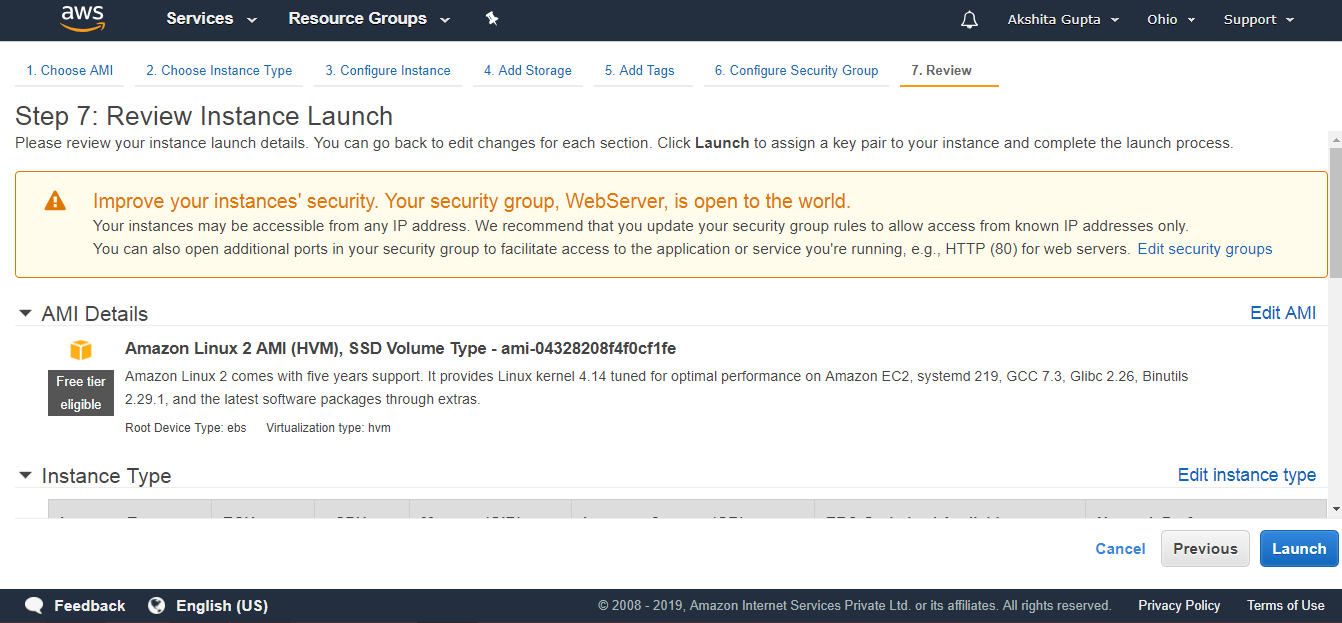
From the above screen, we observe that the security group, WebServer is open to the world means that SSH port is open to the world.https://b88133a61a28019cc89ed9f739cb14fe.safeframe.googlesyndication.com/safeframe/1-0-37/html/container.html

  • Click on the Launch button.
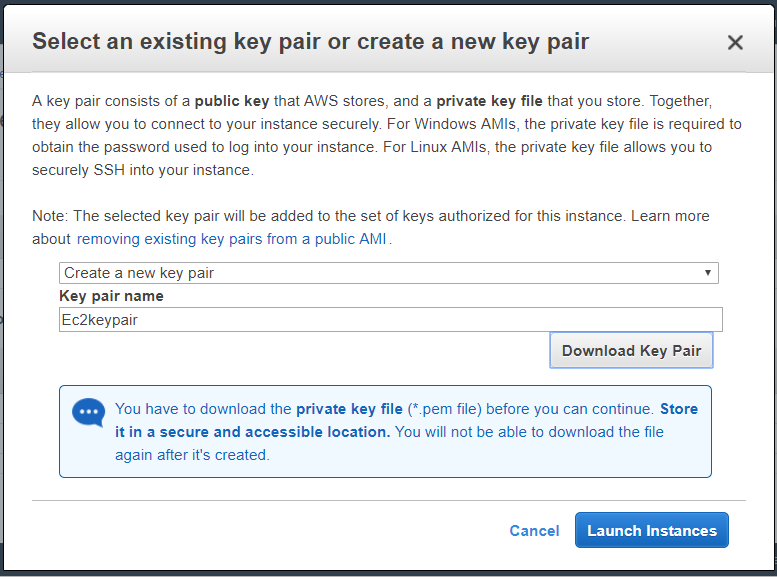
  • Create a new key-pair. A key-pair allows you to connect to your instance securely.
Security Group
  • Click on the Launch Instances.
  • A key-pair is generated with .pem extension. Convert the pem file into ppk file by using putygen tool.
  • Open the putty.
  • Enter the host name, i.e., ec2-user@18.222.2.1, and save the host name in a session logging.
  • Click on the SSH appearing on the right-side of the putty, move to the Auth and then attach the ppk file.
  • Run the command sudo su to move to the root level and then update the EC2 instance by running the command yum update -y.
  • Install the Apache server so that EC2 instance becomes a web server by running the command yum install httpd -y.
  • Run the command cd /var/www/html to set the path.
  • Now, create a text editor by using the command nano index.html.
  • Start the Apache server by running the command service httpd start.
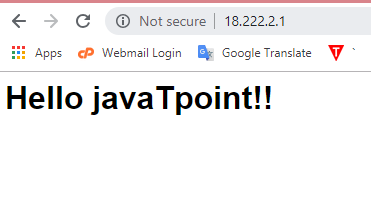
  • After starting the server, copy the public IP address, and paste it to the browser.
Security Group
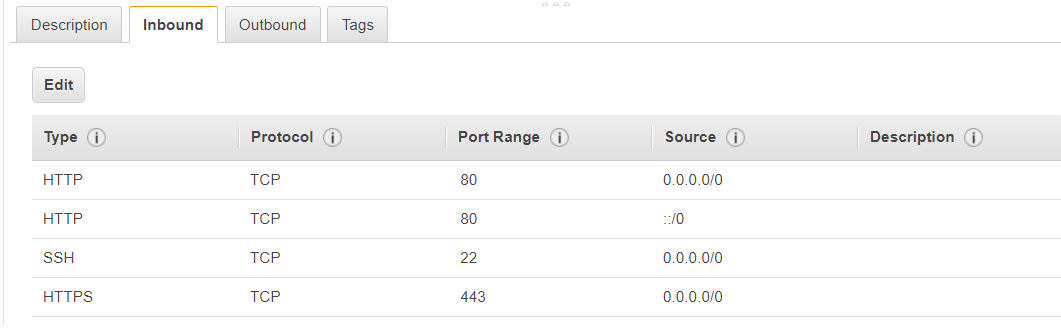
  • Security group consists of inbound rules, and the inbound rules are created by us only. Suppose I add three inbound rules, i.e., HTTP, SSH, and HTTPS.
Security Group
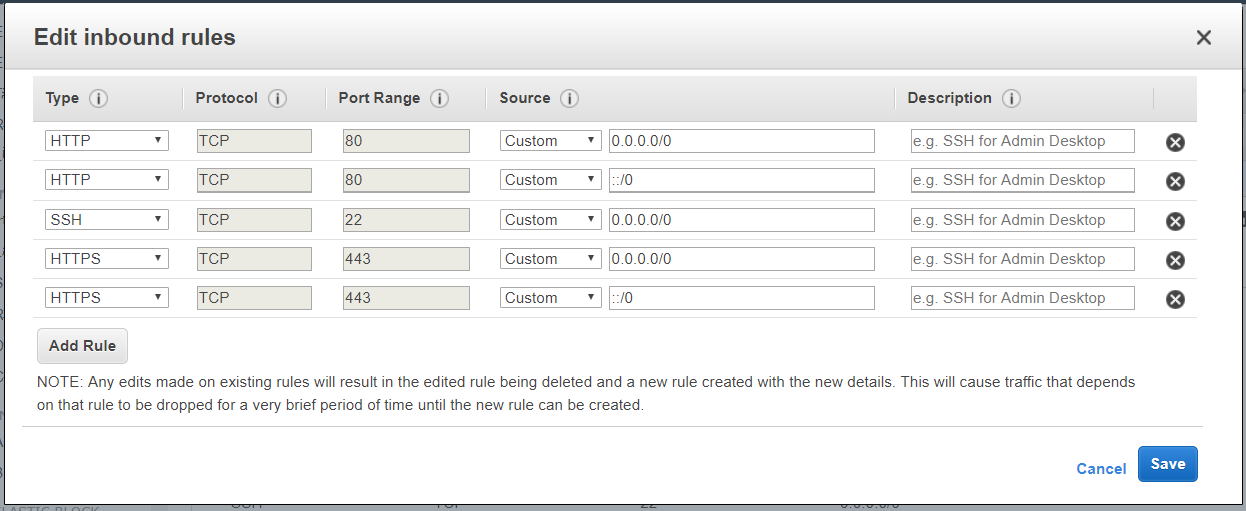
  • We can also delete the inbound rule. Suppose I want to delete the Http protocol, then click on the Edit button, and then click on the save button.
Security Group

Deleting the HTTP protocol from the security group would not allow us to see the Http, and this change is applied to the group immediately.

Note: An inbound rule consists of a source of the traffic and port range. If we are implementing any rules in the security group, then it happens very quickly.

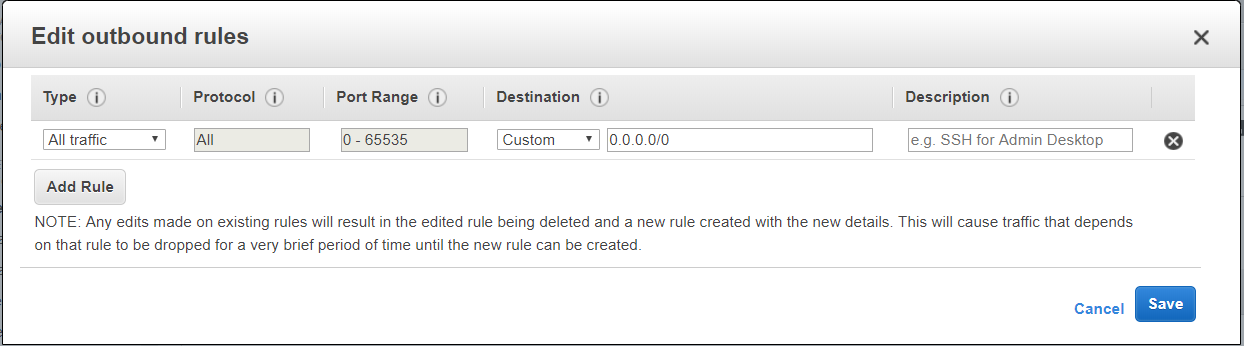
  • We can also Edit the Outbound rule. Suppose I delete the All traffic rule, click on the Save button.
Security Group

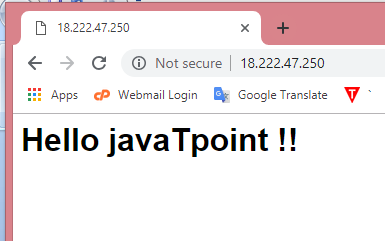
Copy and paste an IP address to the web browser and run it.

Security Group

We got the same output. Therefore, we can say that it allows the traffic into an EC2 instance, and also will provide the responses without even any outbound rule set.

Note: When we add an inbound rule, then it automatically added in an outbound rule.

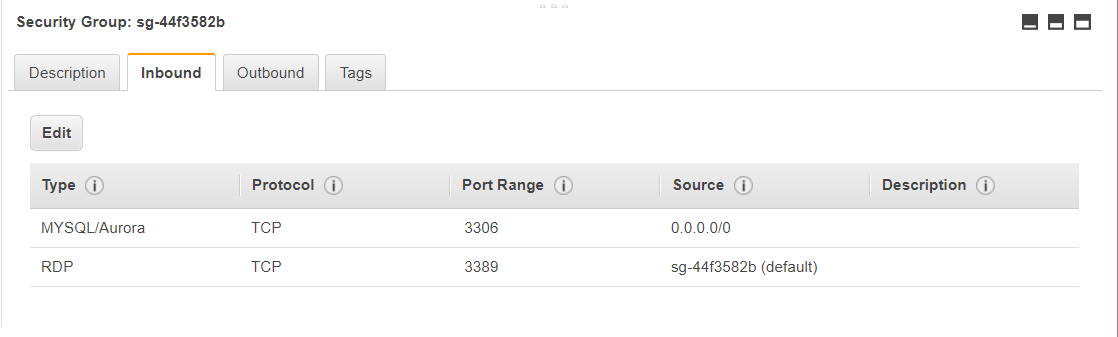
Move to the default security group. An Inbound rule of a default group consists of MYSQL/Aurora and RDP.

Security Group
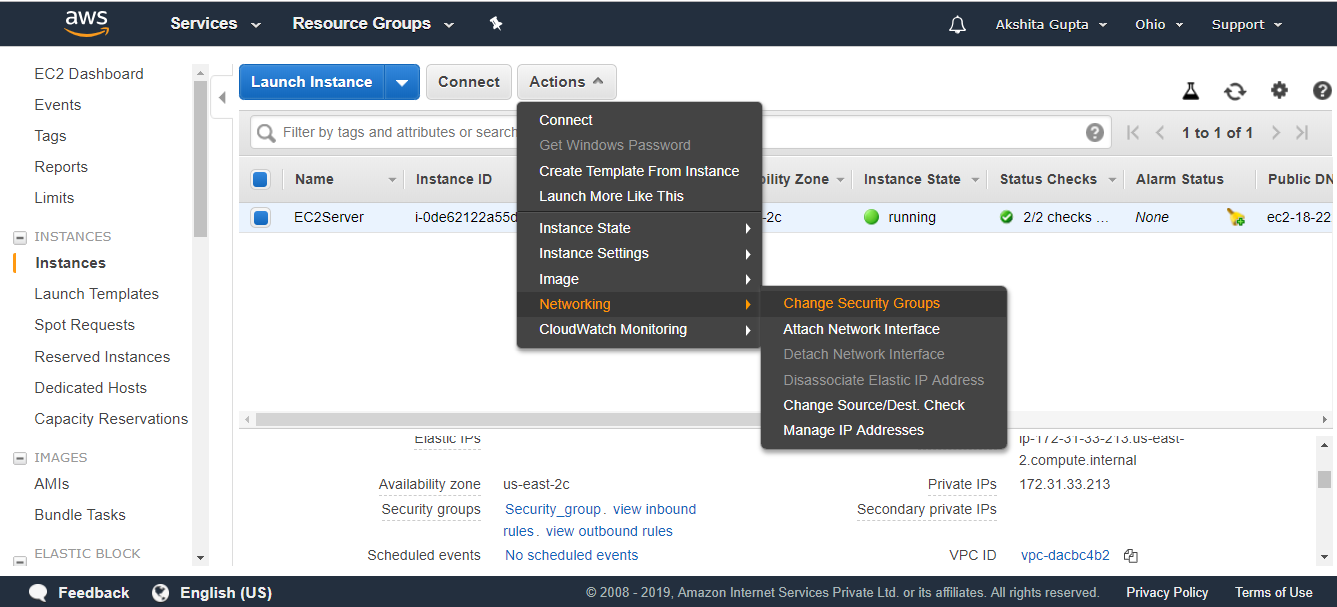
  • We can add multiple groups to a single EC2 instance. Suppose I want to add a default security group to an EC2 instance. Move to the EC2 instance, click on the Actions dropdown menu. Move to the Networking, and then click on the Change Security Group.
Security Group
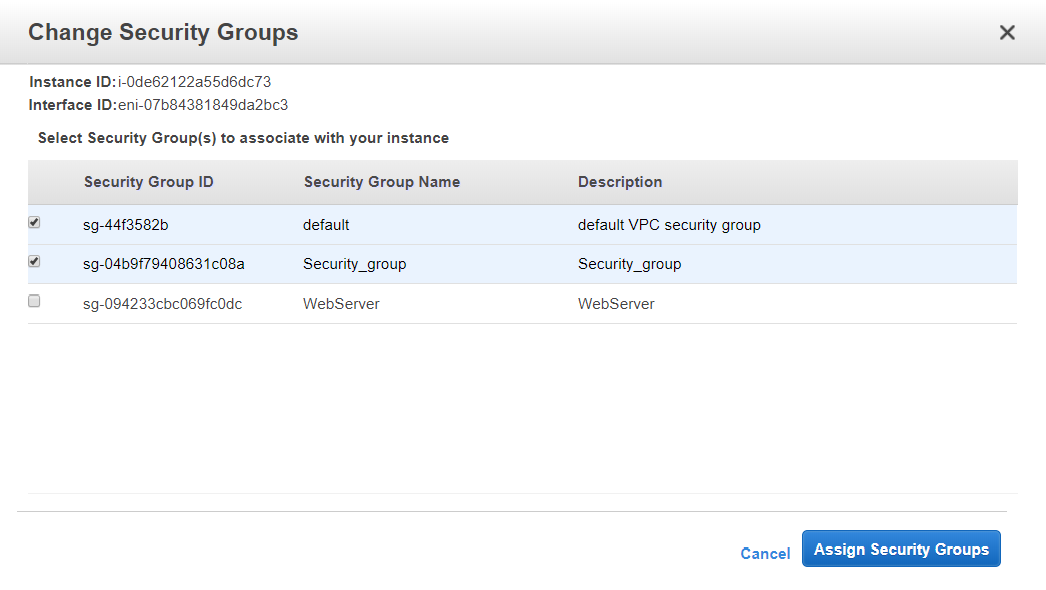
  • Now, check the default security group which you want to add to your EC2 instance.
Security Group

Some important points to remember:

  • All inbound traffic is blocked by Default, i.e., you need to add the traffic such as HTTP, HTTPs, etc.
  • All outbound traffic is allowed automatically.
  • You can have any number of EC2 instances within a security group.
  • You can have multiple security groups attached to EC2 instance./li>
  • Security groups are stateful, i.e., if you create an inbound rule allowing traffic in, that traffic is automatically allowed back out again.

How to creating EBS Volume

EBS Volume

In this topic, we will learn how to upgrade the EBS Volume in various ways.

  • Sign in to the AWS Management Console.
  • Move to the EC2 service.
  • Create an EC2 instance.
  • Choose an Amazon Machine Image (AMI).
  • Choose an Instance type. Suppose I choose a t2.micro type for our EC2 instance. Click on the Next.
EBS Volume
  • Configure Instance details. Keep all the details as default, and then click on the Next.
EBS Volume
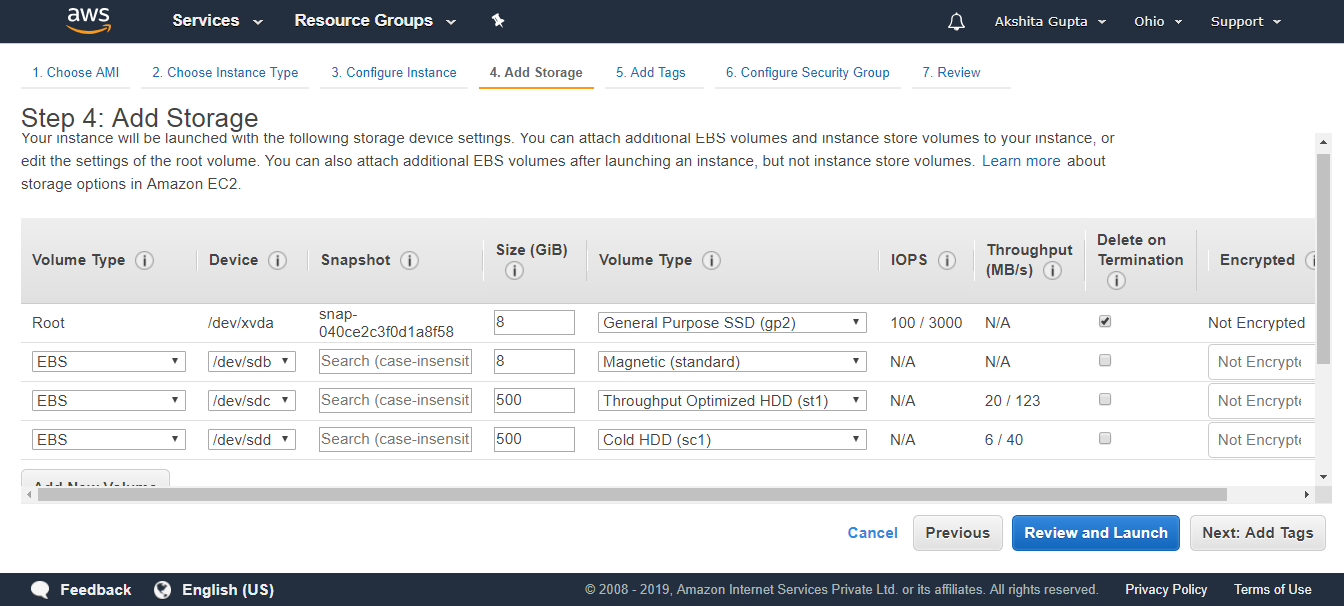
  • Add the EBS Volume. Root is the default EBS volume used to store the operating system.
EBS Volume

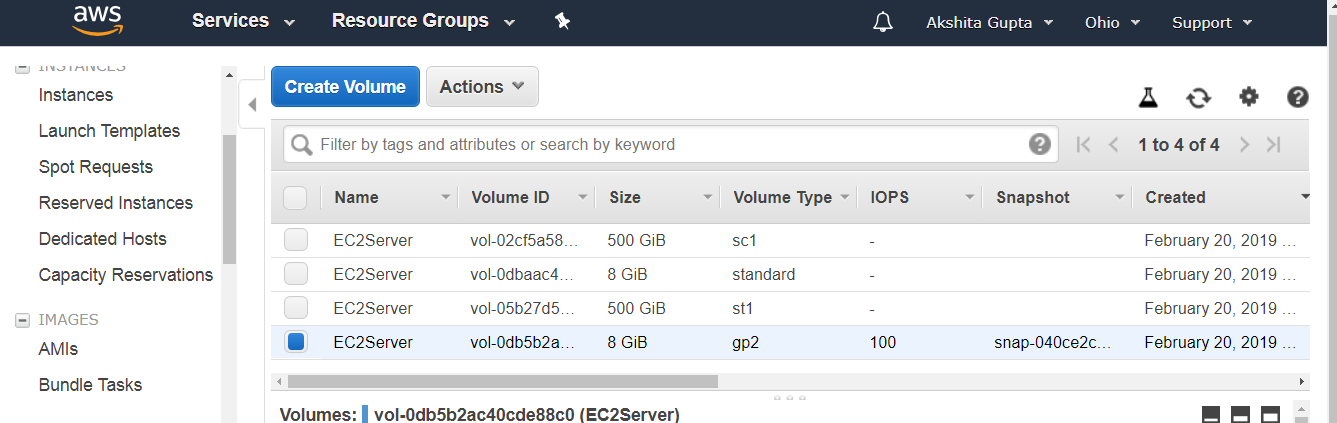
I create three EBS Volumes of type Magnetic, Throughput Optimized HDD and Cold HDD.

  • Add tags.
EBS Volume
  • Configure Security Group. Click on the Review and Launch.
  • Click on the Launch button.
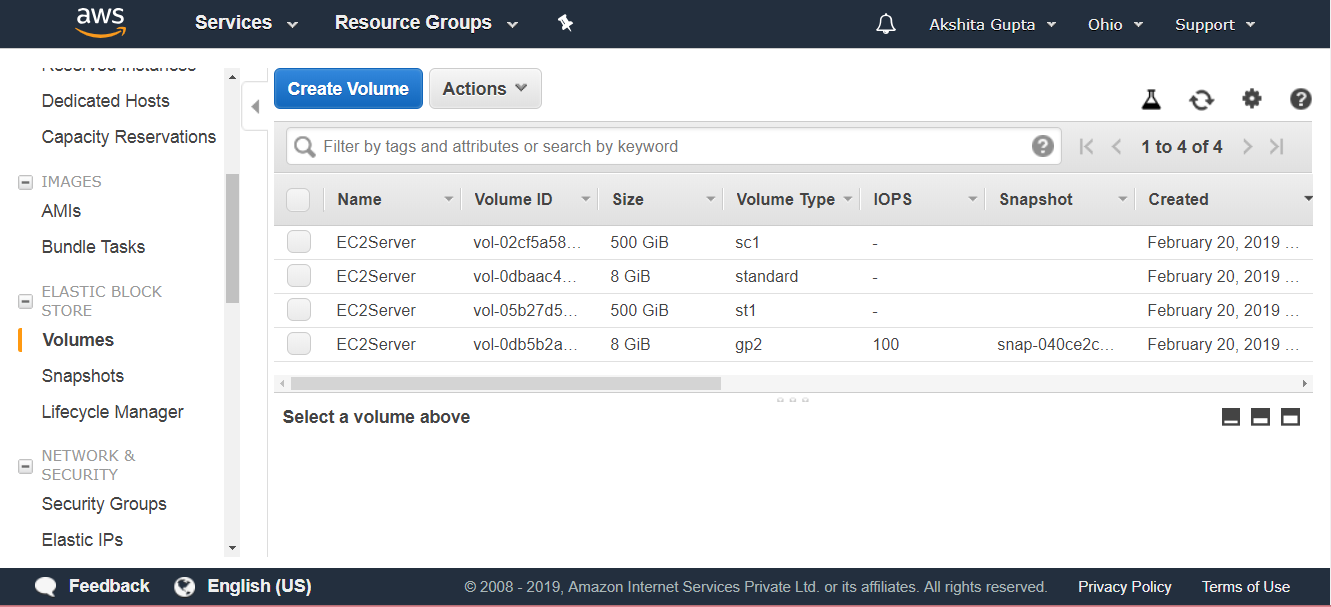
  • Move to the Volumes appearing on the left side of the console.
EBS Volume

From the above screen, we observe that a single EC2 instance is associated with four EBS Volumes type.

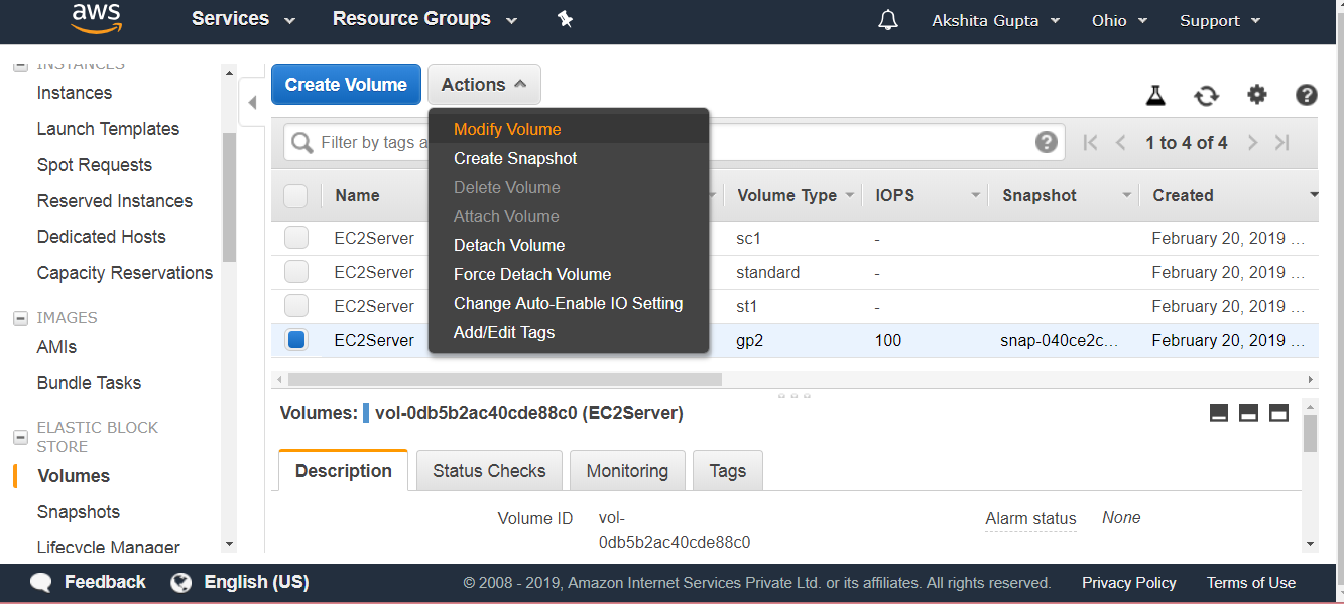
  • We can also modify the volume. Suppose I want to modify the volume type of gp2, check the EBS Volume that you want to modify.
EBS Volume
  • Click on the Actions dropdown menu, click on the Modify Volume.
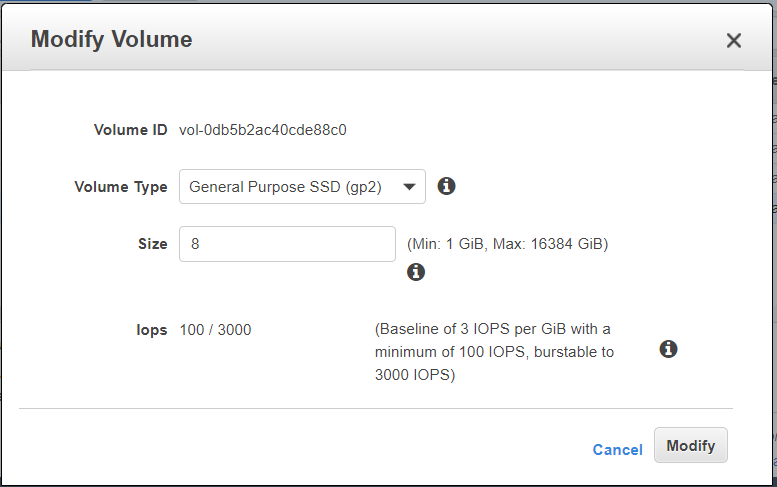
EBS Volume
EBS Volume

From the above screen, we observe that we can also modify the volume type. Standard cannot be modified as it is the oldest storage available. Therefore, we can say that all the volumes are modifiable apart from the magnetic storage volume.

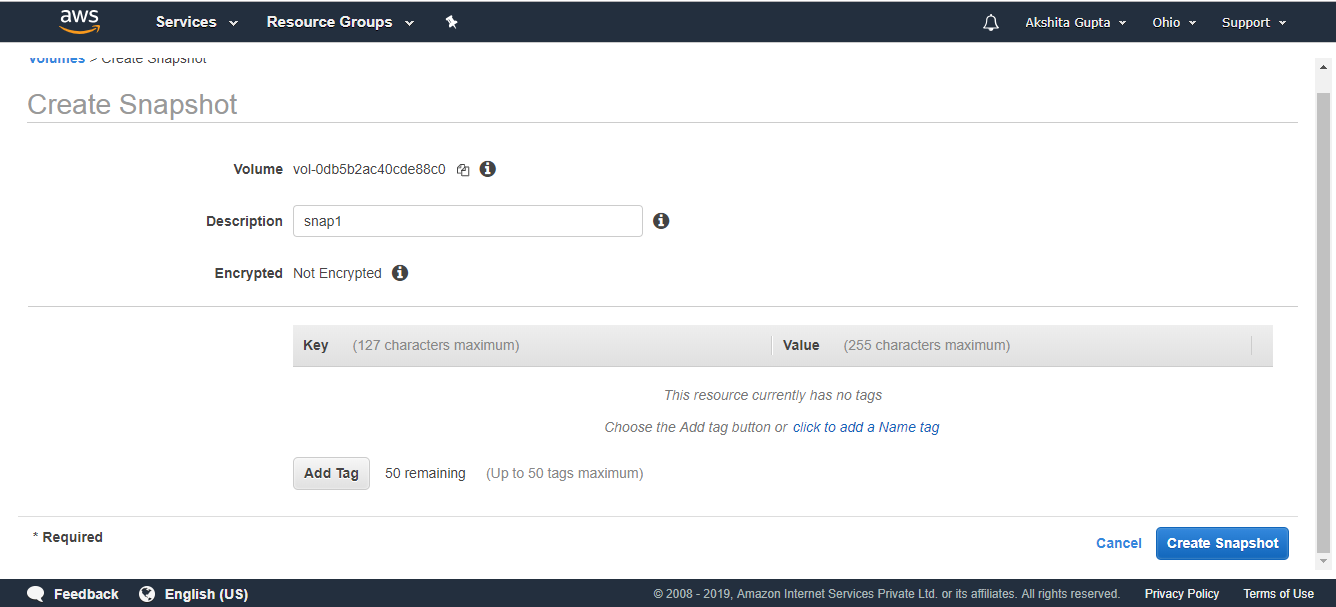
  • Suppose I want to create another EBS Volume or EC2 instance in another Availability Zone. In order to achieve this, we first need to create a snapshot. Move to the Actions dropdown menu, then click on the Create Snapshot.
EBS Volume

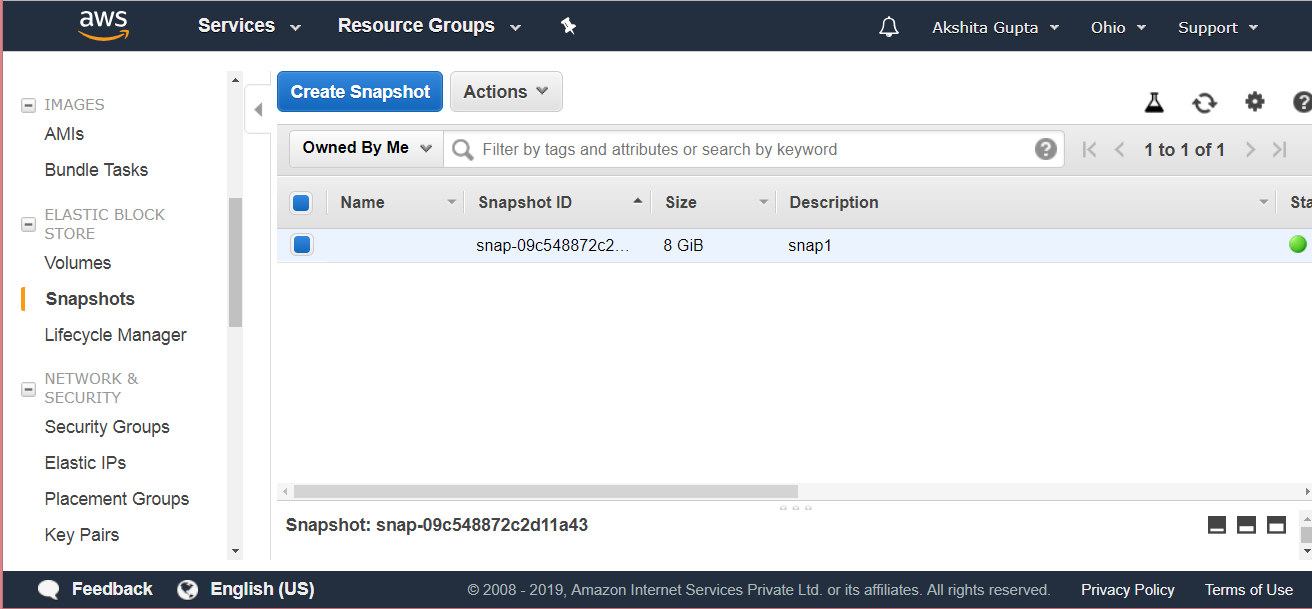
Move to the snapshot appearing on the left side of the console.

EBS Volume

The above screen shows the snapshot that you have created just now.

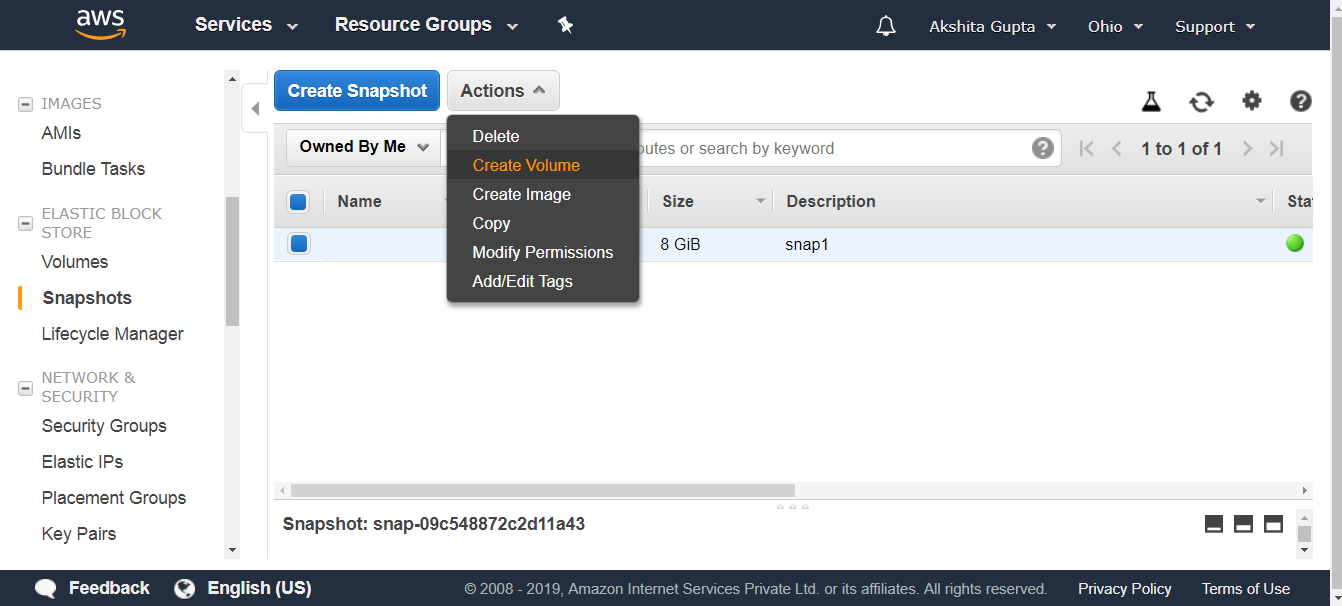
Move to the Actions dropdown menu, click on the Create Volume.

EBS Volume
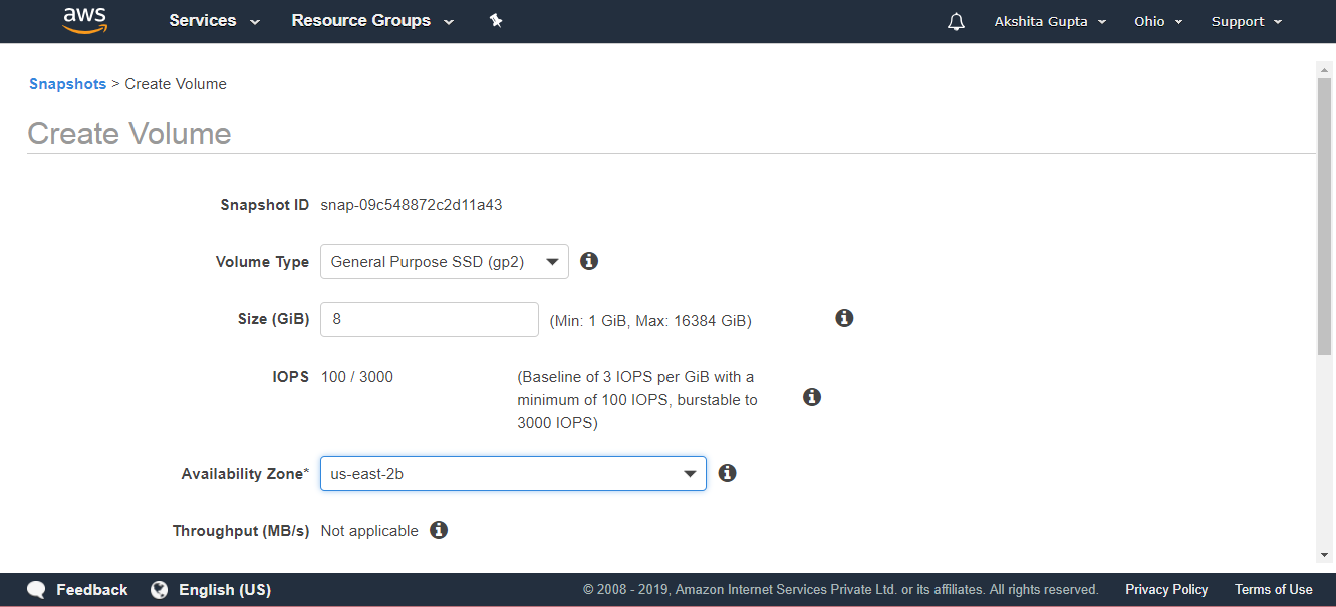
EBS Volume

From the above screen, we observe that we can change the Availability zone of a Volume for a snapshot that we have just created. Therefore, we have created a new EBS Volume with different Availability zone, i.e., us-east-2b.

  • You can also move an EC2 instance from one region to another region. In order to achieve this, the following steps are to be taken:
    • Create a Snapshot.
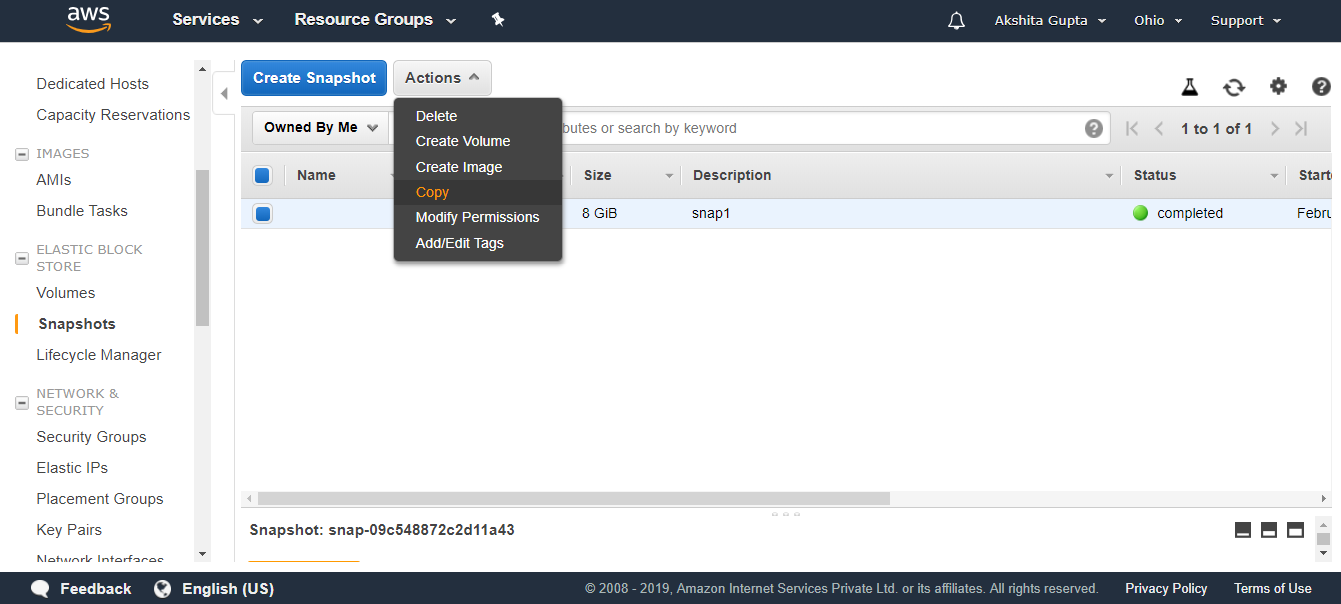
    • Move to the Actions dropdown menu, click on the copy.
EBS Volume
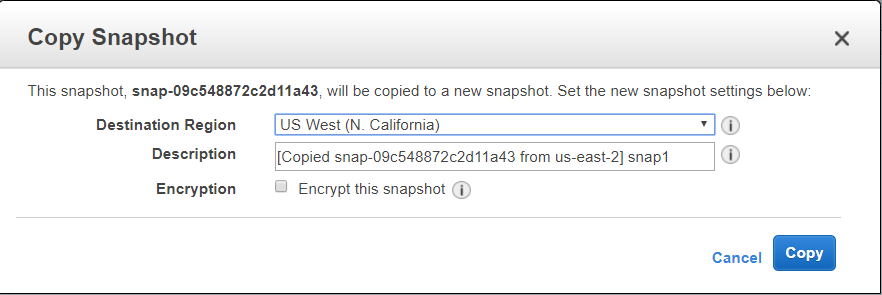
  • The screen shown below shows that the snapshot has been copied to a new region, i.e., US West.
EBS Volume
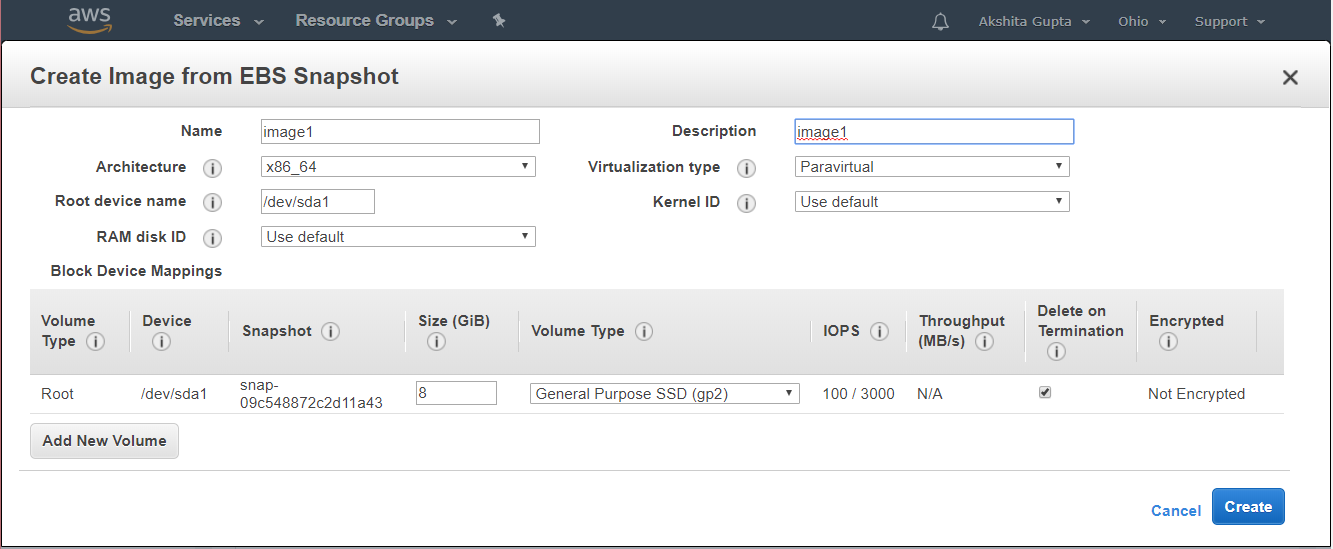
  • Once the snapshot is in a different region, create the image of the snapshot by clicking on the Actions dropdown menu, and then click on the Create Image.
EBS Volume
  • Click on the Create button.
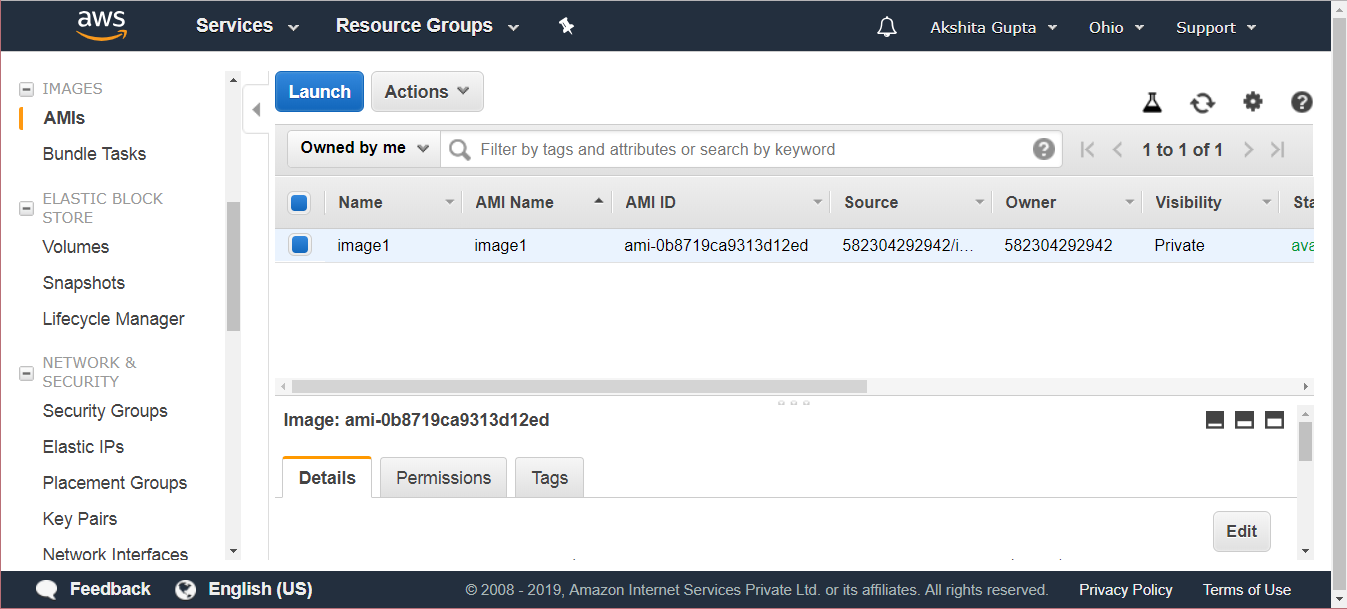
  • Move to the AMI appearing on the left side of the console. An AMI displays the image that you have just created.
EBS Volume
  • Click on the Launchbutton.

Note: If you delete an EC2 instance, then root device is deleted, and other EBS Volumes are not deleted.

Important points to be noted:

  • Volumes exist on EBS. Volume is a Virtual Hard Disk which stores the operating system.
  • Snapshots exist on S3. However if you look at a bucket and searches for the snapshots in a bucket, you will not be able to see the snapshots. Therefore, we can say that the snapshot has no visibility.
  • Snapshots are a point in time copies of volumes. It’s just like taking a photograph of the hard disk at a point of time.
  • Snapshots are incremental means the blocks that have been changed since your last snapshot are moved to S3.
  • The first snapshot always takes some time to create.
  • To create a snapshot for Amazon EBS Volumes that serve as root devices, you should stop the instance before taking the snapshot.
  • However, you can take a snapshot while the instance is running.
  • You can create AMI from snapshots.
  • You can change the EBS Volume size and storage type.
  • The Volume will always be in the same availability zone as the EC2 instance.
  • To move an EBS Volume from one region to another, take a snapshot of it, and then copy it to the new region.