How to Creating an S3 Bucket

Creating an S3 Bucket

  • Sign in to the AWS Management console. After sign in, the screen appears is shown below:
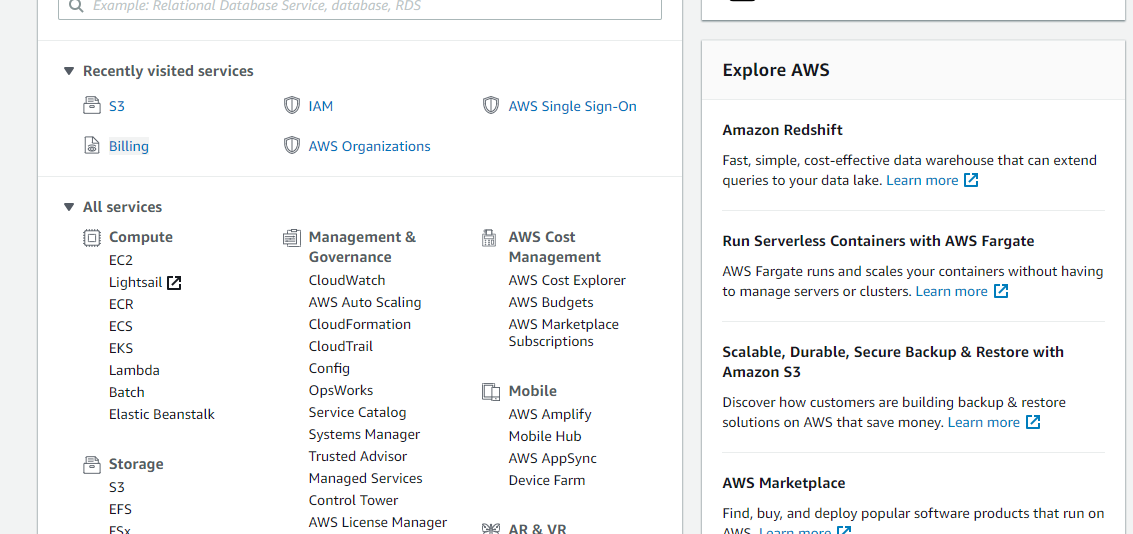
Creating an S3 Bucket
  • Move to the S3 services. After clicking on S3, the screen appears is shown below:
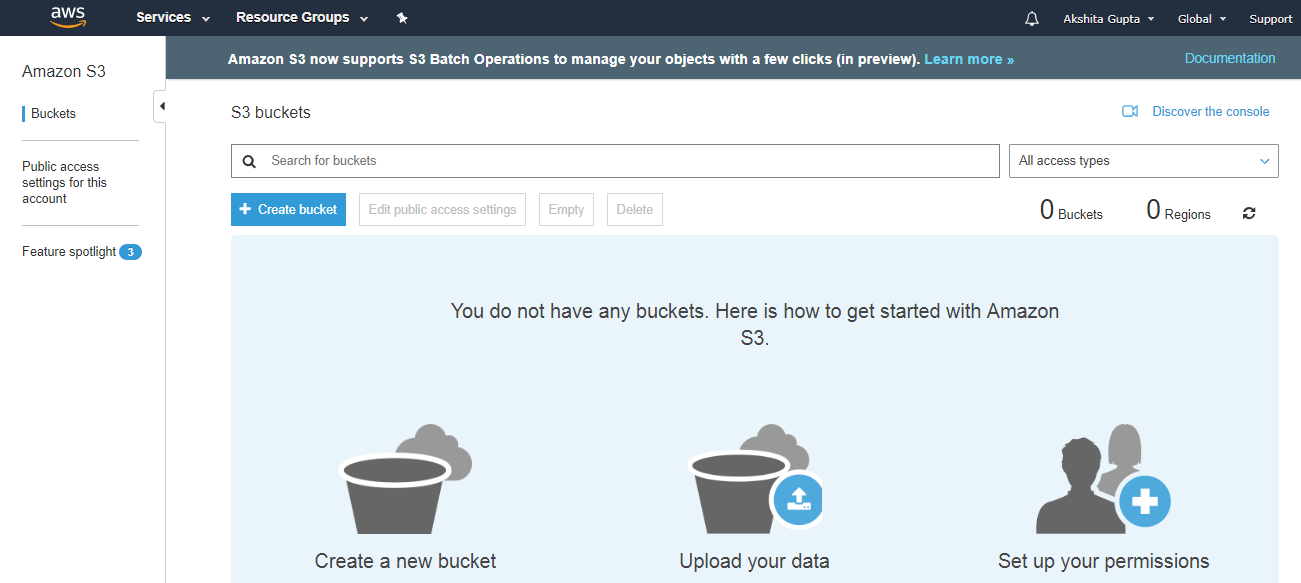
Creating an S3 Bucket
  • To create an S3 bucket, click on the “Create bucket”. On clicking the “Create bucket” button, the screen appears is shown below:
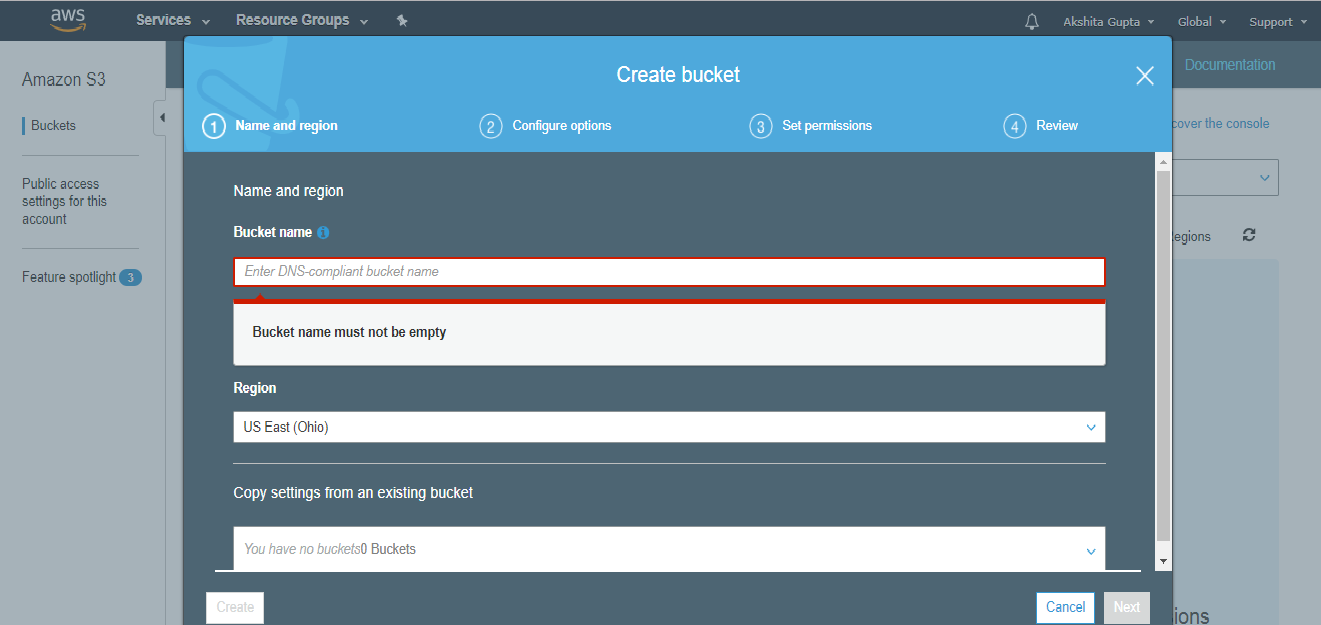
Creating an S3 Bucket
  • Enter the bucket name which should look like DNS address, and it should be resolvable. A bucket is like a folder that stores the objects. A bucket name should be unique. A bucket name should start with the lowercase letter, must not contain any invalid characters. It should be 3 to 63 characters long.
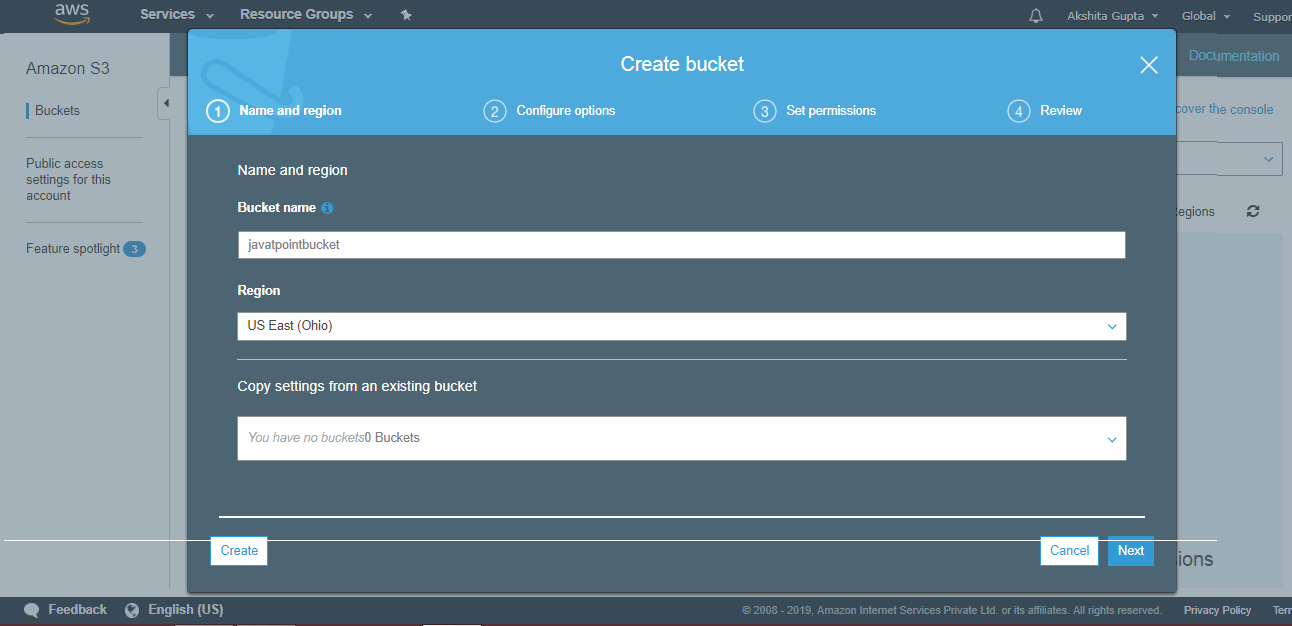
Creating an S3 Bucket
  • Click on the “Create” button. Now, the bucket is created.
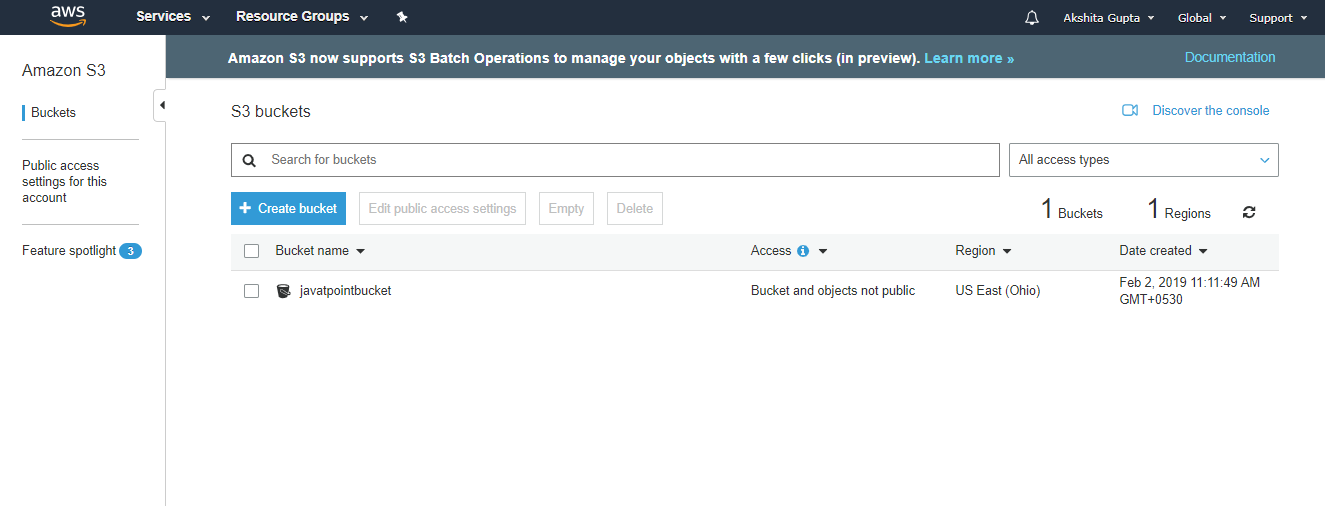
Creating an S3 Bucket

We have seen from the above screen that bucket and its objects are not public as by default, all the objects are private.

  • Now, click on the “javatpointbucket” to upload a file in this bucket. On clicking, the screen appears is shown below:
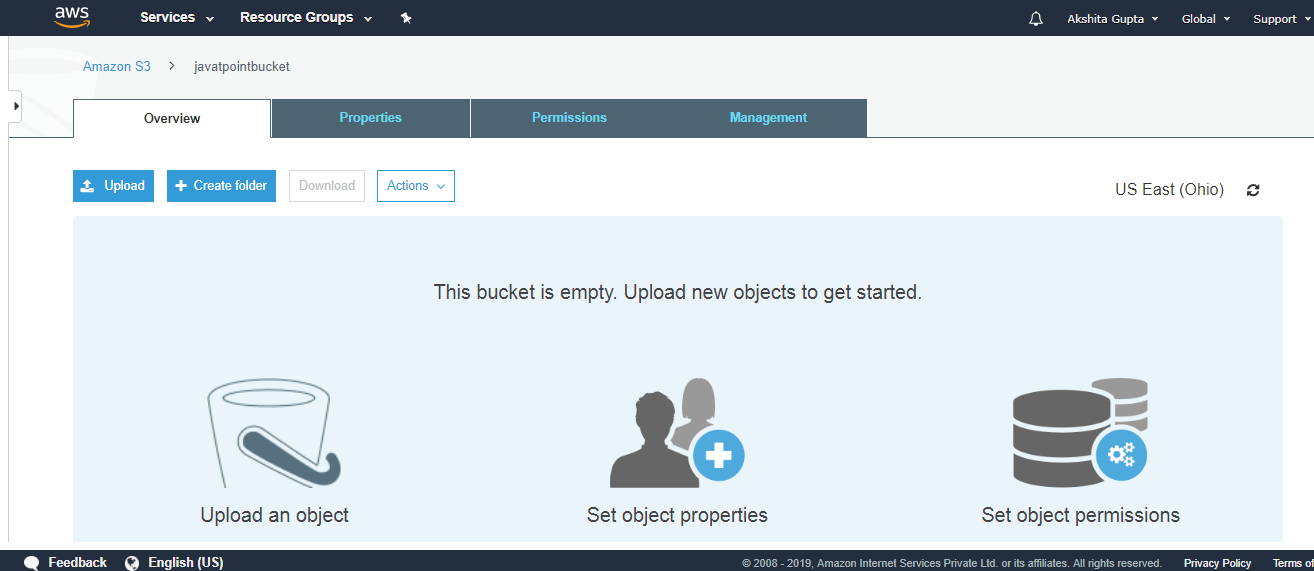
Creating an S3 Bucket
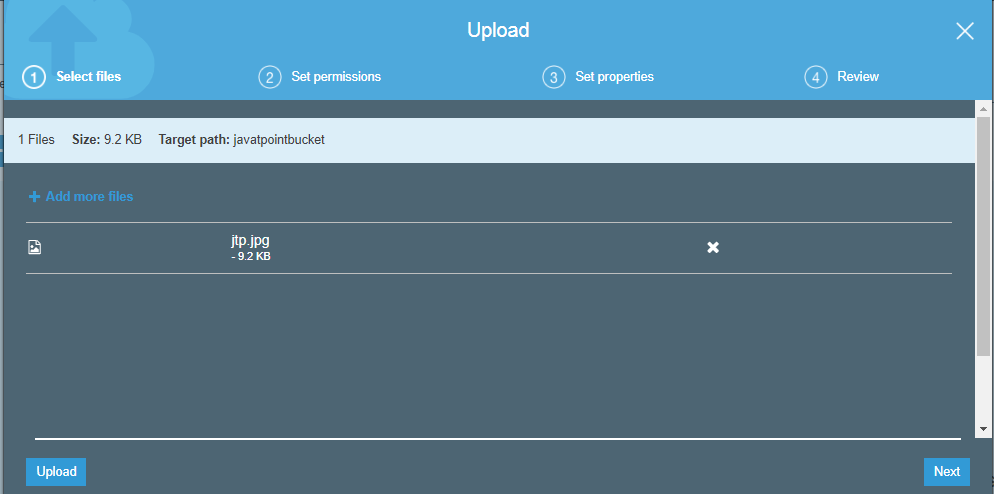
  • Click on the “Upload” button to add the files to your bucket.
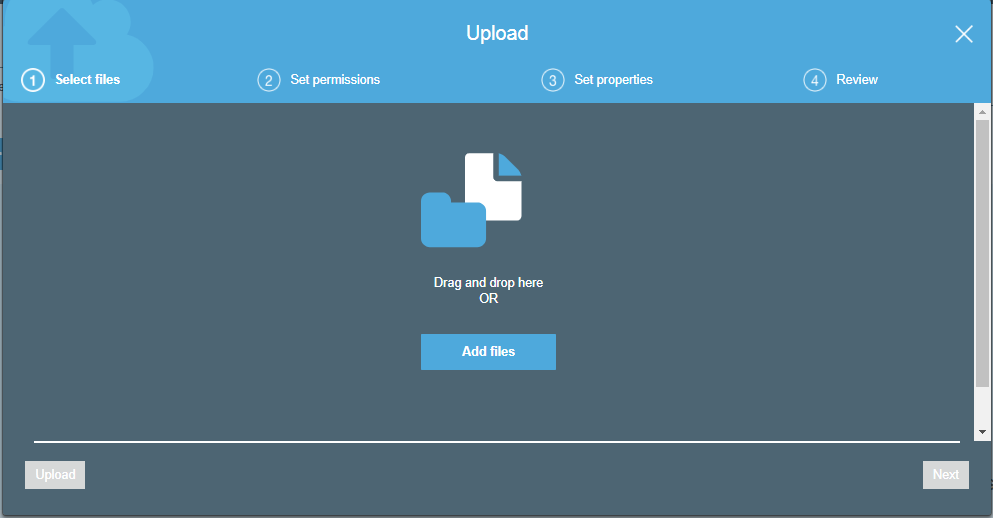
Creating an S3 Bucket
  • Click on the “Add files” button.
Creating an S3 Bucket
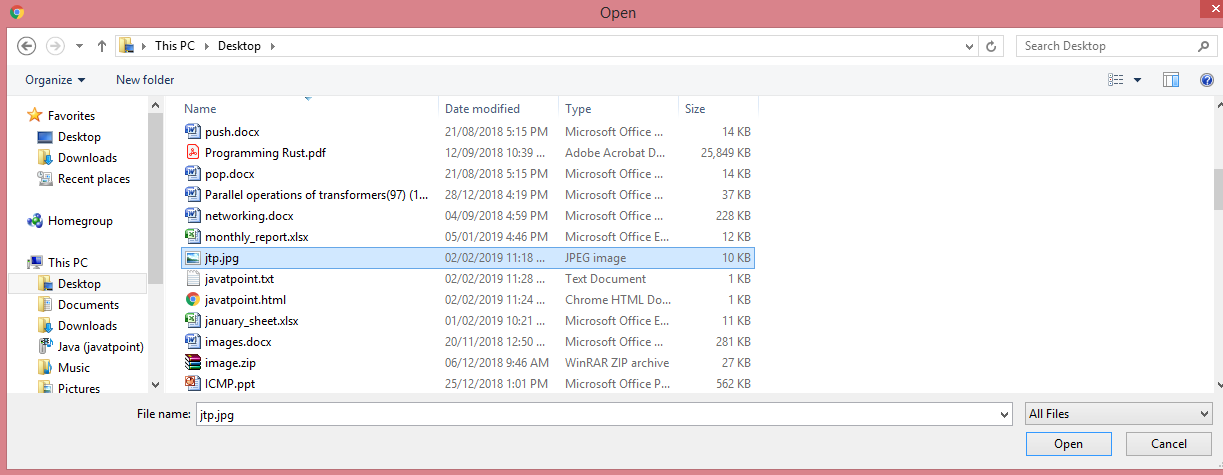
  • Add the jtp.jpg file.
Creating an S3 Bucket
  • Click on the “upload” button.
Creating an S3 Bucket

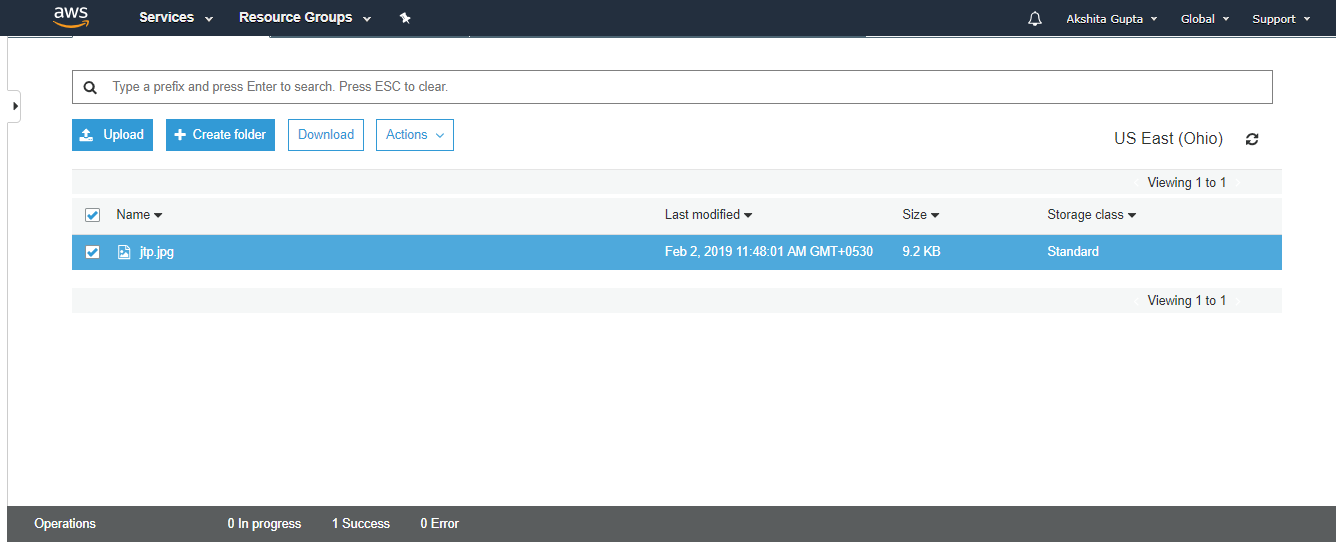
From the above screen, we observe that the “jtp.jpg” has been successfully uploaded to the bucket “javatpoint”.

  • Move to the properties of the object “jtp.jpg” and click on the object URL to run the file appearing on the right side of the screen
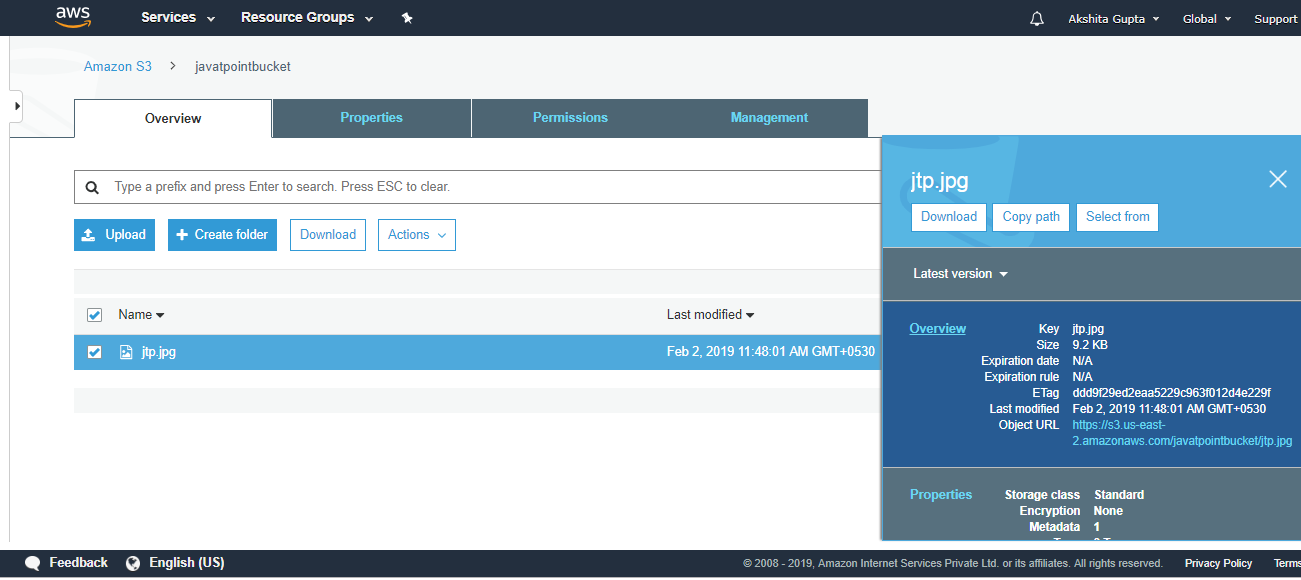
Creating an S3 Bucket
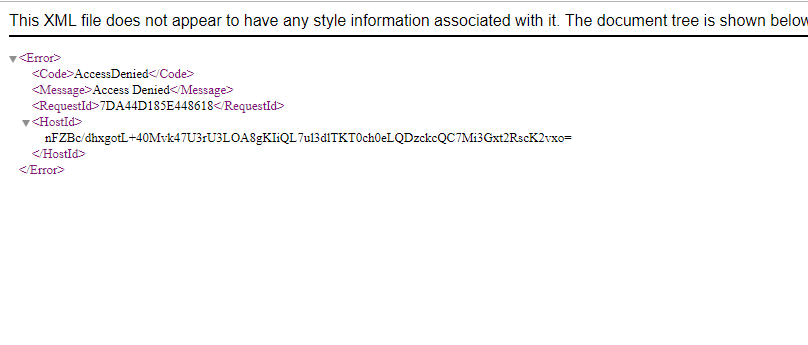
  • On clicking the object URL, the screen appears is shown below:
Creating an S3 Bucket

From the above screen, we observe that we are not allowed to access the objects of the bucket.

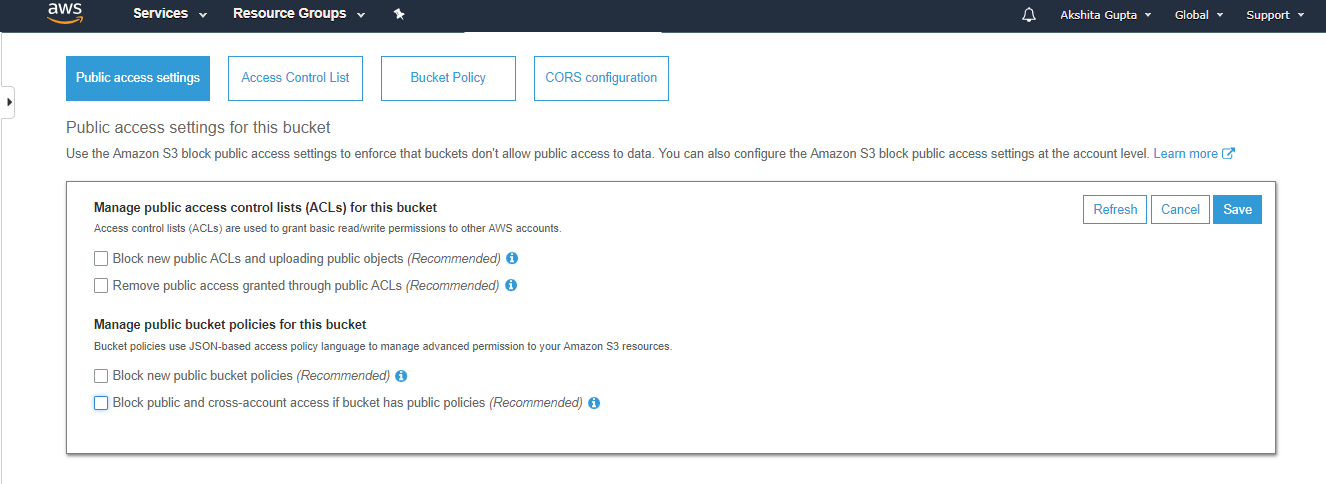
  • To overcome from the above problems, we need to set the permissions of a bucket, i.e., “javatpointbucket” and unchecked all of them.
Creating an S3 Bucket
  • Save these permissions.
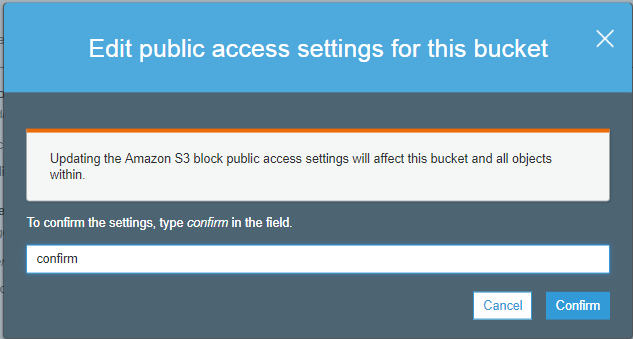
  • Enter “confirm” in a textbox, then click on the “confirm” button.
Creating an S3 Bucket
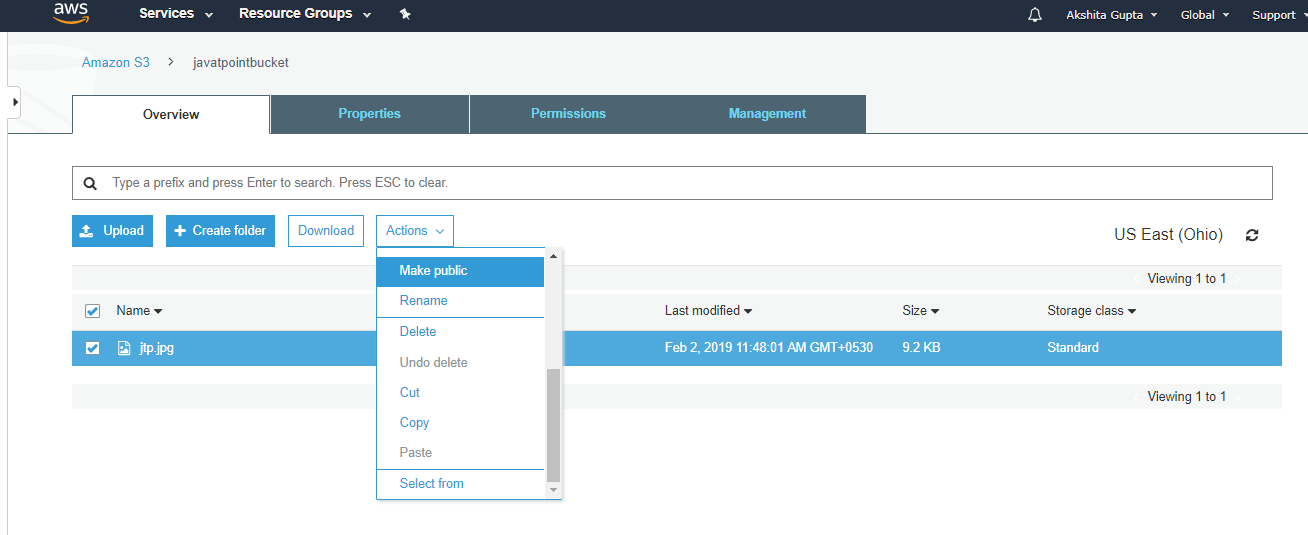
  • Click on the “Actions” dropdown and then click on the “Make public”.
Creating an S3 Bucket
  • Now, click on the Object URL of an object to run the file.
Creating an S3 Bucket

Important points to remember

  • Buckets are a universal namespace, i.e., the bucket names must be unique.
  • If uploading of an object to S3 bucket is successful, we receive a HTTP 200 code.
  • S3, S3-IA, S3 Reduced Redundancy Storage are the storage classes.
  • Encryption is of two types, i.e., Client Side Encryption and Server Side Encryption
  • Access to the buckets can be controlled by using either ACL (Access Control List) or bucket policies.
  • By default buckets are private and all the objects stored in a bucket are also private.

Why do we need a Data Pipeline?

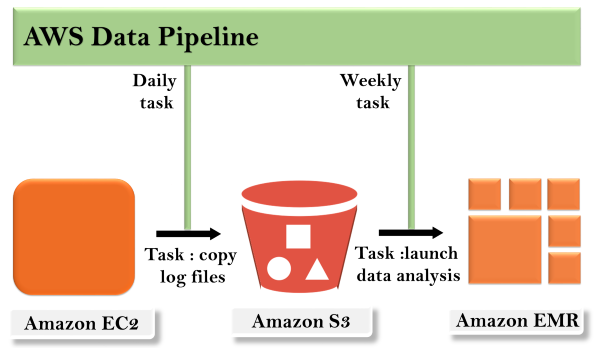
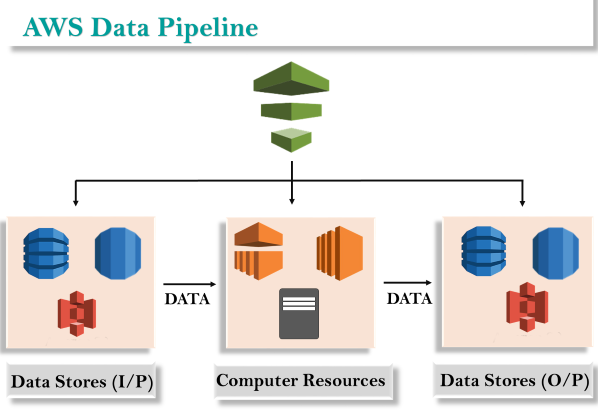
Next →← PrevWhy do we need a Data Pipeline?Let’s consider an example of javaTpoint which focusses on the technical content. The following are the main goals:Improve the content: Display the content what the customers want to see in the future. In this way, content can be enhanced.Manage application efficiently: To keep track of all the activities in an application and storing the data in an existing database rather than storing the data in a new database.Faster: To improve the business faster but at a cheaper rate.Achieving the above goals might be a difficult task as a huge amount of data is stored in different formats, so analyzing, storing and processing of data becomes very complex. The various tools are used to store different formats of data. The feasible solution for such a situation is to use the Data Pipeline. Data Pipeline integrates the data which is spread across different data sources, and it also processes the data on the same location.What is a Data Pipeline?AWS Data Pipeline is a web service that can access the data from different services and analyzes, processes the data at the same location, and then stores the data to different AWS services such as DynamoDB, Amazon S3, etc.https://3d309e352cd9836a24c41768ad396b39.safeframe.googlesyndication.com/safeframe/1-0-37/html/container.htmlFor example, using data pipeline, you can archive your web server logs to the Amazon S3 bucket on daily basis and then run the EMR cluster on these logs that generate the reports on the weekly basis.Data PipelineConcept of AWS Data PipelineData PipelineThe concept of the AWS Data Pipeline is very simple. We have a Data Pipeline sitting on the top. We have input stores which could be Amazon S3, Dynamo DB or Redshift. Data from these input stores are sent to the Data Pipeline. Data Pipeline analyzes, processes the data and then the results are sent to the output stores. These output stores could be an Amazon Redshift, Amazon S3 or Redshift.Advantages of AWS Data PipelineData PipelineEasy to use
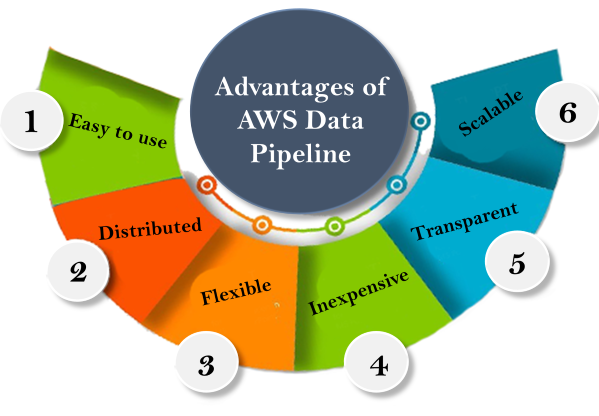
AWS Data Pipeline is very simple to create as AWS provides a drag and drop console, i.e., you do not have to write the business logic to create a data pipeline.Distributed
It is built on Distributed and reliable infrastructure. If any fault occurs in activity when creating a Data Pipeline, then AWS Data Pipeline service will retry the activity.Flexible
Data Pipeline also supports various features such as scheduling, dependency tracking, and error handling. Data Pipeline can perform various actions such as run Amazon EMR jobs, execute the SQL Queries against the databases, or execute the custom applications running on the EC2 instances.Inexpensive
AWS Data Pipeline is very inexpensive to use, and it is built at a low monthly rate.Scalabl
By using the Data Pipeline, you can dispatch the work to one or many machines serially as well as parallelly.Transparent
AWS Data Pipeline offers full control over the computational resources such as EC2 instances or EMR reports.Components of AWS Data Pipelinehttps://3d309e352cd9836a24c41768ad396b39.safeframe.googlesyndication.com/safeframe/1-0-37/html/container.htmlFollowing are the main components of the AWS Data Pipeline:
Pipeline Definition
It specifies how business logic should communicate with the Data Pipeline. It contains different information:Data Nodes
It specifies the name, location, and format of the data sources such as Amazon S3, Dynamo DB, etc.Activities
Activities are the actions that perform the SQL Queries on the databases, transforms the data from one data source to another data source.Schedules
Scheduling is performed on the Activities.Preconditions
Preconditions must be satisfied before scheduling the activities. For example, you want to move the data from Amazon S3, then precondition is to check whether the data is available in Amazon S3 or not. If the precondition is satisfied, then the activity will be performed.Resources
You have compute resources such as Amazon EC2 or EMR cluster.Actions
It updates the status about your pipeline such as by sending an email to you or trigger an alarm.Pipeline
It consists of three important items:Pipeline components
We have already discussed about the pipeline components. It basically how you communicate your Data Pipeline to the AWS services.Instances
When all the pipeline components are compiled in a pipeline, then it creates an actionable instance which contains the information of a specific task.Attempts
We know that Data Pipeline allows you to retry the failed operations. These are nothing but Attempts.Task Runner
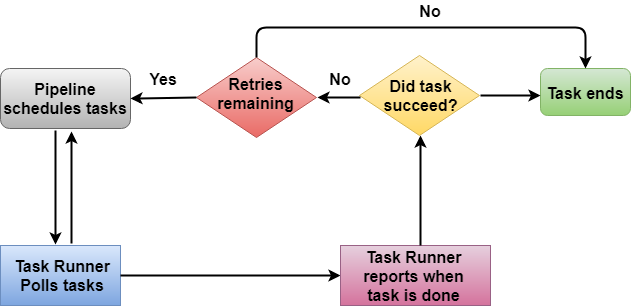
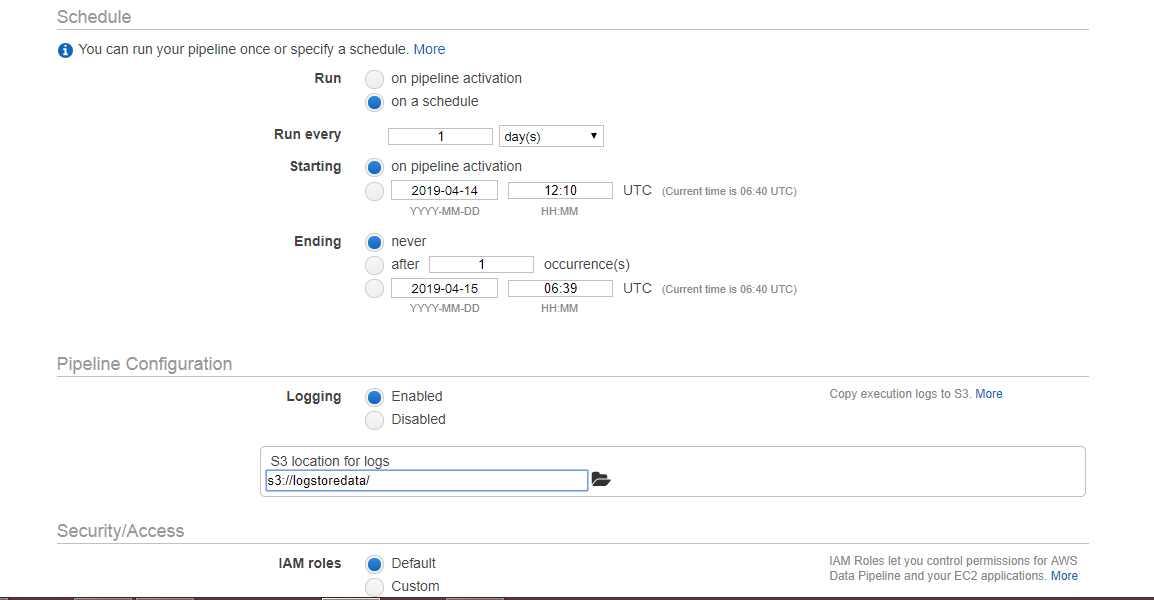
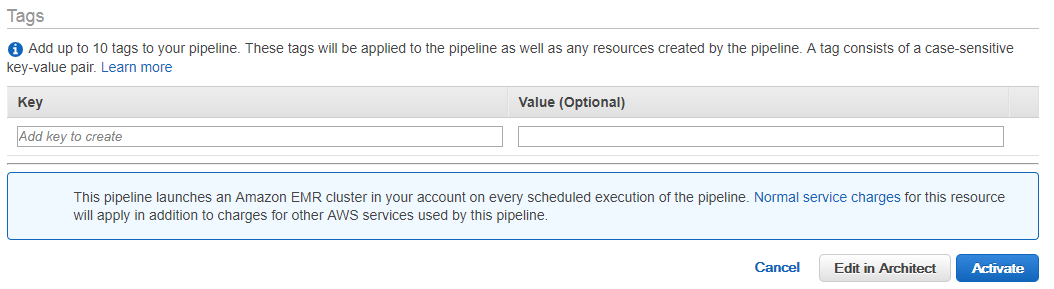
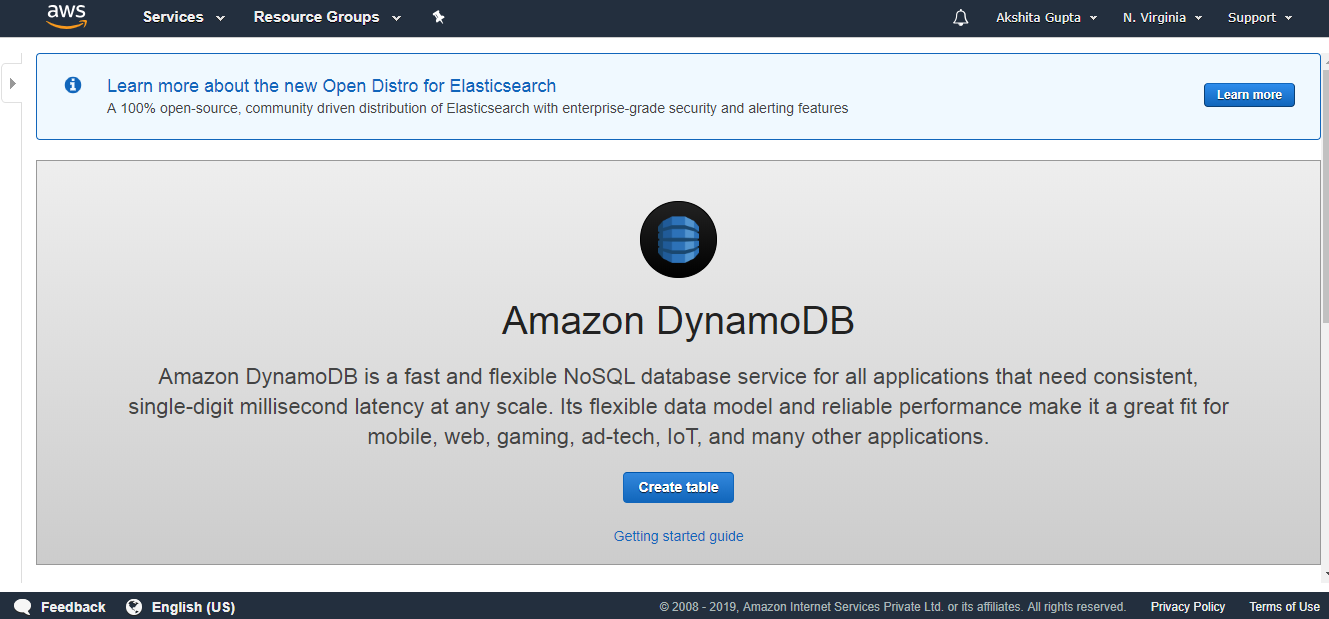
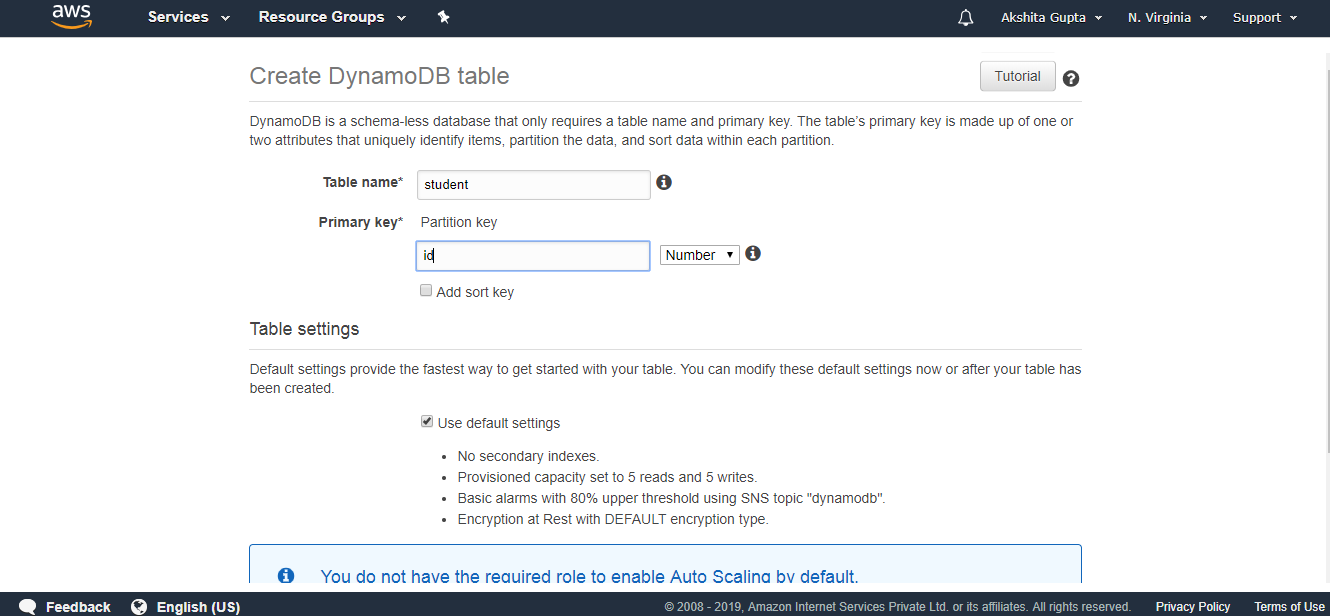
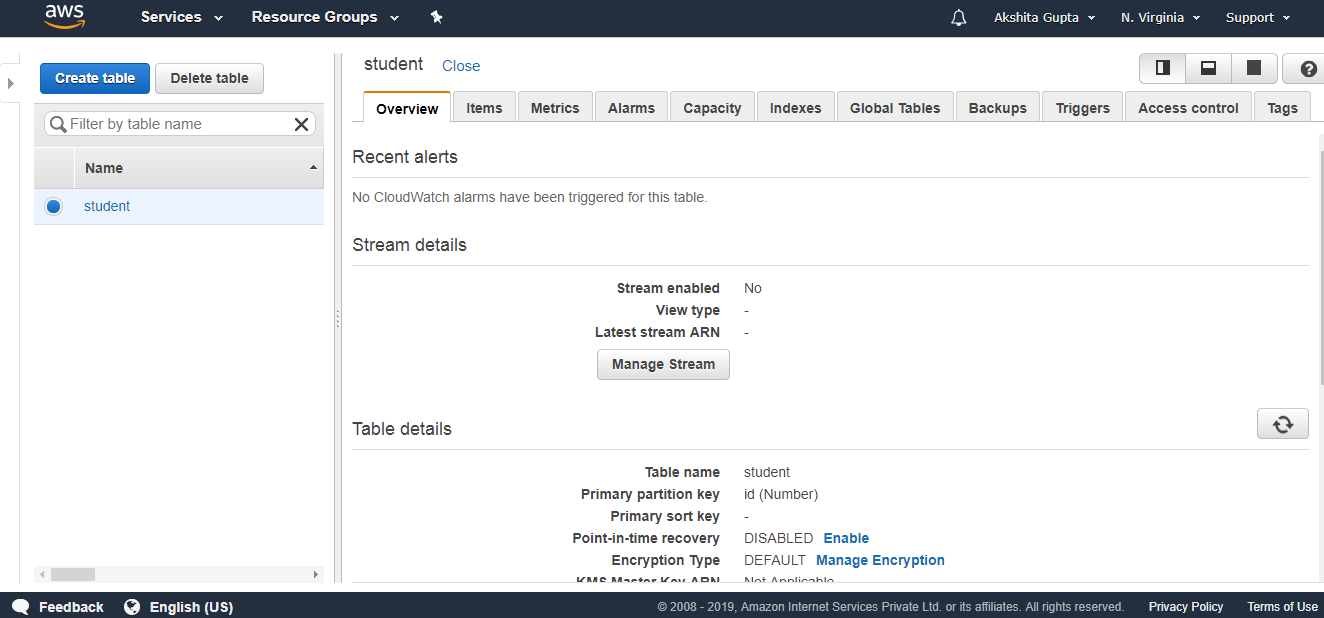
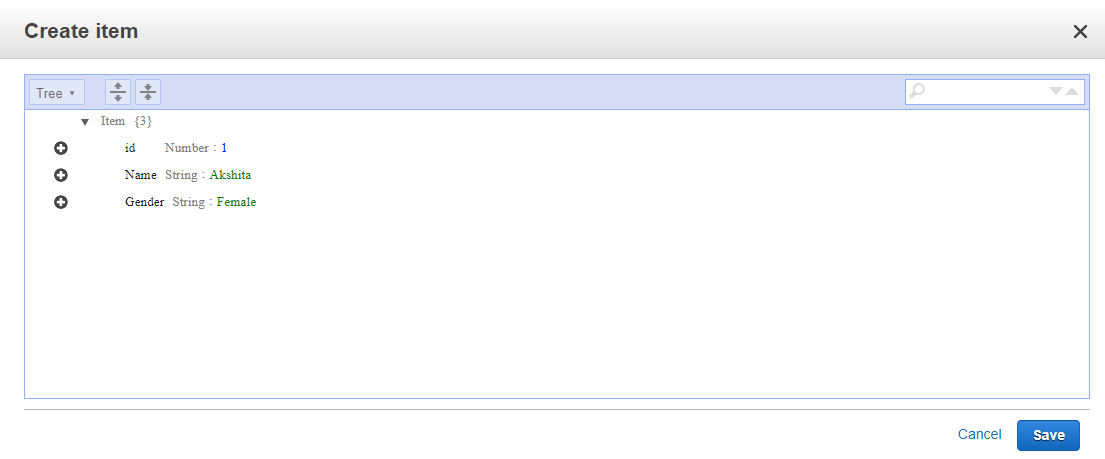
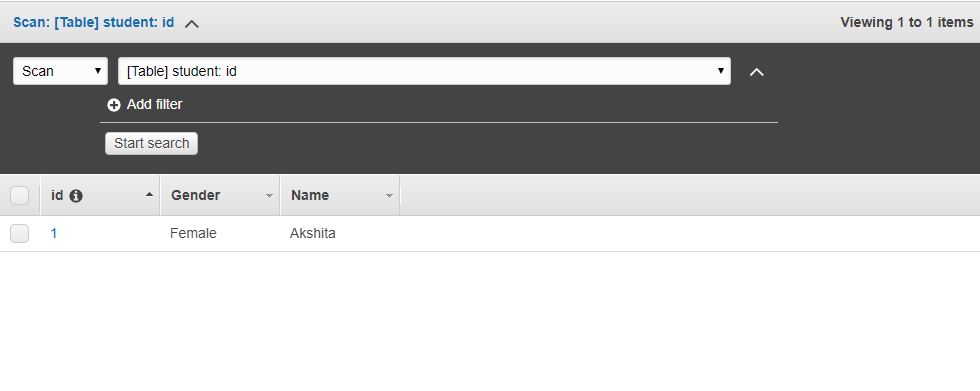
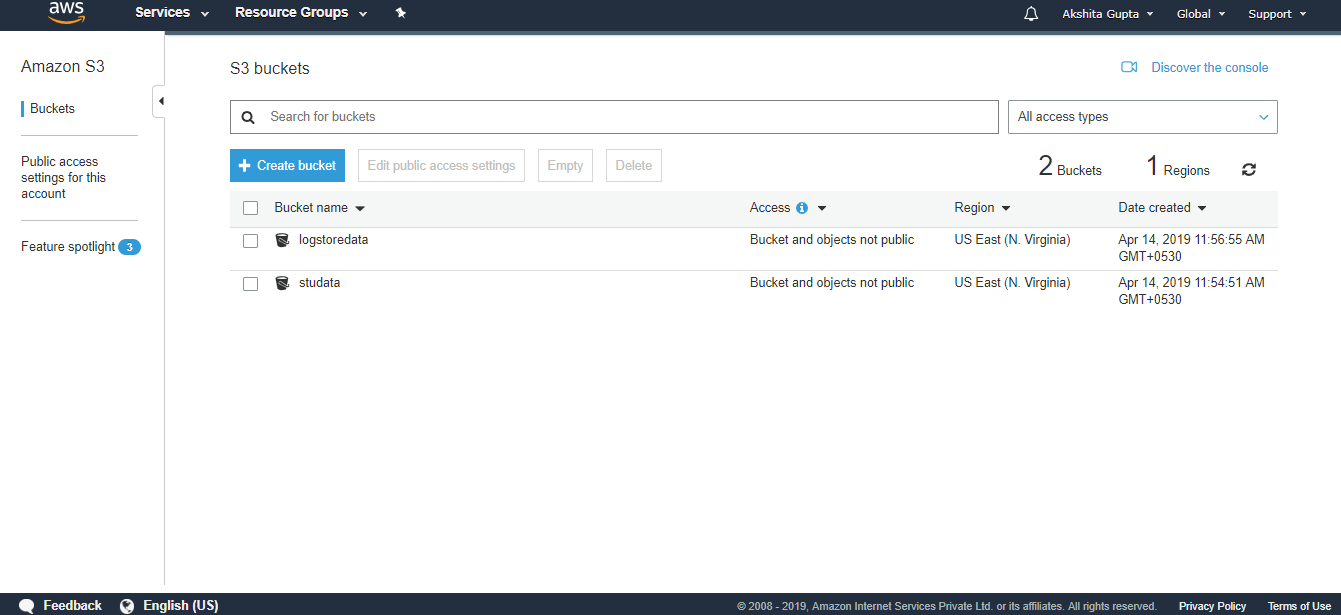
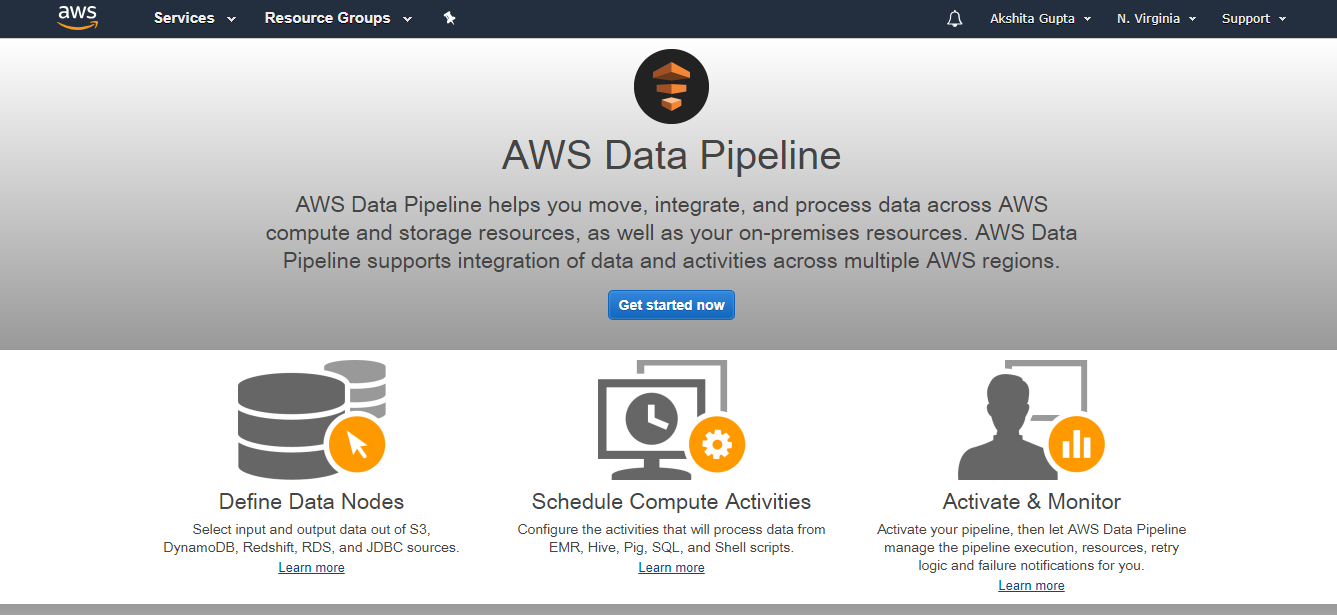
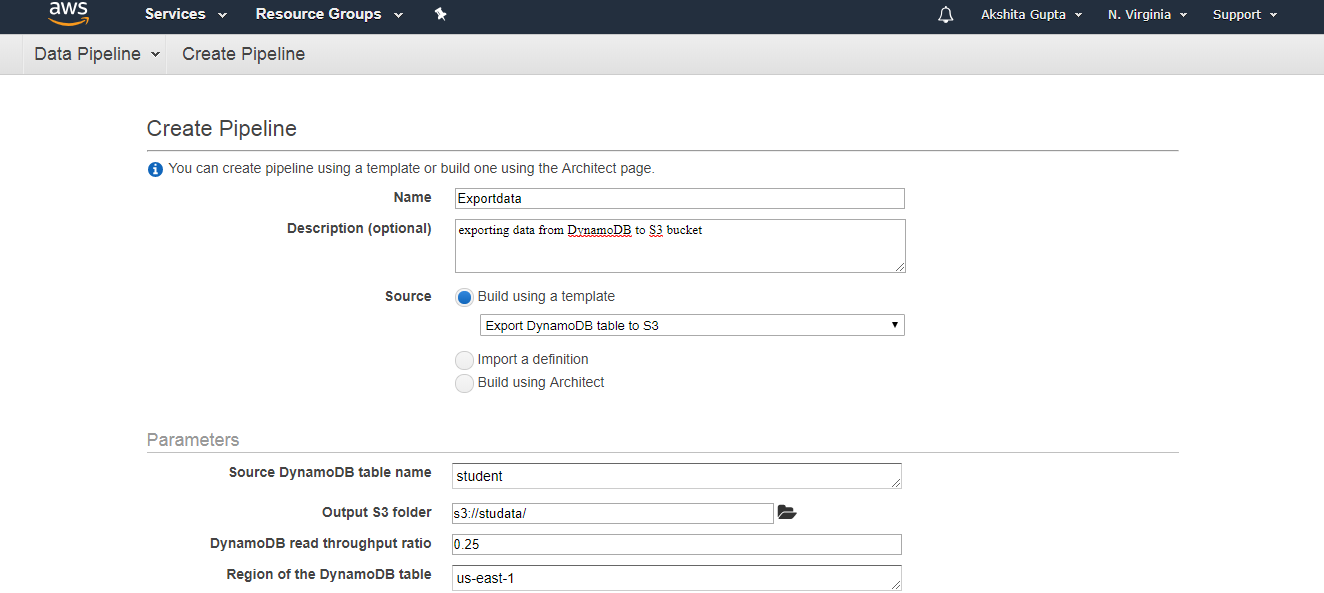
Task Runner is an application that polls the tasks from the Data Pipeline and performs the tasks.Architecture of Task RunnerData PipelineIn the above architecture, Task Runner polls the tasks from the Data Pipeline. Task Runner reports its progress as soon as the task is done. After reporting, the condition is checked whether the task has been succeeded or not. If a task is succeeded, then the task ends and if no, retry attempts are checked. If retry attempts are remaining, then the whole process continues again; otherwise, the task is ended abruptly.Creating a Data PipelineSign in to the AWS Management Console.First, we will create the Dynamo DB table and two S3 buckets.Now, we will create the Dynamo DB table. Click on the create table.Data PipelineFill the following details such as table name, Primary key to create a new table.Data PipelineThe below screen shows that the table “student” has been created.Data PipelineClick on the items and then click on create an item.We add three items, i.e., id, Name, and Gender.Data PipelineThe below screen shows that data is inserted in a DynamoDB table.Data PipelineNow we create two S3 buckets. First will store the data that we are exporting from the DynamoDB and second will store the logs.Data PipelineWe have created two buckets, i.e., logstoredata and studata. The logstoredata bucket stores the logs while studata bucket stores the data that we are exporting from the DynamoDB.Now we create the Data Pipeline. Move to the data Pipeline service and then click on the Get started buttonData PipelineFill the following details to create a pipeline, and then click on the Edit on Architect if you want to change any component in a pipeline.Data Pipeline
Data Pipeline
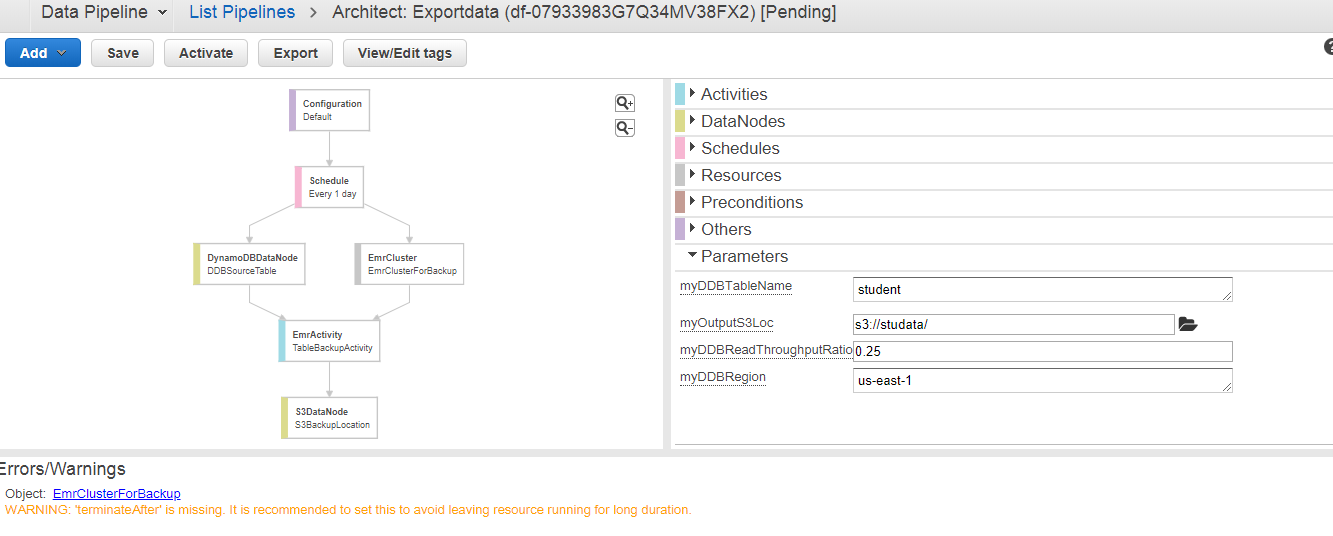
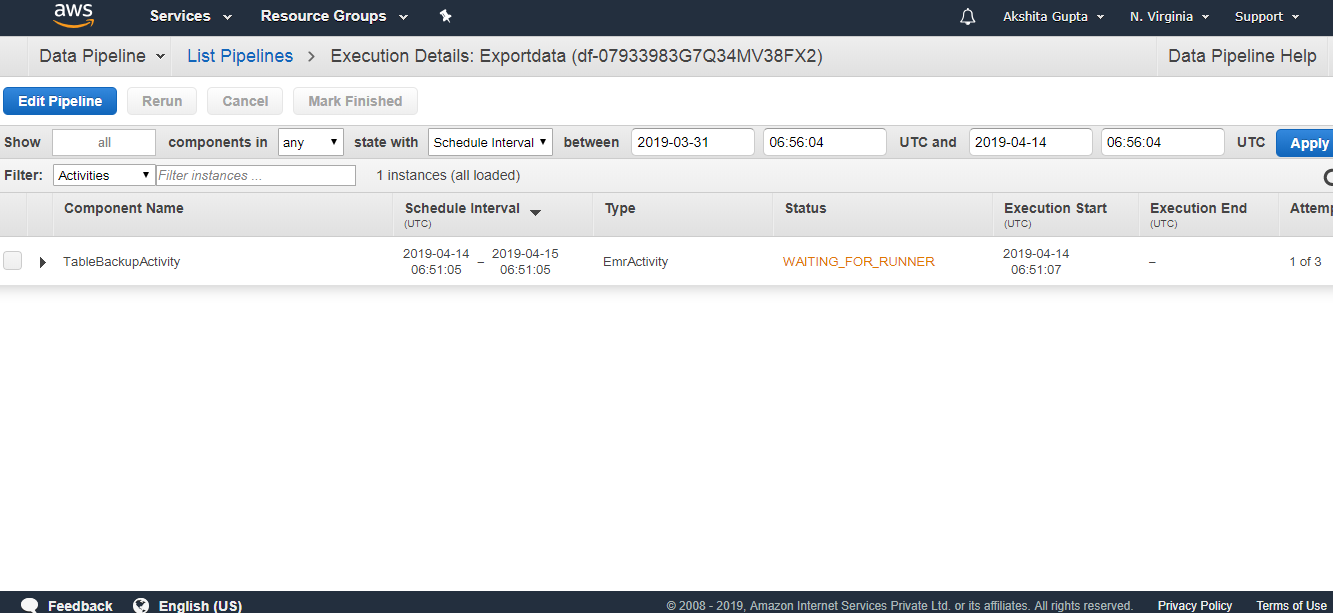
Data PipelineThe below screen appears on clicking on the Edit in Architect. We can see that the warning occurs, i.e., TerminateAfter is missing. To remove this warning, you need to add the new field of TerminateAfter in Resources. After adding the field, click on the Activate Button.Data PipelineInitially, WAITING_FOR_DEPENDENCIES status appears. On refreshing, status is WAITING_FOR_RUNNER. As soon as the Running state appears, you can check your S3 bucket, the data will be stored there.Data Pipeline
What is a Security Group?

What is a Security Group?

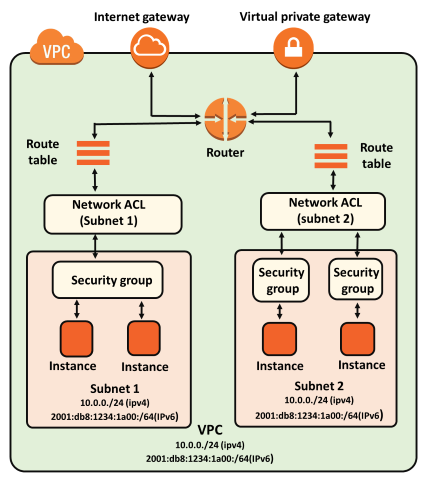
It adds a security layer to EC2 instances that control both inbound and outbound traffic at the instance level.

What is NACL?

NACL also adds an additional layer of security associated with subnets that control both inbound and outbound traffic at the subnet level.

Combining Security Group and NACL

Maximum number of rules that exist per NACL: 20

Maximum number of rules that can exist per Security Group: 50

Maximum number of Security Groups that can exist per instance: 5

Maximum number of rules that can exist per instance: 5*50 + 20 = 270

Differences b/w Security Group and NACL

What is a Security Group
Security GroupNACL (Network Access Control List)
It supports only allow rules, and by default, all the rules are denied. You cannot deny the rule for establishing a connection.It supports both allow and deny rules, and by default, all the rules are denied. You need to add the rule which you can either allow or deny it.
It is a stateful means that any changes made in the inbound rule will be automatically reflected in the outbound rule. For example, If you are allowing an incoming port 80, then you also have to add the outbound rule explicitly.It is a stateless means that any changes made in the inbound rule will not reflect the outbound rule, i.e., you need to add the outbound rule separately. For example, if you add an inbound rule port number 80, then you also have to explicitly add the outbound rule.
It is associated with an EC2 instance.It is associated with a subnet.
All the rules are evaluated before deciding whether to allow the traffic.Rules are evaluated in order, starting from the lowest number.
Security Group is applied to an instance only when you specify a security group while launching an instance.NACL has applied automatically to all the instances which are associated with an instance.
It is the first layer of defense.It is the second layer of defense.

How to NACL

NACL

  • NACL stands for Network Access Control Lists.
  • It is a security layer for your VPC that controls the traffic in and out of one or more subnets.
  • It is an optional layer for your VPC.
  • You can set up a Network ACL similar to the security group that adds an additional layer of security to your VPC.

Some important related to Network ACL:

  • Your custom VPC automatically comes with the default Network ACL which includes all inbound and outbound ipv4 traffic.
  • You can also create a custom network ACL and associates with a subnet. By default, a custom Network ACL denies all the inbound and outbound ipv4 traffic until you add rules.
  • If you do not explicitly create Network ACL, then the default Network ACL automatically associated with the subnet.
  • You can associate multiple subnets with a Network ACL. However, a subnet can be associated with the single Network ACL at a time.
  • Network ACL is associated with both inbound and outbound rules that can either deny or allow the rules.
  • A Network ACL contains numbered lists of rules that are evaluated in order, starting from the lowest numbered rule, to determine whether the traffic goes in or out of the subnet associated with the Network ACL. The highest numbered rule can be 32766. It is recommended to create new rules with increments (For example, increments of 10 or 100) so that you can easily add new rules where you need later on.

Network ACL Componentshttps://8de8c77c87e20207027db5856134e41a.safeframe.googlesyndication.com/safeframe/1-0-37/html/container.html

The following are the components of a Network ACL:

  • Rule number: Rule number is a number associated with every rule. Rules are evaluated starting with the lowest-numbered rule. As soon as the rule matches traffic, the rule is applied regardless of whether the highest-numbered rule contradicts to it.
  • Protocol: You can specify any protocol that has a standard protocol number. For example, Http, Https, ICMP, SSH, etc.
  • Inbound rules: It specifies the source of the traffic and the destination port.
  • Outbound rules: It specifies the destination traffic and destination port.

Types of Network ACL

There are two types of Network ACL:

  • Custom Network ACL
  • Default Network ACL

Default Network ACL

The default Network ACL allows all the traffic to flow in or out of the subnet which is associated with it. Each Network ACL also includes a rule whose rule number is asterisk which determines if traffic does not match any of the numbered rules, then it is denied. This rule cannot be modified or removed.

Rule #TypeProtocolPort rangeSourceAllow/Deny
100All TrafficALLALL0.0.0.0/0Allow
101All TrafficALLALL::/0Allow
*All TrafficALLALL0.0.0.0/0Deny
*All TrafficALLALL::/0Deny

The above table is a default Network ACL table which is associated with a subnet. Rule number 100 says that all IPv4 traffic is allowed. Rule number 101 says that all IPv6 traffic is allowed. The rule number ‘*’ says that all the traffiic is denied

Custom Network ACL

Custom Network ACL is a user-defined Network ACL, and by default, it denies all the inbound and outboud traffic until you add rules.

Rule #TypeProtocolPort rangeSourceAllow/Deny
*All TrafficALLALL0.0.0.0/0Deny
*All TrafficALLALL::/0Deny

The above table is a default table of Network ACL that denies all the traffic. You need to add the rule yourself to allow or deny the traffic.

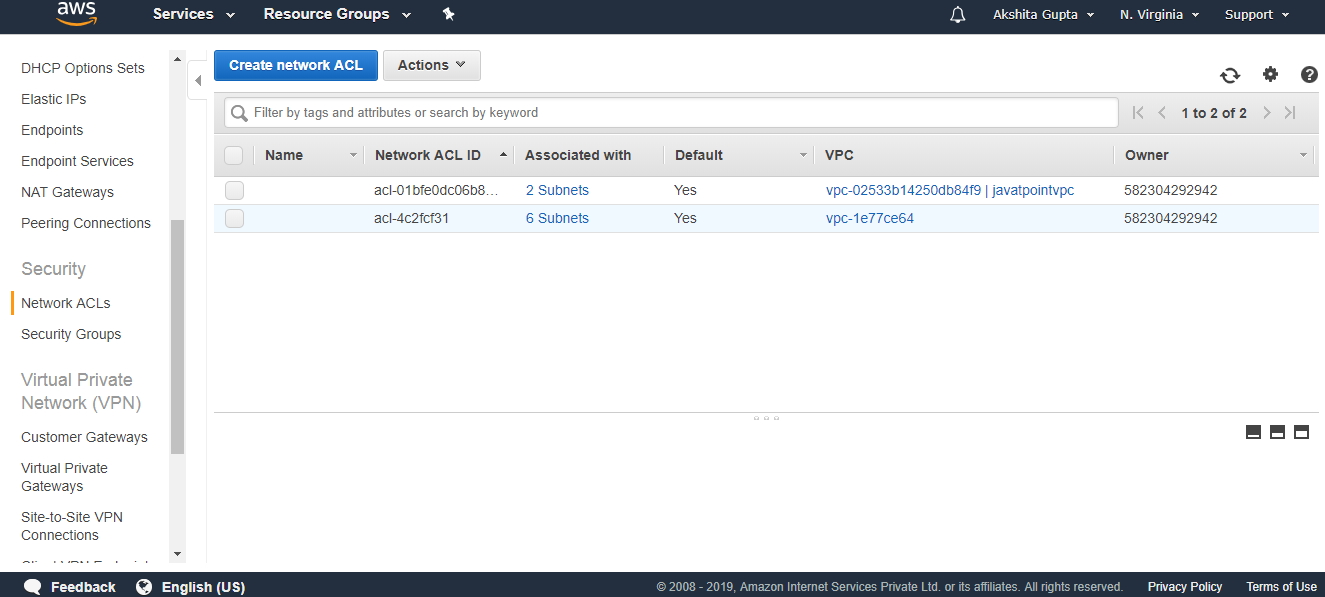
Creating a Network ACL

  • Sign in to the AWS Management Console.
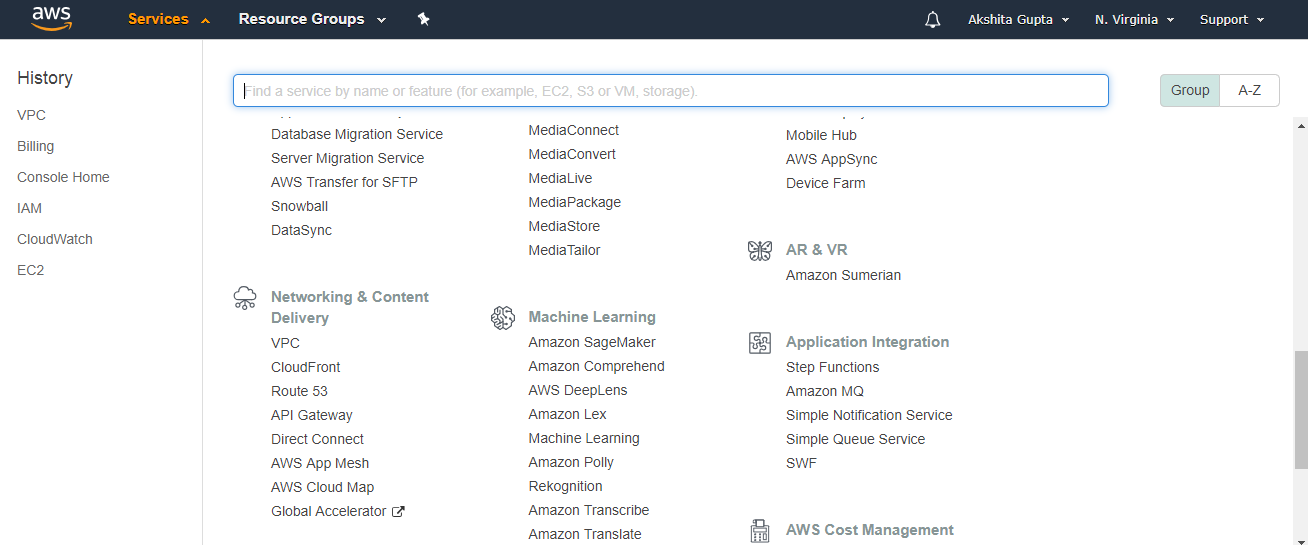
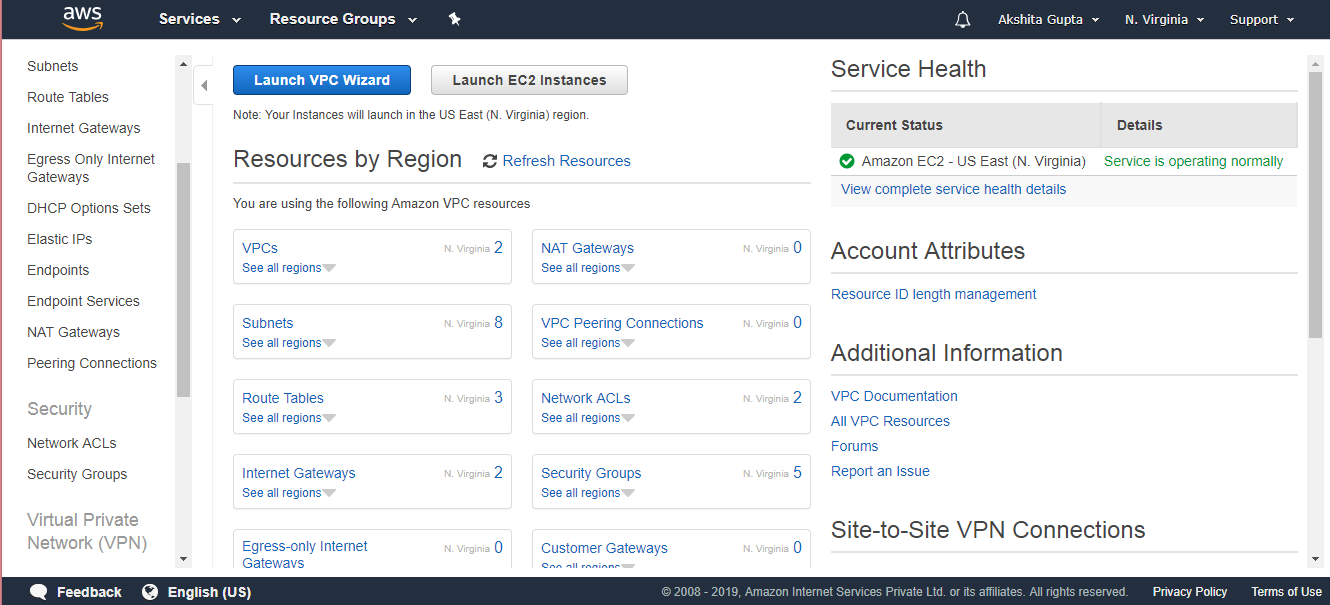
  • Move to the VPC service under the Networking and Content Delivery.
NACL
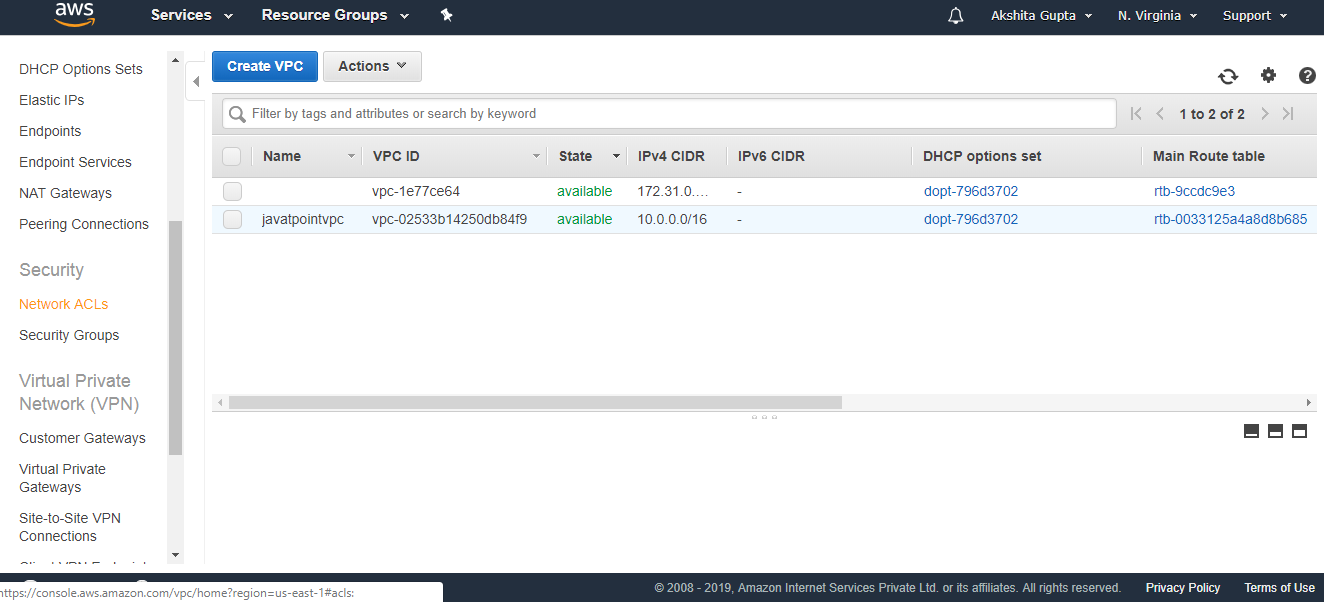
  • Click on the Your VPCs appearing on the left side of the console.
NACL
  • In the previous topics, we have already created a custom VPC, and its name is javatpointvpc.
  • Click on the Network ACLs appearing on the left side of the console.
NACL
  • Click on the create Network ACL.
NACL
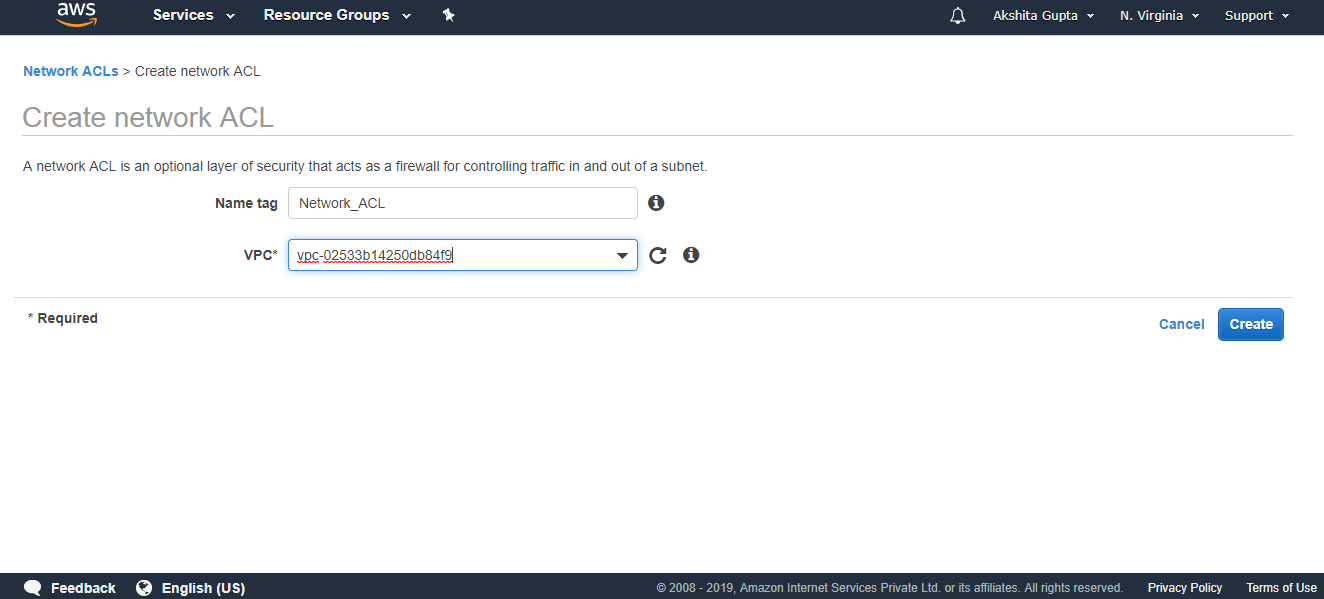
  • Fill the following details to create a Network ACL.
NACL
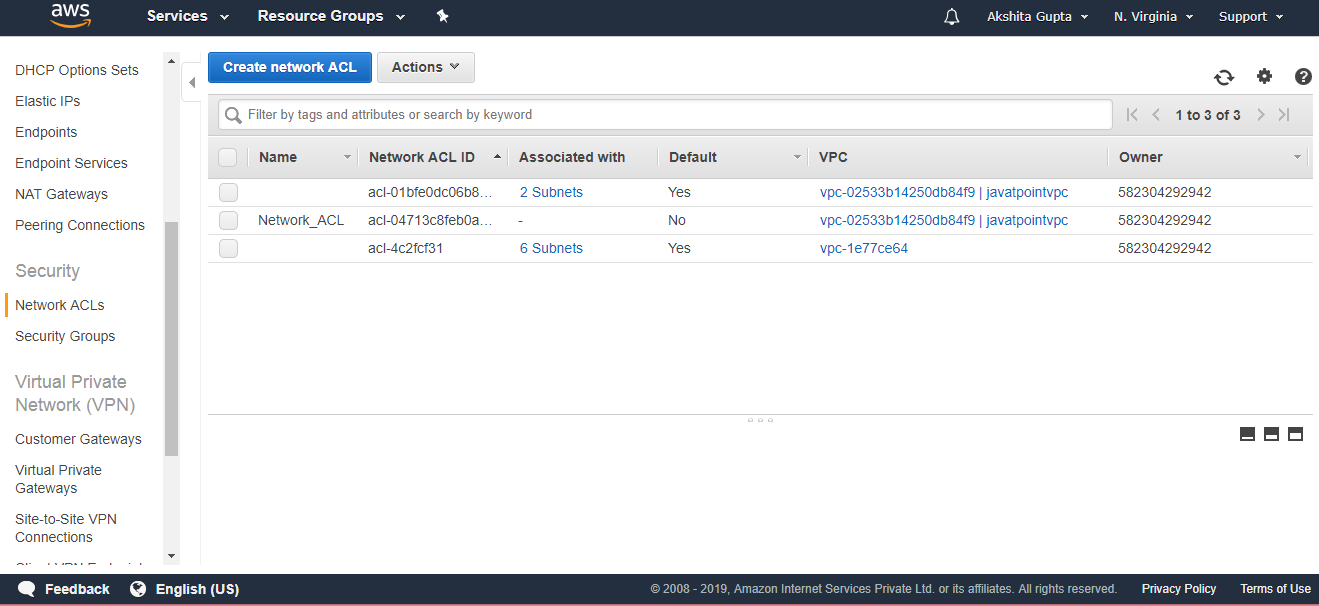
  • The below screen shows that Network_ACL has been created.
NACL

What is a VPC FlowLog?

What is a VPC FlowLog?

  • VPC FlowLog is a feature of aws that captures the information about the IP traffic going to or from the network interfaces in a VPC.
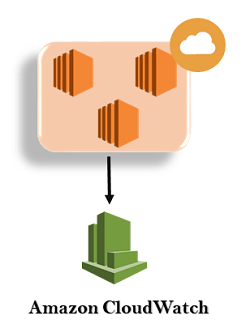
  • Amazon FlowLog data can be either stored either by using the Amazon CloudWatchLogs or Amazon S3 bucket.
  • After you have created a FlowLog, you can view and retrieve the data from the Amazon CloudWatch Logs.
  • In short, we can say that VPC FlowLog is a way of storing the traffic going in a VPC.
  • FlowLogs serve a number of purposes:
    • Troubleshoot the problem “why specific traffic is not reaching an instance”.
    • VPC FlowLog can also be used as a security tool to monitor the traffic which is reaching your instance.

Limitations of VPC FlowLog:

  • You cannot enable the flowlog of VPC that are peered with your VPC unless it has peered with the VPC in the same account.
  • While creating a flowlog, you cannot tag a flowlog.
  • Once you have created the flowlog, you cannot change its configuration. For example, if you associate an IAM role to the flowlog then you cannot change the IAM role. In such cases, you need to delete the flowlog and create the new flowlog with the desired configuration.

VPC FlowLog Levels

VPC FlowLogs

VPC FlowLogs can be created at three levels:

  • VPC
  • Subnet
  • Network Interface Level

How to create a VPC FlowLog

  • Sign in to the AWS Management Console.
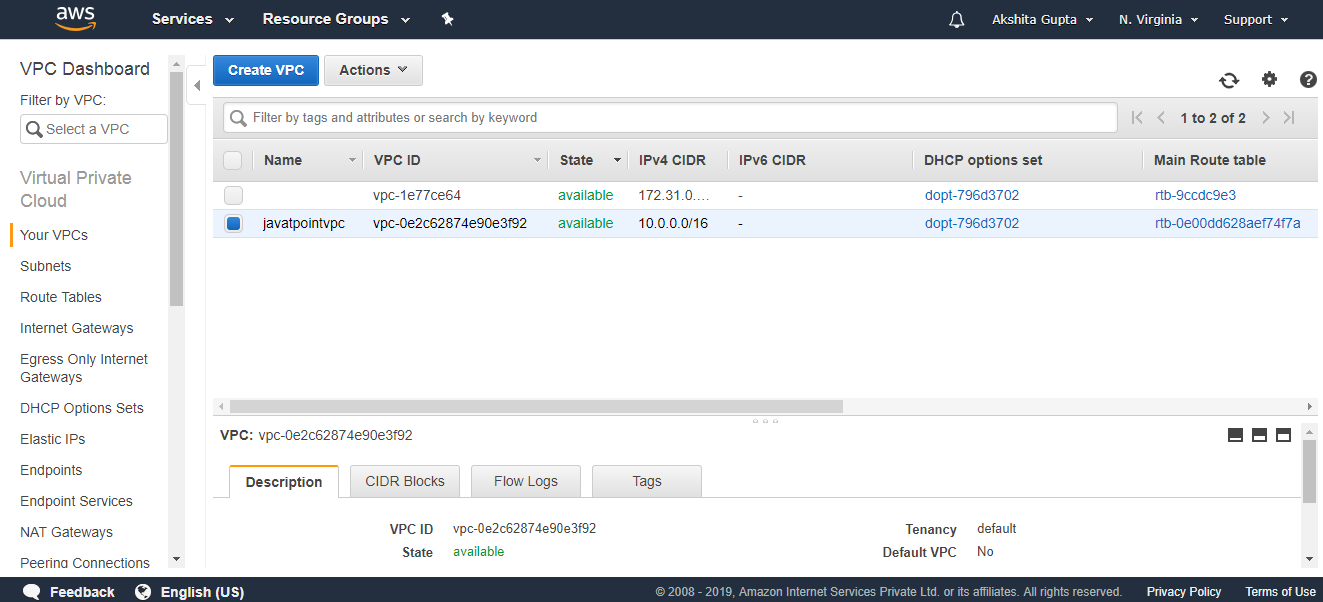
  • Move to the VPC service and we can see from the below screen that VPC with the name javatpointvpc has already been created.
VPC FlowLogs
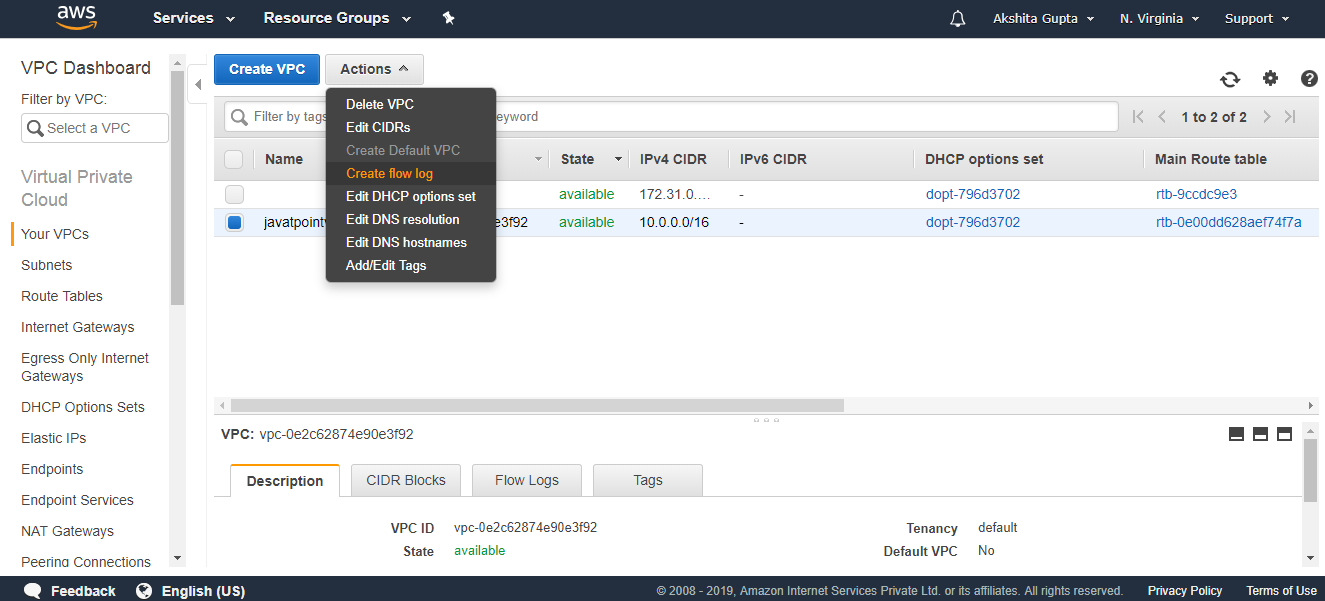
  • Click on the custom VPC and then click on the Actions drop-down menu. Click on the create FlowLog.
VPC FlowLogs
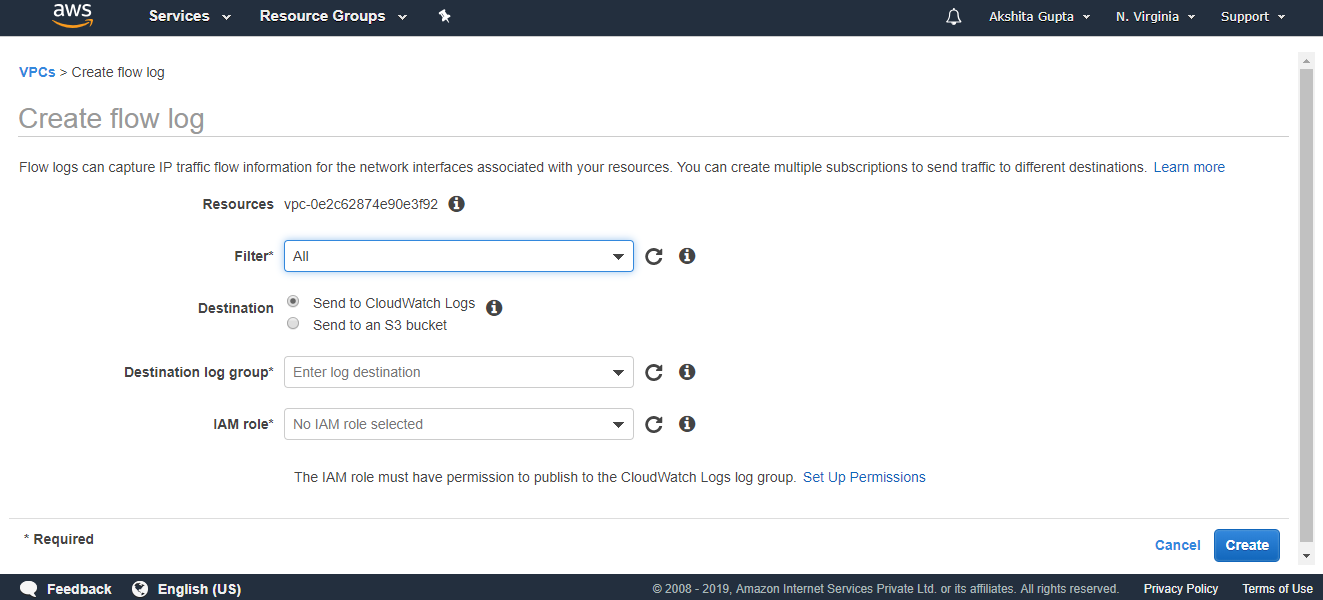
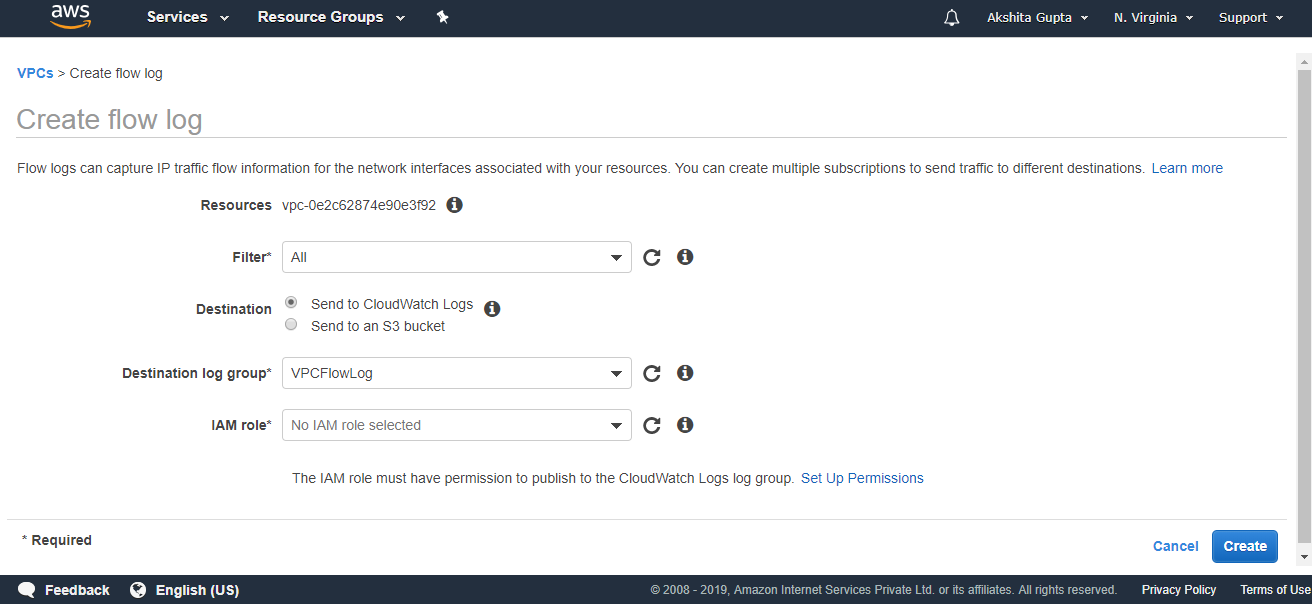
  • Fill the following details to create a flow log.
VPC FlowLogs

Where,

Filter: It determines the type of traffic to be logged. There are three types of filters: All, Accept and Reject. ‘All’ is used to log both accepted and rejected traffic. ‘Accept’ is used to log only accepted traffic while ‘Reject’ logs only rejected traffic.

Destination: Destination determines where you want to send your traffic. Two types of destinations are available: Send to CloudWatch Logs and Send to an S3 bucket. I choose “Send to CloudWatch Logs” as a destination.

Destination log group: It determines the name of the destination. Till now, we have not created the CloudWatch Log. First, we create CloudWatch Log and then add the name of the Log to this Log group.

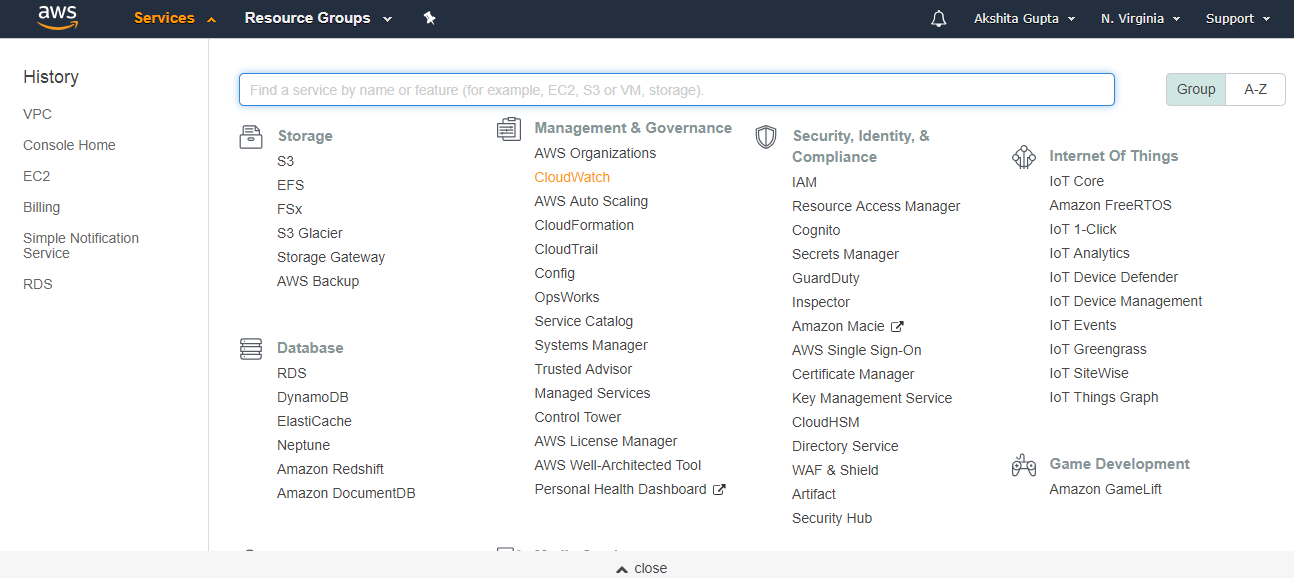
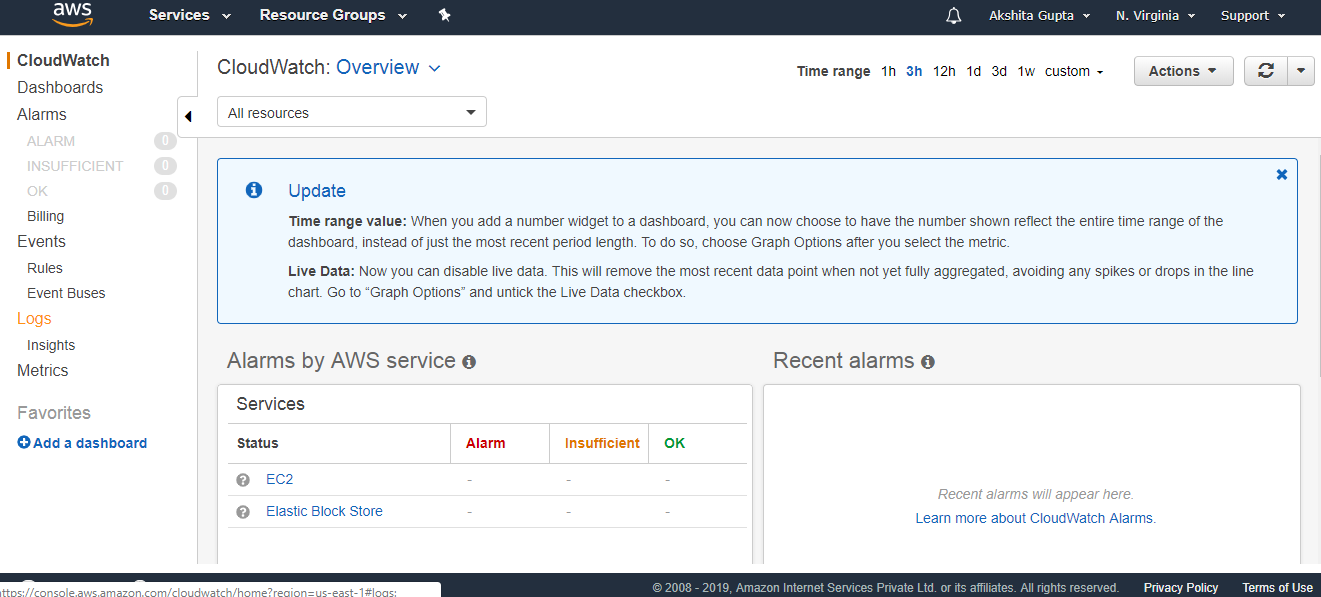
  • Click on the CloudWatch.
VPC FlowLogs
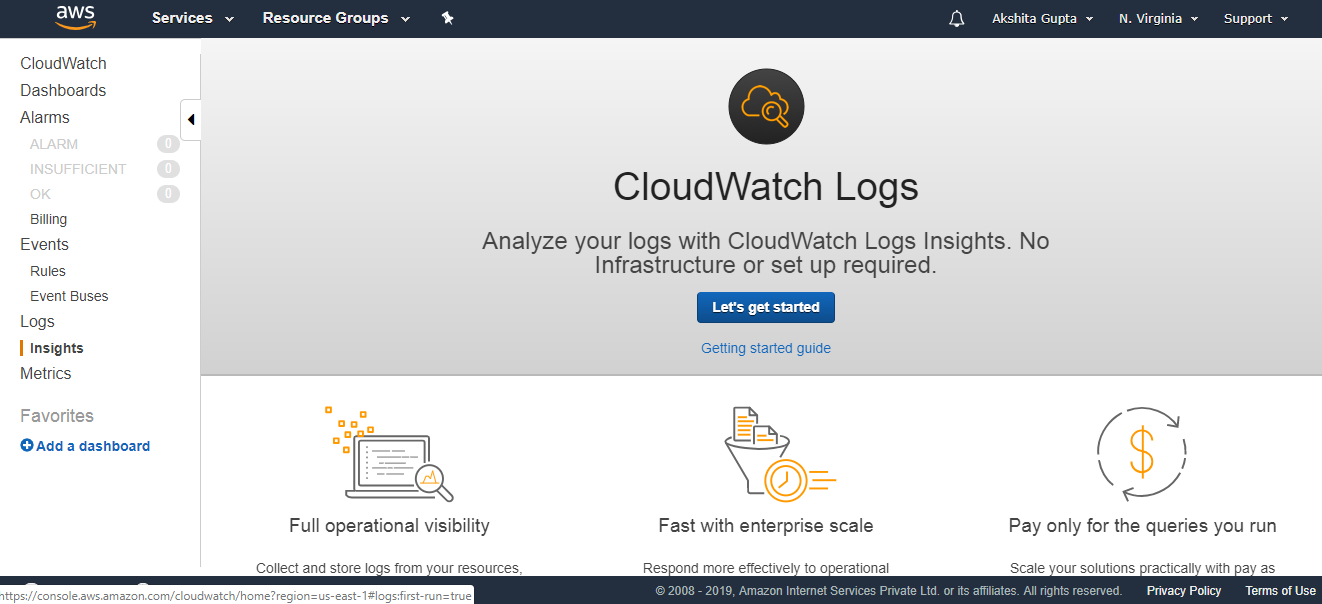
  • Click on the Logs appearing on the left side of the console.
VPC FlowLogs
  • Click on the “Let’s get started” button.
VPC FlowLogs
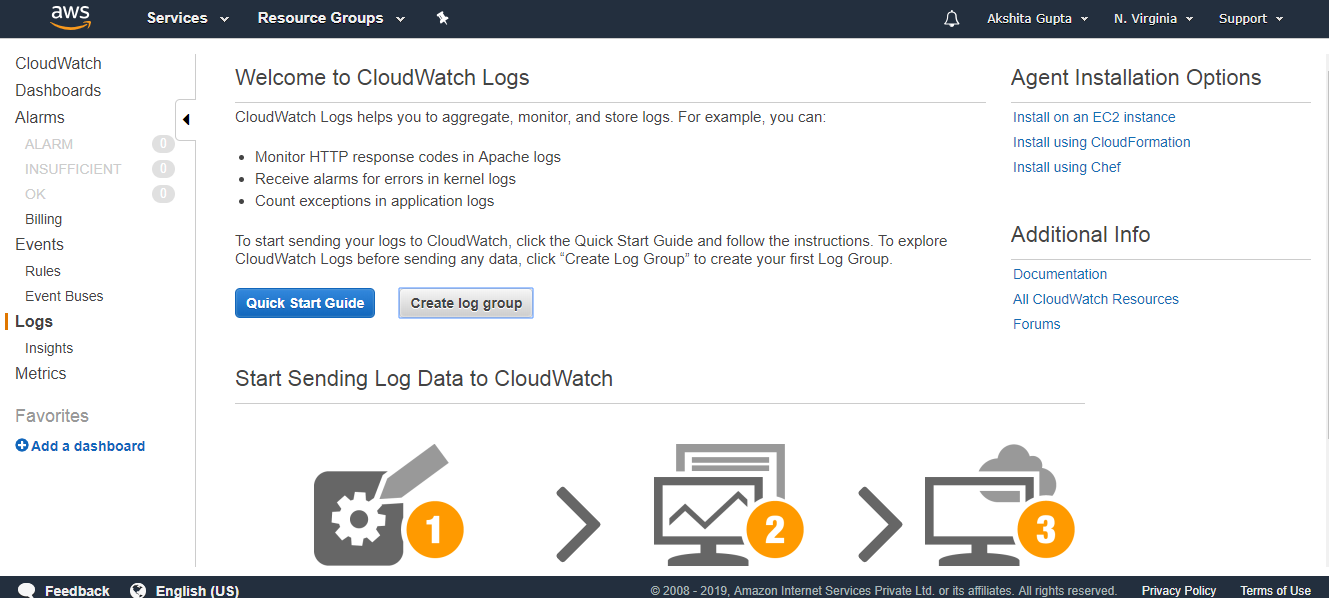
  • Click on the Create log group button.
VPC FlowLogs
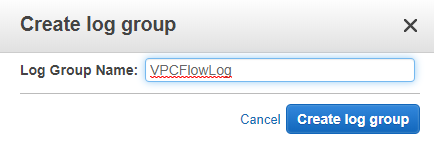
  • Enter the Log Group Name.
VPC FlowLogs
  • Finally, CloudWatch log is created. Enter the log name in FlowLog console.
VPC FlowLogs

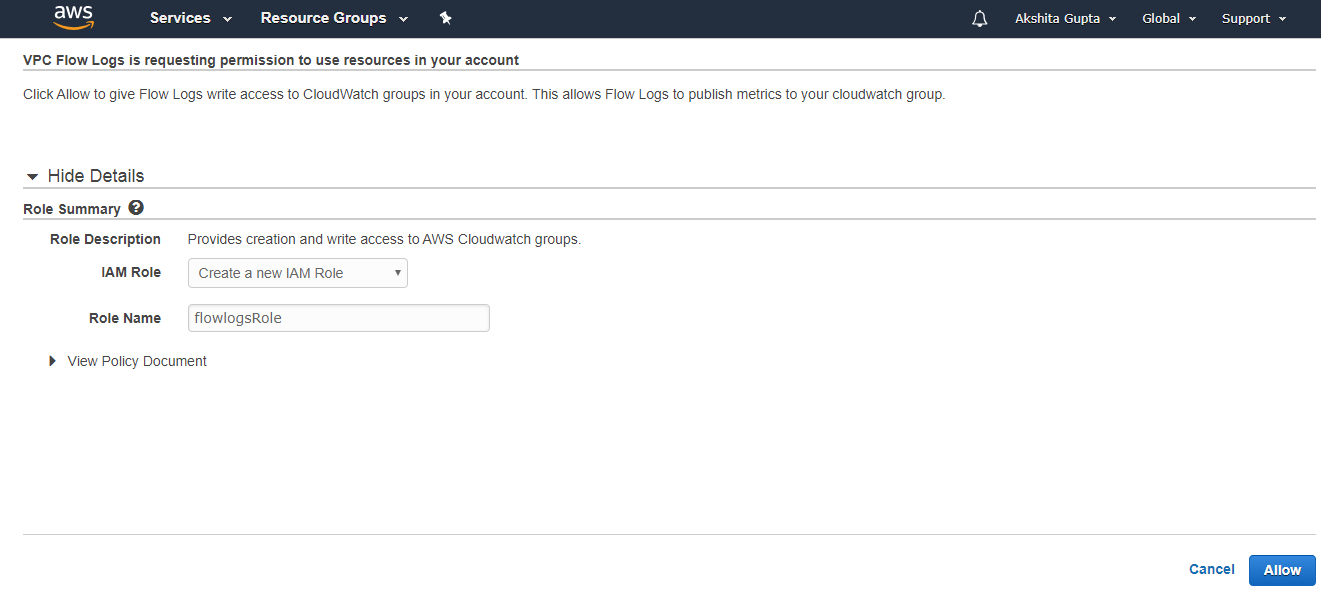
From the above screen, we have observed that “No IAM role selected”. To select the IAM role, we need to create an IAM role first. Click on the Set Up Permissions.

  • To create an IAM role, enter the role name and then click on the Allow button.
VPC FlowLogs
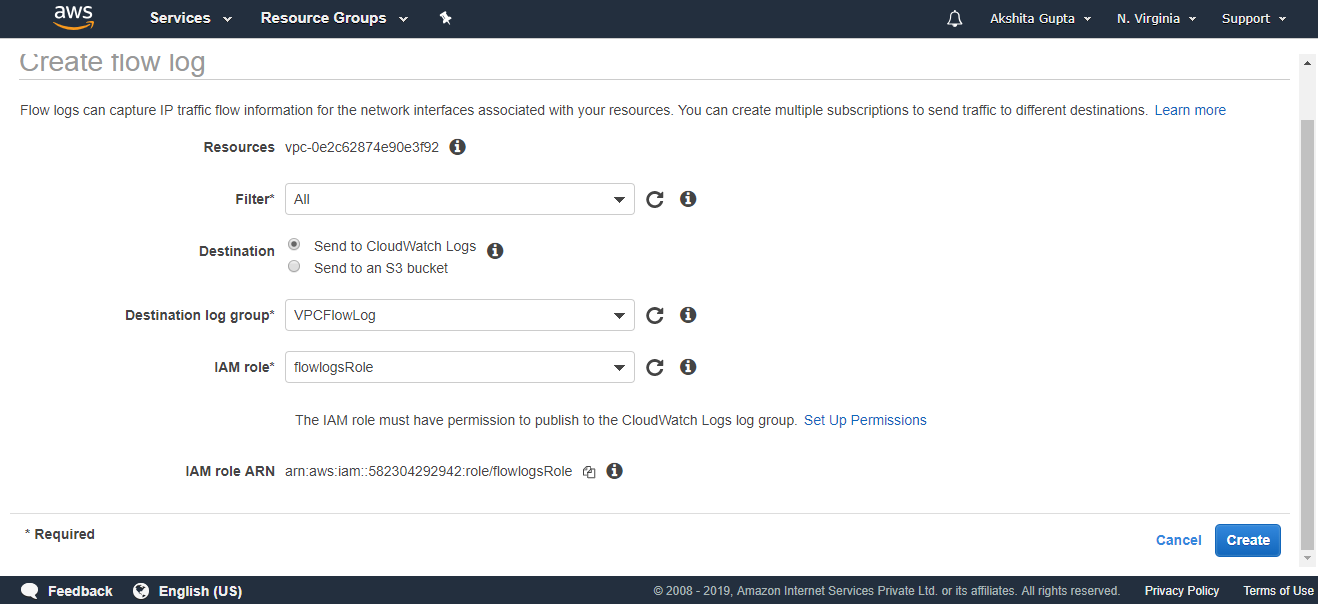
  • After creating the IAM role, enter the IAM role in the FlowLog console.
VPC FlowLogs
  • The below screen shows that the flowlog hs been created.

How to Creating VPC Endpoint

VPC Endpoint

  • A VPC endpoint allows you to privately connect your VPC to supported AWS services and VPC endpoint services powered by PrivateLink without requiring an internet gateway, NAT device, VPN Connection, or AWS Direct Connect connection.
  • Instances in your VPC do not require public addresses to communicate with the resources in the service. Traffic between your VPC and the other service does not leave the Amazon network.
  • VPC endpoints are virtual devices.
  • VPC Endpoints are horizontally scaled, redundant and highly available VPC components that allow communication between instances in your VPC and services without imposing availability risks or bandwidth constraints on your network traffic.

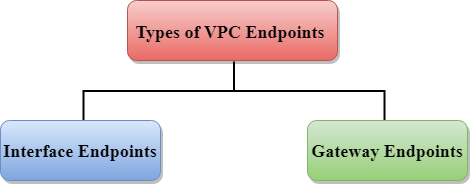
Types of VPC Endpoints

  • Interface Endpoints
  • Gateway Endpoints
VPC Endpoint

Interface Endpoints

  • Interface Endpoint is an Elastic Network Interface with a private IP address which will act as an entry point for the traffic destined to a particular service.
  • An interface endpoint supports services such as Amazon CloudWatch, Amazon SNS, etc.

Gateway Endpoints

  • Gateway Endpoint is a gateway which is targetted for a specific route in your route table.
  • It can be used to route the traffic to a destined service.
  • Amazon S3 and DynamoDB are the only services which are supported by Gateway Endpoints.

Now we will look at the Gateway Endpoints that supports two services, i.e., Amazon S3 and Dynamo DB. Gateway Endpoints look similar to the NAT Gateway.

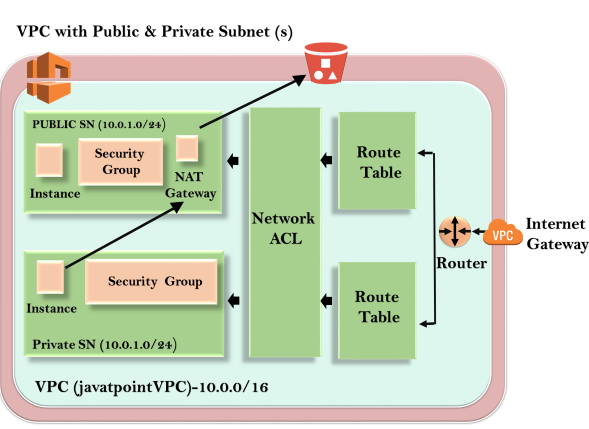
Let’s look at the architecture of VPC without VPC Endpoints.

VPC Endpoint

In the above architecture, we have a public and private subnet where public subnet consists of a public EC2 instance, and private subnet consists of a private EC2 instance. When EC2 instance in private subnet wants to store the file in S3, so it traverses through the NAT Gateway and then goes basically outside the AWS network to the S3 endpoints.

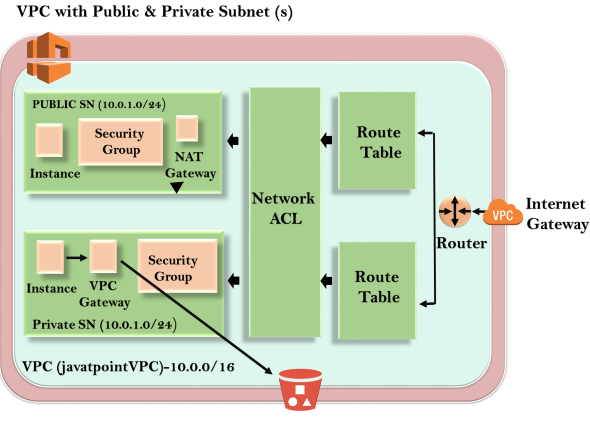
Let’s look at the architecture of VPC that includes VPC Endpoint.

VPC Endpoint

In the above architecture of VPC, an EC2 instance in private subnet sends the files to the VPC Gateway and then to the S3 which is in aws network.

How to create a VPC Endpoint

  • Sign in to the AWS Management Console.
  • We have already created a custom VPC whose name is javatpointvpc.
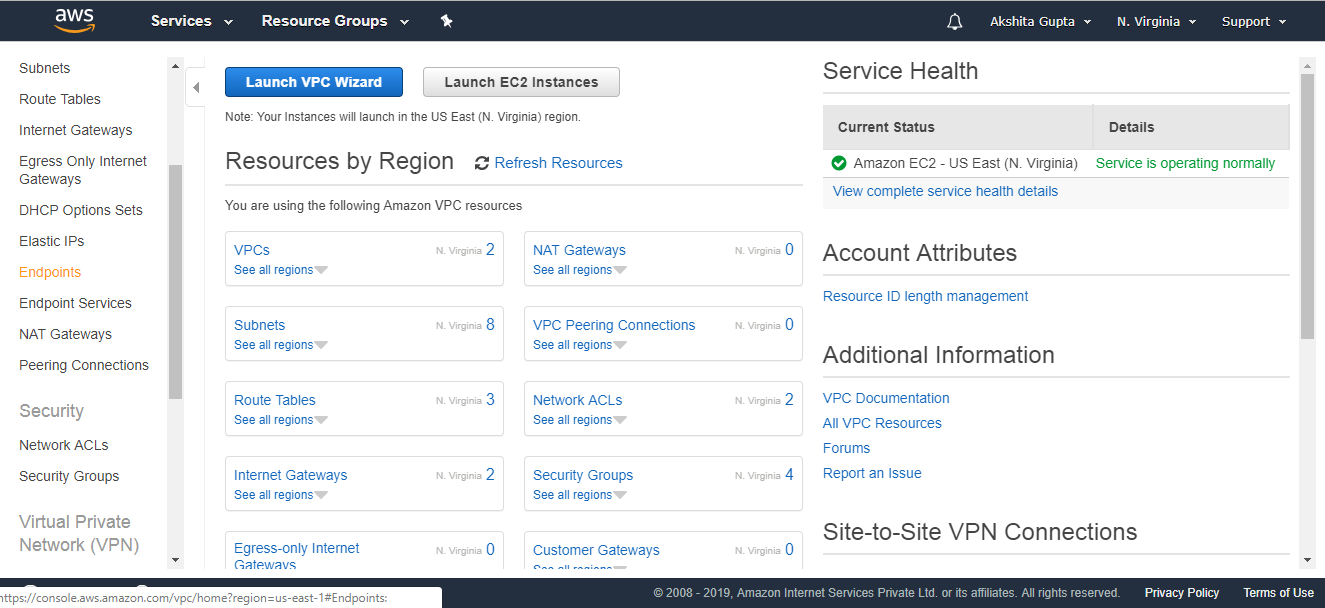
  • Click on the VPC Endpoint appearing on the left side of the console.
VPC Endpoint
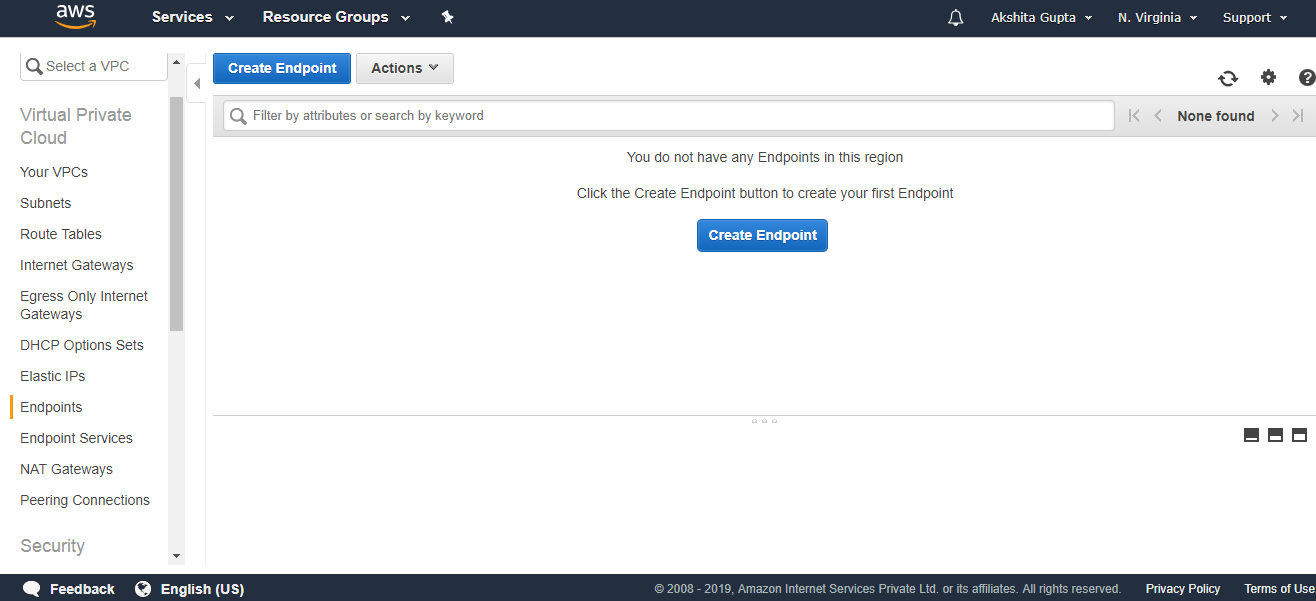
  • Click on the Create Endpoint.
VPC Endpoint
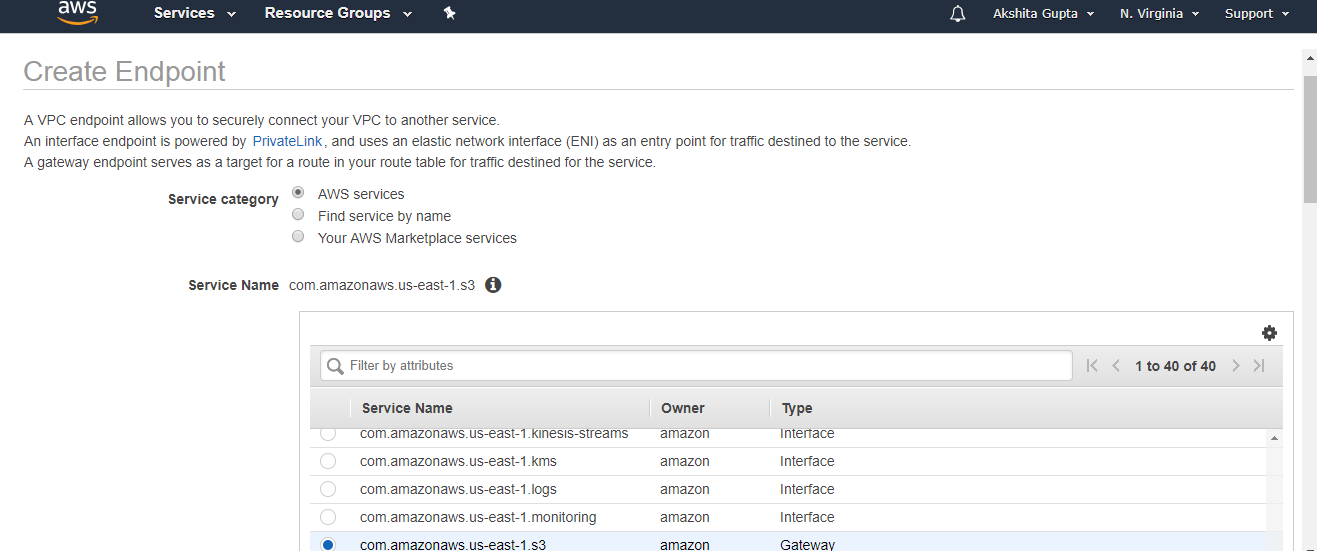
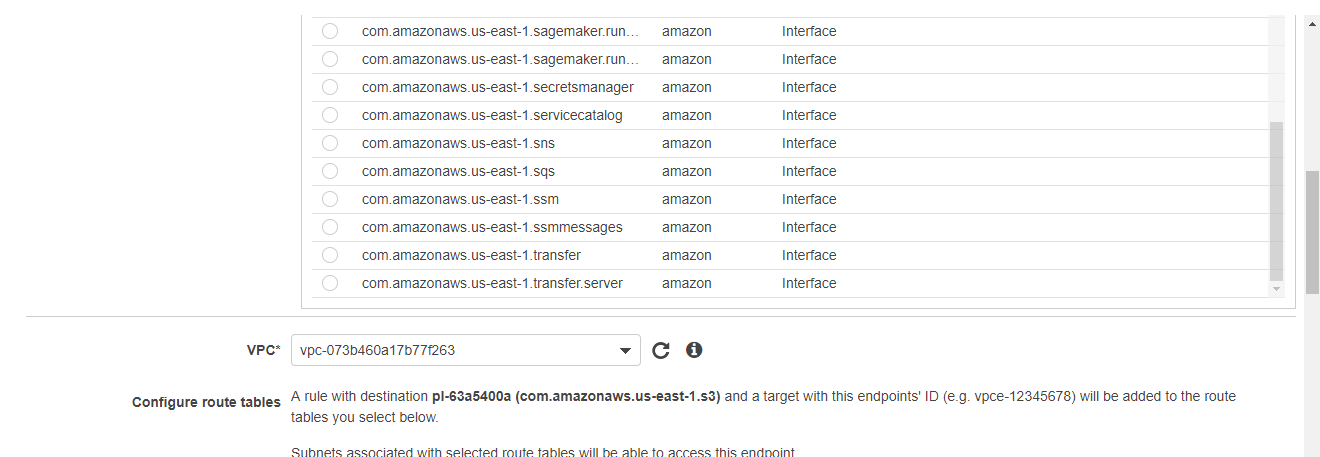
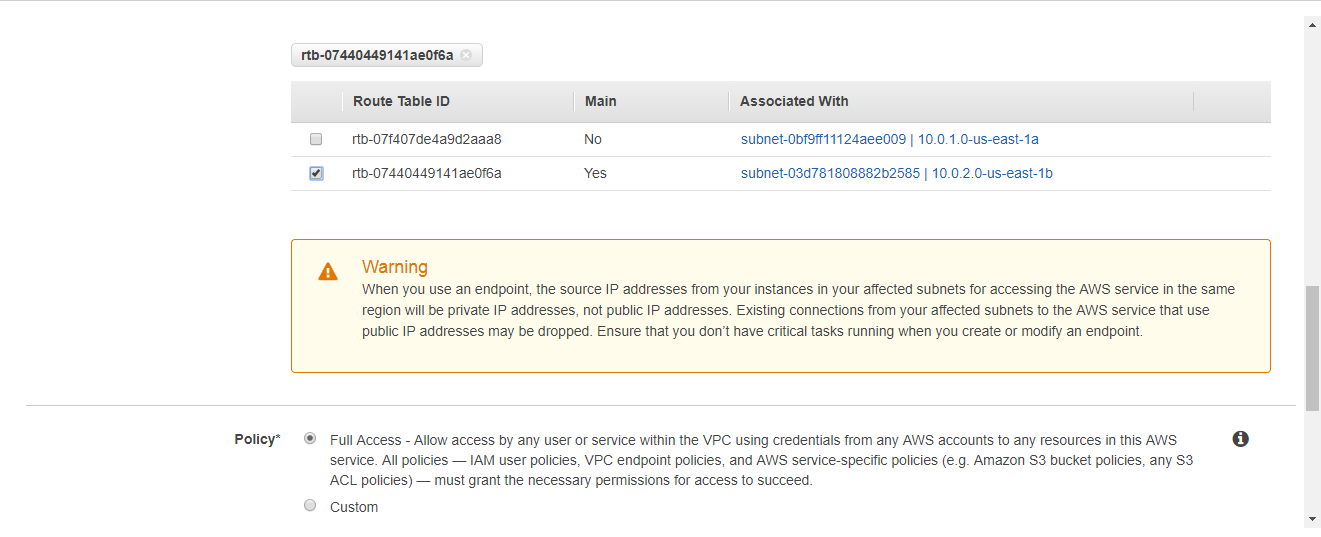
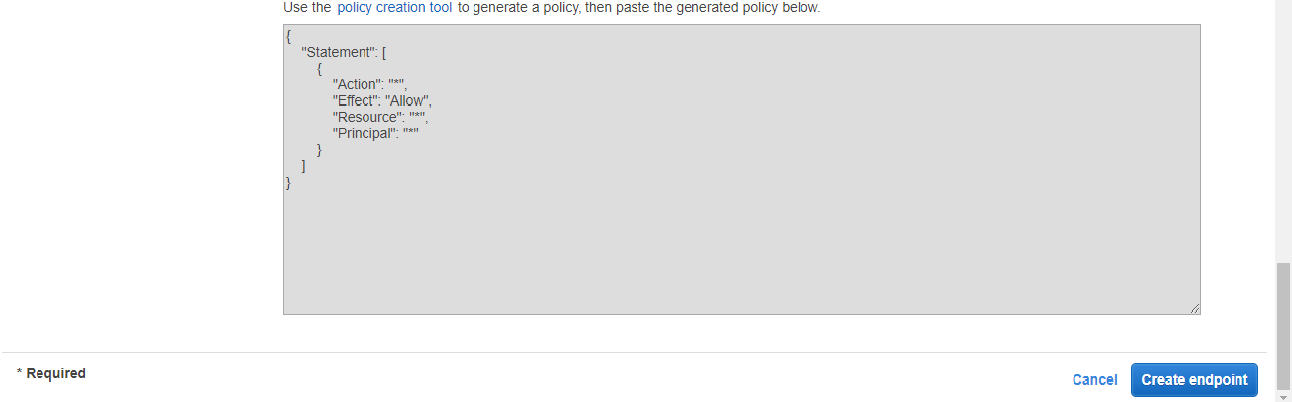
  • Fill the following details to create a VPC Endpoint.
VPC Endpoint
VPC Endpoint
VPC Endpoint
VPC Endpoint

Where,

Service category: I select the AWS services that I will use through the VPC Endpoint.

Service name: Select the service that you want to use. Suppose I choose AWS S3 service.

VPC: Select the VPC that you have created. I have created javatpointvpc, so choose the javatpointvpc from the VPC drop-down menu.

Configure route tables: Choose the main route table that has been created in a javatpointvpc.

  • The below screen shows that the VPC Endpoint has been created.

hat is a Bastion Host?

hat is a Bastion Host?

  • A Bastion Host is a special purpose computer on a host designed and configured to withstand attacks.
  • The computer hosts a single application, for example, a proxy server and all the other services are removed to reduce the threat to the computer.
  • A Bastion host is hardened due to its location and purpose, which is either on the outside of a firewall or demilitarized zone, i.e., public subnet and it usually accesses from untrusted networks or computers.

Architecture of Bastion Host

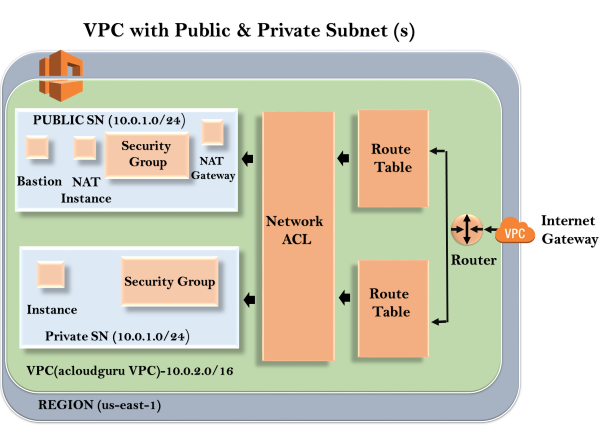
 Bastion Host

In the above architecture, we have public and private subnet. NAT instance exists behind the security group, and NAT Gateway exists after the security group as NAT instance is configured with the security group while NAT Gateway does not require any security group and it is also redundant. When an instance in a private subnet wants to access the internet, they do so either by NAT instance or NAT Gateway. Now, if we want to administer an environment, what typically happens?. We have got SSH or RDP where SSH is for Linux and RDP is for windows. It is going through internet gateway, router, route table, network ACL, security group, and finally to the Bastion server. Bastion server creates a connection to a private EC2 instance through SSH or RDP. We need to harden the Basten host and harden the Basten host as strong as possible, then we do not have to worry about hardening our instances as long as Bastion host is hardened. Hardening a Bastion host reduces the surface area that we want to harden.

Some Key Points related to Bastion Host

  • Bastion Host is launched in Public subnets and acts as a proxy to the instances in a private subnet.
  • It provides security by reducing the attacks on your infrastructure.
  • A Bastion host is used to to administer EC2 instances using SSH or RDP securely. Bastion hosts are also known as jump boxes in Australia.
  • You cannot use NAT Gateway as a Bastion host. If you SSH or RDP to an instance in a private subnet, you need to configure a Bastion host. You cannot use NAT Gateway.

How to NAT Gateways

NAT Gateways

  • NAT stands for Network Address Translation.
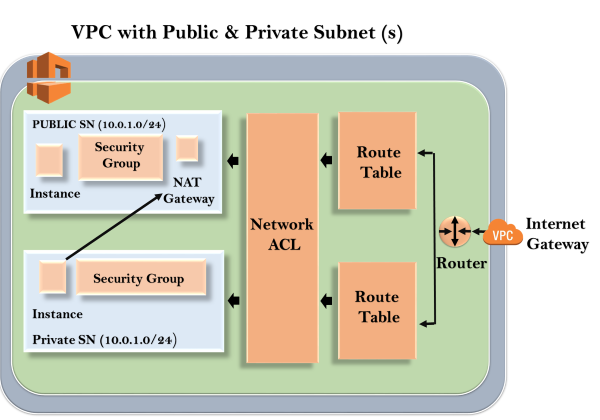
  • If you want your EC2 instance in a private subnet can access the internet, this can be achieved only when it can communicate to the internet. However, we do not want to make a subnet public as we want to maintain the degree of control. To overcome the problem, we need to create either NAT Gateways or NAT Instances.
  • In real time, NAT Gateways are highly used than NAT instances as NAT instances are an individual EC2 instances, and NAT Gateways are highly available across multiple availability zones, and they are not on a single EC2 instance.
NAT Gateways

Let’s first start with NAT instance and how to create them.
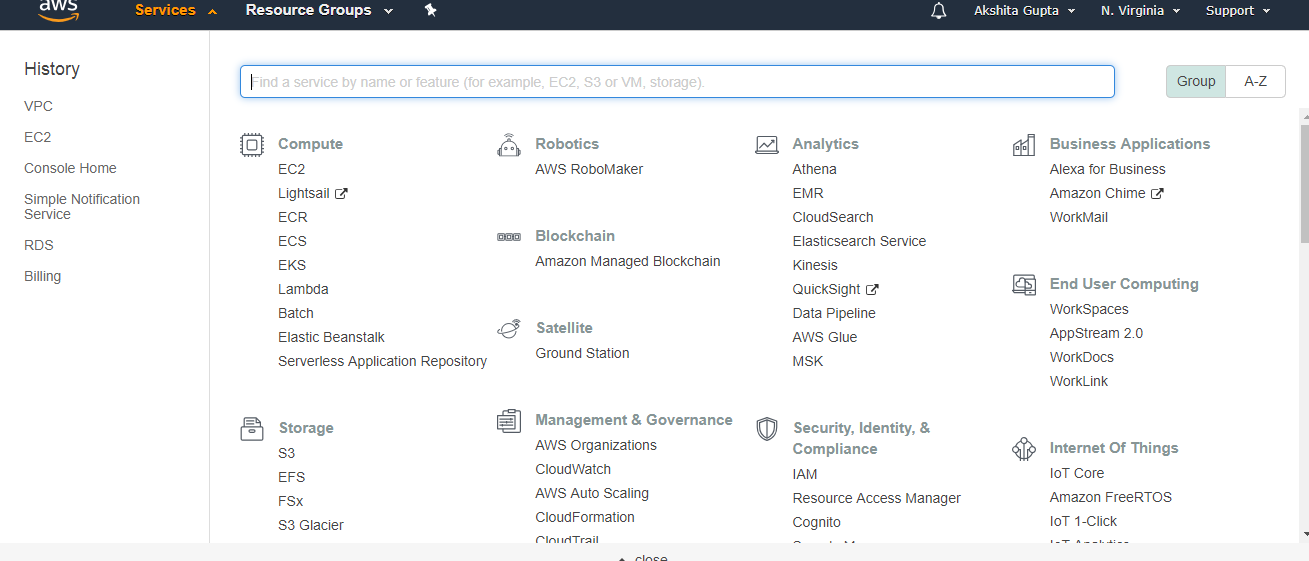
  • Sign in to the AWS Management Console.
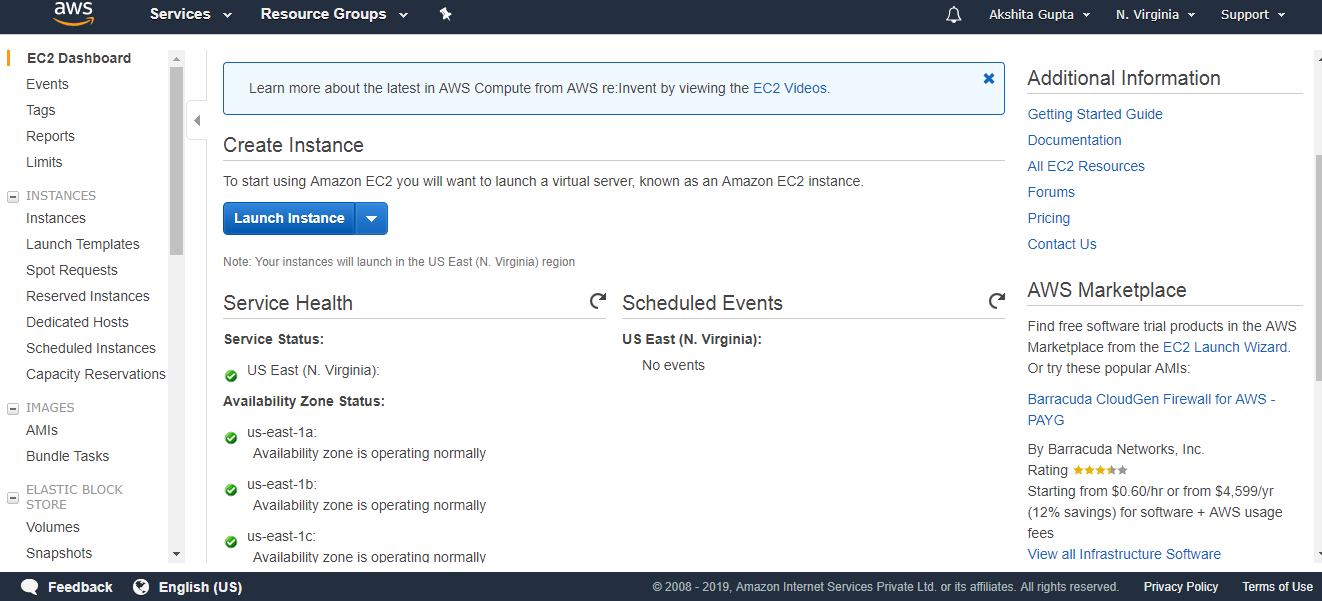
  • Click on the EC2 service.
NAT Gateways
  • Launch an instance.
NAT Gateways
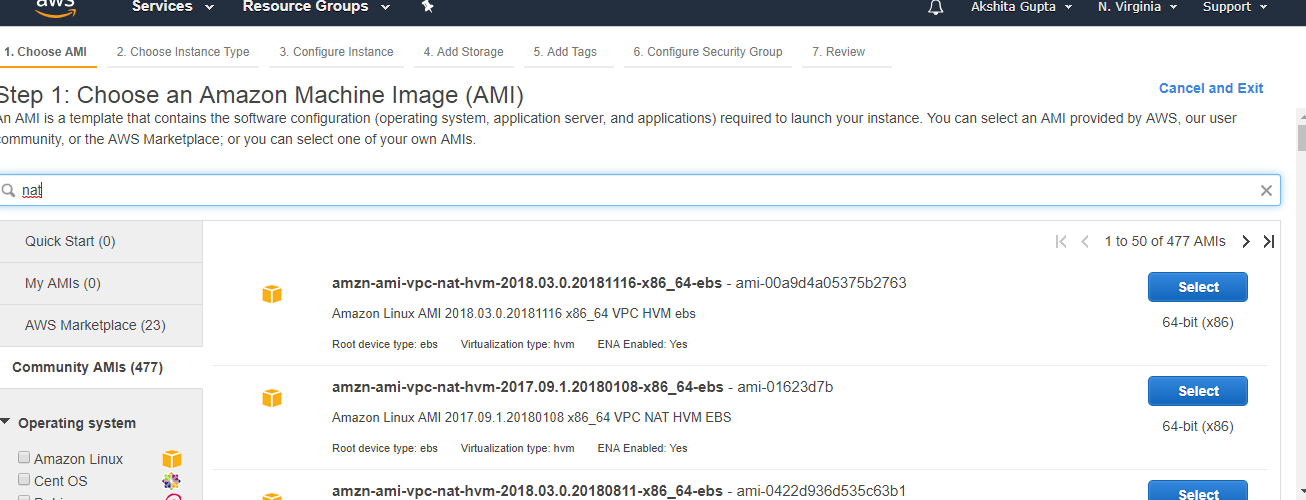
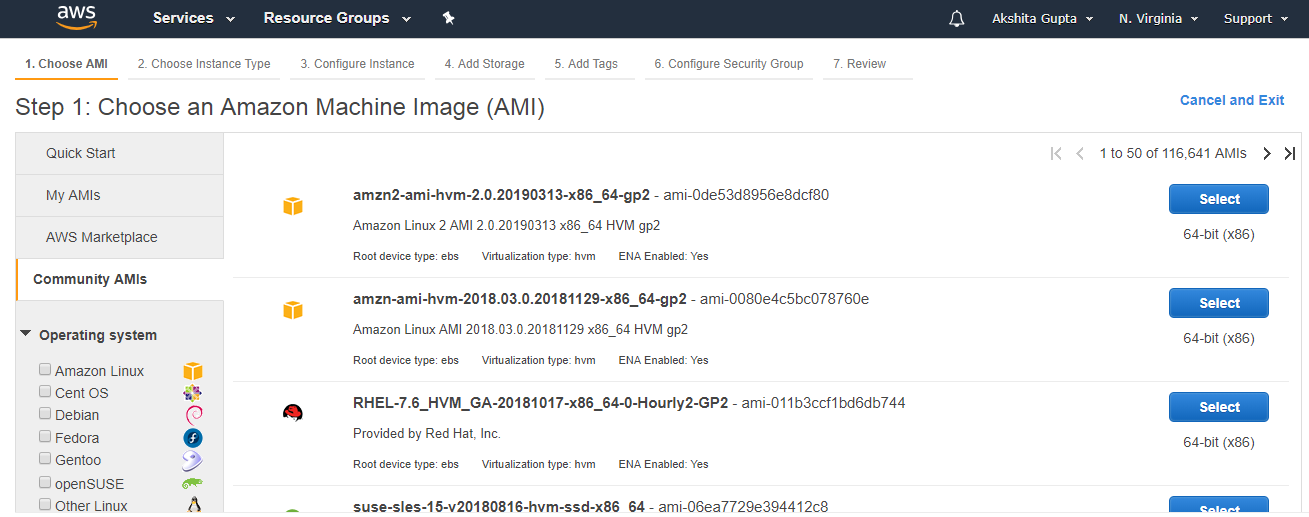
  • Move to the community AMI appearing on the left side of the console.
NAT Gateways
  • Type the nat in a search box, and then it will show all the NAT instances. Select the first NAT instance.
NAT Gateways
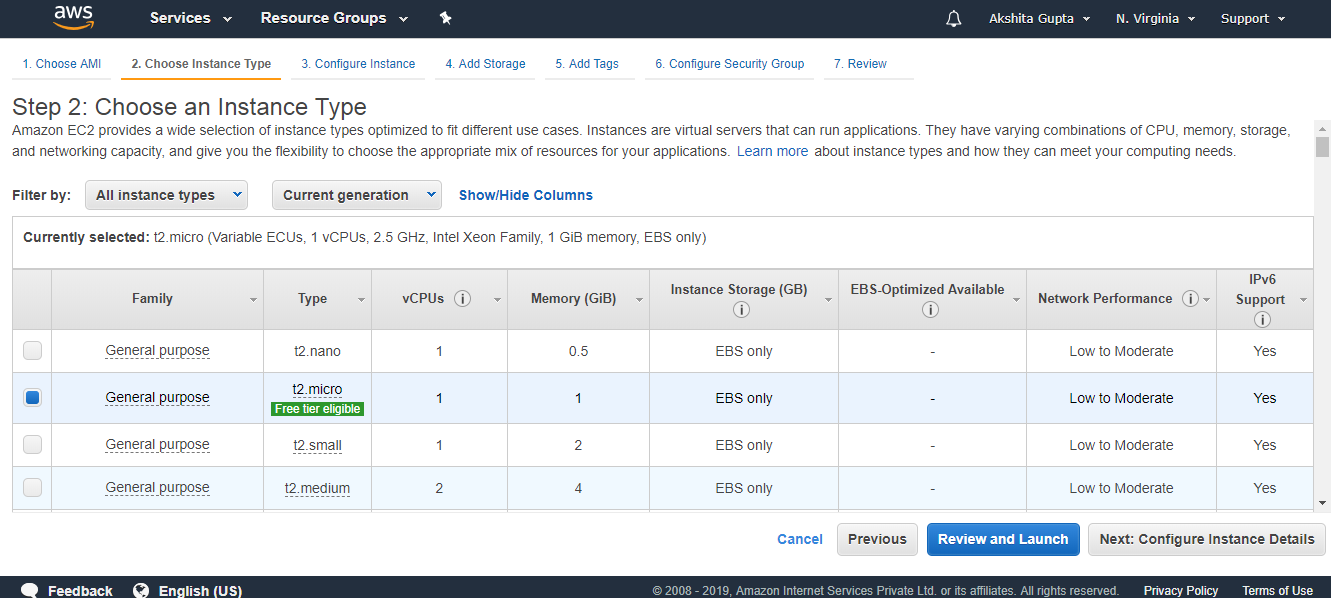
  • Choose an Instance type and then click on the Next.
NAT Gateways
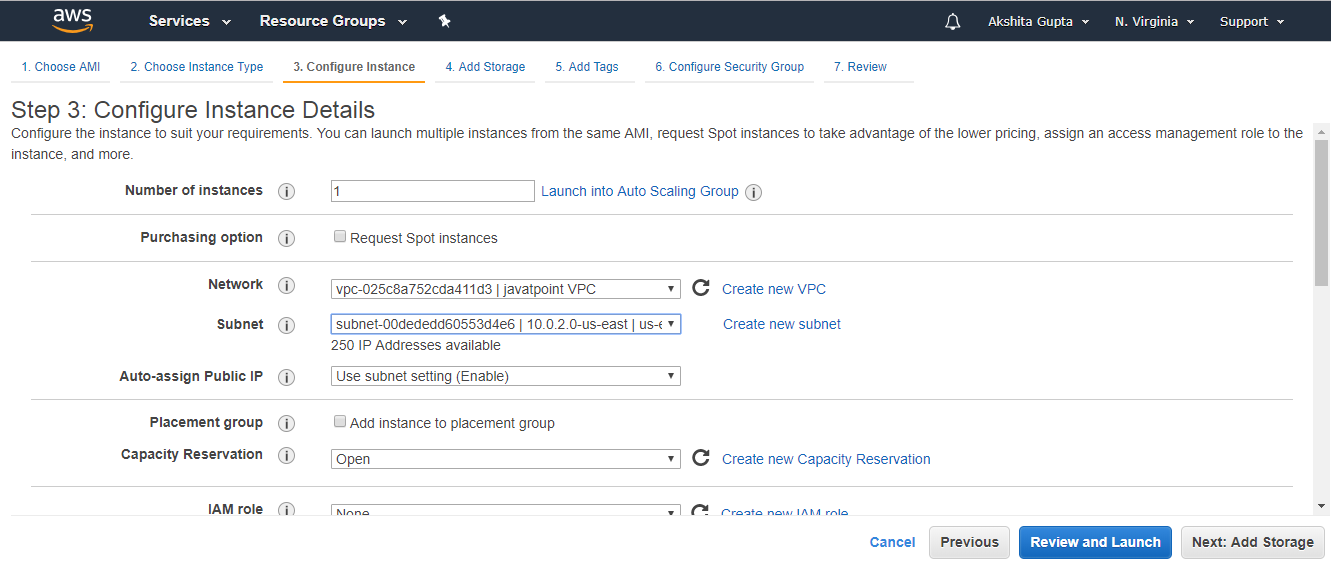
  • Now, configure the instance details. Leave all the details as default except that keep the VPC as custom VPC, i.e., javatpointVPC which we already created in a previous topic and choose the public subnet.
NAT Gateways
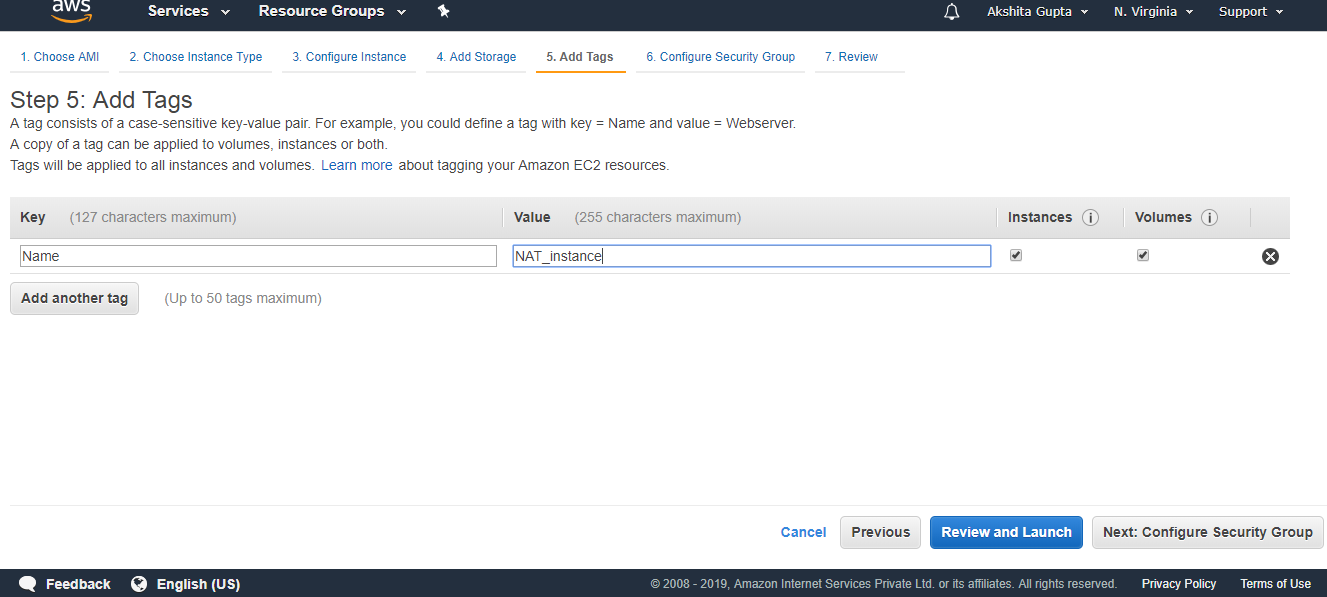
  • Add tags.
NAT Gateways
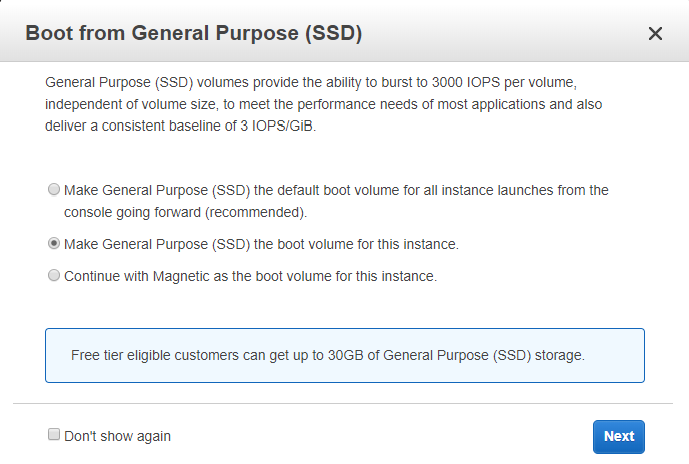
  • Click the Review and Launch button. On clicking on the Review and Launch button, a dialog box appears.
NAT Gateways
  • Click on the Launch button to create an instance.

In this way, a NAT instance is created. NAT Gateway is preferable over NAT instance as NAT Gateway does not require security group and it is highly available across multiple availability zones.

How to create NAT Gateway

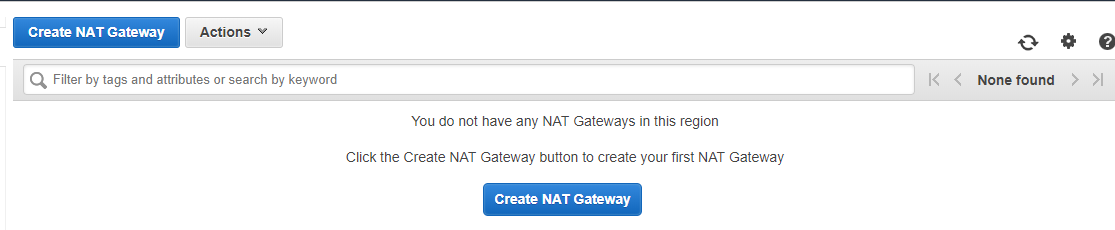
  • Click on the NAT Gateway appearing on the left side of the console.
NAT Gateways
  • Click on the Create NAT Gateway button
NAT Gateways
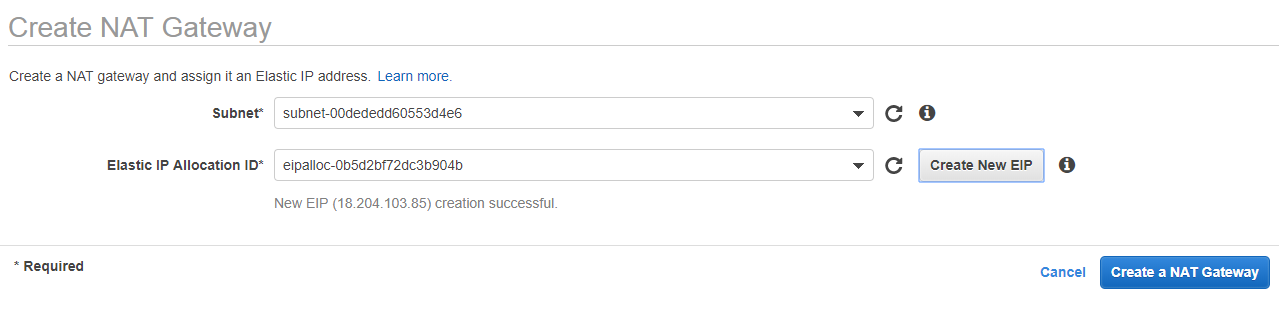
  • Fill the details to create a NAT Gateway.
NAT Gateways

Important points related to NAT instance:

  • When creating a NAT instance, you need to disable source/destination check on the instance.
  • NAT instances must be available in a public subnet.
  • There must be some route from private subnet to NAT instance, in order to work for this.
  • The amount of traffic that NAT instances can support depends upon the instance size.
  • You can create high availability using Autoscaling groups, multiple subnets in different AZ’s.
  • NAT instance is configured with the security group.

Important points related to NAT Gateways:

  • It is redundant inside the availability zone.
  • It is preferred by an enterprise.
  • It starts at 5Gbps and scales up to 45 Gbps.
  • It is not configured with the security groups.
  • In NAT Gateways, there is no need to disable the source/destination checks.

How to Direct Connect

Direct Connect

  • AWS Direct Connect is a cloud service solution that makes it easy to establish a dedicated network solution from your premises to AWS.
  • Using AWS Direct Connect, you can establish private connectivity between AWS and your datacenter, office, or colocation environment, which can reduce your network costs, increase bandwidth throughput, and provide a more consistent network experience than Internet-based connections.
  • Direct Connect is a direct connection which is available on a dedicated line.

Why Direct Connect is used?

Direct Connect is used because of the following reasons:

  • It directly connects your data center to AWS.
  • It is useful for high throughput workloads, i.e., when the network traffic is very high.
  • It provides you a stable and reliable secure connection.

Architecture of Direct Connect

Direct Connect
  • AWS Region

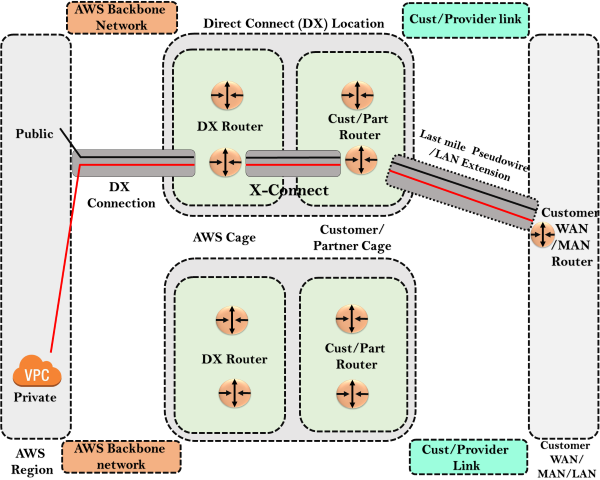
In Direct Connect Architecture, we have AWS region, and inside the AWS Region, we have AWS Public services such as S3 and also we have VPC which could be a private VPC.

  • Direct Connect (DX) Location

It consists of Direct Connect Location which is spread across the world. Inside Direct Connect Location, we have two cages, i.e., AWS cage and customer/partner cage. AWS cage consists of Direct Connect routers, and Customer/Partner cage consists of Cust/Part Routers.

You have a dedicated link from your data center which is labeled as Last Mile Pseudowire/ LAN Extension. AWS have their own backbone network as well. Through AWS Backbone Network, they are connecting to DX Router over DX connection. X-Connect is connecting DX Routers and Cust/Part Routers. It also consists of a dedicated line connecting the Cust/Part Router to the Customer WAN/MAN Router. What happens is when we run a connection, Cust/Part Router connects to the DX Router through X-Connect. DX-Router connects to the AWS public services through DX Connection. Similarly, a customer data center can connect to the VPC services.

Features of Direct Connect

Direct Connect
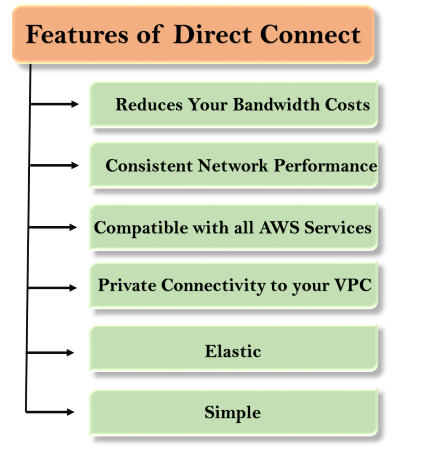
  • Reduces Your Bandwidth Costs
    If you have heavy workloads that you want to run in AWS, then AWS reduces the network costs in two ways:
    • Direct Connect can transfer the data into and out of AWS directly.
    • Direct Connect uses a dedicated link which has a lower data transfer rate than internet data transfer rate.
  • Consistent Network Performance
    Network latency can vary over the internet as the internet is constantly changing how data is routed from point A to point B. Direct Connect allows you to use the choose the data that uses the dedicated connection which provides consistent network performance.
  • Compatible with all AWS services
    Direct Connect is a network service that works with all AWS services which are accessible over the internet such as Amazon Storage Service, Elastic Compute Cloud, and Amazon Virtual Private Cloud.
  • Private connectivity to your Amazon VPC
    Direct Connect can be used to establish a private virtual interface from your on-premises directly to AWS VPC. It can provide you private, high bandwidth network connection between your network and VPC. With the help of multiple virtual interfaces, you can establish private connectivity to multiple VPCs.
  • Elastic
    Amazon Direct Connect can easily scale the connections to meet your needs. Direct Connect can provide up to 10 Gbps connections. DIRECT Connect can provide multiple connections to meet your needs. Direct Connect can be used instead of establishing VPN Connections as Direct Connect avoids the need for VPN hardware.
  • Simple
    You can easily sign up to the Amazon Direct Connect by using the AWS Management Console. AWS Management Console provides a simple view to manage all the connections and virtual interfaces efficiently. You can even download the router template after configuring one or more virtual interfaces.

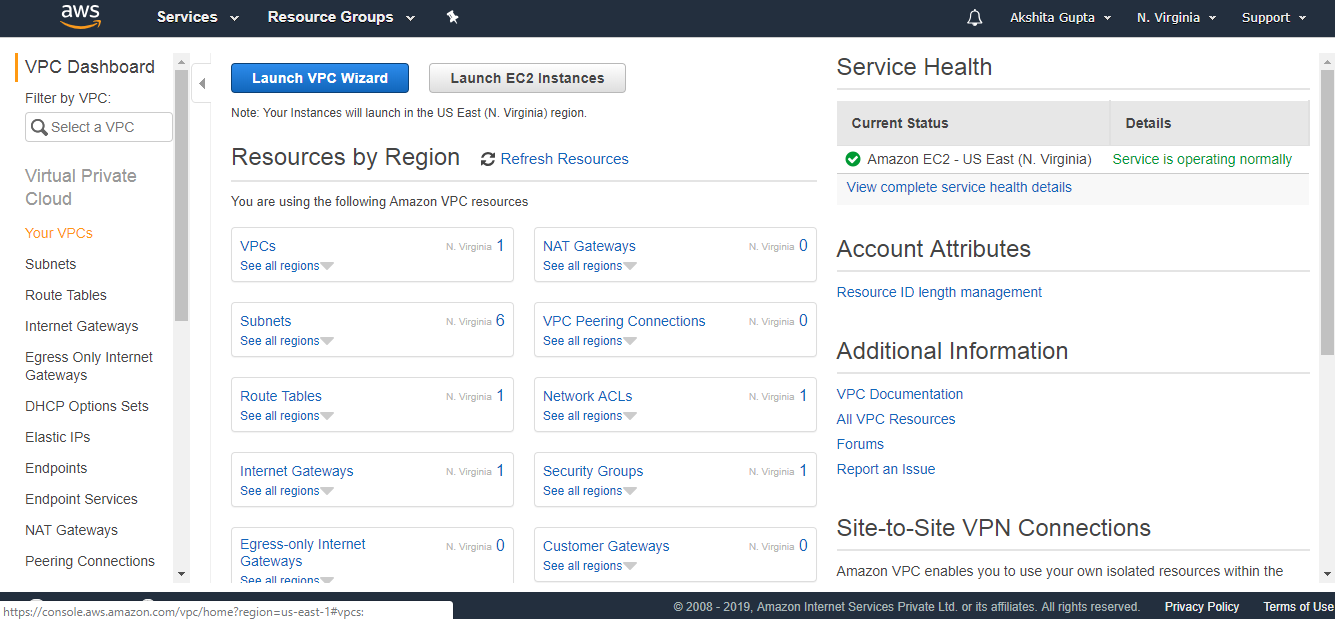
Creating your own custom VPC

Creating your own custom VPC

  • Sign in to the AWS Management Console.
  • Click on the VPC service under Networking and Content Delivery.
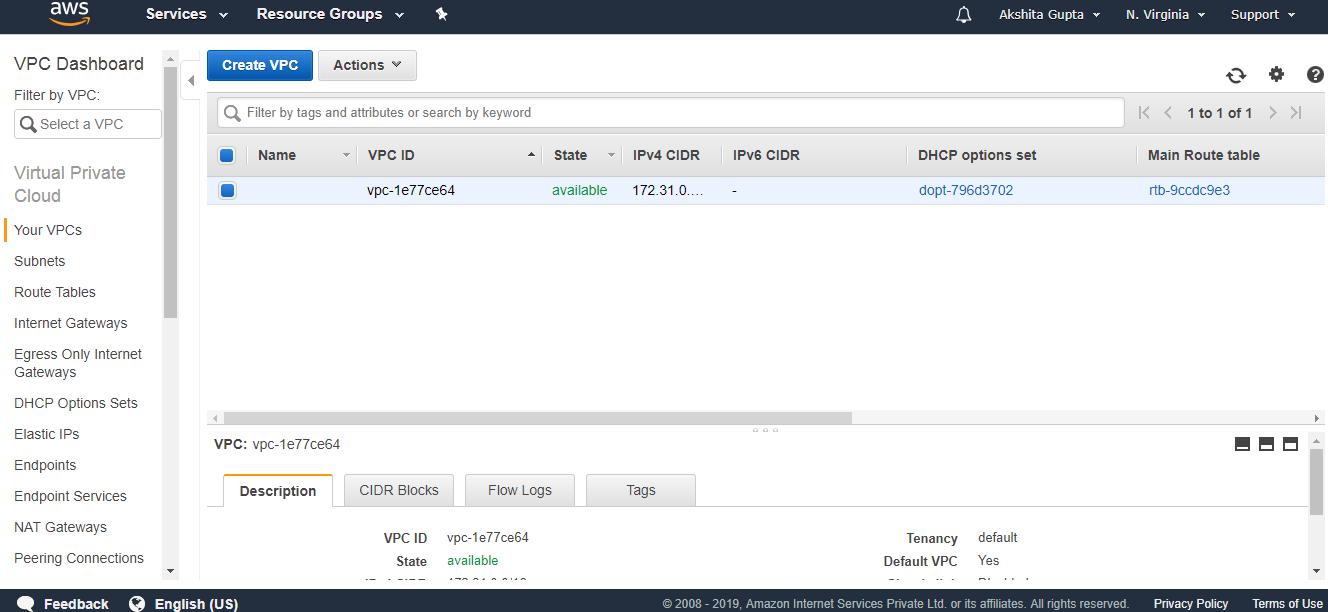
  • Click on the “Your VPCs” appearing on the left side of the console.
Creating your own custom VPC
  • Click on the Create VPC to create your own custom VPC.
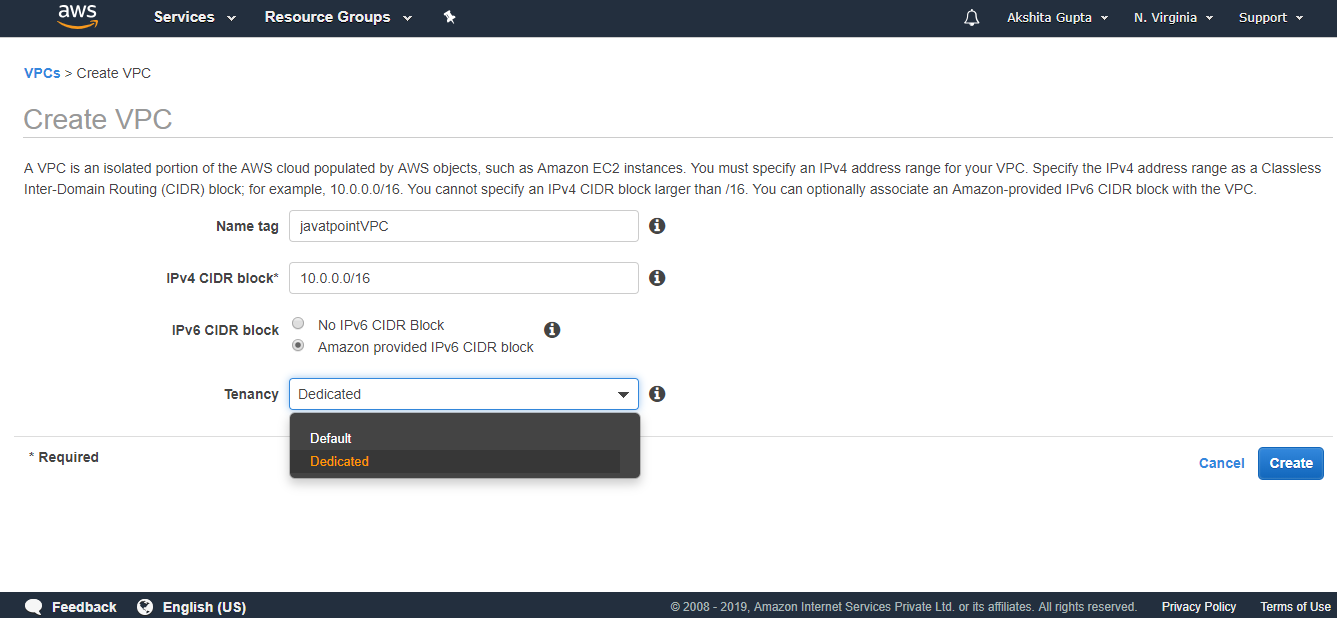
Creating your own custom VPC
  • Fill the details to create a custom VPC.
Creating your own custom VPC

Where,

Name tag: It is the name of the VPC that you give to your VPC. Suppose I have given the name “javatpointVPC“.

IPv4 CIDR block: I make this address block as big as possible. I provide the address block as 10.0.0.0/16.

IPv6 CIDR block: You can also provide IPv6 CIDR block. So, I provide Amazon provided IPv6 CIDR block.

Tenancy: We make it as Default.

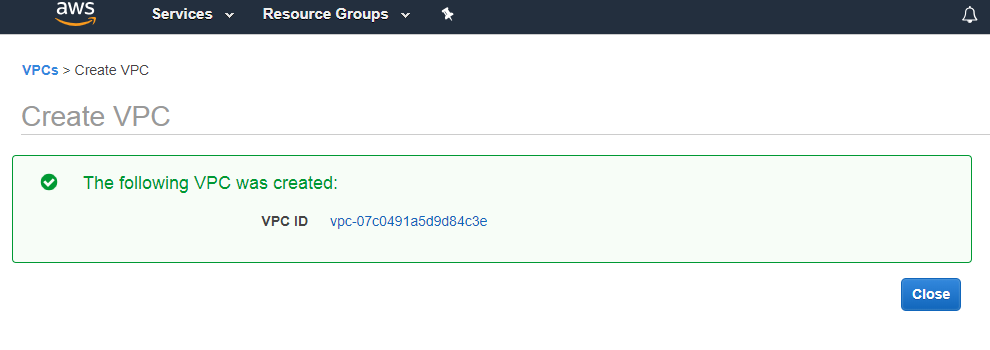
  • The below figure shows that VPC has been created.
Creating your own custom VPC

Now we will see what has been created after creating the VPC.

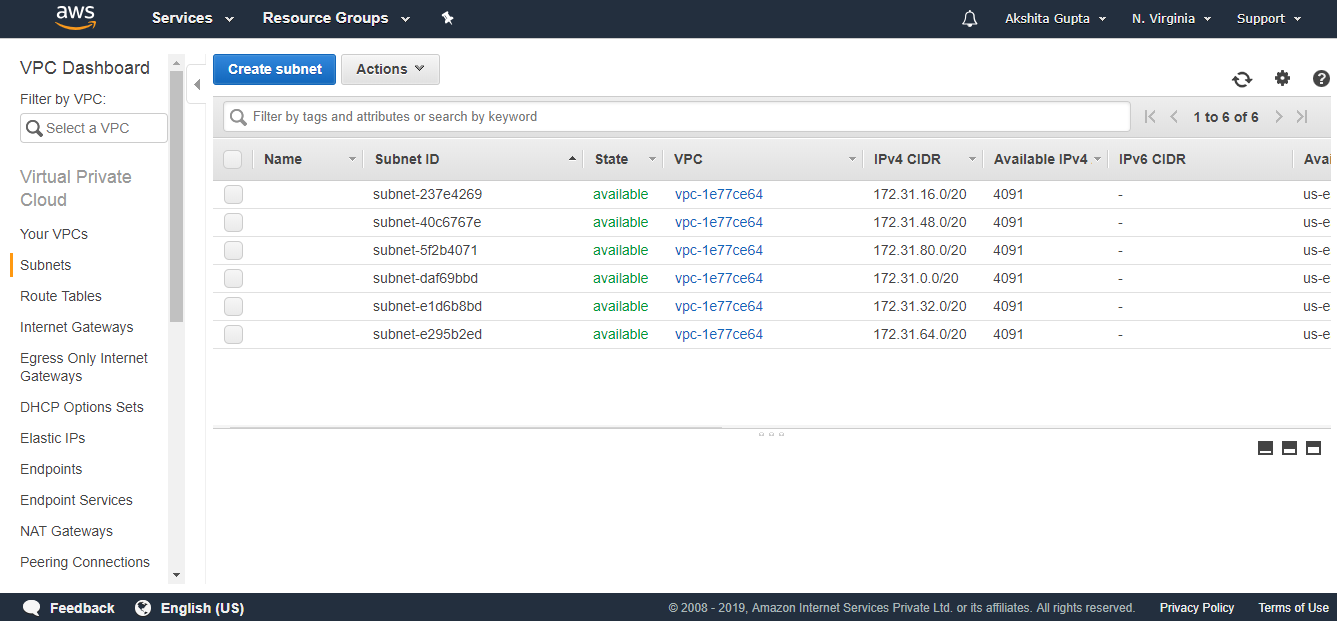
  • First, we will look at the subnet.
Creating your own custom VPC

We observe from the figure that all the subnets are of default VPC.

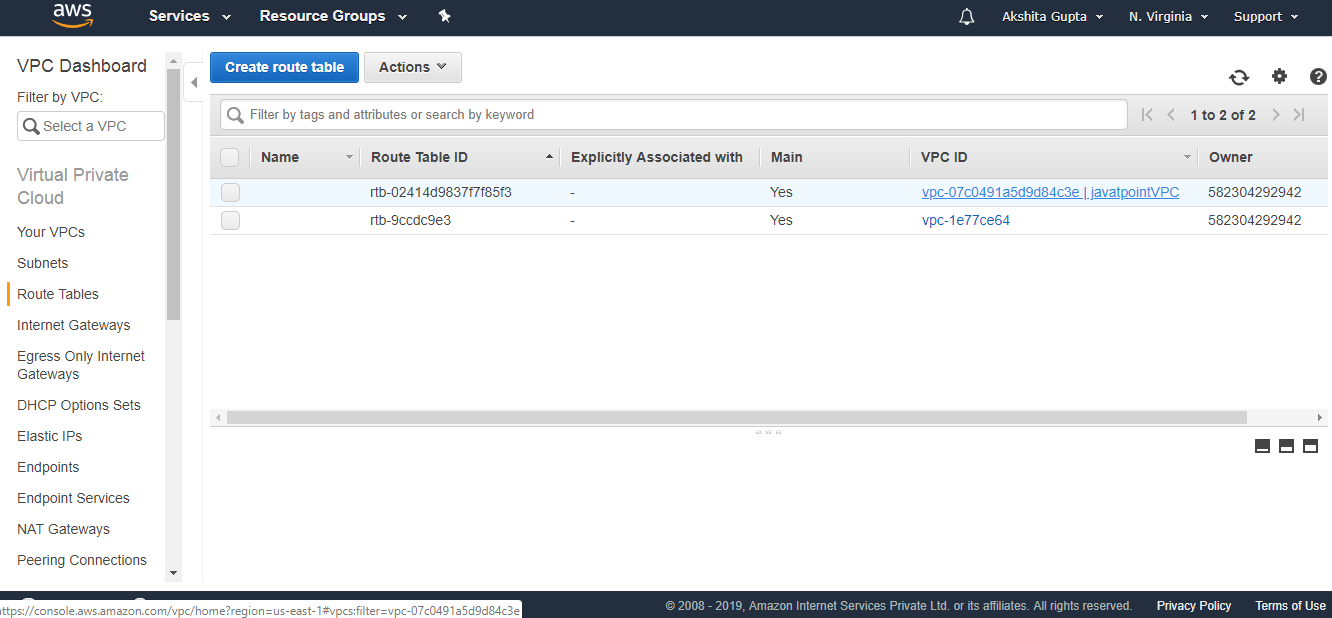
  • Click on the Route tables.
Creating your own custom VPC

We can observe from the above figure that the route table of “javatpointVPC” has been created.

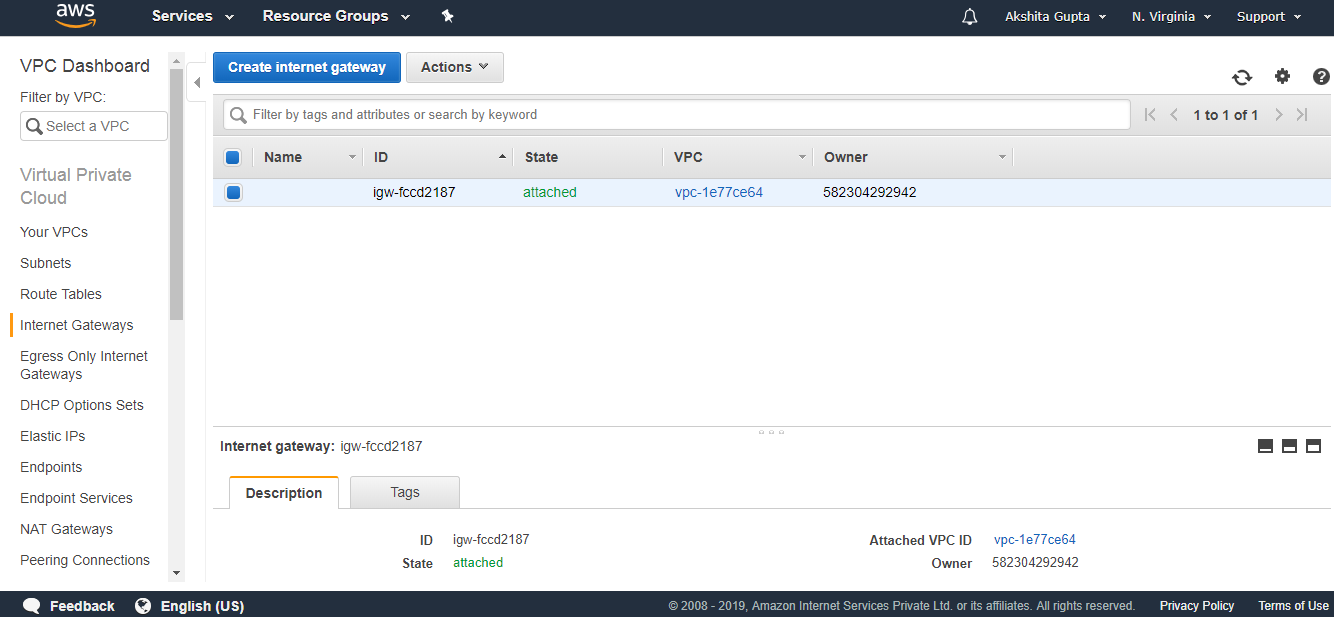
  • Now, click on the internet gateway to check whether it has been created or not.
Creating your own custom VPC

The above figure shows the internet gateway of default VPC. The internet gateway of javatpointVPC has not been created.

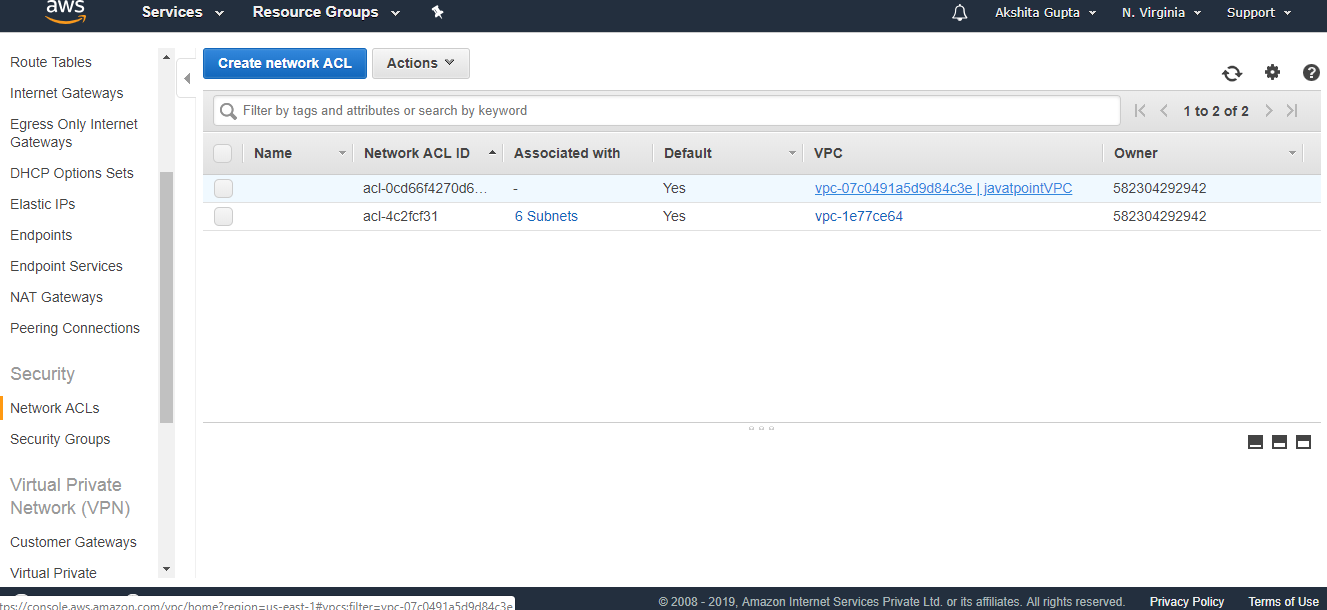
  • Click on the Network ACL.
Creating your own custom VPC

The above figure shows the Network ACL of a VPC that we created, i.e., javatpointVPC.

  • Click on the Security Groups.
Creating your own custom VPC

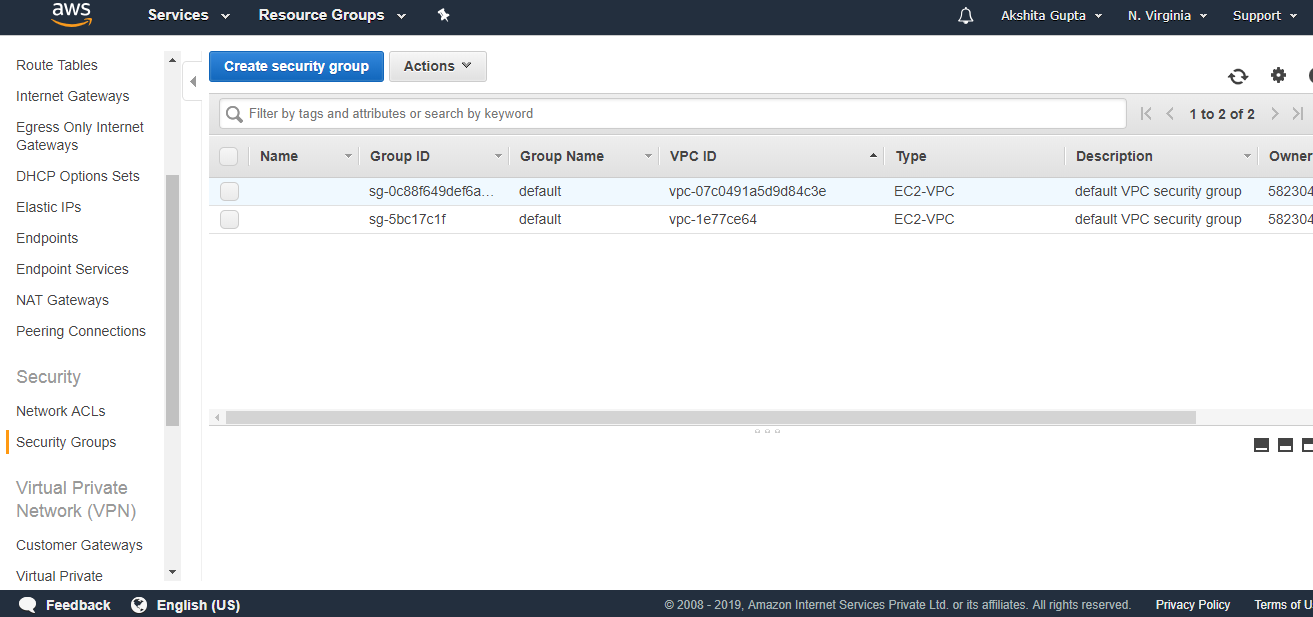
The above figure shows that the security group of VPC, i.e., javatpointVPC has been created.

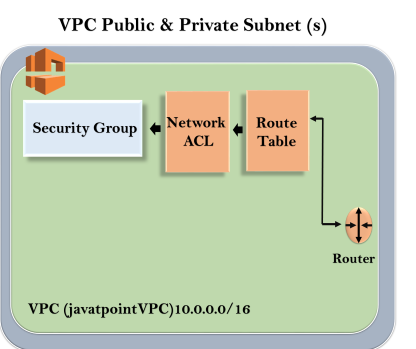
Till now, we observe that VPC creates three services, i.e., Route tables, Network ACL and Security Groups. It is shown in the below figure:

Creating your own custom VPC

In order to use VPC, we need to create some subnets.

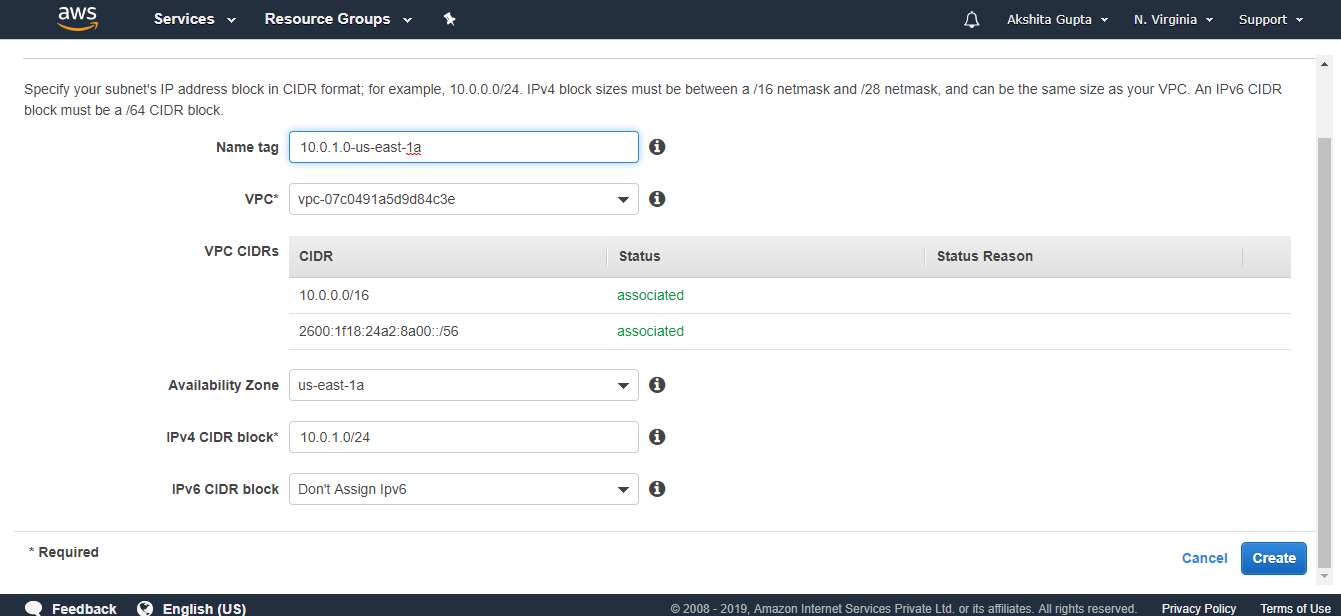
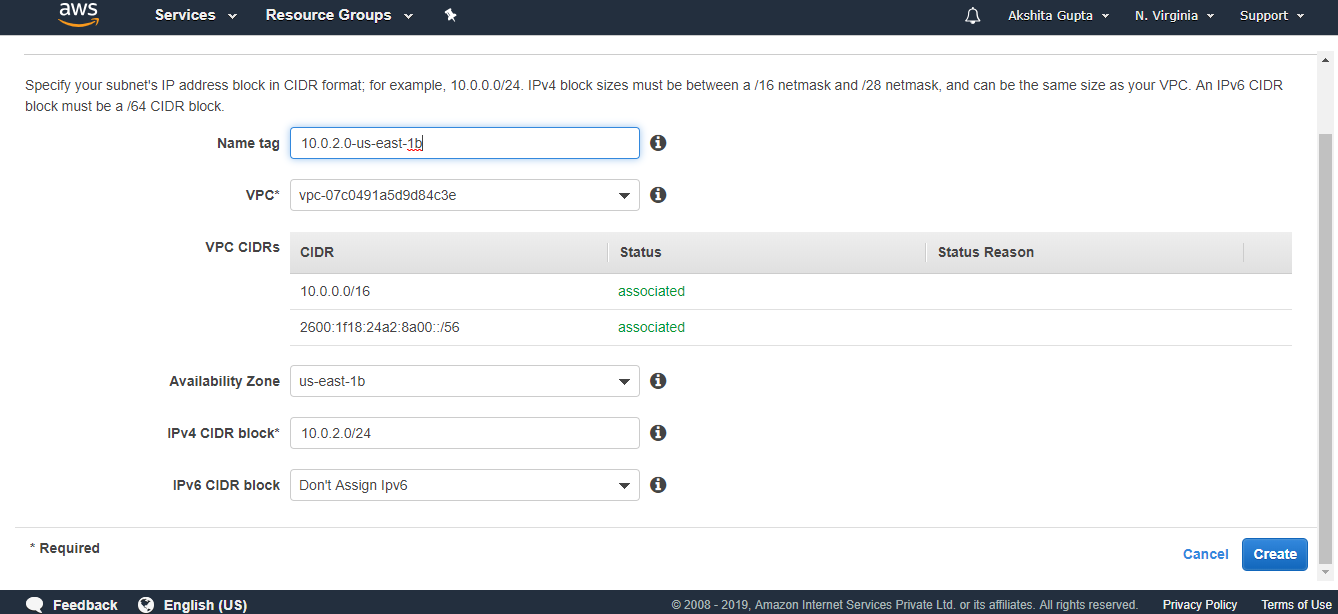
  • Enter the details to create a subnet.
Creating your own custom VPC
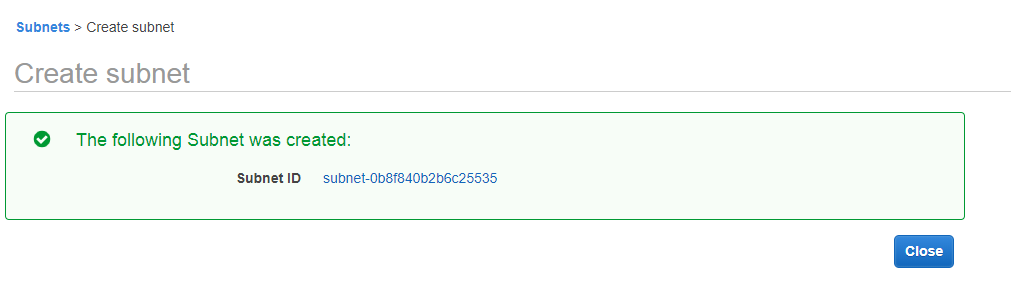
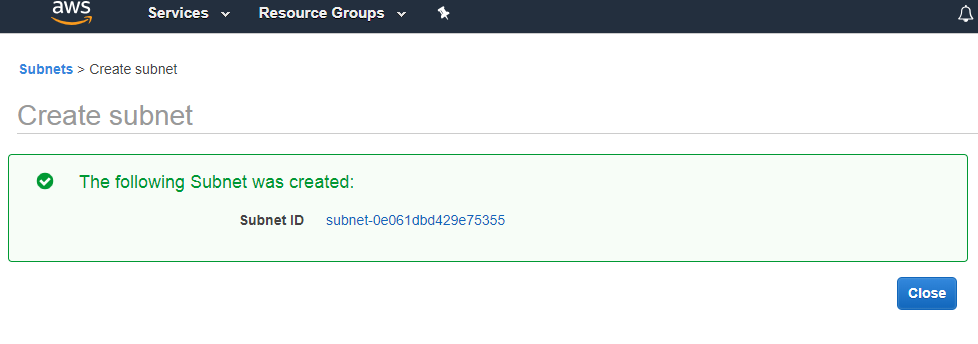
  • The below screen shows that subnet has been created.
Creating your own custom VPC
  • Now we create one more subnet.
Creating your own custom VPC
  • The below screen shows that subnet has been created.
Creating your own custom VPC
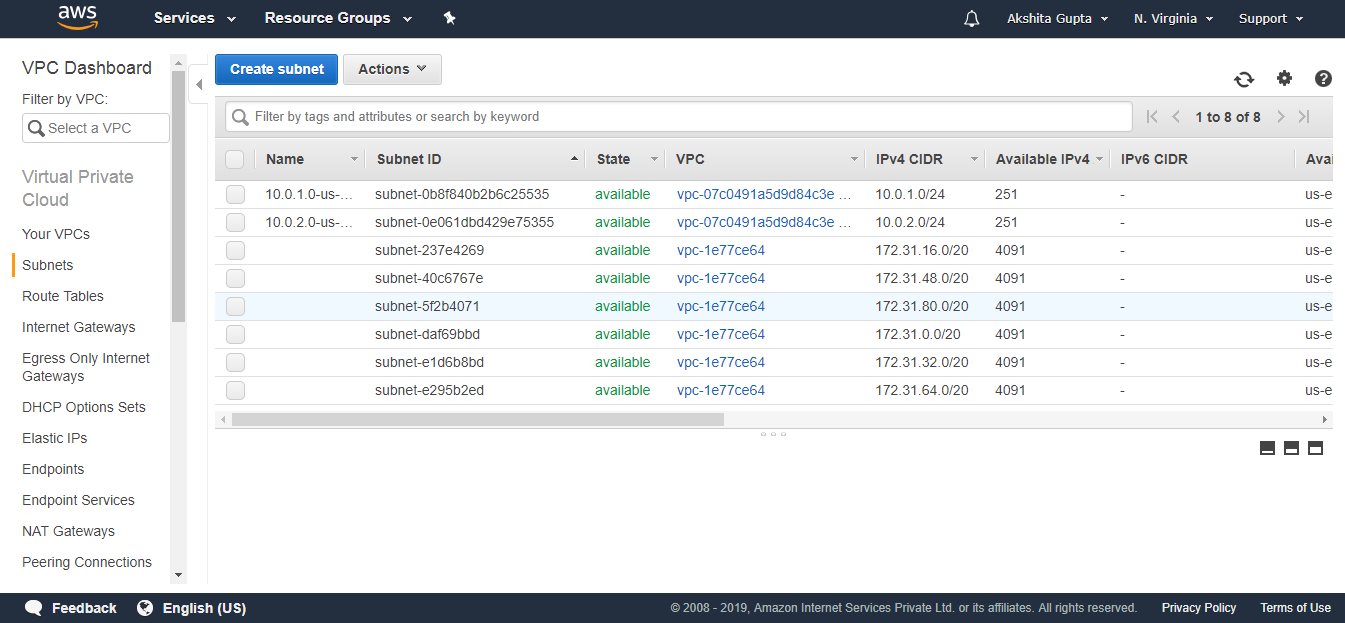
  • The below screen shows the lists of all the subnets. The top two subnets are created by us, and others are default subnets.
Creating your own custom VPC
  • We already know that in VPC, we have one public subnet and one private subnet. Till now, both are private. So, we make the first subnet as public.
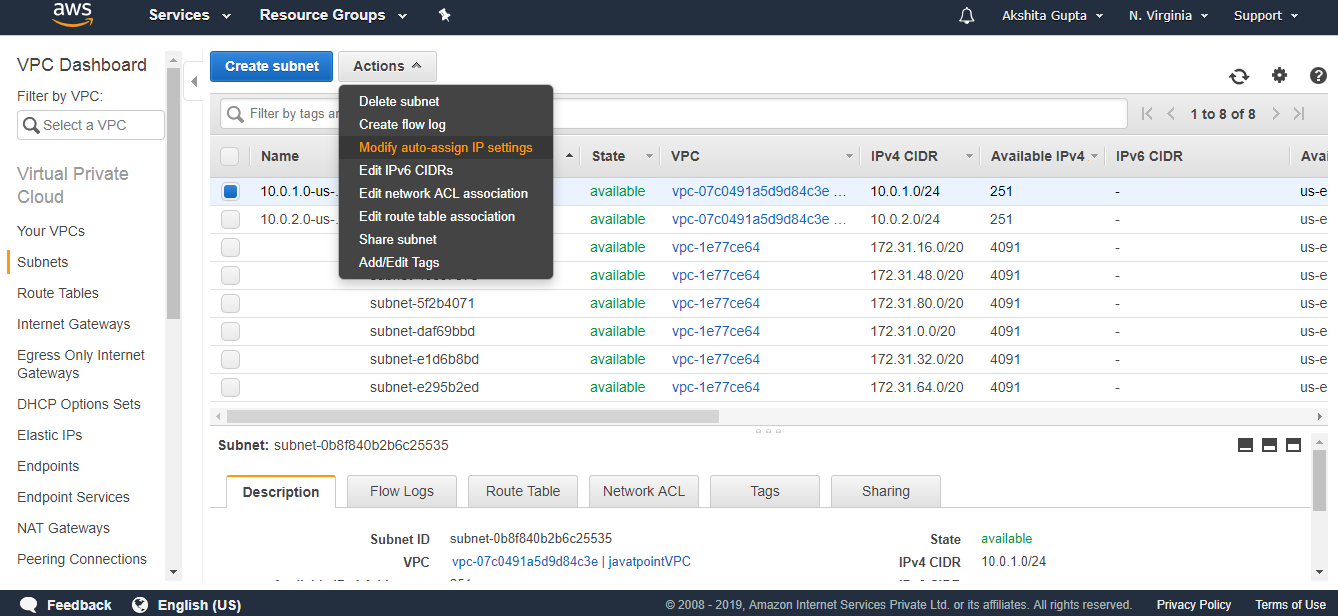
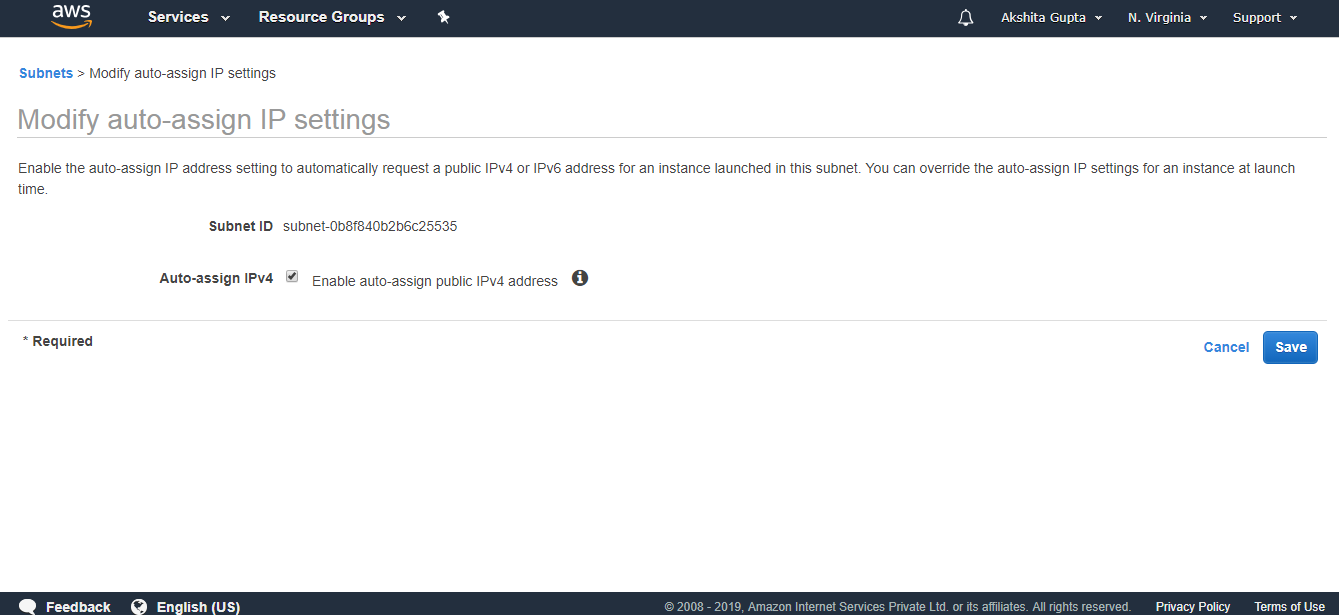
  • Now we make a 10.0.1.0-us-east-1a as a public subnet. To make a subnet public, click on the Actions drop down menu and then click on the Modify auto assign IP settings.
Creating your own custom VPC
  • Check the Auto Assign IPv4 box, and then save the settings.
Creating your own custom VPC

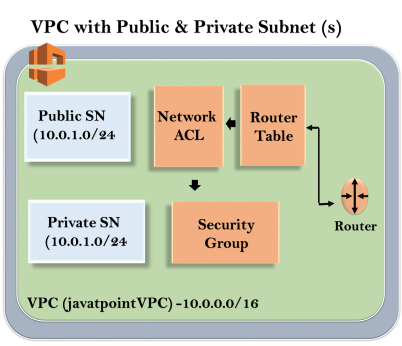
Till now, our VPC looks:

Creating your own custom VPC
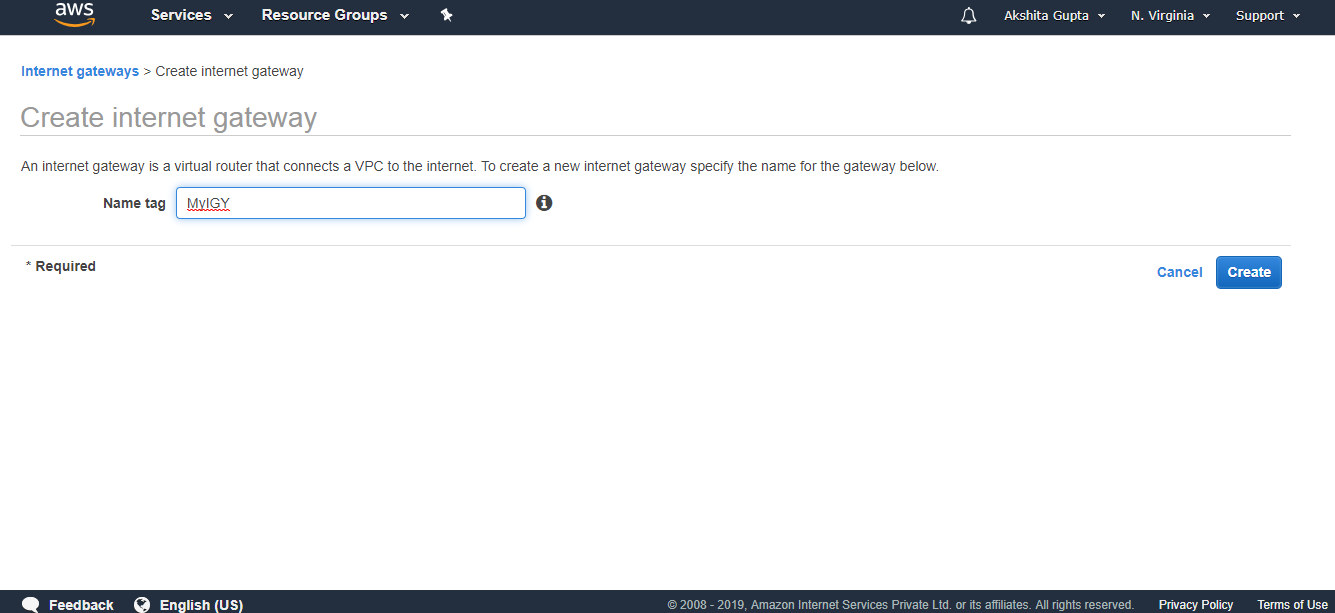
  • Now we need a way to get into the VPC, so we need to create an Internet gateway. Click on the Internet Gateway and then click on the Create Internet Gateway.
Creating your own custom VPC
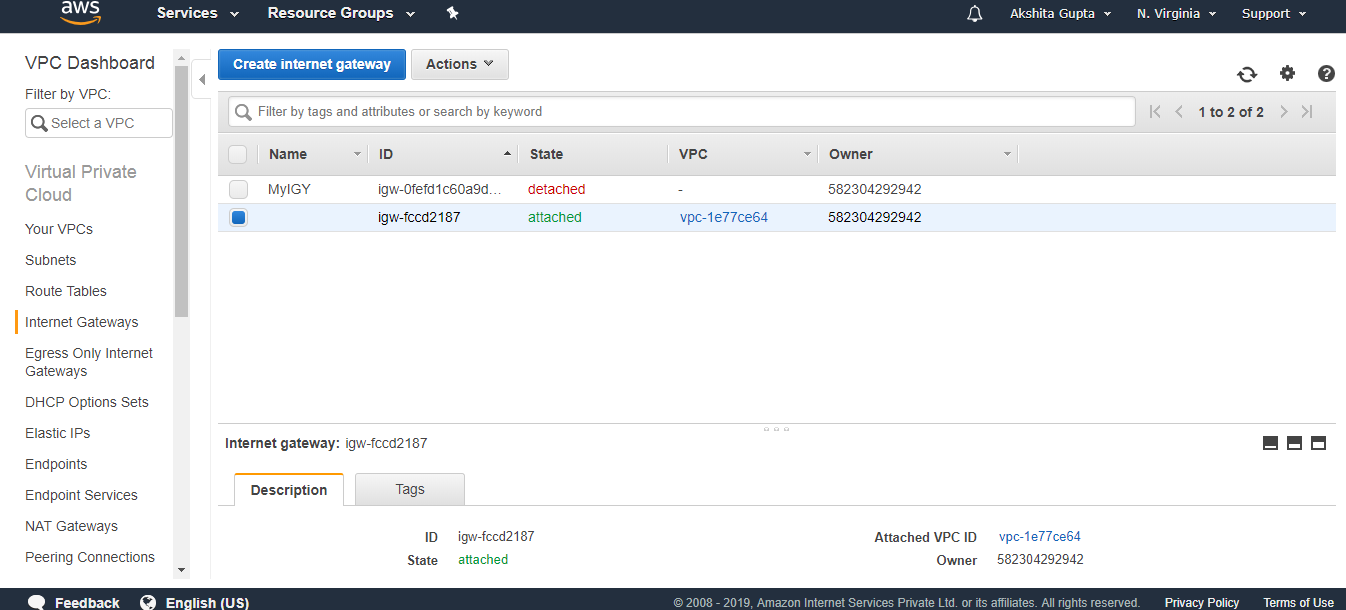
  • The below screen shows that internet gateway has been detached from the VPC.
Creating your own custom VPC
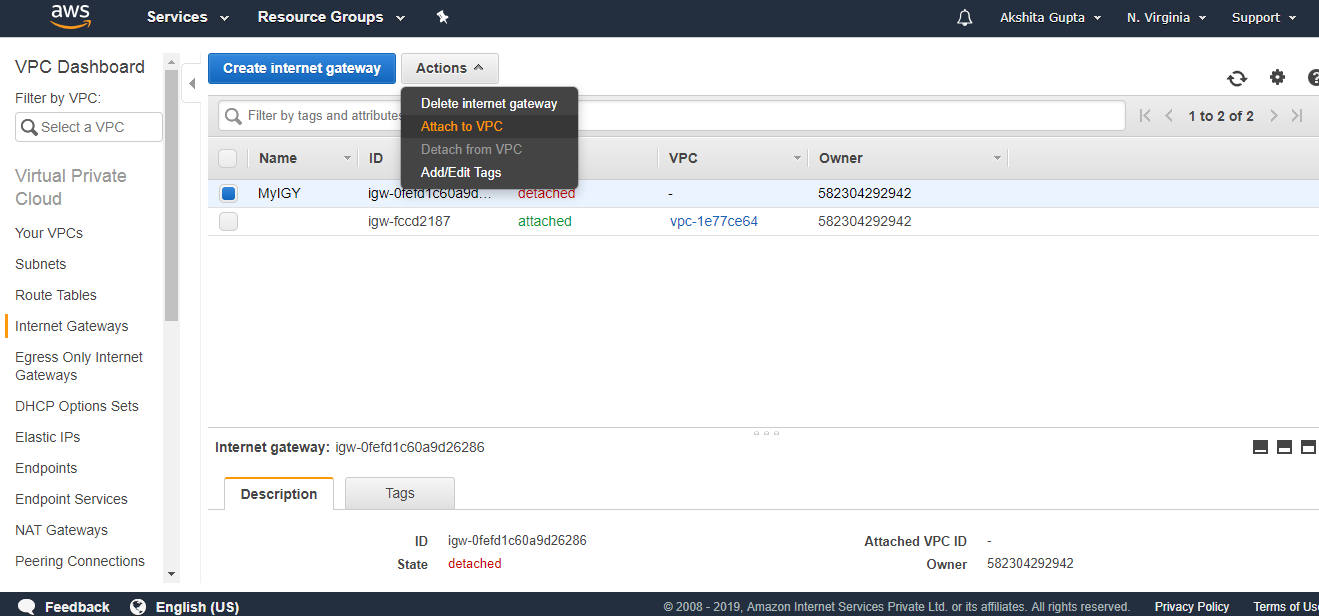
  • To attach the internet gateway to VPC, Click on the Actions drop-down menu and then click on the Attach to VPC.
Creating your own custom VPC
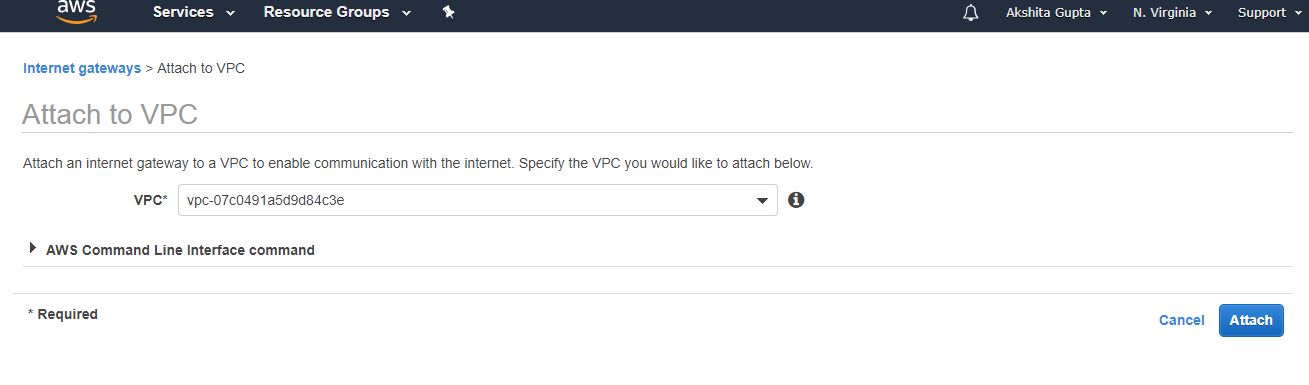
  • Select the VPC to which you want to attach your internet gateway.
Creating your own custom VPC
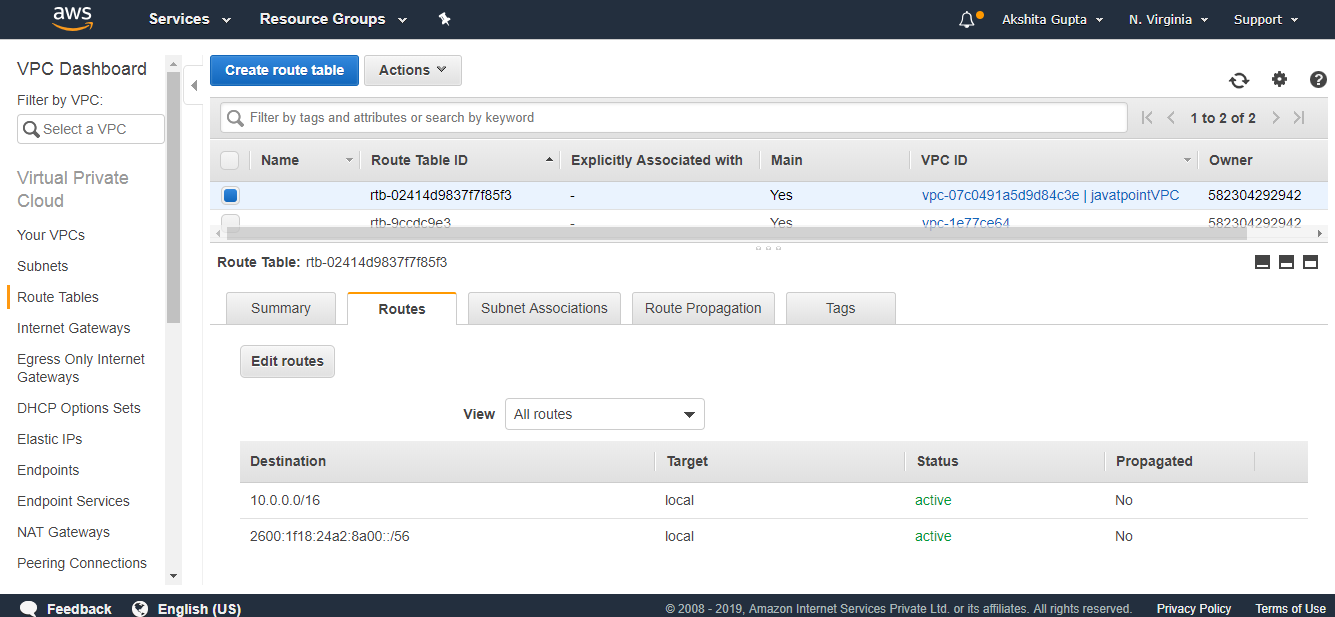
  • Click on the Route Table.
Creating your own custom VPC

Under Routes, we can observe that the subnets can communicate with each other under these specified routes.

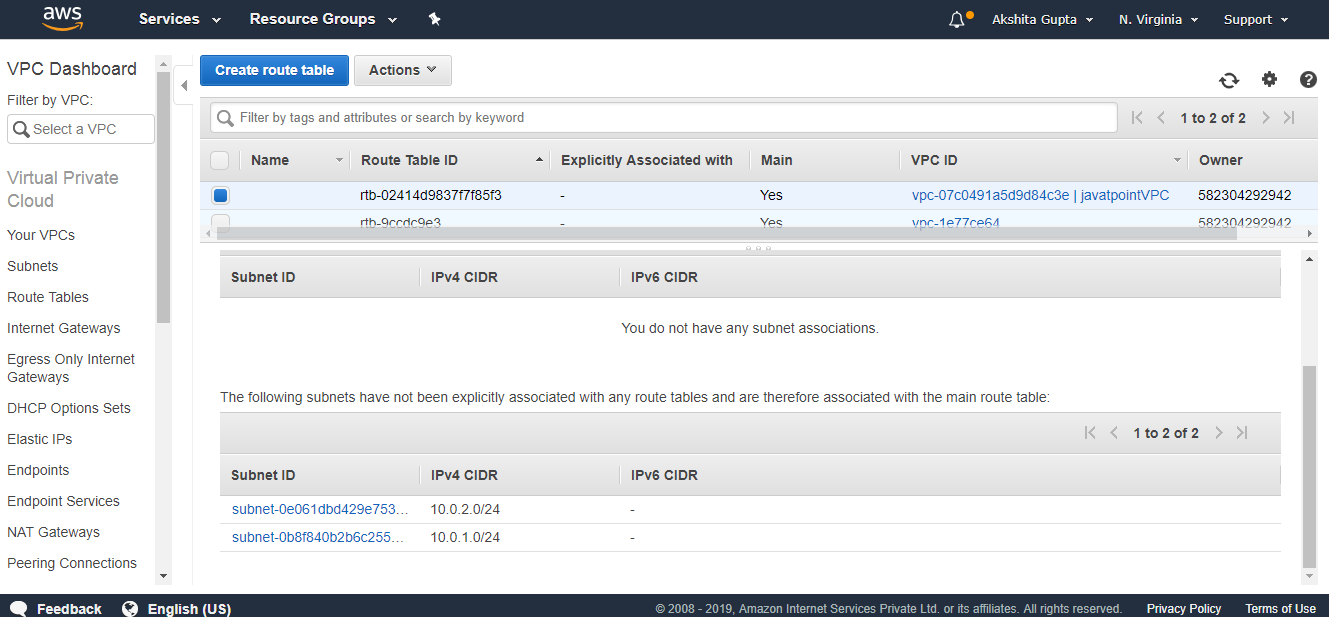
  • Click on the subnet associations.
Creating your own custom VPC

From the above screen, we observe that the subnets we create are automatically associated with the main route table which would be a security concern. To overcome this problem, we create another route table which would be public, and the main table would be private.

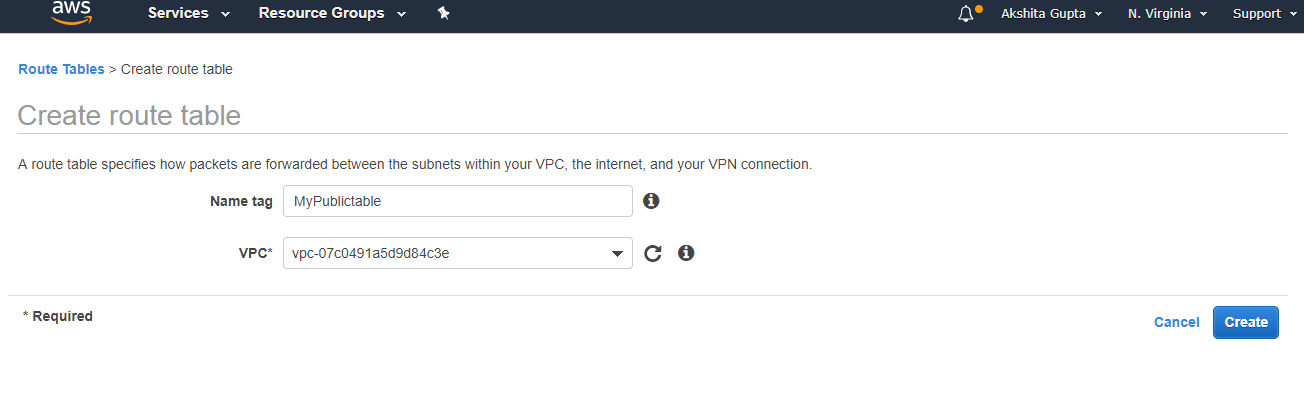
  • Click on the route table and then fill the following details.
Creating your own custom VPC
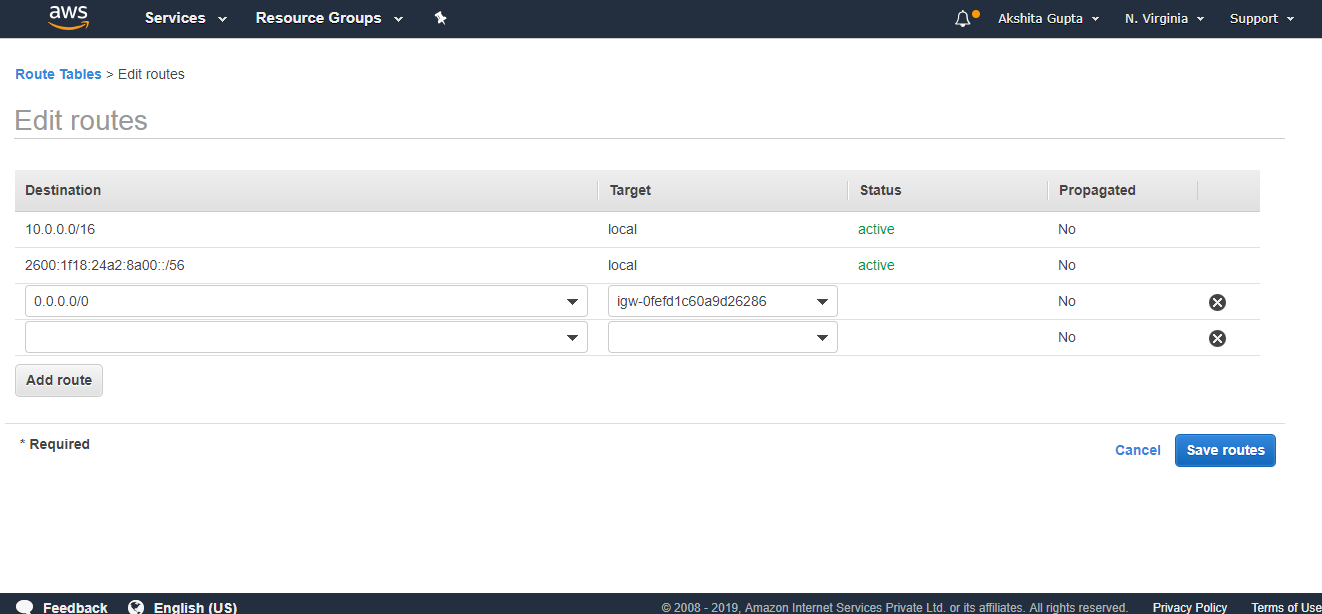
  • Edit the routes in public route table.
Creating your own custom VPC
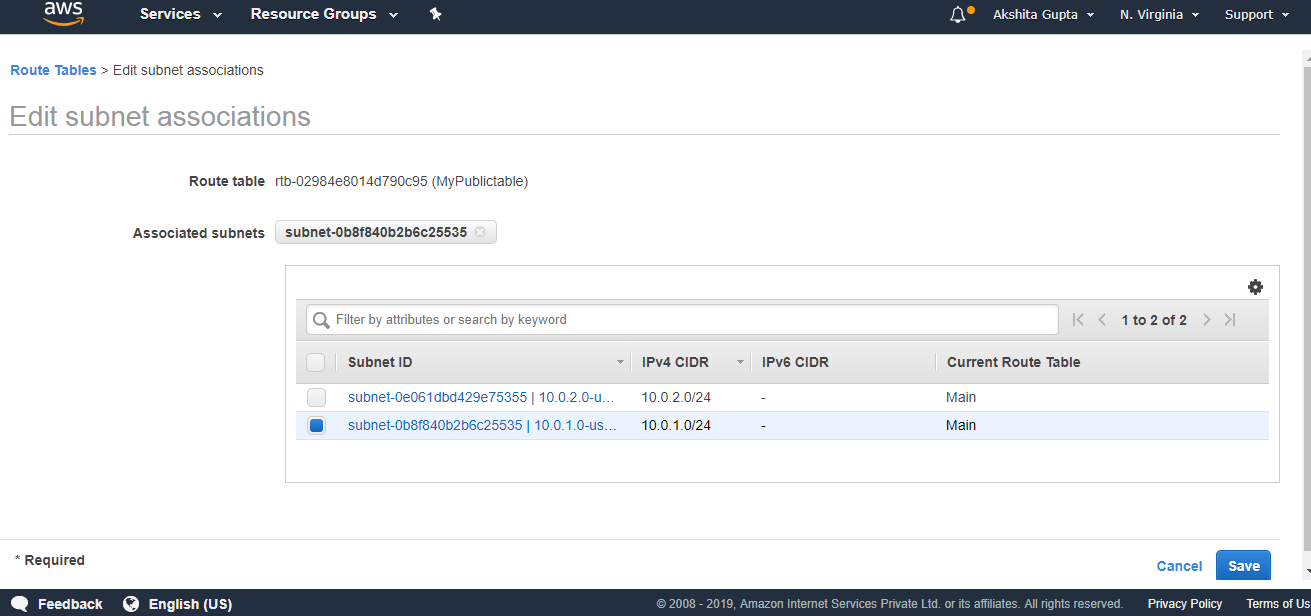
  • Click on the subnet associations of a public route table and then click on the Edit subnet associations. In Edit subnet associations, check 10.0.1.0-us-east-1a subnet box and this includes the subnet in a public route table. An Unchecked subnet is associated with the main route table.
Creating your own custom VPC
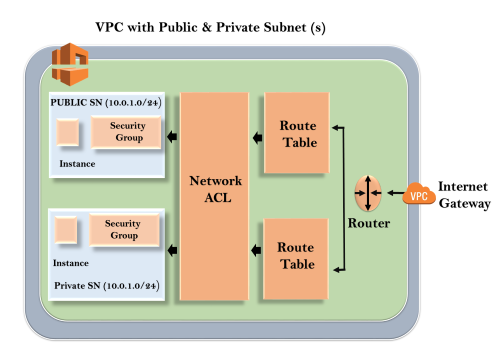
  • Now we have the last step left, and the last step is to create two EC2 instances. One EC2 instance is created in private subnet and another EC2 instance is created in public subnet.

Finally, our VPC looks, as shown below:

Creating your own custom VPC

Important points to remember:

  • When you create a VPC, a default route table, Network Access Control List and default security group are automatically created.
  • It won’t create any subnets, nor it will create a default internet gateway.
  • Us-east-1a in your AWS account can be completely different availability zone to us-east-1a in different AWS account. AZ’s are randomized.
  • Amazon always reserves 5 IP addresses within your subnet.
  • You can keep only one internet gateway per VPC.
  • Security Groups cannot span VPCs.